What every SQL Server DBA needs to know about Windows Server 10 #sqlpass

The guys over at the High Availability & Disaster Recovery Virtual Chapter of @SQLPASS invited me to present on Windows Server 10. I discussed Cloud Witness, Storage Replica and Rolling Cluster OS Upgrades. In case you missed it you can view the recording here.

https://attendee.gotowebinar.com/recording/8228215421492642561

What every SQL Server DBA needs to know about Windows Server 10 #sqlpass

#Azure Storage Service Interruption…Time for “Plan B”

Yesterday evening Pacific Standard Time, Azure storage services experienced a service interruption across the United States, Europe and parts of Asia, which impacted multiple cloud services in these regions.

As part of a performance update to Azure Storage, an issue was discovered that resulted in reduced capacity across services utilizing Azure Storage, including Virtual Machines, Visual Studio Online, Websites, Search and other Microsoft services.

Read the whole report on the Azure blog. http://azure.microsoft.com/blog/2014/11/19/update-on-azure-storage-service-interruption/

So what does this outage mean to those thinking about a cloud deployment? Global “interruptions” of this magnitude certainly cannot occur on any regular basis for any cloud provider that intends to remain in the cloud business, whether they are Microsoft, Amazon, Google or other. However, as a cloud architect or person responsible for a cloud deployment, you have a responsibility to your customer to have a “Plan B” in your back pocket in case the worst case scenario actually happens.

What exactly is a “Plan B”? Plan B involves having a documented procedure for recovering data and services in an alternate location in the event of a wide spread outage that impacts a cloud provider’s ability to deliver their service, despite deploying what you thought was a highly resilient cloud deployment designed to keep running even in the event of localized outages within a region, availability zone or fault domain.

At a high level you should be concerned about three things: Data Recovery, Application Recovery, and Client Access. There are many ways to address these concerns, some more automated than others and some with a better Recovery Time Objective (RTO) and Recovery Point Objective (RPO) than others.

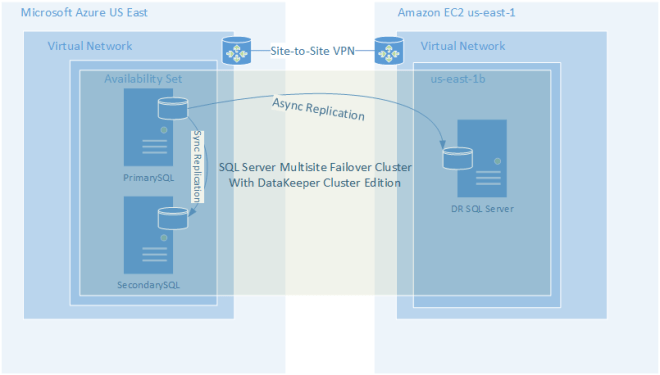
It was just last week that I blogged about how to create a multisite cluster that stretched between the AWS cloud and the Azure cloud. This type of configuration is just what is needed in the event of an outage of the magnitude that we just experienced yesterday in the Azure cloud. https://clusteringformeremortals.com/2014/11/18/cloud-resiliency-for-sqlserver-failover-clusters-aws-to-azure-multisite-cluster/

Figure 1 – Example of a Cloud-to-Cloud Multisite Cluster Configuration

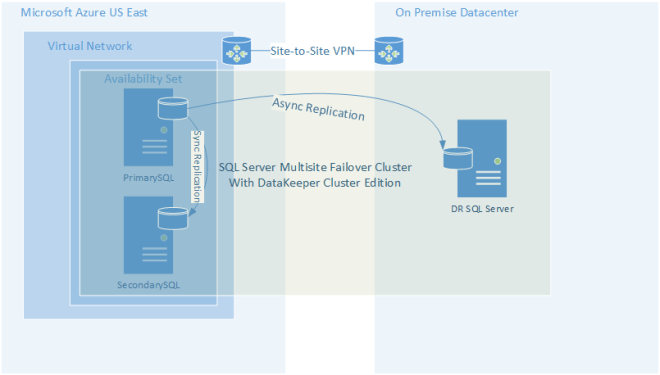
Another alternative to the “cloud-to-cloud” replication model is of course utilizing your own datacenter as a disaster recovery site for your cloud deployment. The advantages of this is that you have physical ownership of your data, but of course now you are back in the business of managing a datacenter, which can negate some of the benefit of a pure cloud deployment.

Figure 2 – Hybrid Cloud Deployment Model

If you are not ready to go full on cloud, you can still make use of the cloud as a disaster recovery site. This is probably the easiest and most cost effective way to implement an offsite datacenter for disaster recovery and to start taking advantage of what the cloud has to offer without fully committing to moving all your workloads into the cloud.

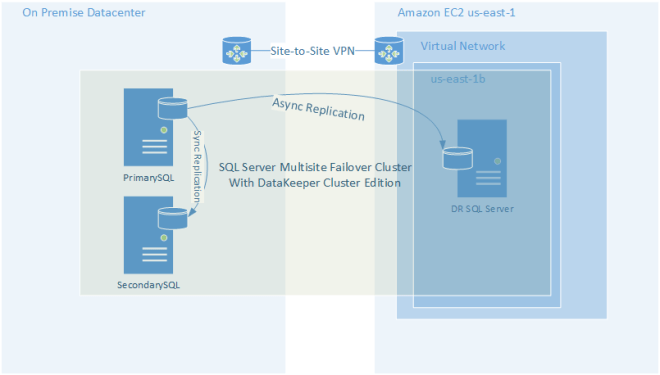
Figure 3 – Using the Cloud as a Disaster Recovery Site

The illustrations shown above make use of the host based replication solution called DataKeeper Cluster Edition to build multisite SQL Server clusters. However, DataKeeper can be used to keep any data in sync, either between different cloud providers or in the hybrid cloud model.

Microsoft is not alone in dealing with cloud outages as outages have impacted Google, Microsoft, Amazon, DropBox and many others just this year alone. Having a “Plan B” in place is a must have anytime you are relying on any cloud service.

#Azure Storage Service Interruption…Time for “Plan B”

New IP Address Options for Azure IaaS VMs #Azure

The Windows Azure team has been very busy recently adding a bunch of new features to Azure IaaS. Here are just some of the features you should check out.

Static IP for Azure instances
Until recently Azure VMs got their IP addresses from DHCP exclusively. There were some tricks to make your VMs get the same IP address most of the time, but in reality you really couldn’t guarantee the VMs would always get the same IP address as DHCP reservations are not supported. With this new feature you can not only assign a static private IP address to each VM, you can also assign a static public IP address to each VM. Previously public IP addresses were only used to address Cloud Services.

Multiple NIC Cards – Multiple NIC support is currently only available in the Northern Europe region, but will be rolled out worldwide soon according to Microsoft. Multiple NIC support will allow you to manage network traffic better. Personally I will be using multiple NICs in my failover cluster configuration for network redundancy and to keep my DataKeeper replication traffic separate from my client access traffic.

Internal Load Balancer – As of Oct 8th you can now provision a single Internal Load Balancer (ILB) per Cloud Service. This is a HUGE improvement as you are now able to configure multi-tier applications that reside within the same Cloud Service and you no longer have to rely on External Load Balancers which send your traffic across the public network. The best new use case for this though is that this is now the recommend best practice for client access points when building failover clusters in Windows Azure. Check out this great new blog on the Azure Blog that talks about building failover cluster instances on Azure with SIOS DataKeeper Cluster Edition.

Check back soon for a Step-by-Step article on configuring a SQL Server 2014 Failover Cluster instance in Azure IaaS using DataKeeper Cluster Edition and all of these great new features.

New IP Address Options for Azure IaaS VMs #Azure

Windows Server 10 New Cloud Witness

My favorite new cluster feature in Windows Server 10 is the Cloud Witness. The Cloud Witness is another option in addition to the traditional disk witness and file share witness which are used when configuring the quorum in a Windows Server Failover Cluster. For a complete history of cluster quorums and their options please read my article on the Microsoft Press blog…….

So what exactly is a Cloud Witness? A Cloud Witness utilizes a Windows Azure IaaS Storage Account to act as a vote in your cluster quorum. It can be used instead of a disk witness or a fail share witness. The cluster nodes simply need public internet access to reach an Azure storage account that you have provisioned as part of your Azure subscription.

So why would I use a disk witness? In most shared storage clusters you will still use a node and disk witness majority quorum. However, when you are doing #SANLess clusters, or multisite clusters, you now have another option to consider instead of a file share witness. Let’s look at some scenarios where a Cloud Witness would make more sense than a File Share Witness.

Scenario 1 – Multisite Cluster

If you have done your research on multisite clusters, you will have discovered that if you want automatic failover in the event of a complete site loss, the only safe way to do this is to have an even number of cluster votes in each site and to configure a File Share Witness in a 3rd site. In addition, the network connection between your primary site and your DR site must be completely independent of the network connection you have between this 3rd site and your primary and DR sites.

The cost associated with maintaining a completely independent network and having access to a 3rd data center for hosting a file share witness is not always possible. This is where having a Cloud Witness in Windows Azure comes in handy. Assuming you have an equal number of cluster votes in each data center and each data center also has access to the internet, you can define a Windows Azure Storage account as a Cloud Witness instead of a File Share Witness. Using a Cloud Share Witness eliminates the cost associated with maintaining a 3rd data center. There will be a slight monthly fee for the Azure Cloud service, but this will be minimal in comparison to the cost associated with maintaining a File Share Witness.

Scenario 2 – #SANLess Hyper-V Cluster at Remote Office/Branch Office (ROBO)

Here is the scenario. You run a fast food chain, department store chain, drug store chain, etc. You have the need to run a handful of servers to support your local operations at each of your store fronts. You decide that running these servers as virtual machines in Hyper-V are the way you want to go. Having these servers highly available is very important, so you decide it would be best to implement a two node cluster at each location. To minimize costs and to make management easy, you decide to purchase an identical pair of servers for each location and use the locally attached storage to build a #SANLess cluster with DataKeeper Cluster Edition. You come to realize that because you went #SANLess you don’t have access to a disk witness. And also, because you didn’t plan on purchasing a 3rd server for each location, a file share witness is also out of the question. You are in a real conundrum…a 2 node cluster NEEDS A WITNESS!

Here is where the Cloud Witness in Windows Azure comes and saves the day. Assuming your servers have access to the internet, a simple Cloud Witness can be configured and now you can support a 2-node #SANLess Hyper-V Cluster in each location. I would configure a non-clustered DC VM on each physical server and then create as many highly available VMs as a need in the cluster just using local attached storage.

Cloud Witness is a great new option in Windows Server 10. The only thing that would make it better is if they back ported it to Windows Server 2012 R2 so I could use it today!


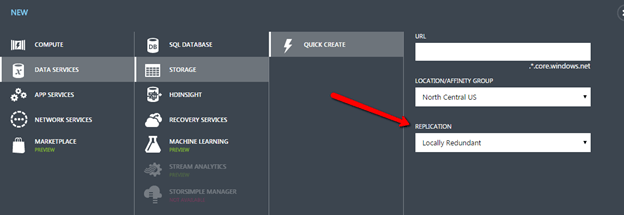
UPDATE 11/5/2014 – When you create your Storage Account in Azure, make sure you choose “Locally Redundant” as Geo-Redundant Storage is not supported for the Cloud Witness.

Windows Server 10 New Cloud Witness

Windows Server 10 “Cloud Witness” in a failover cluster

My favorite new cluster feature in Windows Server 10 is the Cloud Witness. The Cloud Witness is another option in addition to the traditional disk witness and file share witness which are used when configuring the quorum in a Windows Server Failover Cluster. For a complete history of cluster quorums and their options please read my article on the Microsoft Press blog http://blogs.msdn.com/b/microsoft_press/archive/2014/04/28/from-the-mvps-understanding-the-windows-server-failover-cluster-quorum-in-windows-server-2012-r2.aspx

So what exactly is a Cloud Witness? A Cloud Witness utilizes a Windows Azure IaaS Storage Account to act as a vote in your cluster quorum. It can be used instead of a disk witness or a fail share witness. The cluster nodes simply need public internet access to reach an Azure storage account that you have provisioned as part of your Azure subscription.

So why would I use a disk witness? In most shared storage clusters you will still use a node and disk witness majority quorum. However, when you are doing #SANLess clusters, or multisite clusters, you now have another option to consider instead of a file share witness. Let’s look at some scenarios where a Cloud Witness would make more sense than a File Share Witness.

Scenario 1 – Multisite Cluster

If you have done your research on multisite clusters, you will have discovered that if you want automatic failover in the event of a complete site loss, the only safe way to do this is to have an even number of cluster votes in each site and to configure a File Share Witness in a 3rd site. In addition, the network connection between your primary site and your DR site must be completely independent of the network connection you have between this 3rd site and your primary and DR sites.

The cost associated with maintaining a completely independent network and having access to a 3rd data center for hosting a file share witness is not always possible. This is where having a Cloud Witness in Windows Azure comes in handy. Assuming you have an equal number of cluster votes in each data center and each data center also has access to the internet, you can define a Windows Azure Storage account as a Cloud Witness instead of a File Share Witness. Using a Cloud Share Witness eliminates the cost associated with maintaining a 3rd data center. There will be a slight monthly fee for the Azure Cloud service, but this will be minimal in comparison to the cost associated with maintaining a File Share Witness.

Scenario 2 – #SANLess Hyper-V Cluster at Remote Office/Branch Office (ROBO)

Here is the scenario. You run a fast food chain, department store chain, drug store chain, etc. You have the need to run a handful of servers to support your local operations at each of your store fronts. You decide that running these servers as virtual machines in Hyper-V are the way you want to go. Having these servers highly available is very important, so you decide it would be best to implement a two node cluster at each location. To minimize costs and to make management easy, you decide to purchase an identical pair of servers for each location and use the locally attached storage to build a #SANLess cluster with DataKeeper Cluster Edition. You come to realize that because you went #SANLess you don’t have access to a disk witness. And also, because you didn’t plan on purchasing a 3rd server for each location, a file share witness is also out of the question. You are in a real conundrum…a 2 node cluster NEEDS A WITNESS!

Here is where the Cloud Witness in Windows Azure comes and saves the day. Assuming your servers have access to the internet, a simple Cloud Witness can be configured and now you can support a 2-node #SANLess Hyper-V Cluster in each location. I would configure a non-clustered DC VM on each physical server and then create as many highly available VMs as a need in the cluster just using local attached storage.

Cloud Witness is a great new option in Windows Server 10. The only thing that would make it better is if they back ported it to Windows Server 2012 R2 so I could use it today!

Windows Server 10 “Cloud Witness” in a failover cluster

Windows Server 10 Storage Replica Configuration and First Impressions #Windows10

One of the most exciting new features in Windows Server 10 announced by Microsoft is Storage Replicas. It is described by Microsoft here: http://technet.microsoft.com/en-us/library/dn765475.aspx#BKMK_SR

“Storage Replica (SR) is a new feature that enables storage-agnostic, block-level, synchronous replication between servers for disaster recovery, as well as stretching of a failover cluster for high availability. Synchronous replication enables mirroring of data in physical sites with crash-consistent volumes ensuring zero data loss at the file system level. Asynchronous replication allows site extension beyond metropolitan ranges with the possibility of data loss.

What value does this change add?

Storage Replication enables you to do the following:

Provide an all-Microsoft disaster recovery solution for planned and unplanned outages of mission-critical workloads.

Use SMB3 transport with proven reliability, scalability, and performance.

Stretch clusters to metropolitan distances.

Use Microsoft software end to end for storage and clustering, such as Hyper-V, Storage Replica, Storage Spaces, Cluster, Scale-Out File Server, SMB3, Deduplication, and ReFS/NTFS.

Help reduce cost and complexity as follows:

Hardware agnostic, with no requirement to immediately abandon legacy storage such as SANs.

Allows commodity storage and networking technologies.

Features ease of graphical management for individual nodes and clusters through Failover Cluster Manager and Microsoft Azure Site Recovery.

Includes comprehensive, large-scale scripting options through Windows PowerShell.

Helps reduce downtime, and increase reliability and productivity intrinsic to Windows.

Provide supportability, performance metrics, and diagnostic capabilities.”

They mention a lot of use cases “… Hyper-V, Storage Replica, Storage Spaces, Cluster, Scale-Out File Server, SMB3, Deduplication, and ReFS/NTFS”. I’m not even sure what they mean by listing technologies such as ReFS/NTFS, Deduplication, SMB3, Storage Replica, Storage Spaces. These seem more like features rather than use cases, which I’m going to assume they are.

But let’s look at some of the other use cases they mentioned: Hyper-V, Cluster, Scale-out-File Server. I can easily imagine how Storage Replica is going to enhance these use cases by enabling shared nothing Scale-Out-File Servers and multisite clusters, including Hyper-V, SQL Server, File Servers, etc. In some cases it can also enable SANLess local area network clusters, allowing clusters to be built without requiring a shared Physical Disk resource.

In my first look at this solution I decided to focus on what I know and love, failover clusters. To keep things easy I decided I was going to focus on building a simple two node traditional file server (not scale out file server). I decided I was going to start with three fresh VMs in an entirely pure Windows Server 10 domain. It was easy enough to download the ISO’s and the install onto my 3 VMs went surpringly fast. Promoting a DC was a pretty similar experience to 2012 R2, though I think it was made a little more obvious that you have to actually run the DCPromo after the AD feature was installed.

I got my domain installed and my basic two node cluster with no resources built without a problem. I used VMware Fusion as my Hypervisor since it supports nested Hypervisors (a feature sorely lacking in Hyper-V for testing and demo by the way). I added a few additional VMDK files to each VM in my cluster and formatted them as E: and F: on each VM, figuring these would be my replica volumes. I had not defined resources yet and the cluster had no shared storage. Perfect, ready to start configuring Storage Replica!

So I fire up the Failover Cluster Manager and start poking around to see how I could start the replication process. There was absolutely nothing in the UI that I could find that said, Replica, Replication or anything even close to that. Because the documentation hadn’t shipped and the bits had only become available a few hours ago I was on my own to figure it out, despite my desperate Twitter searches for a how to blog. No problem I said, I’m a cluster MVP and my specialty is replication and multisite clusters so I’ll figure this out.

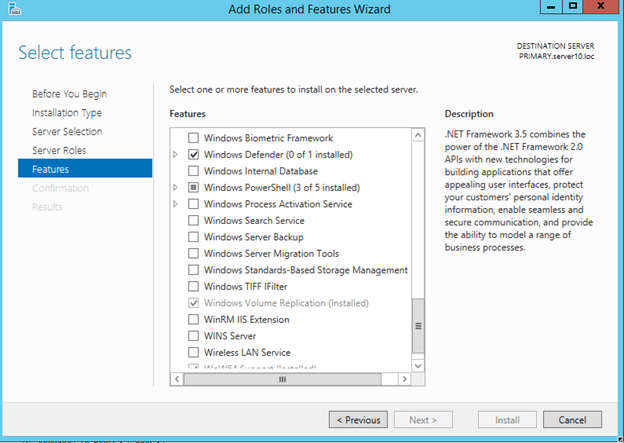
After a little searching I find that there is a new feature called Windows Volume Replication.


Great, so I enable that on both nodes thinking this is going to be great, but still nothing is jumping out at me in the Windows Failover Cluster UI that says “Configure Replica”. Scratching my head some more and trying to reach out to a few smart people I still had no clue. Then it dawned on me…”maybe it only supports Cluster Disk?” Now the feature announcement says “supports commodity storage”. To me that means any old hard drive in my PC or in this case the attached virtual disk on my VMs. As it turns out, I was correct; the disk has to appear in the cluster as a Physical Disk Resource in Available Storage.

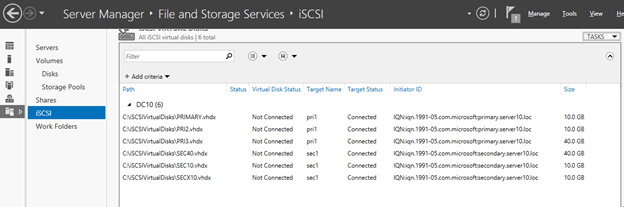
OK, not the greatest requirement, but I continued plugging away. To get some disks that could be added as Physical Disk Resources attached to my VMs I enabled the iSCSI target role on my DC and create two iSCSI Virtual Disks for each of my VMs. Now remember, this is not like a regular cluster so each of these virtual disks were only assigned to one VM, they were not shared.

One each VM I used the iSCSI initiator to connect to these disks, initialized, onlined and formatted them. I then used Failover Cluster Manager to add them to the cluster.

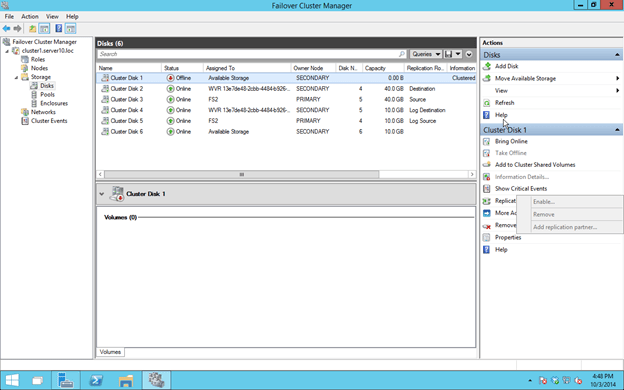
Finally, I see some new options for replication.

I still struggled for a while to get the Replication enable button to even become selectable.

Here are the IMPORT things you need to know to get this show on the road:

  • The Disk must be Physical Dis Resources in the cluster. This means they must support SCSI3 reservations and must pass cluster validation.
  • The Disk must be GPT, not MBR
  • Each Disk you want to replicate must have an associated Disk to be used for the “Log File”. I assume this is where they queue data when replication is interrupted or in asynchronous mirrors where the data can be slightly behind
  • You must add the disk (just the data disk, not the log disk) to a cluster resource BEFORE your can enable replication. You cannot enable replication on a disk that is sitting in Available Storage
  • Your Source and Target Servers must have the same size disks and volume letters

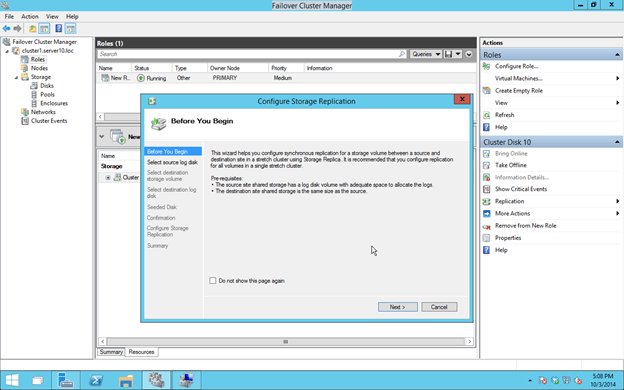
Once you do that you will finally be able to enable Replication.

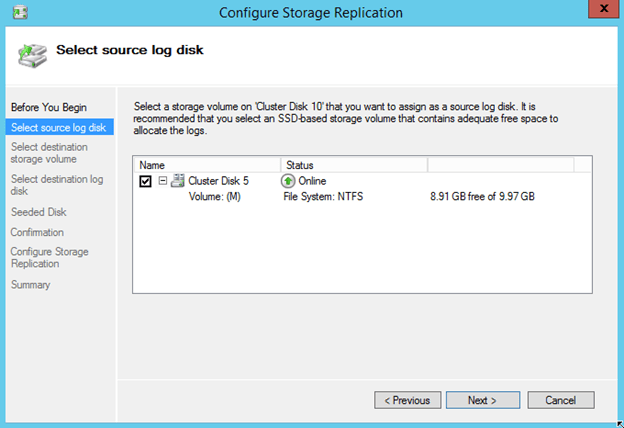
Like I said, you will need to choose a source log disk that needs to be in available storage. Microsoft recommends a SSD disks. I don’t know how big it should be. I assume the bigger it is the longer replication can be interrupted before you consume all the space and break your mirror.

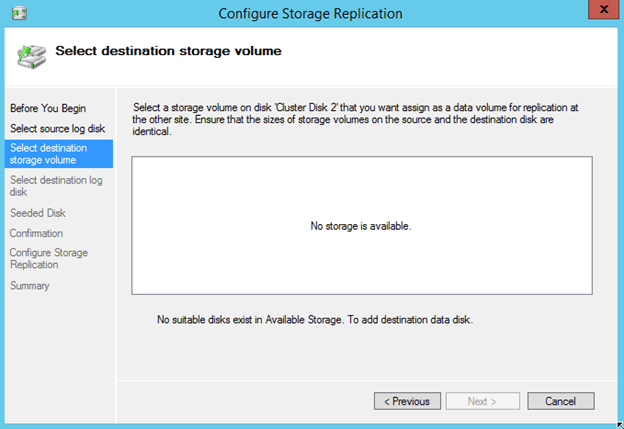
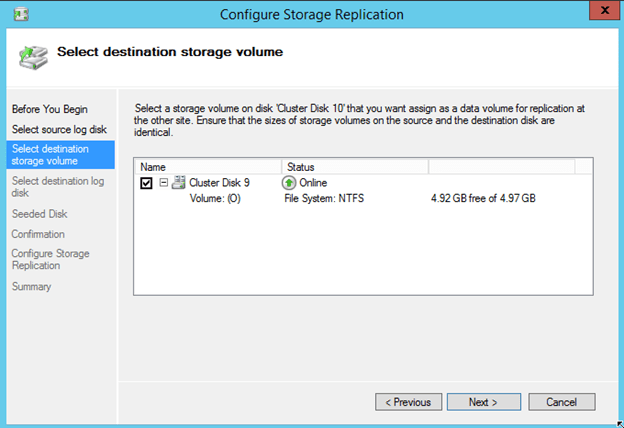
Next step is to choose the Disk on your target server. If you get a message like “No Storage Available” you probably need to move “Available Storage” so that the target disk is Online on the Secondary server.

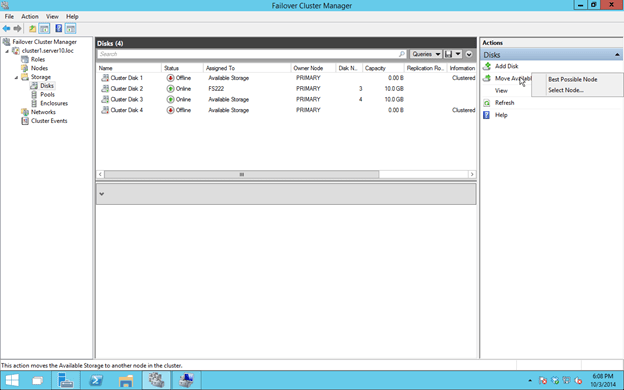
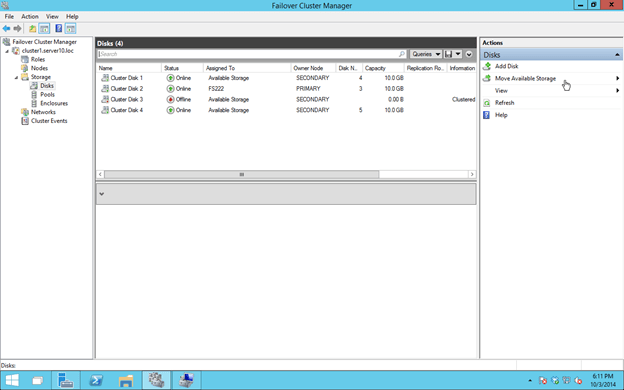
Make not that in the Technical Preview the Move Available Storage seems to be broken if you choose “Select Node”. However, if you choose “Best Possible Node” things seem to work and Available Storage will come online on the SECONDARY server.

Now all Available Storage should be online on the SECONDARY server.


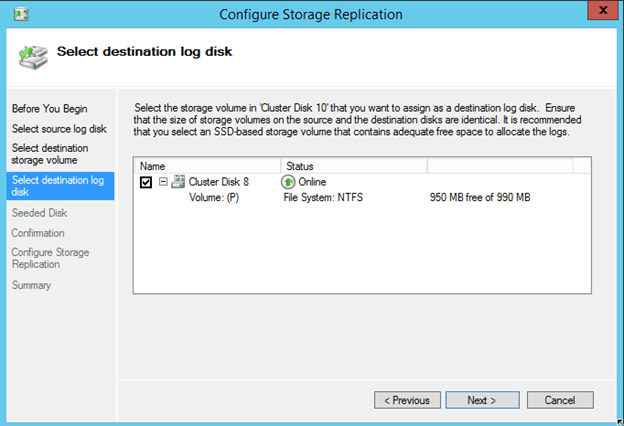
And a disk for the target’s log file

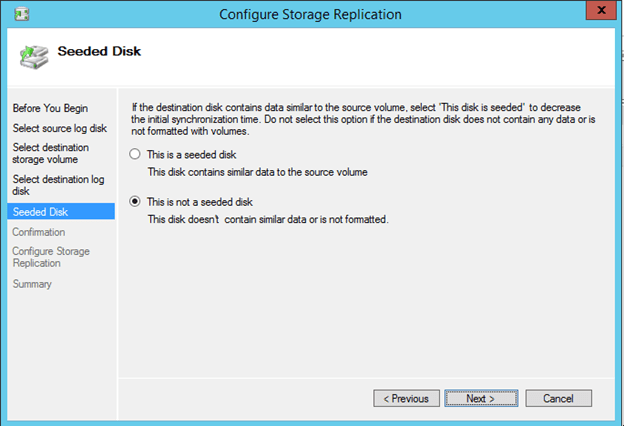
This looks like a nice feature, especially for WAN replication. Apparently you can seed to destination disk, avoiding a full sync over the WAN.

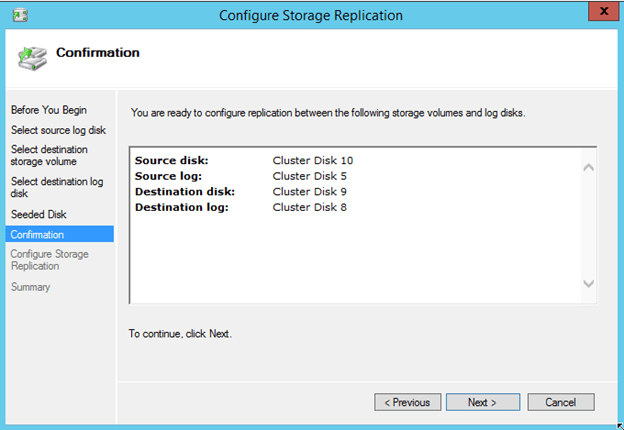
The next screen just confirms everything…

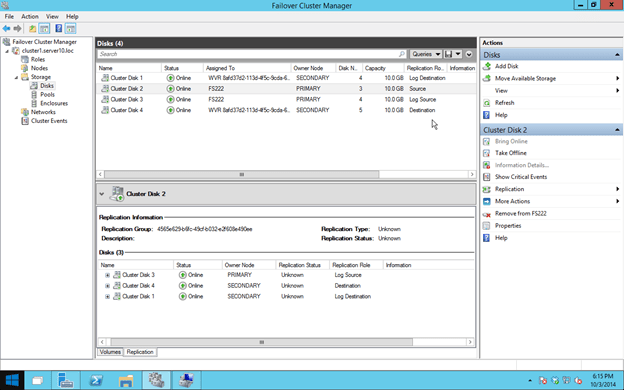
When all is said and done, your cluster should look like this. You’ll probably notice that the Replication status displays “Unknown”. I’m assuming that is a bug that will be addressed later.

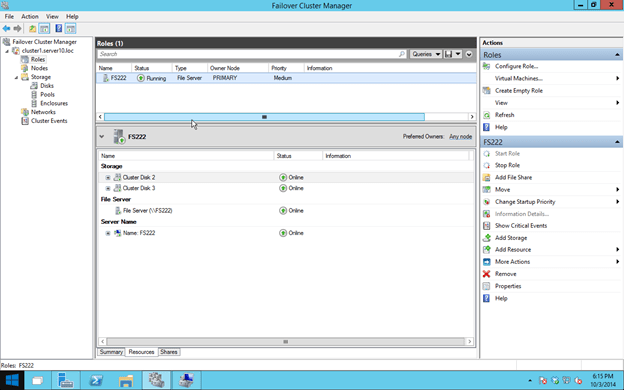
The other bug that I noticed is that the File Share creation wizard that is available via the Failover Cluster Manager doesn’t seem to work. It just closes unexpectedly after you launch it. However, you can create shares on the active node using File Manager and it will automatically be added to the cluster.

Some basic testing seems to indicate that it works fine. Just be careful that you know which of your volumes are the replicated data volumes and which ones are the log volumes. Data written to the log files is not replicated, so if you make a mistake (like I did) you may think replication is not working.

And finally, after all this trial and error I come to find that Microsoft has started to post at least a few pointers on how to make this work. Check out the requirements in this post from Ned Pyle, Storage Replica PM. http://social.technet.microsoft.com/Forums/windowsserver/en-US/f843291f-6dd8-4a78-be17-ef92262c158d/getting-started-with-windows-volume-replication?forum=WinServerPreview&prof=required

My thoughts…

I reserve my thoughts until I have some more time to play with this feature…


Windows Server 10 Storage Replica Configuration and First Impressions #Windows10

Understanding the Windows Server Failover Cluster Quorum in Windows Server 2012 R2

Understanding the Windows Server Failover Cluster Quorum in Windows Server 2012 R2

Before we get started with all the great new cluster quorum features in Windows Server 2012 R2, we should take a moment and understand what the quorum does and how we got to where we are today. Rob Hindman describes quorum best in his blog post

“The quorum configuration in a failover cluster determines the number of failures that the cluster can sustain while still remaining online.”

Prior to Windows Server 2003, there was only one quorum type, Disk Only. This quorum type is still available today, but is not recommended as the quorum disk is a single point of failure. In Windows Server 2003 Microsoft introduce the Majority Node Set (MNS) quorum. This was an improvement as it eliminated the disk only quorum as a single point of failure in the cluster. However, it did have its limitations. As implied in its name, Majority Node Set must have a majority of nodes to form a quorum and stay online, so this quorum model is not ideal for a two node cluster where the failure of one node would only leave one node remaining. One out of two is not a majority, so the remaining node would go offline.

Microsoft introduced a hotfix that allowed for the creation of a File Share Witness (FSW) on Windows Server 2003 SP1 and 2003 R2 clusters. Essentially the FSW is a simple file share on another server that is given a vote in a MNS cluster. The driving force behind this innovation was Exchange Server 2007 Continuous Cluster Replication (CCR), which allowed for clustering without shared storage. Of course without shared storage a Disk Only Quorum was not an option and effective MNS clusters would require three or more cluster nodes, hence, the introduction of the FSW to support two node Exchange CCR clusters.

Windows Server 2008 saw the introduction of a new witness type, Disk Witness. Unlike the old Disk Only quorum type, the Disk Witness allows the users to configure a small partition on a shared disk that acts as a vote in the cluster, similar to that of the FSW. However, the Disk Witness is preferable to the FSW because it keeps a copy of the cluster database and eliminates the possibility of “partition in time”. If you’d like to read more about partition in time, I suggest you read the File Share Witness vs. Disk Witness for local clusters.

Windows Server 2012 continued to improve upon quorum options. It is my belief that many of these new features were driven by two forces: Hyper-V and SQL Server AlwaysOn Availability Groups. With Hyper-V we began to see clusters that contained many more nodes than we have typically seen in the past. In a majority node set, as soon as you lose a majority of your votes, the remaining nodes go offline. So for example, if you have a Hyper-V cluster with seven nodes, if you were to lose four of those nodes the remaining nodes would go offline, even though there are three nodes remaining. This might not be exactly what you want to happen. So in Windows Server 2012, Microsoft introduced Dynamic Quorum.

Dynamic Quorum does what its name implies, it adjust the quorum dynamically. So in the scenario described about, assuming I didn’t lose all four servers at the same time, as servers in the cluster went offline, the number of votes in the quorum would adjust dynamically. When node one went offline, I would then in theory have a six node cluster. When node two went offline, I would then have a five node cluster, and so on. In reality, if I continued to lose cluster nodes one by one, I could go all the way down to a two node cluster and still remain online. And, if I had configured a witness (Disk or File Share) I could actually go all the way down to a single node and still remain online.

Read more at….

http://blogs.msdn.com/b/microsoft_press/archive/2014/04/28/from-the-mvps-understanding-the-windows-server-failover-cluster-quorum-in-windows-server-2012-r2.aspx

Understanding the Windows Server Failover Cluster Quorum in Windows Server 2012 R2

Configuring a #SANLess Hyper-V Failover Cluster with DataKeeper Cluster Edition

Q. What is a SANLess cluster?
A. It is a cluster that uses local storage instead of a SAN.

Q. Why would I want a SANLess cluster?
A. There are a few reasons:

  • Eliminate the cost of a SAN
  • Eliminate the SAN as a single point of failure
  • Take advantage of high speed storage options such a Fusion-io ioDrives and other high speed storage devices that plug in locally
  • Stretch the cluster across geographic locations for disaster recovery
  • Simplify management
  • Eliminate the need for a SAN administrator

Building a SANLess cluster with DataKeeper Cluster Edition is easy. If you know anything about Windows Server Failover Clustering than you already know 99% of the solution. Even if you have never built a Windows Server Failover Cluster before, don’t worry; Microsoft has made it easy and painless. For the beginners, I have written a step-by-step article that tells you how to build a Windows Server 2012 #SANLess cluster in my blog post here: https://clusteringformeremortals.com/2012/12/31/windows-server-2012-clustering-step-by-step/

If you have followed the steps in my post, you will be at the point where you are ready to create your first highly available virtual machine. There are two options for making a highly available virtual machine. The first option assumes that you have an existing virtual machine that you want to make highly available, and the second option assumes you are building a highly available virtual machine from scratch.

Configuring the DataKeeper Volume Cluster Resource

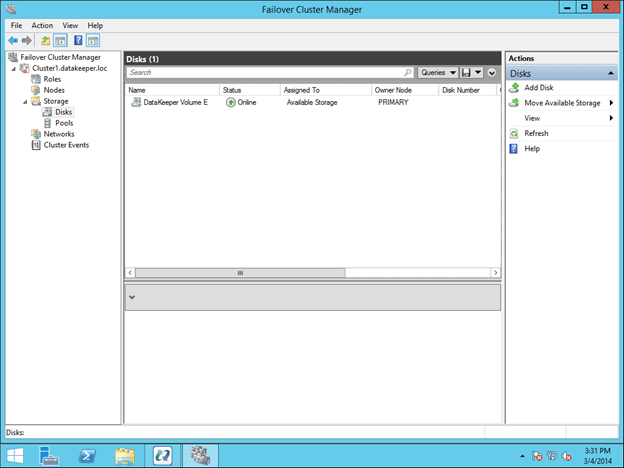
Because a SANLess Hyper-V cluster requires one VM per volume, you will want to make sure you have your storage partitioned so that you have enough volumes for each VM. The storage on each cluster node should be configured identically in terms of drive letters and partition sizes. Once you have the partitions configured properly and your VM resides on the partition you want to replicate, open the DataKeeper interface and walk through the three step wizard to create the DataKeeper Volume Resources as shown in below.

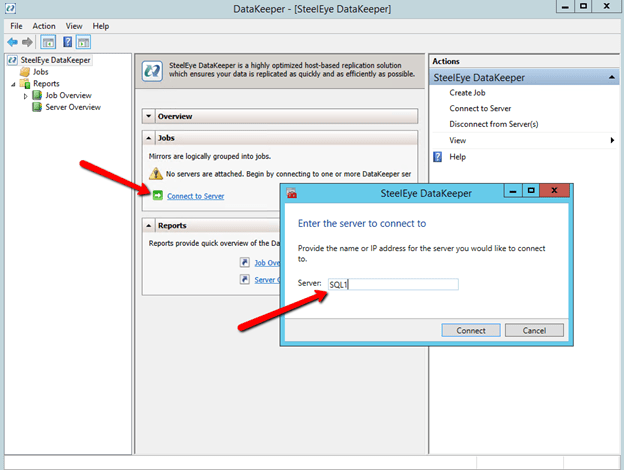
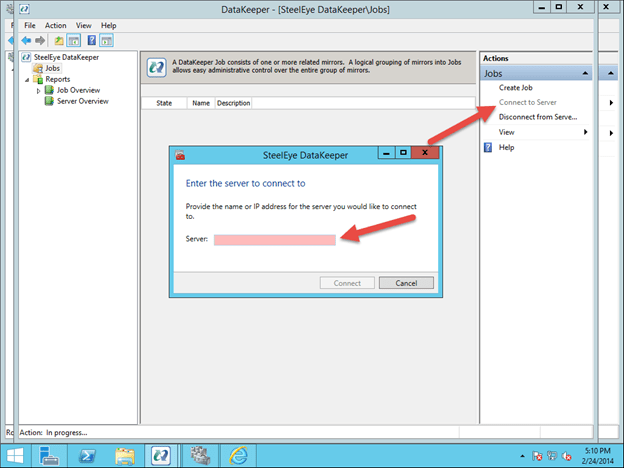
First, open the DataKeeper interface and click on Connect to Server. Do this twice to connect to both servers.

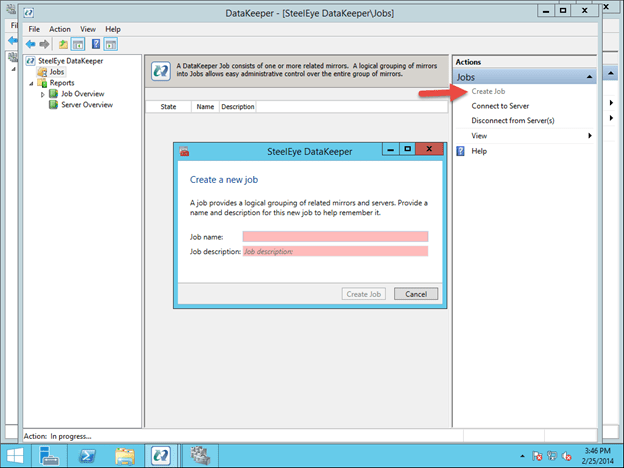
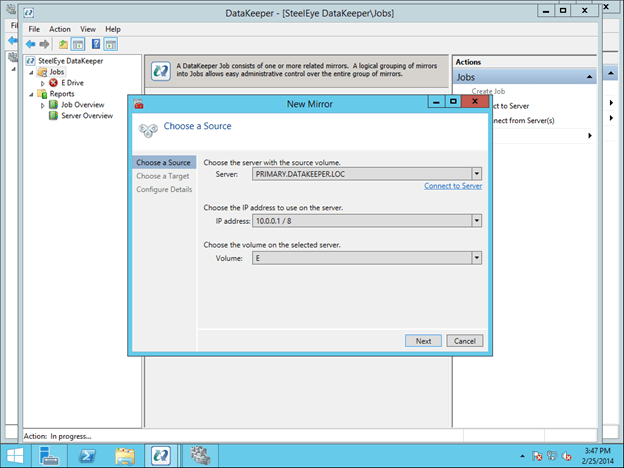
Once you are connected, click on Create Job to create a mirror of the volume that contains the virtual machine you want to make highly available as shown below. In this example we will mirror the E drive.

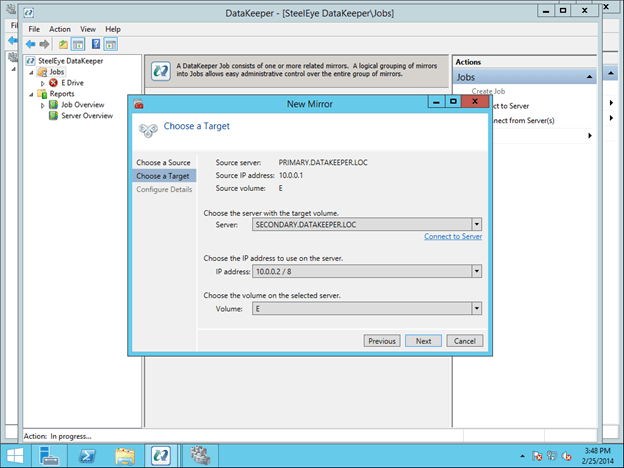
Whenever possible, keep replication traffic on a private network. In this case, we are using the 10.0.0.0/8 network for replication traffic. This can be a simple patch cable that connects the two servers across two unused NICs.

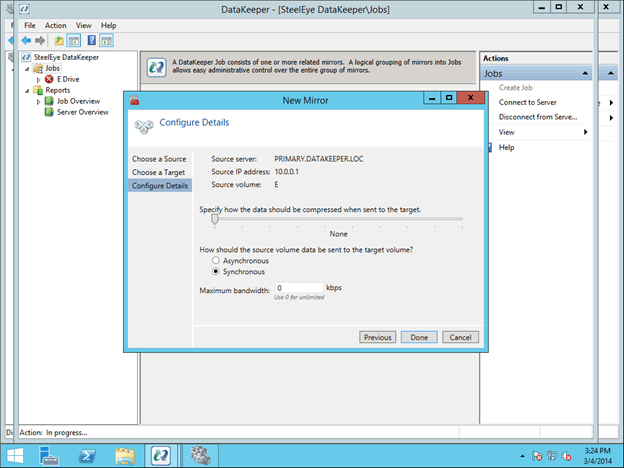
The final screen shows the options available for mirroring. For local area networks, Synchronous mirroring is preferred. When replicating across wide area networks, you will want to use Asynchronous replication and possibly enable compression. I would not limit the Maximum bandwidth as that could potentially cause your mirror to go out of sync if your rate of change (Disk Right Bytes/sec) exceeds the Maximum bandwidth specified. However, you may want to temporarily enable Maximum bandwidth during the initial mirror creation process, otherwise DataKeeper may flood the network with the initial replication traffic as it tries to get in sync as quickly as possible. Both Maximum bandwidth and Compression settings can be adjusted after the mirror is created. However, you cannot change between Synchronous and Asynchronous mirroring once the mirror has been created without deleting the mirror and recreating it.

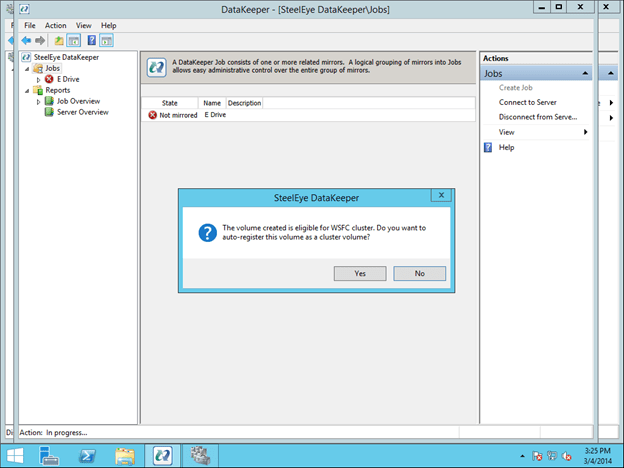
At the end of the mirror creation process you will see a popup asking if you want to auto-register this volume as a cluster volume. Select Yes, this will create a DataKeeper volume resource in Failover Clustering Available Storage.

You are now ready to create your highly available VMs.

Option 1 – Clustering an Existing VM

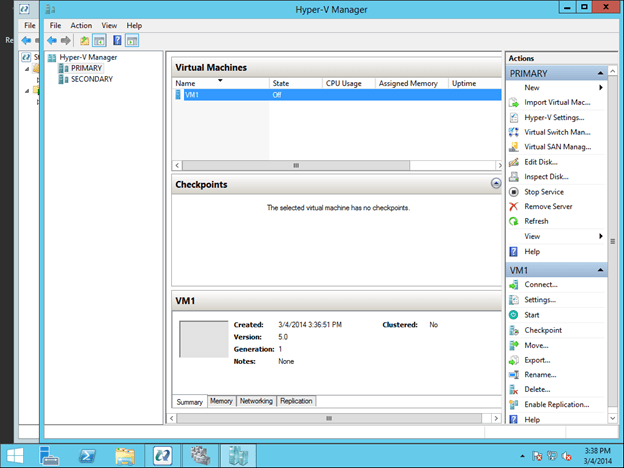
Once again, this procedure assumes you have an existing VM that you want to make highly available. If you do not have an existing VM, you will want to follow the procedure in Option 2 – Creating a Highly Available VM. Otherwise, you should have a VM when looking at Hyper-V Manager as shown below.

All the VM files should already be located on the replicated volume, as shown below. If not, you will have to relocate the files before attempting to cluster the VM.

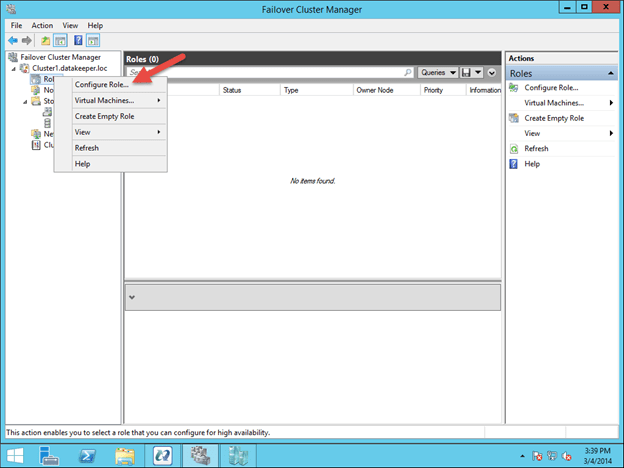
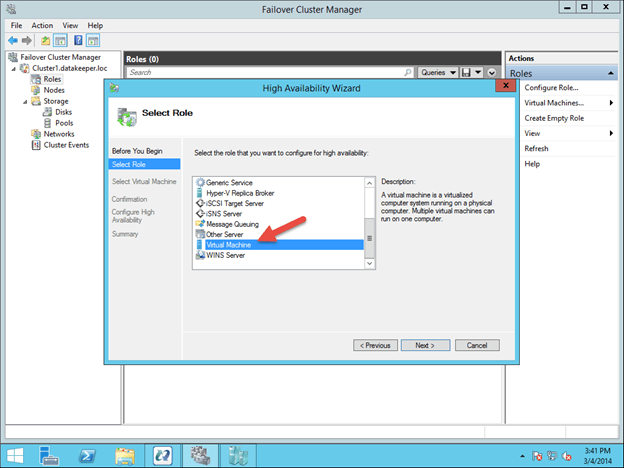
To begin the clustering process, open up Failover Cluster Manager. Right click on Configure Roles and choose Virtual Machine as the role you want to create.

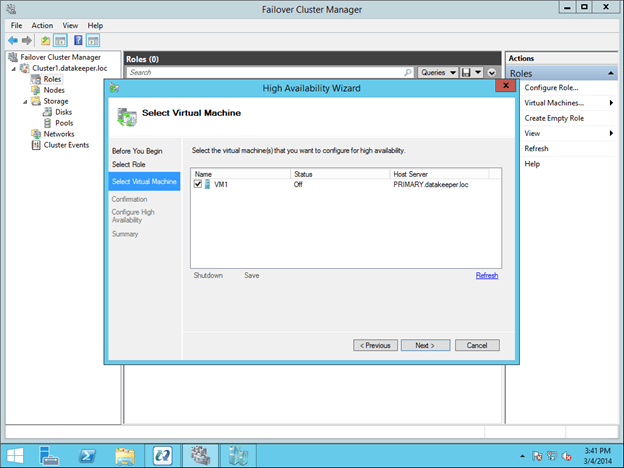
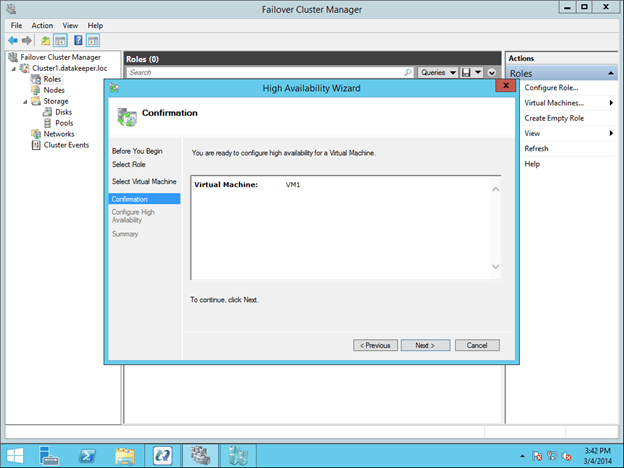
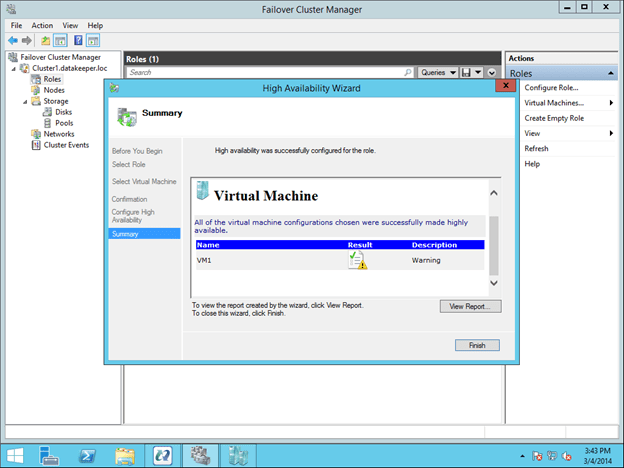
This will launch the High Availability Wizard. At this point you should select the VM that you want to cluster and step through the wizard as shown below.

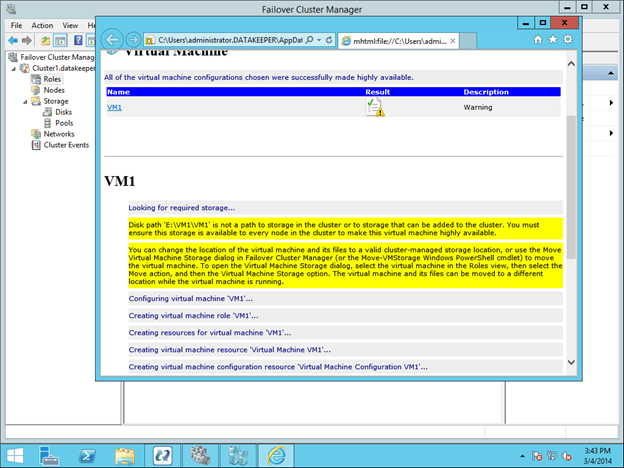
You will see that the VM resource will be created, but there will be some warnings. The warnings indicate that the E drive is not currently part of the VM Cluster Resource Group.

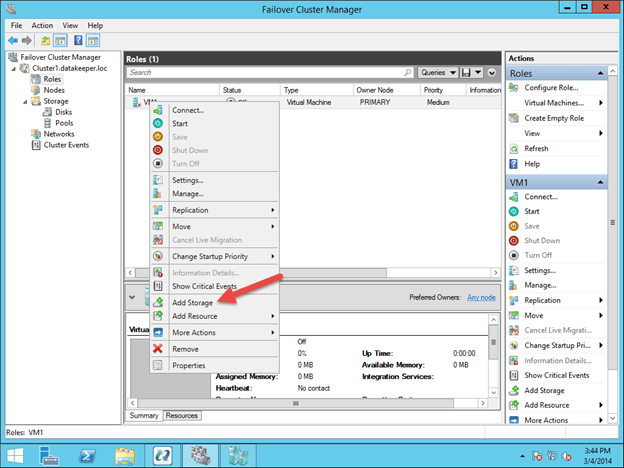
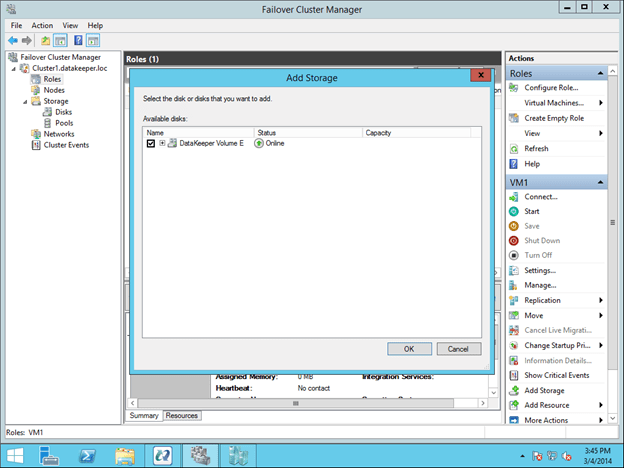
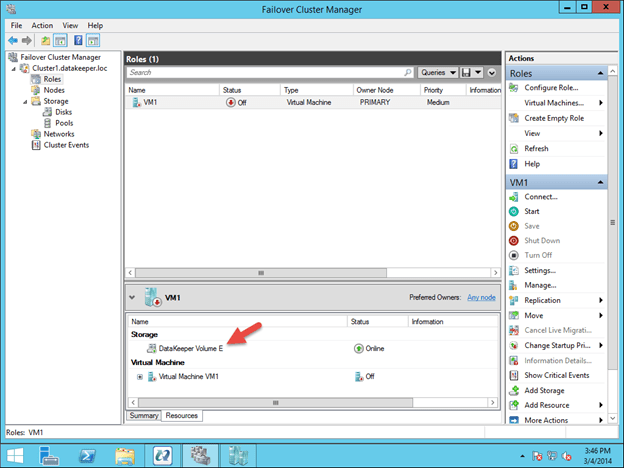
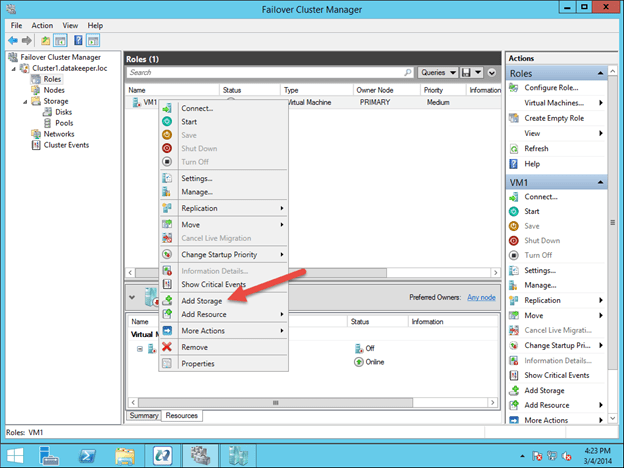
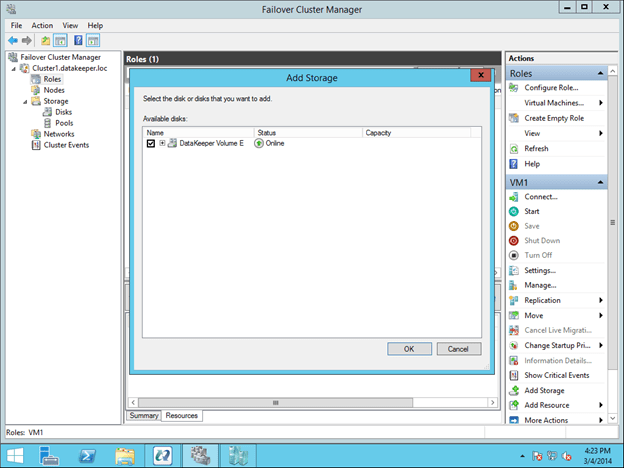
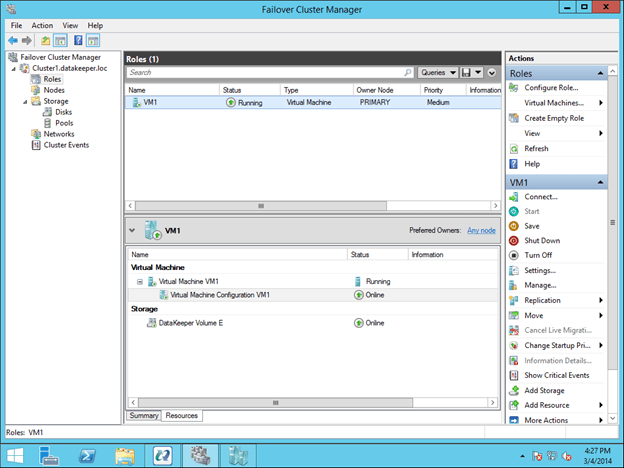
To make the DataKeeper Volume E part of the VM Cluster Resource Group, right click on the role and choose Add Storage. Add the DataKeeper Volume that you will see listed in Available Disks.

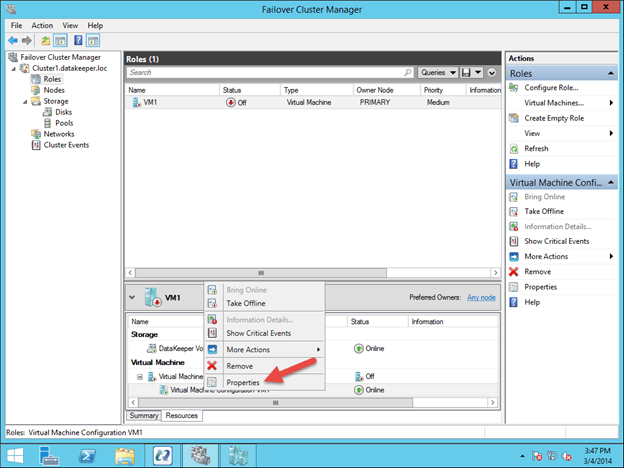
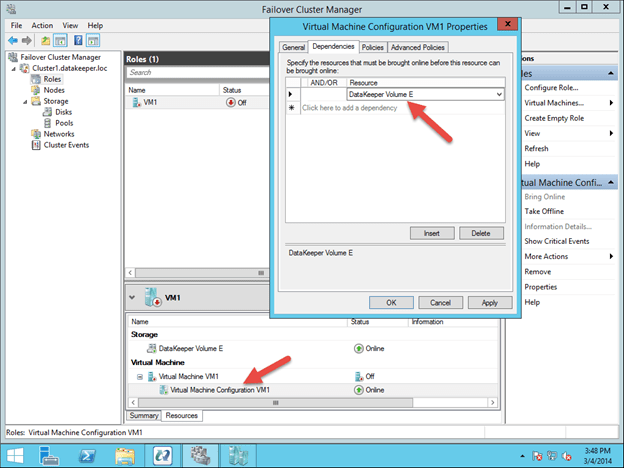
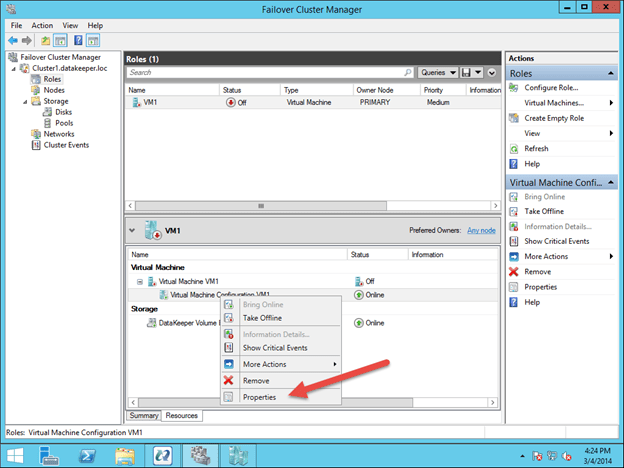
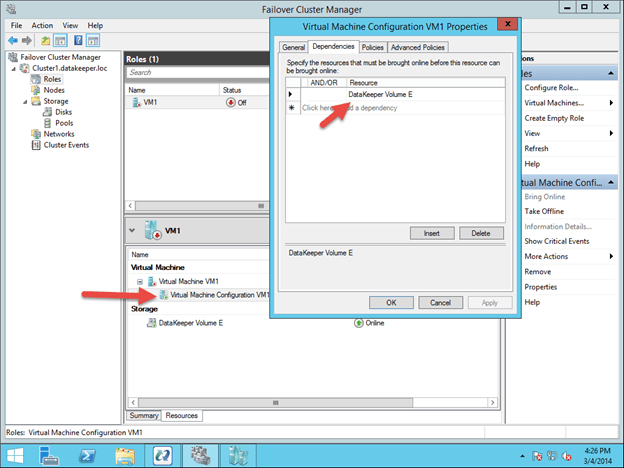
The last part is to choose the Properties of the Virtual Machine Configuration (not the Virtual Machine) resource and make it dependent upon the storage you just added to the resource group.

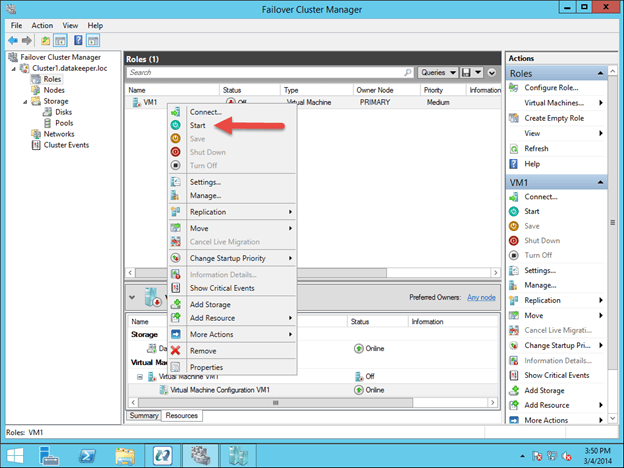
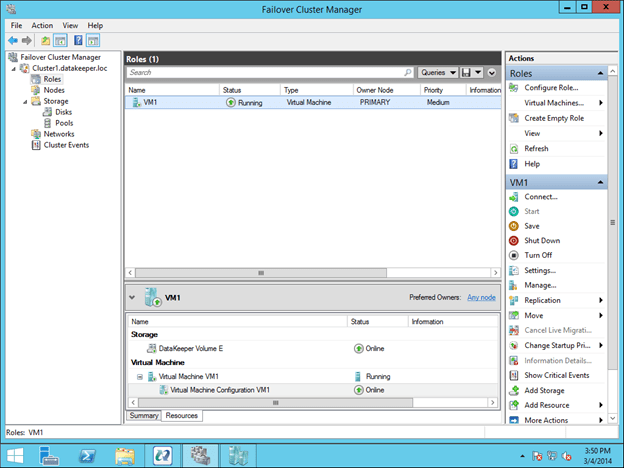
You should now be able to start the VM.

Option 2 – Creating a Highly Available VM from Scratch

Assuming you want to create a highly available VM from scratch, you can complete this entire process from the Hyper-V Virtual Machine Manager as shown below. This step assumes that you have already created a mirror of the E drive using DataKeeper as described in Configuring the DataKeeper Volume Resource section.

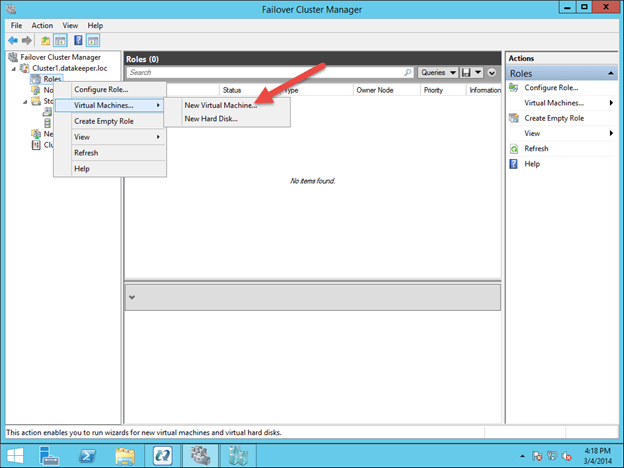
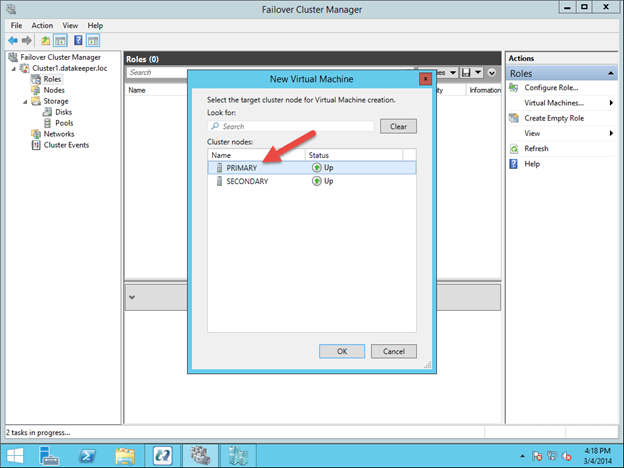
To get started, open the Failover Cluster Manager and right click on Roles and choose Virtual Machine – New Virtual Machine.

Follow through with the steps of the wizard and select the options that you want to use for the VM. When choosing where to place the VM, select the cluster node that currently is the owner of Available Storage, which will also be the source of the mirror.

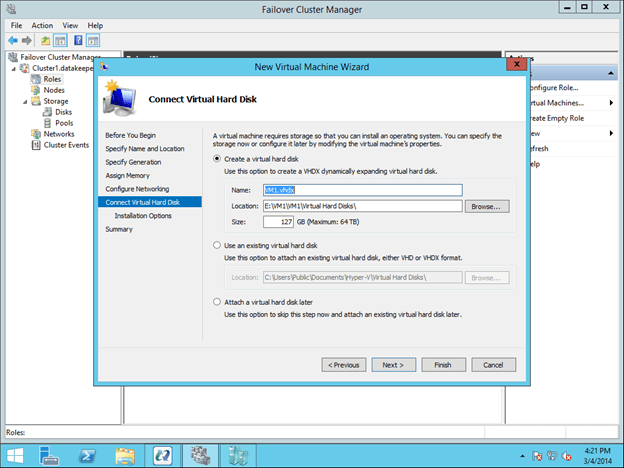
Make sure when specifying the Name and Location of the VM, you select the location of the replicated volume.

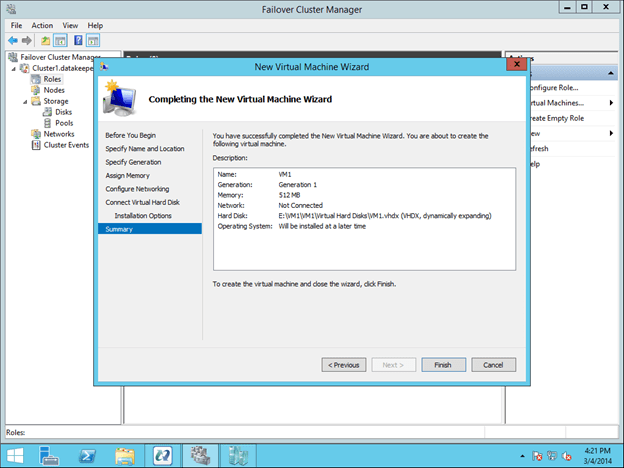
The rest of the options are up to you. Just make sure the VHD file is located on the replicated volume.

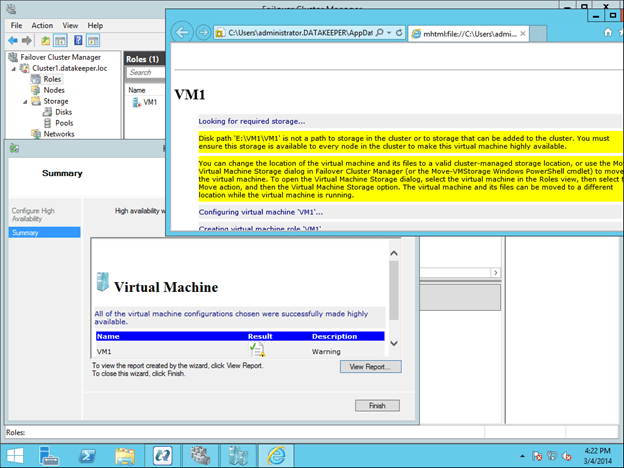
You will see the highly available VM is created, but there is a warning about the storage. You will need to add the DataKeeper Volume Resource to the VM Cluster Resource Group as shown below.

After the DataKeeper Volume is added to the VM Cluster Resource Group, you will need to add the DataKeeper Volume as a dependency of the Virtual Machine Configuration resource.

You now have a highly available virtual machine.

Summary

In this blog post we discussed what constitutes a #SANLess cluster. We discussed how DataKeeper Cluster Edition can be used to build a highly available Hyper-V cluster without the use of a SAN. Once built, the cluster behaves exactly like a SAN based cluster, including having the ability to do Live Migration, Quick Migration and automated failover in the event of unexpected failures.

A #SANLess cluster eliminates the expense of a SAN as well as the single point of failure of a SAN. DataKeeper Cluster Edition supports multiple nodes in a SAN, so configurations that stretch both LAN and WAN are all possible solutions for Hyper-V high availability and disaster recovery. DataKeeper supports any local storage, opening up the possibility of using high speed local attached SSD or NAND Flash storage for high performance without giving up high availability.


Configuring a #SANLess Hyper-V Failover Cluster with DataKeeper Cluster Edition

Creating a SQL Server 2014 AlwaysOn Failover Cluster (FCI) Instance in Windows Azure IaaS #Azure #Cloud

1/27/2015 UPDATE – Due to new features introduced, I have updated my guidance on deploying SQL Server clusters on Azure. The latest article can be found here: https://clusteringformeremortals.com/2015/01/01/step-by-step-how-to-configure-a-sql-server-failover-cluster-instance-fci-in-microsoft-azure-iaas-sqlserver-azure-sanless/


This is the 3rd post in the series on High Availability and Disaster Recovery in Windows Azure. This post contains step-by-step instructions for implementing a Windows Server Failover Cluster in the Windows Azure IaaS Cloud between two cluster nodes in different Fault Domains. While this post focuses on building a SQL Server 2014 Failover Cluster Instance, you could protect any cluster aware application with just making some minor adjustments to the steps below. In my next post I will show you how to extend this cluster to a third node in a different datacenter for a very robust disaster recovery plan. Because Azure does not have a clustered storage option, we will use the 3rd party solution called DataKeeper Cluster Edition for our cluster storage.

This post assumes you have created a Virtual Network in Azure and you have your first DC already provisioned in Azure. If you haven’t done that yet, you will want to go ahead and have a look at the first two posts on this topic.

The high levels steps which we will illustrate in this post are as follows:

  • Provision two Windows Server 2012 R2 Servers
  • Add the servers to the domain
  • Enable the Failover Clustering feature
  • Create the cluster
  • Create a replicated volume cluster resource with DataKeeper Cluster Edition
  • Install SQL 2014 Failover Cluster Instance

Provision two Windows Server 2012 R2 Servers

Click on the Virtual Machine tab in the left column and then click the New button in the bottom left corner.

Choose New Virtual Machine From Gallarey

For our cluster we are going to choose Windows 2012 R2 Datacenter

Choose the latest Version Release Date, Name the VM and Size. The user name and password will be the local administrator account that you will use to log in to the VM to complete the configuration.

On this next page you will choose the following:

Cloud Service: I choose the same Cloud Service that I created when I provisioned my first VM. Cloud Service documentation says that it is used for load balancing, but I see no harm in putting all of the cluster VMs and DCs in the same Cloud Service for easier management. By choosing an existing Cloud Service my Virtual Network and Subnets are automatically selected for me.

Storage Account: I choose an existing Storage Account

Availability Set: This is EXTEMELY important. You want to make sure all of your VMs reside in the same Availability Set. By put putting all of your VMs in the same Availability Set you guarantee that the VMs all run in a different Fault Domain.

The last page shows the ports where this VM can be reached.
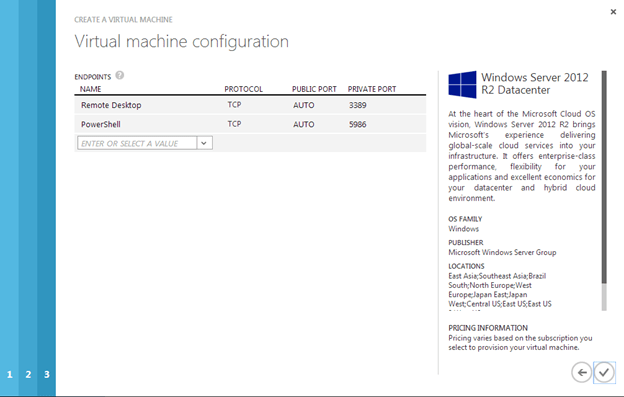
Once the VM is created you will see it as a new VM in the Azure Portal

The next step is to add additional storage to the VM. Azure best practices would have you put your databases and log files on the same volume, otherwise you must disable the Geo-replication feature that is enabled by default. The following article describes this issue in more detail: http://msdn.microsoft.com/en-us/library/jj870962.aspx#BKMK_GEO

To add additional storage to your VM, click on the VM and then Dashboard to get to the VMs dashboard. Once there, click on Attach.
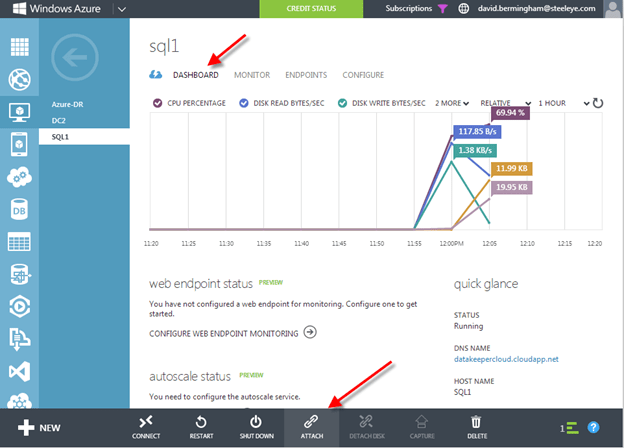
There are lots of things to consider when considering storage options for SQL Server. The safest and easiest method is the one we will use in this post. We will use a single volume for our data and log files and have caching disabled. You will want to read this article for the latest information on SQL Server Performance Considerations and best practices for Azure.

http://msdn.microsoft.com/en-us/library/windowsazure/dn133149.aspx
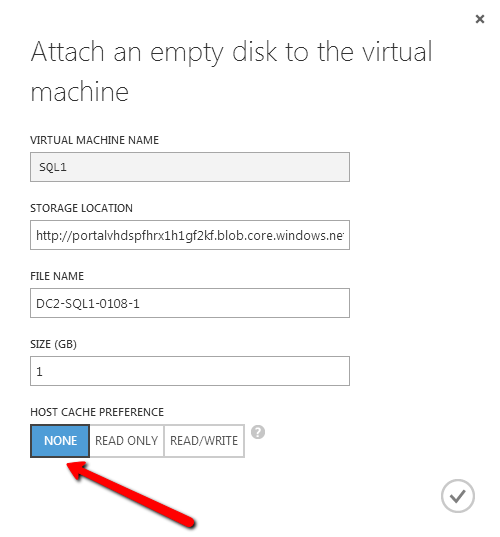
After you add this additional volume, you will need to open each VM and use Disk Management to initialize and format the volumes. For the purpose of this demo we will format this volume as the “F:\” drive.

You now have one VM called SQL1. You will want to complete the same process as described about to provision another VM and call it SQL2, making sure you put it in the same Cloud Service, Availability Set and Storage Account. Also make sure to attach another volume to SQL2 just as you have done for SQL1 and format it as the F:\ drive.

When you have finished provisioning both VMs we will move forward to the next step, adding them to the domain.

Add them to domain

Adding SQL1 and SQL2 to the domain is a simple process. Assuming you have been following along with my previous posts, you have already created your domain and have a DC called DC2 provisioned in the same Cloud Service as SQ1 and SQL2. Adding them to the domain is as simple as connecting to the VMs and adding the VMs to the domain just as you would for in a regular on-premise network. If you configured the Virtual Network properly the new VMs should boot with an IP address assigned by DHCP which specifies the local DC2 and the domain controller.

Click Connect to open an RDP session to SQL1 and SQL2

IPconfig /all shows the current IP configuration. Windows Azure requires that you leave the addresses set to use the DHCP server, however the IP address will not change for the life of the VM. You should notice that your DNS server is set to the local DNS server that you created in the previous article previously.

Add SQL1 and SQL2 to the domain and continue with the next steps.

Enable Failover Clustering feature

On both SQL1 and SQL2 you will enable the Failover Clustering feature

Create Cluster

If you are familiar with clustering then the following steps should be very familiar to you with just a few exceptions, so pay close attention to avoid problems that are specific to deploying clusters in Windows Azure.

We will start by creating a single node cluster, this will allow us to make the necessary adjustment to the cluster name resource before we add the second node to the cluster. Use Failover Cluster Manager and start by choosing Create Cluster. Add SQL1 to the selected servers and click Next.

In order for us to install SQL Server 2014 into the cluster at the later steps, we will need to complete cluster Validation

Step through the rest of the cluster creation process as shown below. We will call this cluster SQLCLUSTER, which is simply the name we use to manage the cluster. This is NOT the name that you client applications will eventually connect to.

Once the cluster create process completes, you will notice that the cluster name resource fails to come online, this is expected.

The name resource failed to come online because the IP resource failed to come online. The IP address failed to come online because the address that the DHCP server handed out is the same as the physical address of the server, in this case 10.10.11.5, so there is a duplicate IP address conflict.

In order to fix this, we will need to go into the properties of the IP Address resource and change the address to another address in the same subnet that is not currently in use. I would select an address that is at the higher end of the subnet range in order to reduce the possibility that in the future you might deploy a new VM and Azure will hand out that cluster IP address, causing an IP address conflict. In order to eliminate this possibility, Microsoft will have to allow us more control over the DHCP address pool. For now, the only way to completely eliminate that possibility is to create a new subnet in the Virtual Private Network for any new VMs that you might deploy later, so only this cluster resides in this subnet. If you DO plan to deploy more VMs in this subnet, you might as well deploy them all at the same time so you know which IP addresses they will use, that way you can use whatever IP addresses are left of for the cluster(s).

To change the IP address, choose the Properties of the IP Address cluster resource and specify the new address.

Once the address is changed, right click on the Cluster Name resource and tell it to come online.

We are now ready to add the the second node to the cluster. In the Failover Cluster Manager, select Add Node

Browse out to your second node and click Add.
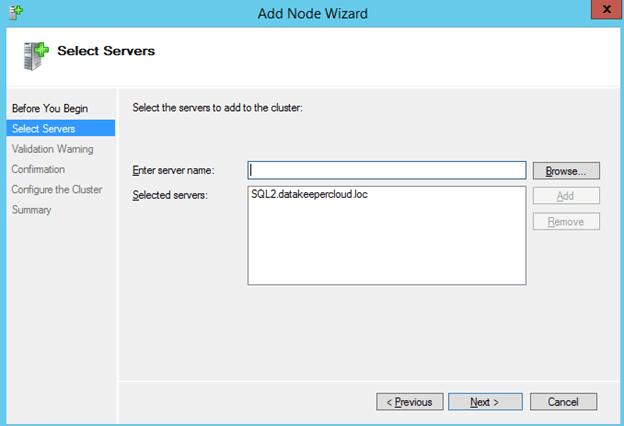
Run all the validation tests once again.

When you click finish, you will see that the node was added successfully, but because there is no shared storage in Azure, no disk witness for the quorum could be created. We will fix that next.

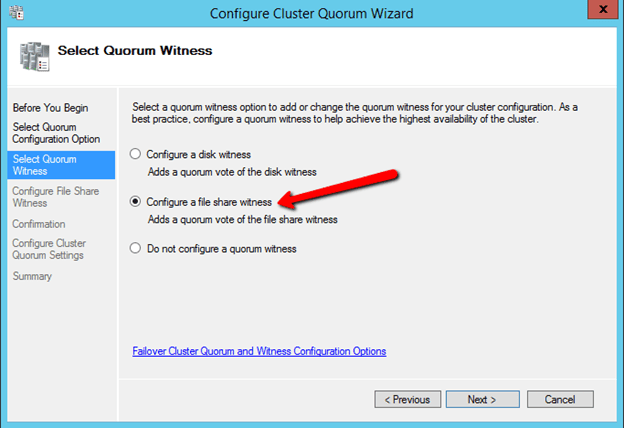
We now need to add a File Share Witness to our cluster to ensure the quorum requirements for two node cluster are satisfied. The file share witness will be configured on the DC2 server, the domain controller that is also running in the Azure Cloud.

Open up a RDP session to the domain controller in your Azure Private Cloud

Connect to your domain controller and create a file share called “Quorum”. You will need to give the Cluster Computer Name Object (which we called SQLCluster in this example) read/write permissions at both the Share level and Security (NTFS) level. If you are not familiar with creating a file share witness, you may want to review my previous post for more detail.

Once the file share witness folder is created on the domain controller, we need to add the witness in the cluster configuration using the Failover Cluster Manager on SQL1

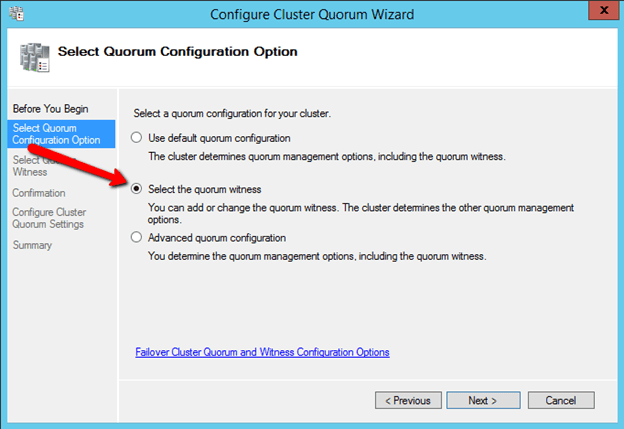
The File Share Witness should now be configured as shown below.

Create Replicated Volume Cluster Resource with DataKeeper Cluster Edition

A traditional failover cluster requires a shared storage device, like a SAN. The Azure IaaS cloud does not offer a storage solution that is capable of being used as a cluster disk, so we will use the 3rd party data replication solution called DataKeeper Cluster Edition which will allow us to create a replicate volume resource which can be used in place of a shared disk. A 14-day trial license is generally available for testing upon request.

Once you download DataKeeper, install it and license it on both SQL1 and SQL2 and reboot the servers. Once the servers reboot, connect to SQL1, launch the DataKeeper UI and complete the steps below.

Connect” to both SQL1 and SQL2

Now click on “Create Job” and follow the steps illustrated below to create the mirror and DataKeeper Volume cluster resource.

Choose the source of the mirror. When you choose the IP Address for the source and target, be sure to choose IP address of the server itself, DO NOT CHOOSE THE CLUSTER IP ADDRESS!

For this implementation where both nodes are in the Azure Cloud, choose synchronous replication with no compression, as shown below.

Click Done and you will be asked if you want to register this mirror in Windows Server Failover Clustering. Click Yes.

You will now see there is DataKeeper Volume Resource in Available Storage when you open the Windows Server Failover Cluster GUI
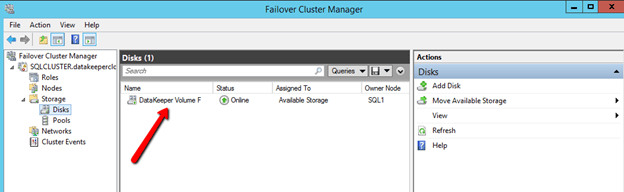
You are now ready to install SQL Server into the cluster.

Install SQL 2014 Failover Cluster Instance

To start the SQL Server 2014 cluster installation, you must download the SQL 2014 ISO to SQL1 and SQL2. You can use SQL Server 2014 Standard Edition for a simple two node cluster. If you want to extend this cluster to a 3rd site for disaster recovery as we will discuss in the next post, then you will need the Enterprise Edition because the Standard Edition only supports a 2-node cluster. If you are only looking for a simple two node solution than SQL Server Standard Edition can be a much more economical solution.

Once SQL Server 2014 is downloaded to the servers, mount the ISO and run the setup. The option that we want is to open is in the Advanced tab. Open the Advanced tab and run the “Advanced cluster preparation“. My good friend and fellow Cluster MVP, Robert Smit, told me about using the Advanced option. Basically, the Advanced option lets you split the install into two different processes, preparation and completion. Many things can go wrong with cluster installations, usually related to active directory and privileges. If you use the standard install method you may wait 20 minutes or longer for the installation to complete, only to find out that at the last minute the cluster was unable to register the CNO in active directory and the whole installation fails. Not only did the whole installation fail, now you may have a partially installed SQL Server cluster and you have a mess to clean up. By using the Advanced method you are able to minimize the risk by putting the risky section just at the end during cluster completion. If cluster completion fails, you simply need to diagnose the problem and re-run just the cluster completion process once again.

If you really want to save some time, check out Robert’s article on installing SQL Cluster with a configuration file, it is pretty easy to do and saves a bunch of time if you are doing multiple installations. However, for our purposes we will walk through the SQL install with the GUI as shown below.

For demo purposes, I just used the administrator account for each of the services. In production you will want to create separate accounts for each service as a best practice.

Once the install completes it looks like this.

Now we are ready to move forward with part two of the installation, Advanced Cluster Completion.

Give the SQL instance a name. This is the name the clients will connect to. In this case I called it SQLINSTANCE1.

This is where the magic happens. If you configured the mirror in DataKeeper as described earlier, you will see the DataKeeper Volume listed here as an Available Shared Disk, when actually it is simply a replicated volume pair.

One the Cluster Network Configuration page, it is important to choose IPv4 and to specify an address that is not in use in your subnet. As stated before, this address should be at the higher end of the DHCP range to help minimize the risk that Azure will assign that address to another VM in the future. I highly suggest that you have a subnet that is dedicated to your cluster to avoid possible conflicts until Windows Azure offers us greater control over the IP addresses and DHCP ranges. Later, after the cluster is created, you will need to delete this client access point and add the client access point as described in http://blogs.msdn.com/b/sqlalwayson/archive/2013/08/06/availability-group-listener-in-windows-azure-now-supported-and-scripts-for-cloud-only-configuration.aspx. I will publish a blog post in the future that describes this process in detail.

On this page make sure you Click Add Current User, or specify the accounts you wish to use to administer SQL Server.

Starting with SQL Server 2012, tempdb no longer needs to be part of the SQL Server Cluster. If you move the tempdb to a non-replicated volume, you will need to make sure that directory structure exists on each node. To change the location of the tempdb, click on the Data Directories tab and change the location where the tempdb is located.

When the installation completes on SQL1, it is time to run the SQL installer on SQL2 and add the second node to the cluster. Run the Setup on SQL2 and choose Add node to a SQL Server failover cluster.
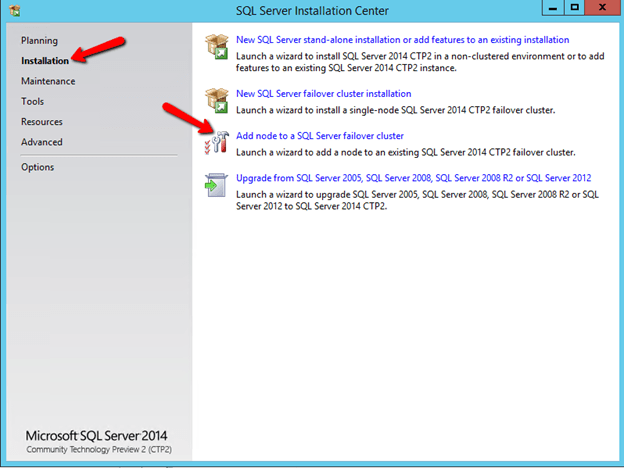
After the installation completes, you now have a fully functional SQL Server AlwaysOn Failover Cluster Instance (FCI) running on the Azure Cloud. Each instance is in a different Fault Domain providing a high level of resiliency. Be sure to replace the client access point with a client access point as described in my post…

In the next post in this series I will show you how to extend this two node cluster to a third node for a multi-site cluster. This third-node will be located in my on-premise data center, which will give us the ultimate in both high availability and disaster recovery.
Creating a SQL Server 2014 AlwaysOn Failover Cluster (FCI) Instance in Windows Azure IaaS #Azure #Cloud