Step-by-Step: How to configure a SQL Server 2008 R2 Failover Cluster Instance in Azure

Introduction

If you are reading this article you probably are still using SQL Server 2008/2008 R2 and want to take advantage of the extended security updates that Microsoft is offering if you move your SQL Server 2008/2008 R2 into Azure. I previously wrote about this topic in this blog post.

You may be wondering how to make sure your SQL Server instance remains highly available once you make the move to Azure. Today, most people have business critical SQL Server 2008/2008 R2 configured as a clustered instance (SQL Server FCI) in their data center. When looking at Azure you have probably come to the realization that due to the lack of shared storage it might seem that you can’t bring your SQL Server FCI to the Azure cloud. However, that is not the case thanks to SIOS DataKeeper.

SIOS DataKeeper enables you to build a SQL Server FCI in Azure, AWS, Google Cloud, or anywhere else where shared storage is not available or where you wish to configure multi-site clusters where shared storage doesn’t make sense. DataKeeper has been enabling SANless clusters for WIndows and Linux since 1999. Microsoft documents the use of SIOS DataKeeper for SQL Server FCI in their documentation: High availability and disaster recovery for SQL Server in Azure Virtual Machines.

I’ve written about SQL Server FCI’s running in Azure before, but I never published a Step-by-Step Guide specific to SQL Server 2008/2008 R2. The good news is that it works just as great with SQL 2008/2008 R2 as it does with SQL 2012/2014/2016/2017 and the soon to be released 2019. Also, regardless of the version of Windows Server (2008/2012/2016/2019) or SQL Server (2008/2012/2014/2016/2017) the configuration process is similar enough that this guide should be sufficient enough to get you through any configurations.

If your flavor of SQL or Windows is not covered in any of my guides, don’t be afraid to jump in and build a SQL Server FCI and reference this guide, I think you will figure out any differences and if you ever get stuck just reach out to me on Twitter @daveberm and I’ll be glad to give you a hand.

This guide uses SQL Server 2008 R2 with Windows Server 2012 R2. As of the time of this writing I did not see an Azure Marketplace image of SQL 2008 R2 on Windows Server 2012 R2, so I had to download and install SQL 2008 R2 manually. Personally I prefer this combination, but if you need to use Windows Server 2008 R2 or Windows 212 that is fine. If you use Windows Server 2008 R2 don’t forget to install the kb3125574 Convenience Rollup Update for Windows Server 2008 R2 SP1. Or if you are stuck with Server 2012 (not R2) you need the Hotfix in kb2854082.

Don’t be fooled by this article that says you must install kb2854082 on your SQL Server 2008 R2 instances. If you start searching for that update for Windows Server 2008 R2 you will find that only the version for Server 2012 is available. That particular hotfix for Server 2008 R2 is instead included in the rollup Convenience Rollup Update for Windows Server 2008 R2 SP1.

Provision Azure Instances

I’m not going to go into great detail here with a bunch of screenshots, especially since the Azure Portal UI tends to change pretty frequently, so any screenshots I take will get stale pretty quickly. Instead, I will just cover the important topics that you should be aware of.

Fault Domains or Availability Zones?

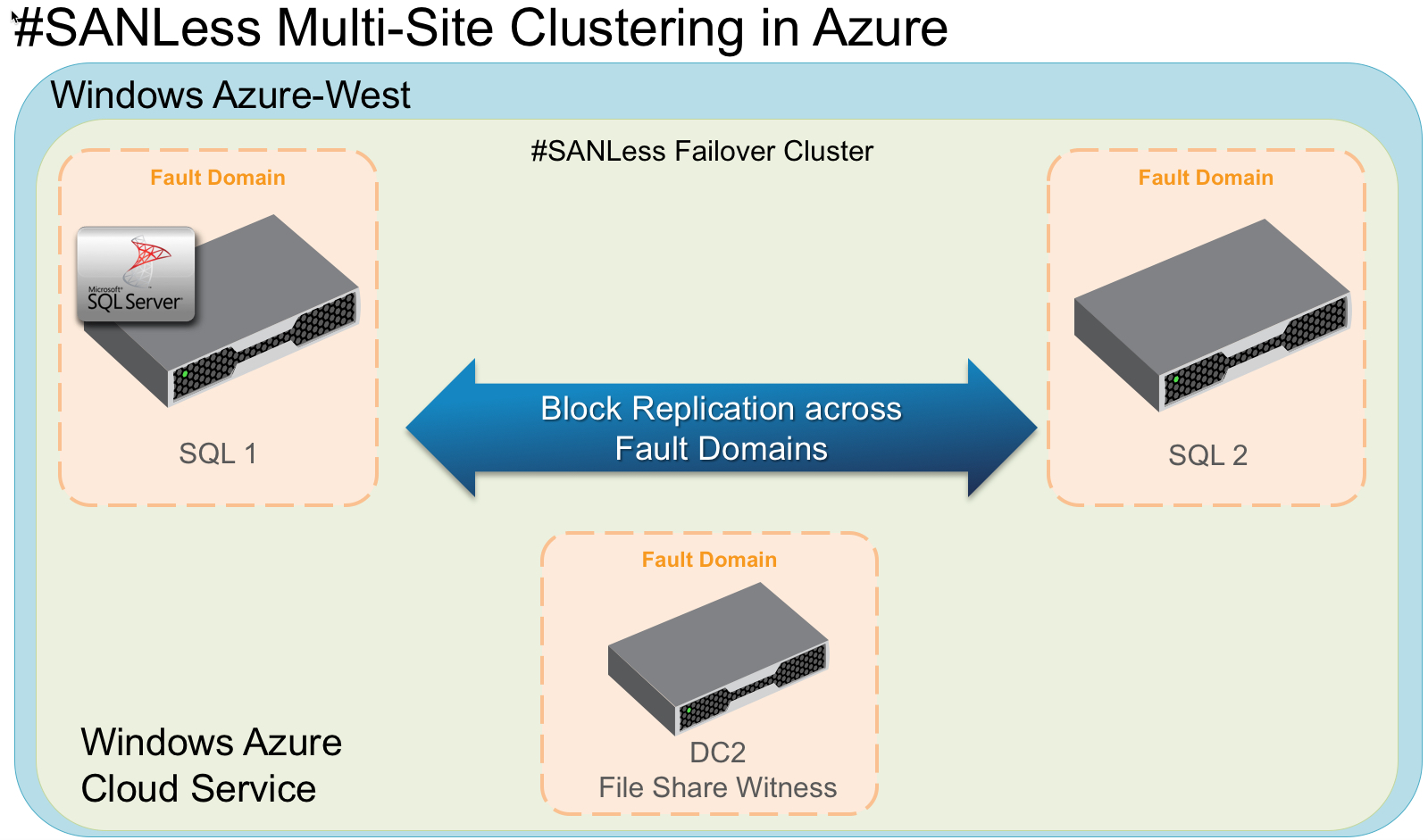
In order to ensure your SQL Server instances are highly available, you have to make sure your cluster nodes reside in different Fault Domains (FD) or in different Availability Zones (AZ). Not only do your instances need to reside in different FDs or AZs, but your File Share Witness (see below) also needs to reside in a FD or AZ that is different than that one your cluster nodes reside in.

Here is my take on it. AZs are the newest Azure feature, but they are only supported in a handful of regions so far. AZs give you a higher SLA (99.99%) then FDs (99.95%), and protect you against the kind of cloud outages I describe in my post Azure Outage Post-Mortem. If you can deploy in a region that supports AZs then I recommend you use AZs.

In this guide I used AZs which you will see when you get to the section on configuring the load balancer. However, if you use FDs everything will be exactly the same, except the load balancer configuration will reference Availability Sets rather than Availability Zones.

What is a File Share Witness you ask?

Without going into great detail, Windows Server Failover Clustering (WSFC) requires you configure a “Witness” to ensure failover behaves properly. WSFC supports three kinds of witnesses: Disk, File Share, Cloud. Since we are in Azure a Disk Witness is not possible. Cloud Witness is only available with Windows Server 2016 and later, so that leaves us with a File Share Witness. If you want to learn more about cluster quorums check out my post on the Microsoft Press Blog, From the MVPs: Understanding the Windows Server Failover Cluster Quorum in Windows Server 2012 R2

Add storage to your SQL Server instances

As you provision your SQL Server instances you will want to add additional disks to each instance. Minimally you will need one disk for the SQL Data and Log file, one disk for Tempdb. Whether or not you should have a seperate disk for log and data files is somewhat debated when running in the cloud. On the back end the storage all comes from the same place and your instance size limits your total IOPS. In my opinion there really isn’t any value in separating your log and data files since you cannot ensure that they are running on two physical sets of disks. I’ll leave that for you to decide, but I put log and data all on the same volume.

Normally a SQL Server 2008 R2 FCI would require you to put tempdb on a clustered disk. However, SIOS DataKeeper has this really nifty feature called a DataKeeper Non-Mirrored Volume Resource. This guide does not cover moving tempdb to this non-mirrored volume resource, but for optimal performance you should do this. There really is no good reason to replicate tempdb since it is recreated upon failover anyway.

As far as the storage is concerned you can use any storage type, but certainly use Managed Disks whenever possible. Make sure each node in the cluster has the identical storage configuration. Once you launch the instances you will want to attach these disks and format them NTFS. Make sure each instance uses the same drive letters.

Networking

It’s not a hard requirement, but if at all possible use an instance size that supports accelerated networking. Also, make sure you edit the network interface in the Azure portal so that your instances use a static IP address. For clustering to work properly you want to make sure you update the settings for the DNS server so that it points to your Windows AD/DNS server and not just some public DNS server.

Security

By default, the communications between nodes in the same virtual network are wide open, but if you have locked down your Azure Security Group you will need to know what ports must be open between the cluster nodes and adjust your security group. In my experience, almost all the issues you will encounter when building a cluster in Azure are either caused by blocked ports.

DataKeeper has some some ports that are required to be open between the clustered instance. Those ports are as follows:
UDP: 137, 138
TCP: 139, 445, 9999, plus ports in the 10000 to 10025 range

Failover cluster has its own set of port requirements that I won’t even attempt to document here. This article seems to have that covered. http://dsfnet.blogspot.com/2013/04/windows-server-clustering-sql-server.html

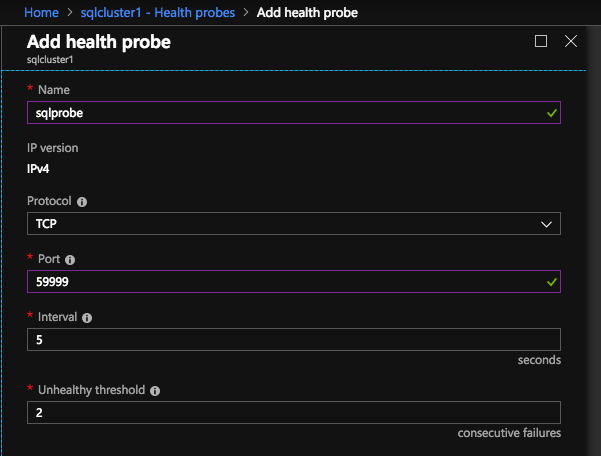
In addition, the Load Balancer described later will use a probe port that must allow inbound traffic on each node. The port that is commonly used and described in this guide is 59999.

And finally if you want your clients to be able to reach your SQL Server instance you want to make sure your SQL Server port is open, which by default is 1433.

Remember, these ports can be blocked by the Windows Firewall or Azure Security Groups, so to be sure to check both to ensure they are accessible.

Join the Domain

A requirement for SQL Server 2008 R2 FCI is that the instances must reside in the same Windows Server Domain. So if you have not done so, make sure you have joined the instances to your Windows domain

Local Service Account

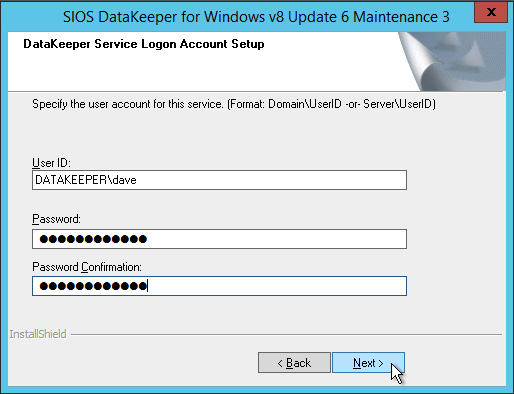
When you install DataKeeper it will ask you to provide a service account. You must create a domain user account and then add that user account to the Local Administrators Group on each node. When asked during the DataKeeper installation, specify that account as the DataKeeper service account. Note – Don’t install DataKeeper just yet!

Domain Global Security Groups

When you install SQL 2008 R2 you will be asked to specify two Global Domain Security Groups. You might want to look ahead at the SQL install instructions and create those groups now. You will also want to create a domain user account and place them in each of these security accounts. You will specify this account as part of the SQL Server Cluster installation.

Other Pre-Requisites

You must enable both Failover Clustering and .Net 3.5 on each instance of the two cluster instances. When you enable Failover Clustering, also be sure to enable the optional “Failover Cluster Automation Server” as it is required for a SQL Server 2008 R2 cluster in Windows Server 2012 R2.

Create the Cluster and DataKeeper Volume Resources

We are now ready to start building the cluster. The first step is to create the base cluster. Because of the way Azure handles DHCP, we MUST create the cluster using Powershell and not the Cluster UI. We use Powershell because it will let us specify a static IP address as part of the creation process. If we used the UI it would see that the VMs use DHCP and it will automatically assign a duplicate IP address, so we we want to avoid that situation by using Powershell as shown below.

New-Cluster -Name cluster1 -Node sql1,sql2 -StaticAddress 10.0.0.100 -NoStorage
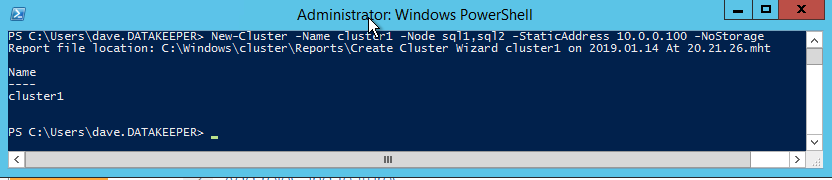
After the cluster creates, run Test-Cluster. This is required before SQL Server will install.

Test-Cluster
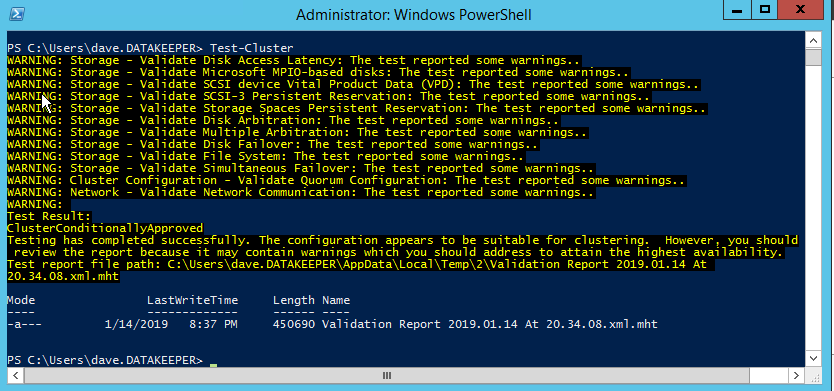
You will get warnings about Storage and Networking, but you can ignore those as they are expected in a SANless cluster in Azure. If there are any other warnings or errors you must address those before moving on.

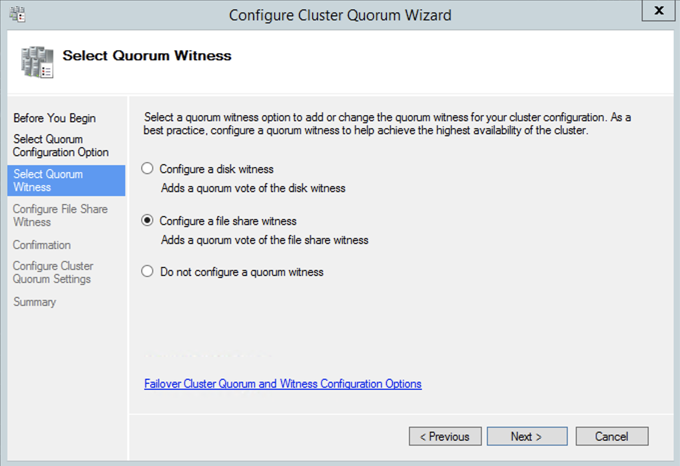
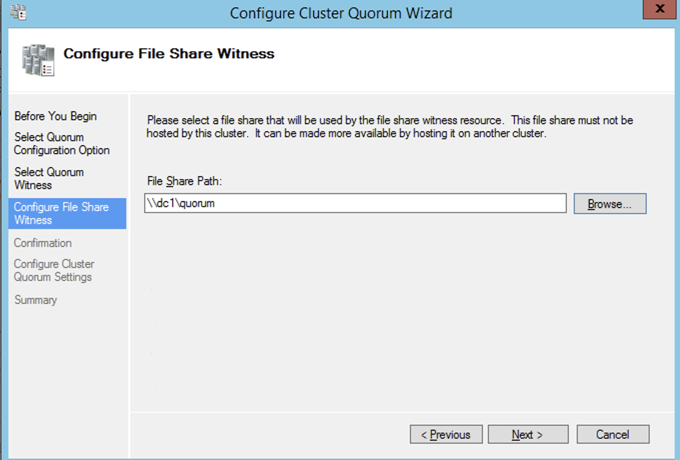
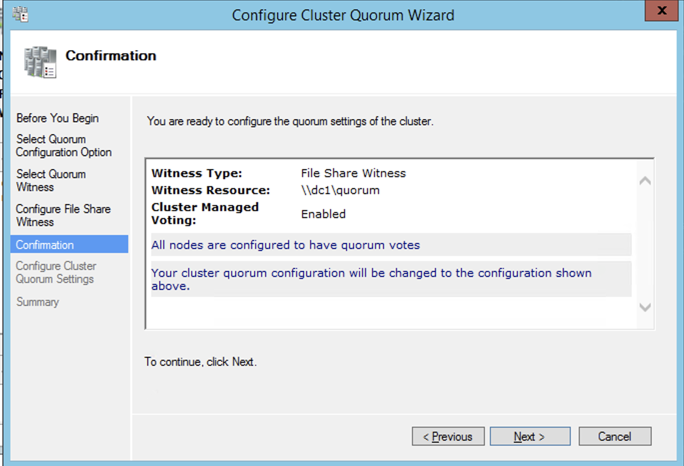
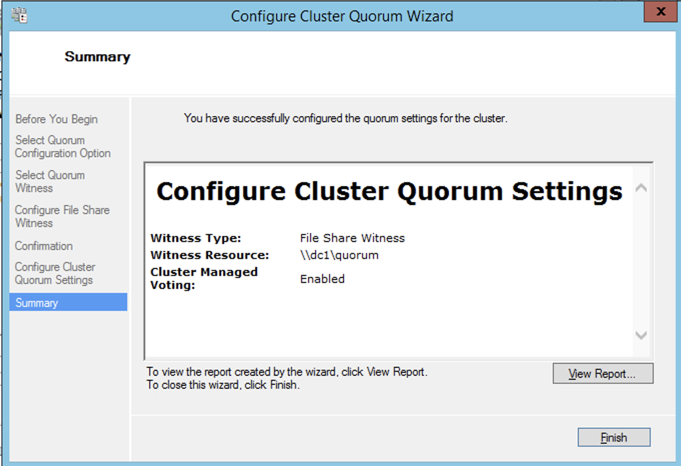
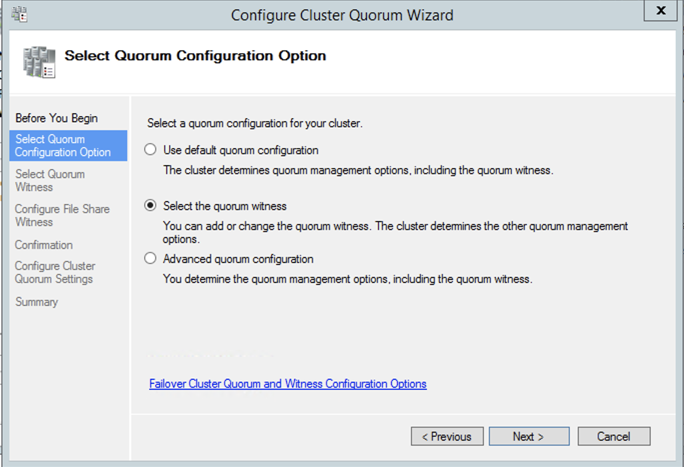
After the cluster is created you will need to add the File Share Witness. On the third server we specified as the file share witness, create a file share and give Read/Write permissions to the cluster computer object we just created above. In this case $Cluster1 will be the name of the computer object that needs Read/Write permissions at both the share and NTFS security level.

Once the share is created, you can use the Configure Cluster Quorum Wizard as shown below to configure the File Share Witness.

Install DataKeeper

It is important to wait until the basic cluster is created before we install DataKeeper since the DataKeeper installation registers the DataKeeper Volume Resource type in failover clustering. If you jumped the gun and installed DataKeeper already that is okay. Simply run the setup again and choose Repair Installation.

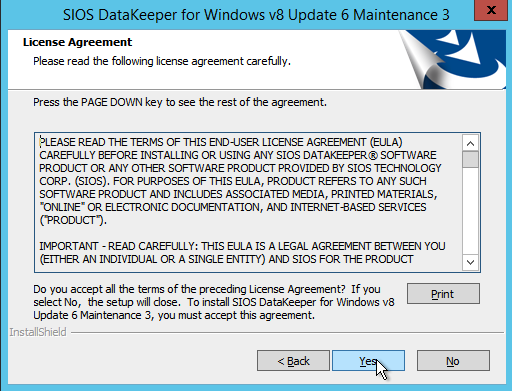
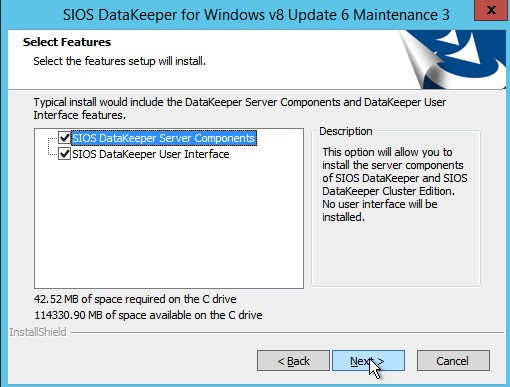
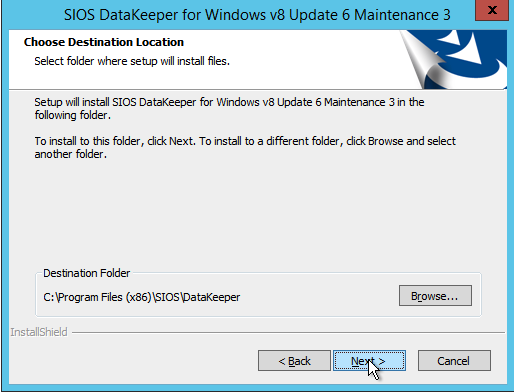
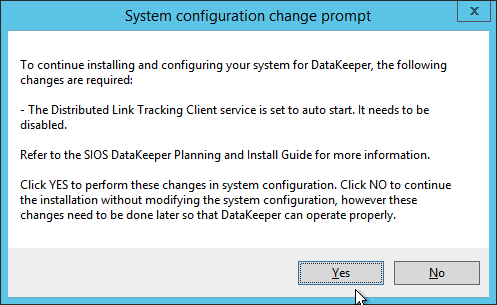
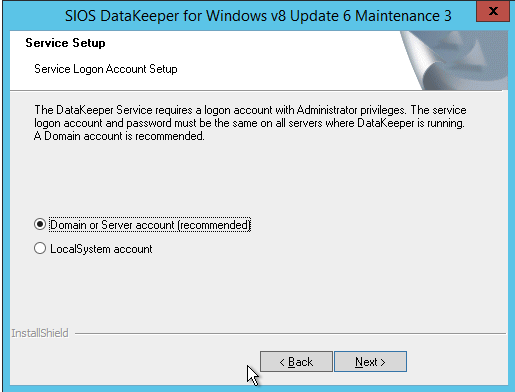
The screenshots below walk you through a basic installation. Start by running the DataKeeper Setup.
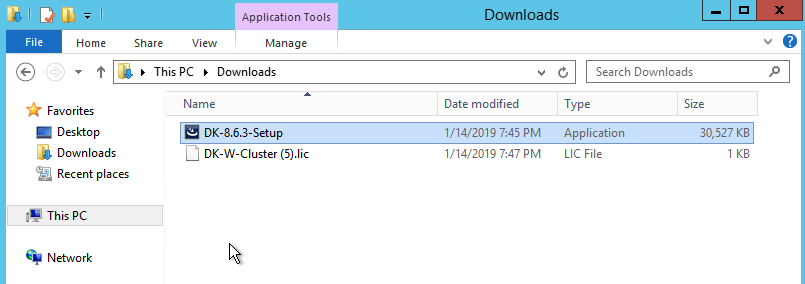
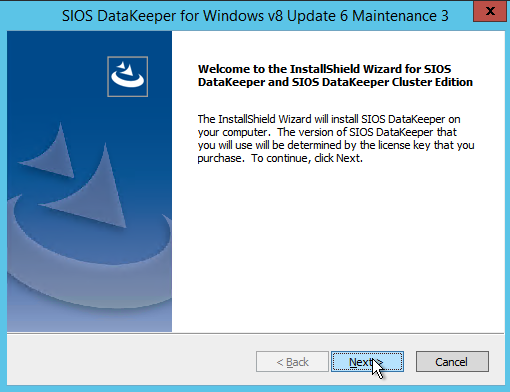
The account you specify below must be a domain account and must be part of the Local Administrators group on each of the cluster nodes.
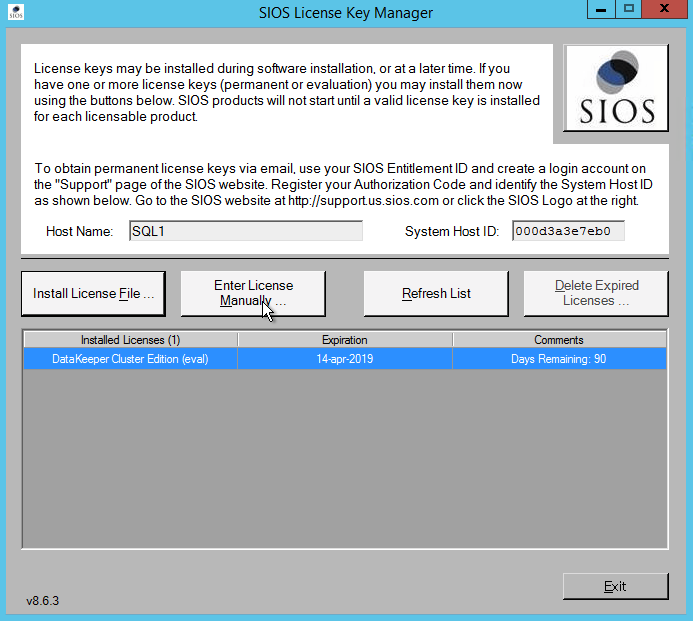
When presented with the SIOS License Key manager you can browse out to your temporary key, or if you have a permanent key you can copy the System Host ID and use that to request your permanent license. If you ever need to refresh a key the SIOS License Key Manager is a program that will be installed that you can run separately to add a new key.
Create DataKeeper Volume Resource

Once DataKeeper is installed on each node you are ready to create your first DataKeeper Volume Resource. The first step is to open the DataKeeper UI and connect to each of the cluster nodes.
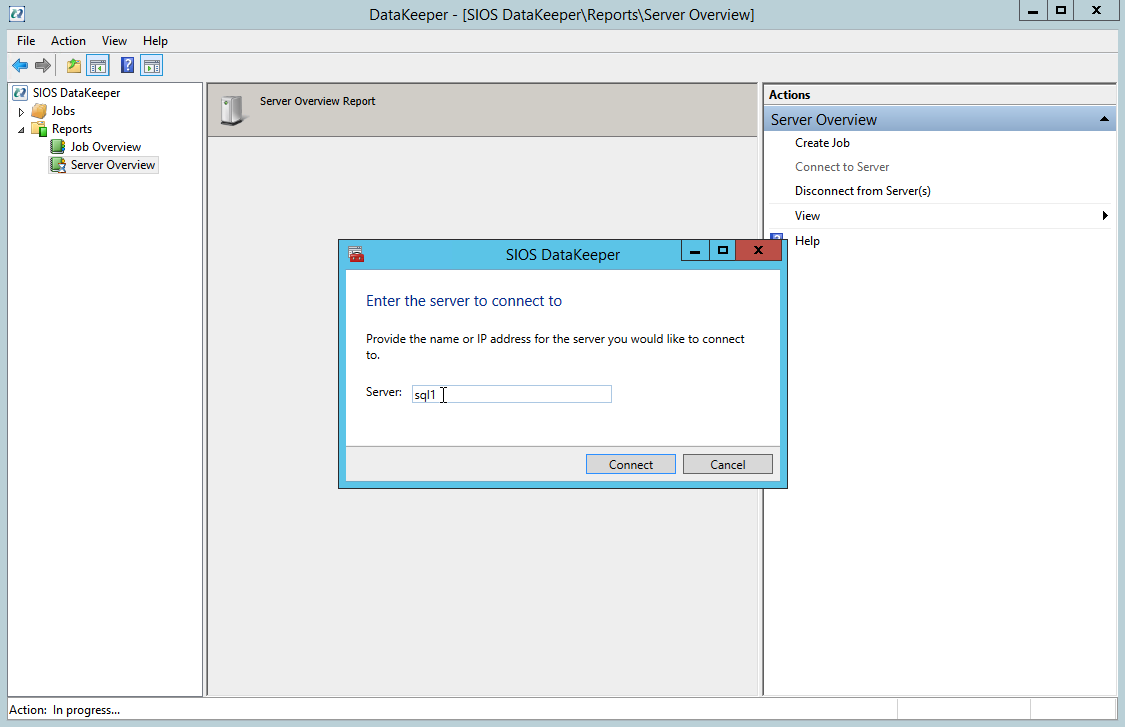
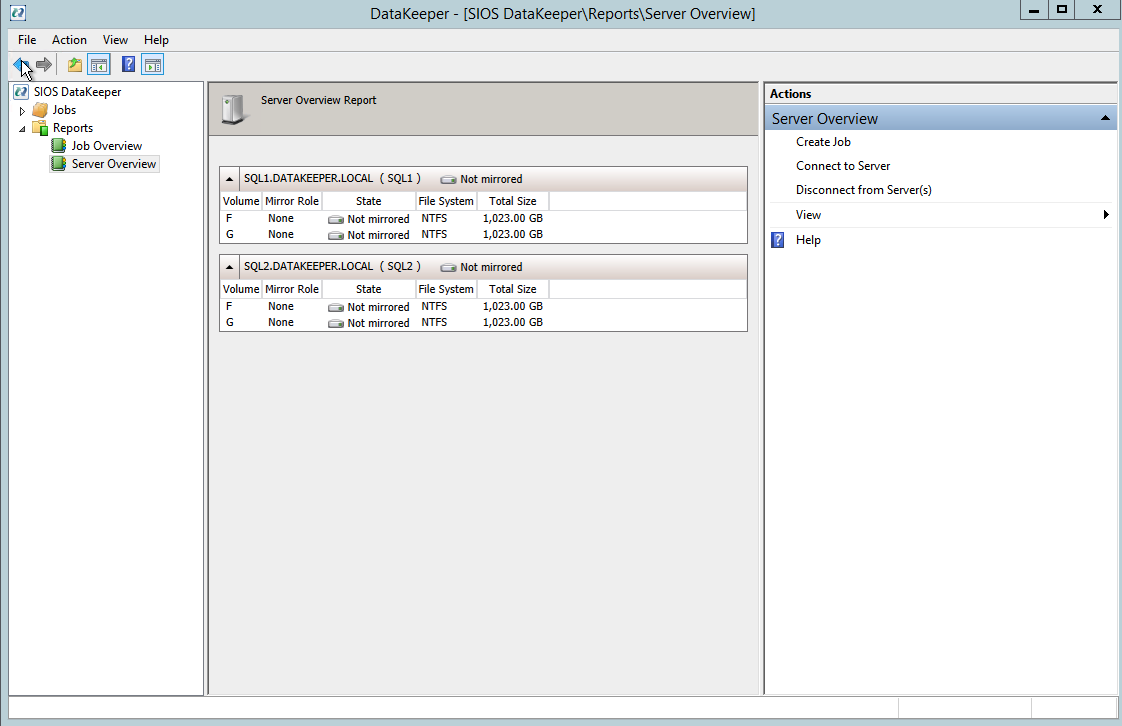
If everything is done correctly the Server Overview Report should look something like this.
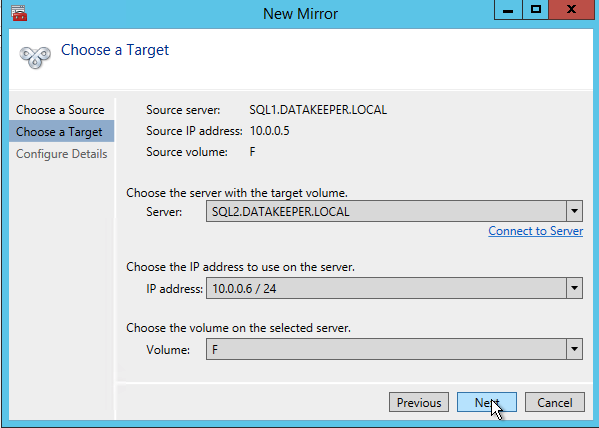
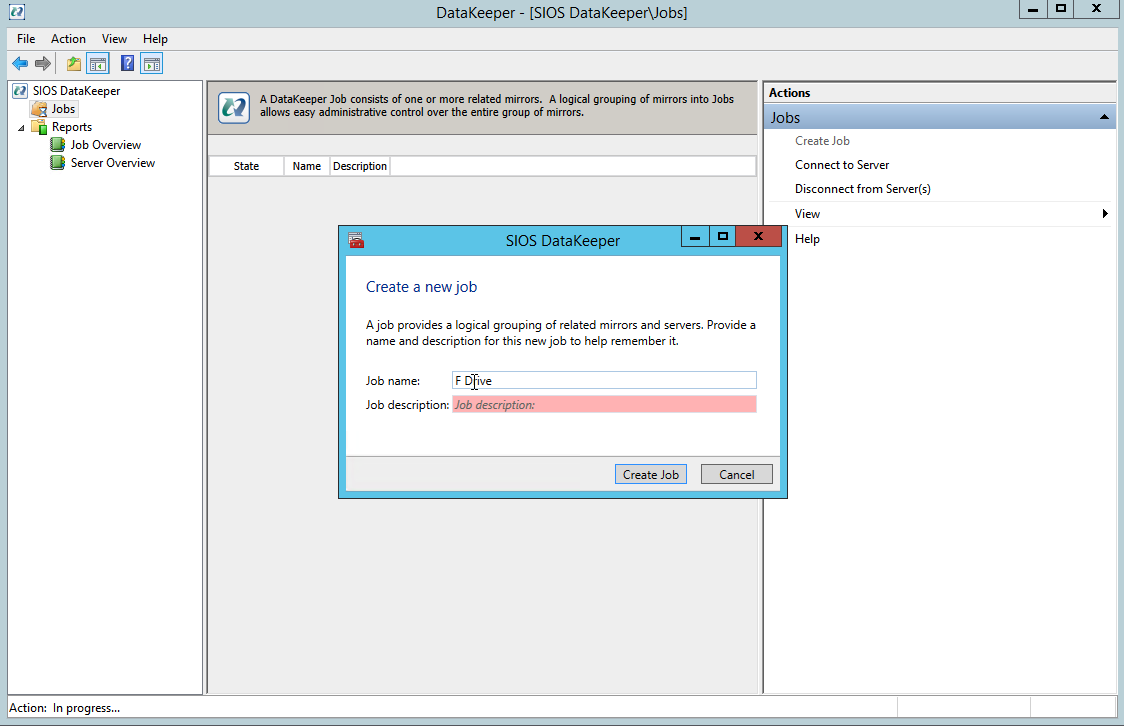
You can now create your first Job as shown below.
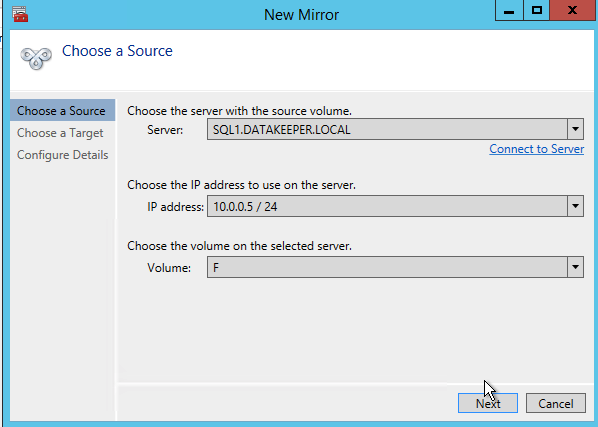
After you choose a Source and Target you are presented with the following options. For a local target in the same region the only thing you need to select is Synchronous.
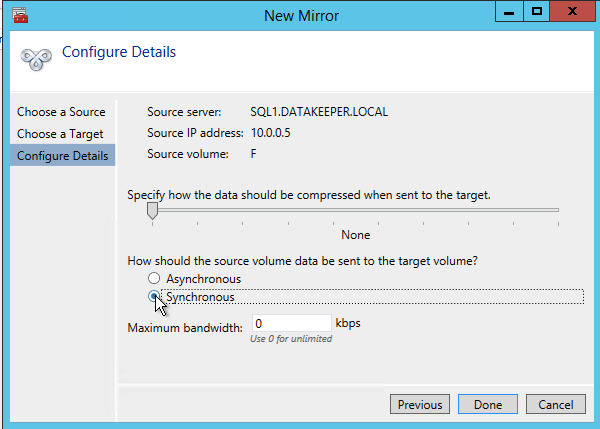
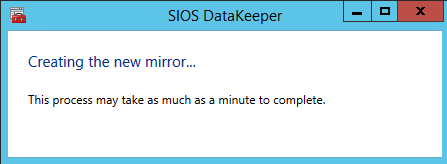
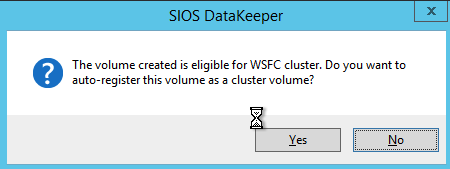
Choose Yes and auto-register this volume as a cluster resource.
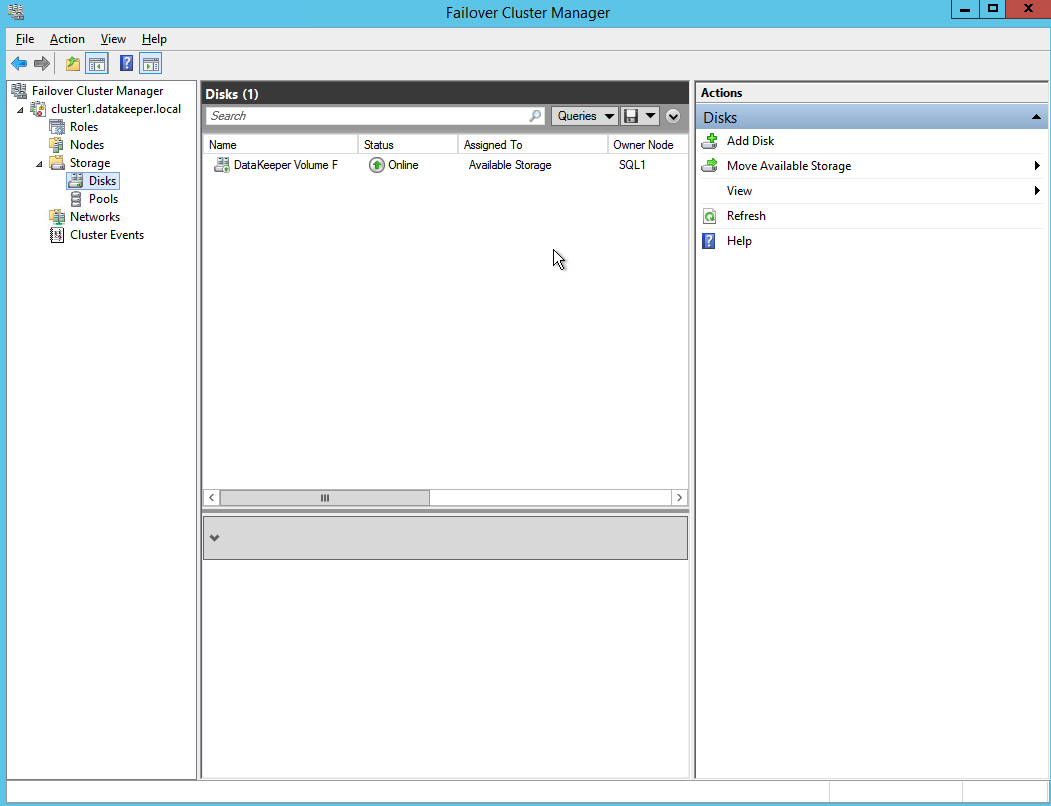
Once you complete this process open up the Failover Cluster Manager and look in Disk. You should see the DataKeeper Volume resource in Available Storage. At this point WSFC treats this as if it were a normal cluster disk resource.
Slipstream SP3 onto SQL 2008 R2 install media

SQL Server 2008 R2 is only supported on Windows Server 2012 R2 with SQL Server SP2 or later. Unfortunately, Microsoft never released a SQL Server 2008 R2 installation media that that includes SP2 or SP3. Instead, you must slipstream the service pack onto the installation media BEFORE you do the installation. If you try to do the installation with the standard SQL Server 2008 R2 media you will run into all kinds of problems. I don’t remember the exact errors you will see, but I do recall they didn’t really point to the exact problem and you will waste a lot of time trying to figure out what went wrong.

As of the date of this writing, Microsoft does not have a Windows Server 2012 R2 with SQL Server 2008 R2 offering in the Azure Marketplace, so you will be bringing your own SQL license if you want to run SQL 2008 R2 on Windows Server 2012 R2 in Azure. If they add that image later, or if you choose to use the SQL 2008 R2 on Windows Server 2008 R2 image you must first uninstall the existing standalone instance of SQL Server before moving forward.

I followed the guidance in Option 1 of this article to slipstream SP3 on onto my SQL 2008 R2 installation media. You will of course have to adjust a few things as this article references SP2 instead of SP3. Make sure you slipstream SP3 on the installation media we will use for both nodes of the cluster. Once that is done, continue to the next step.

Install SQL Server on the First Node

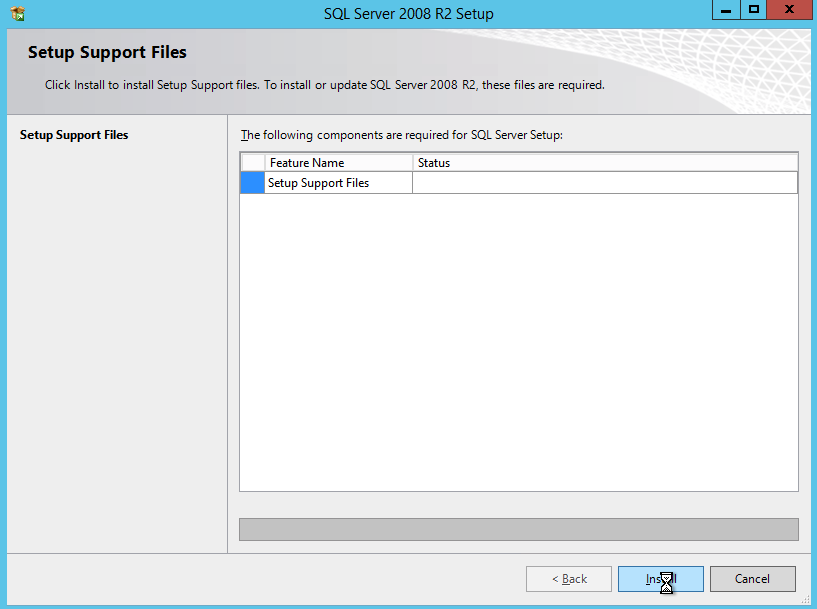
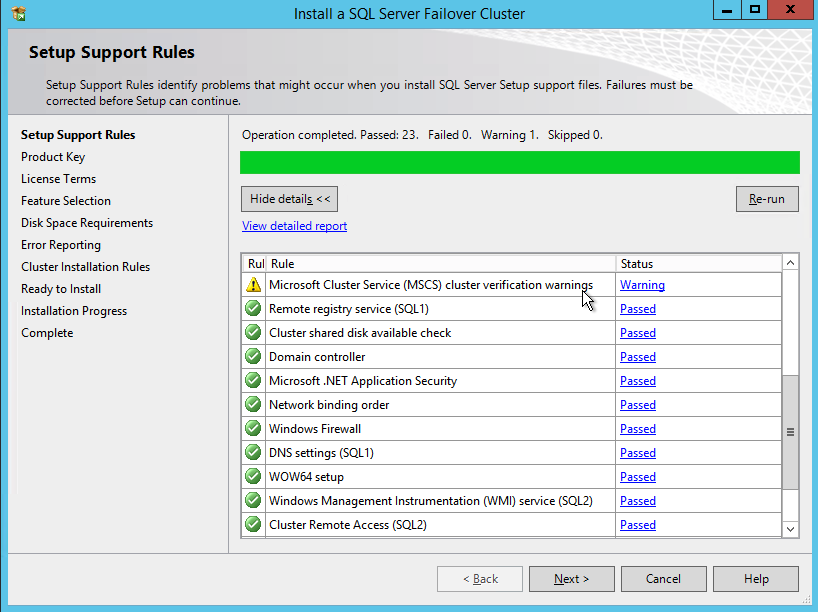
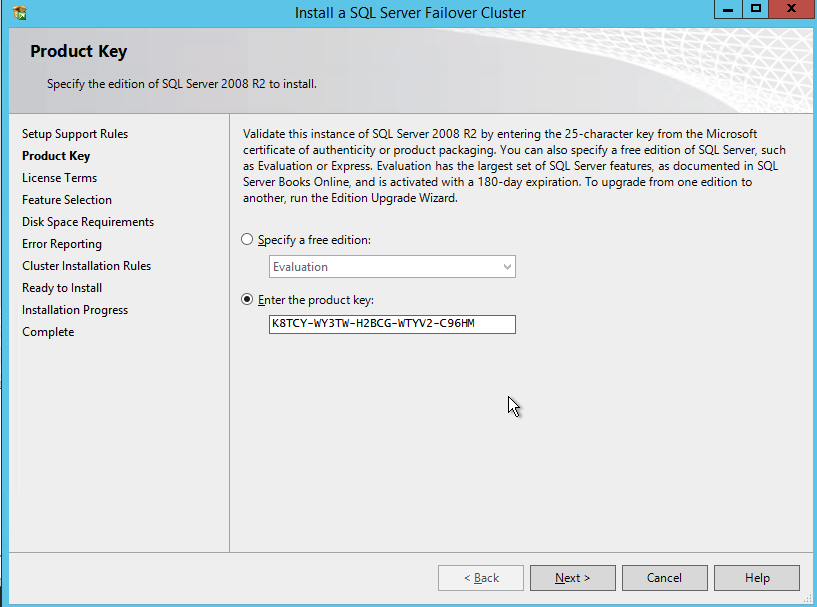
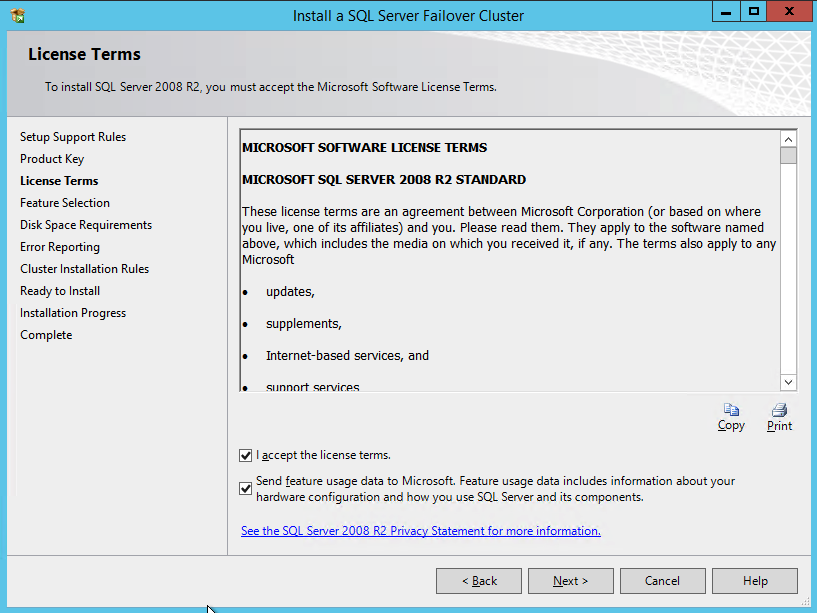
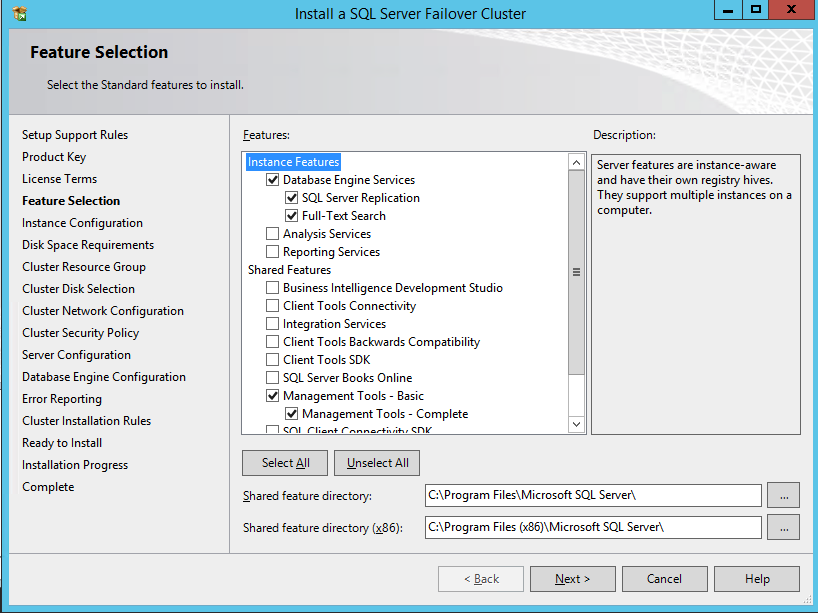
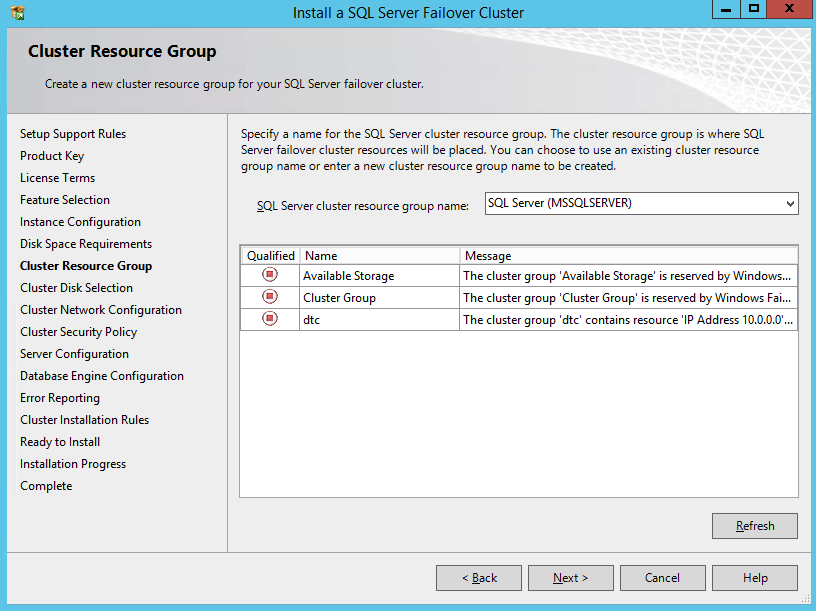
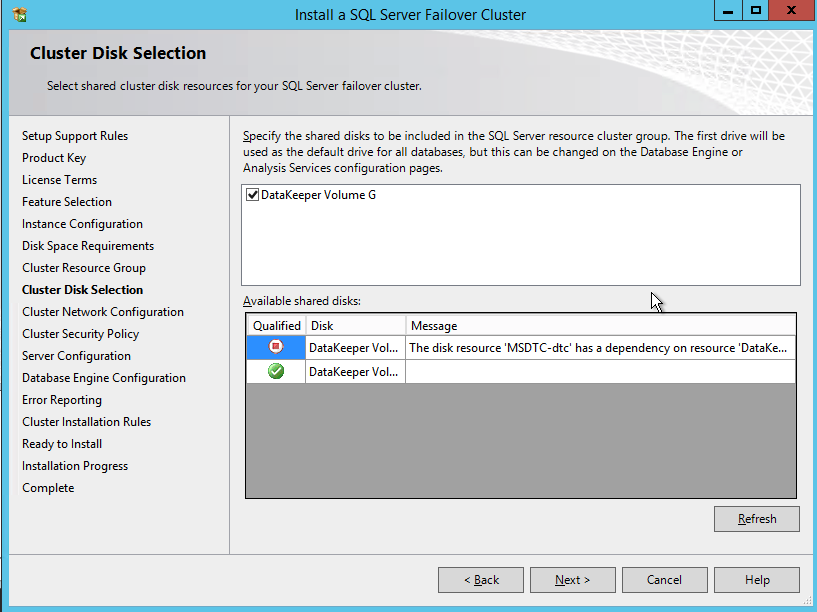
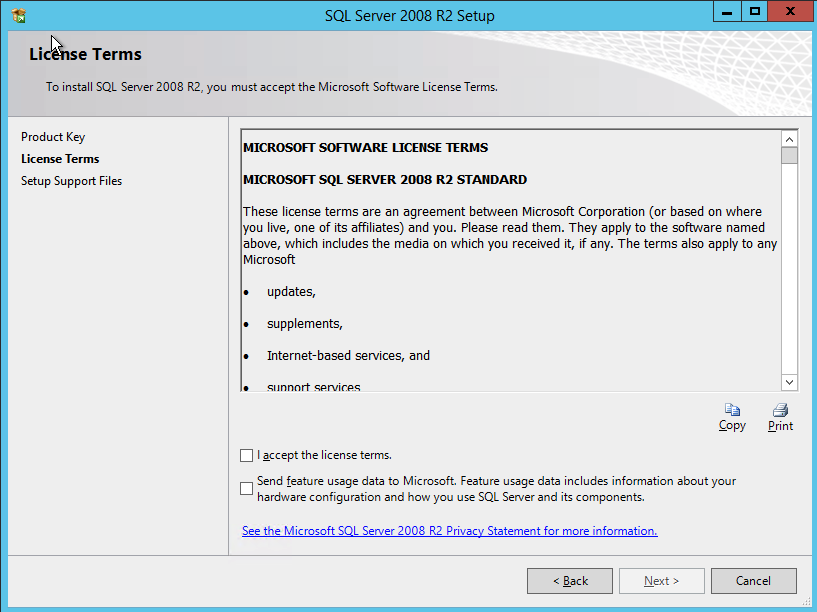
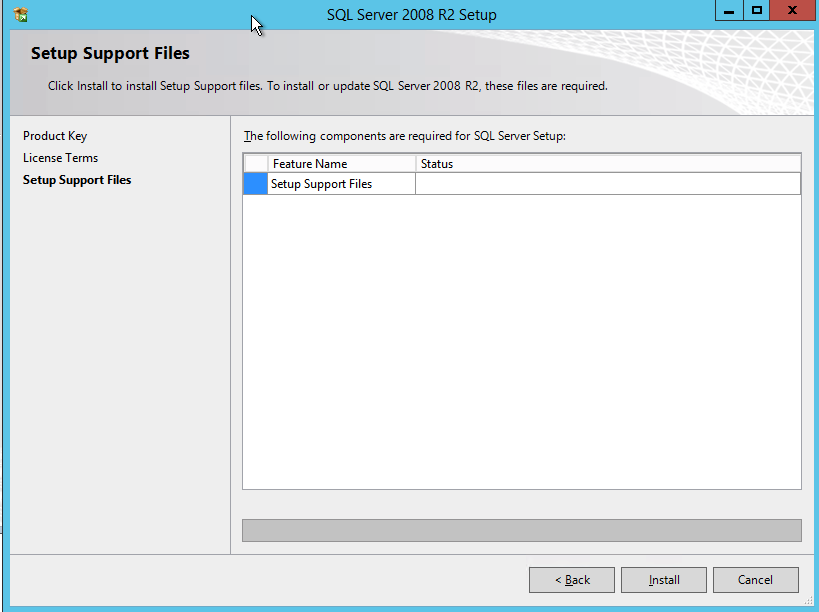
Using the SQL Server 2008 R2 media with SP3 slipstreamed, run setup and install the first node of the cluster as shown below.
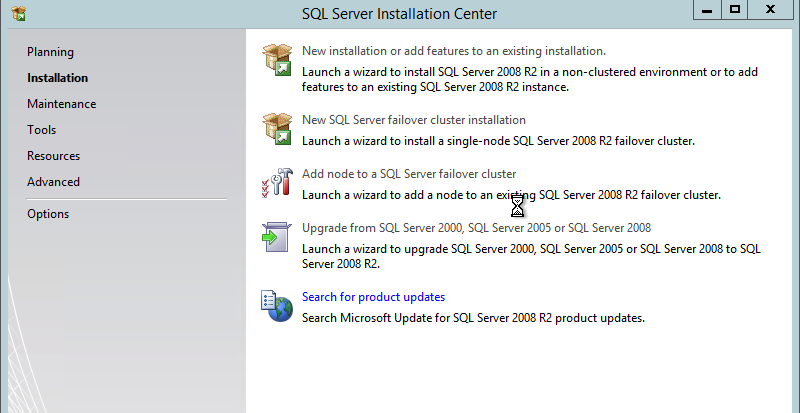
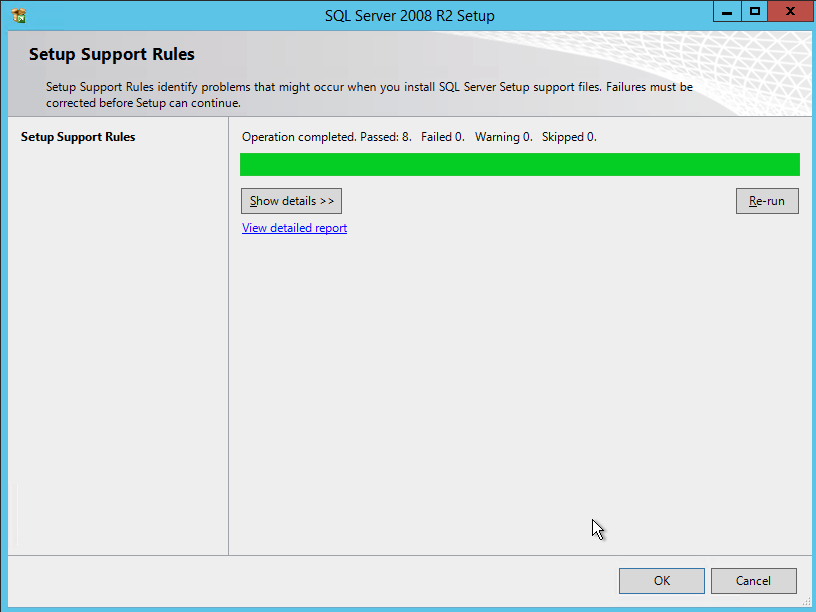
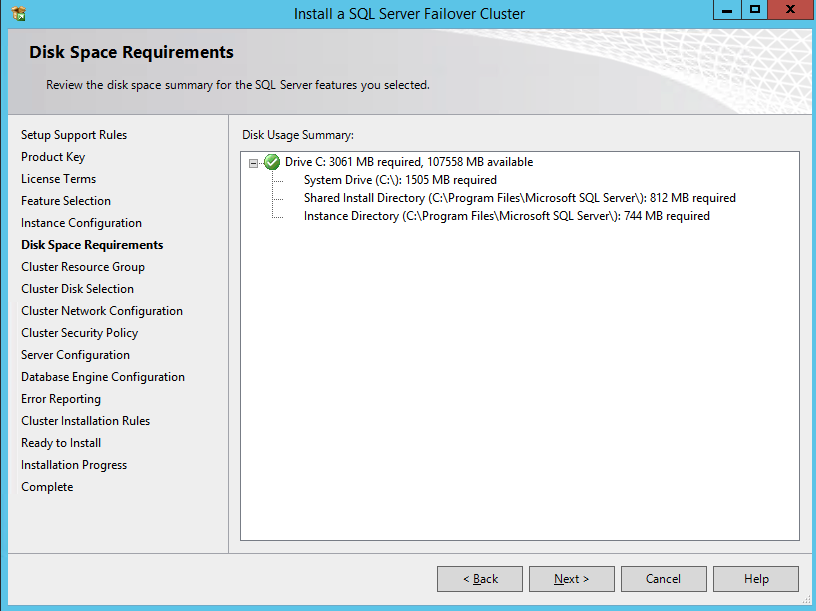
If you use anything other than the Default instance of SQL Server you will have some additional steps not covered in this guide. The biggest difference is you must lock down the port that SQL Server uses since by default a named instance of SQL Server does NOT use 1433. Once you lock down the port you also need to specify that port instead of 1433 whenever we reference port 1433 in this guide, including the firewall setting and the Load Balancer settings.

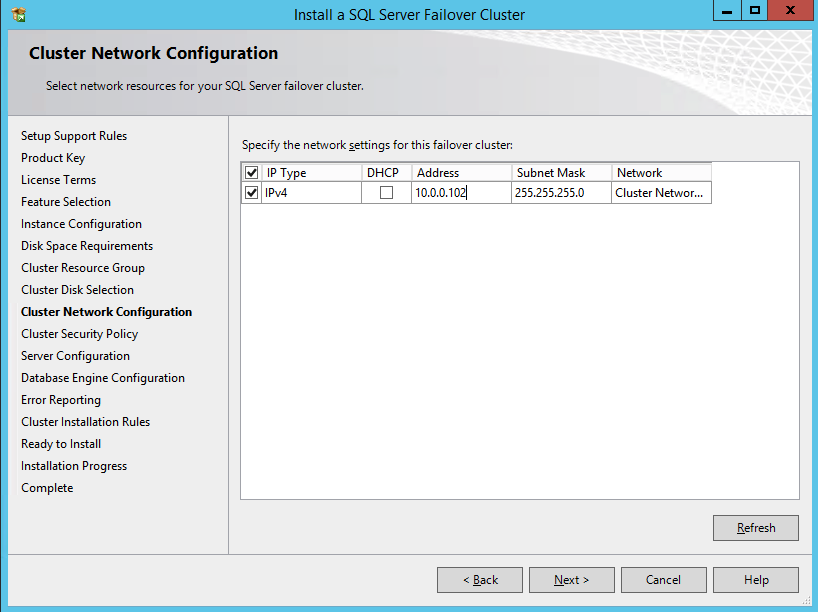
Here make sure to specify a new IP address that is not in use. This is the same IP address we will use later when we configure the Internal Load Balancer later.
As I mentioned earlier, SQL Server 2008 R2 utilizes AD Security Groups. If you have not already created them, go ahead and create them now as show below before you continue to the next step in the SQL install
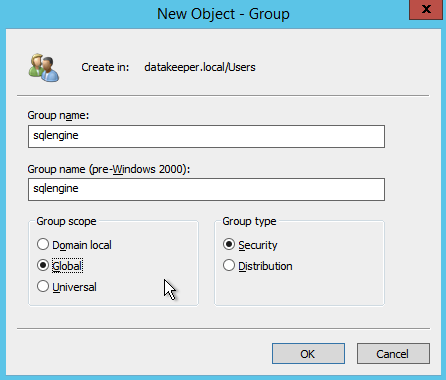
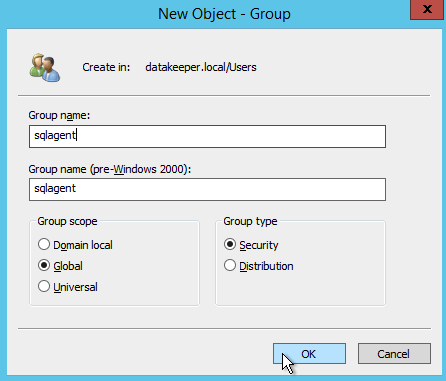
Specify the Security Groups you created earlier.
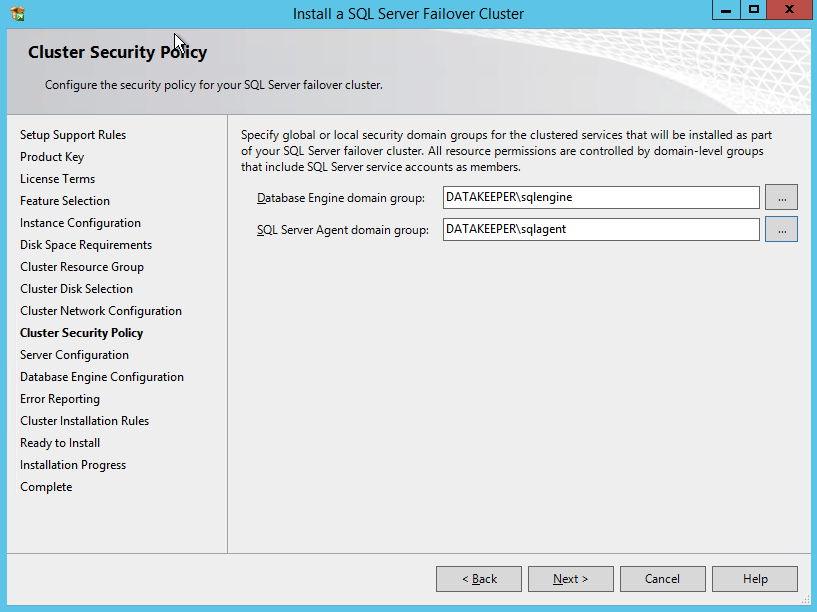
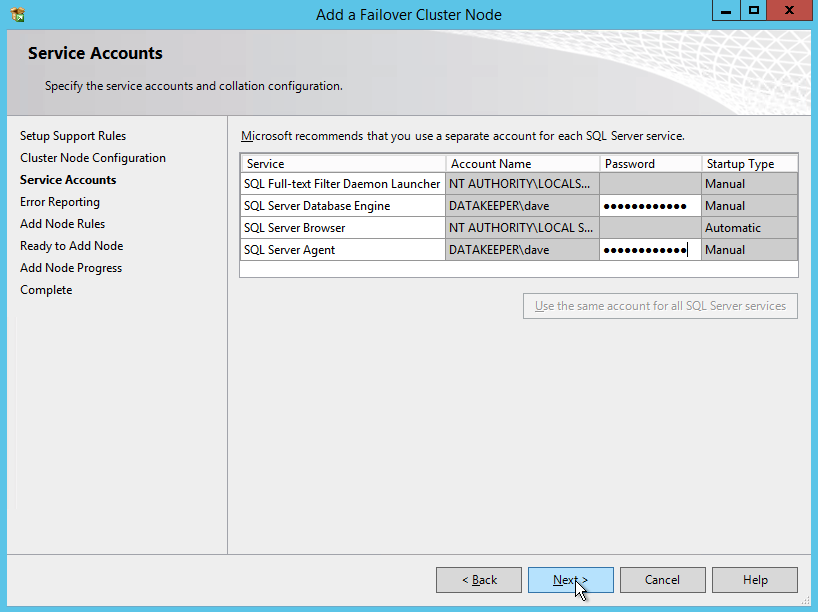
Make sure the service accounts you specify are a member of the associated Security Group.

Specify your SQL Server administrators here.
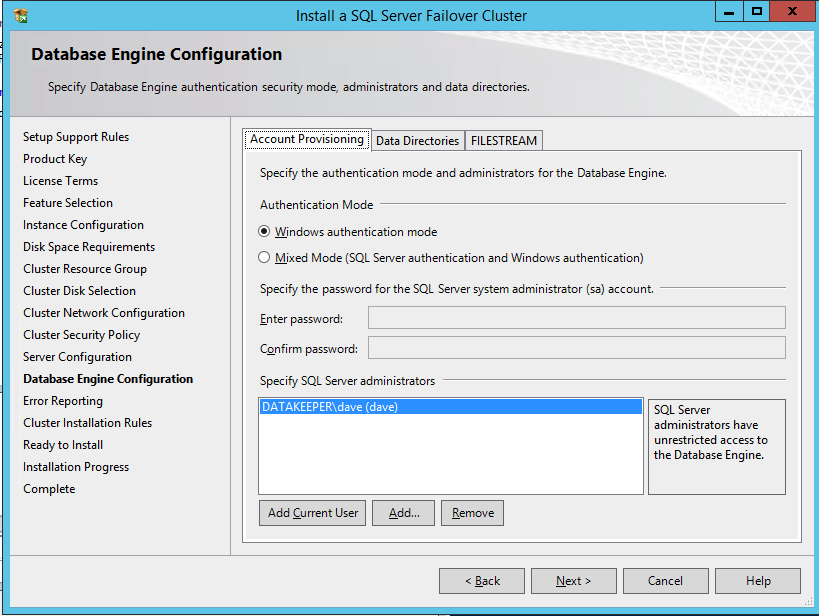
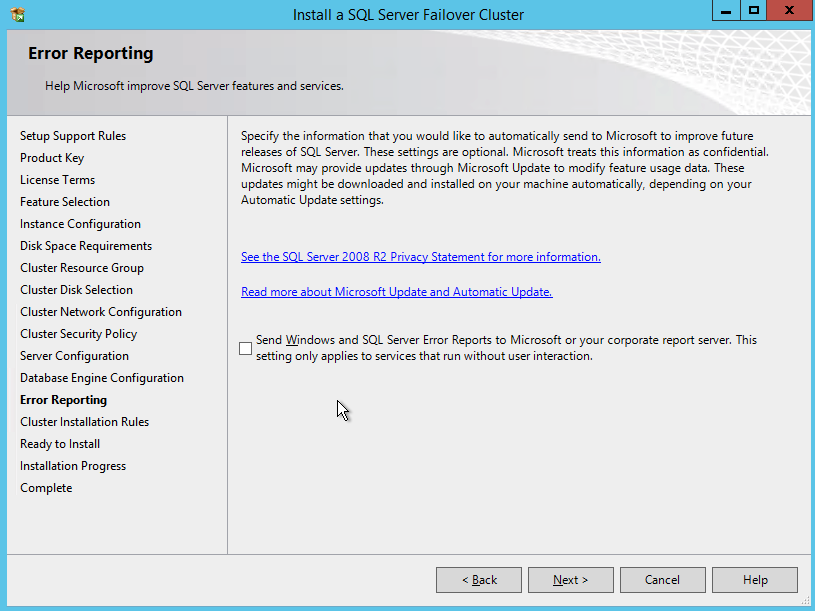
If everything goes well you are now ready to install SQL Server on the second node of the cluster.

Install SQL Server on the Second Node

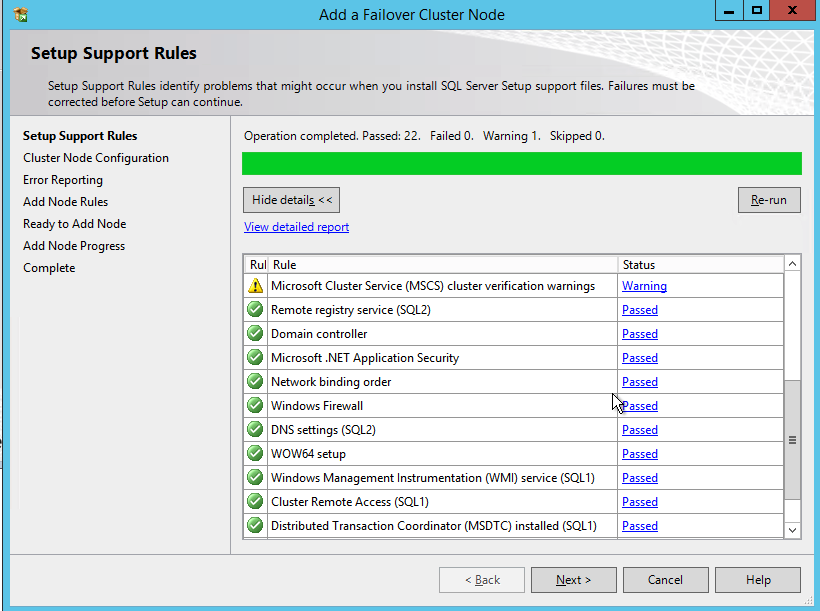
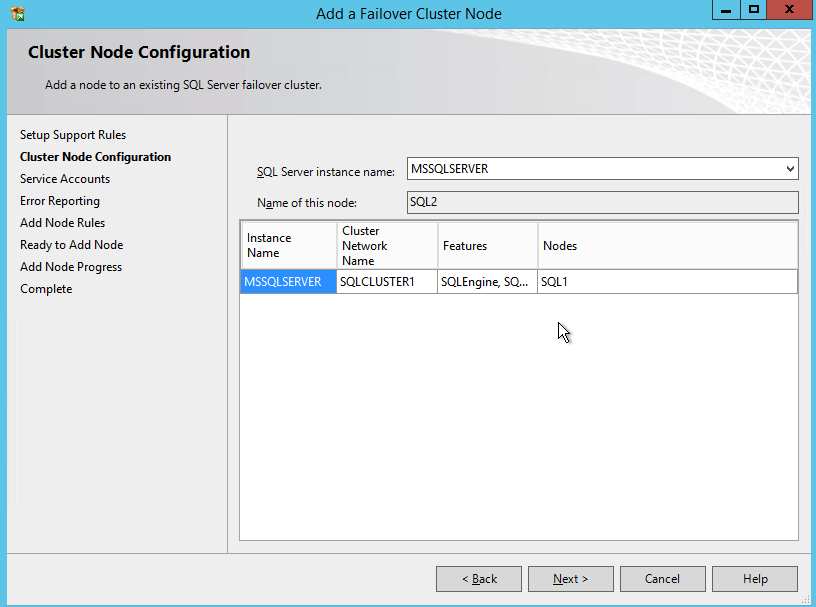
One the second node, run the SQL Server 2008 R2 with SP3 install and select Add Node to a SQL Server FCI.
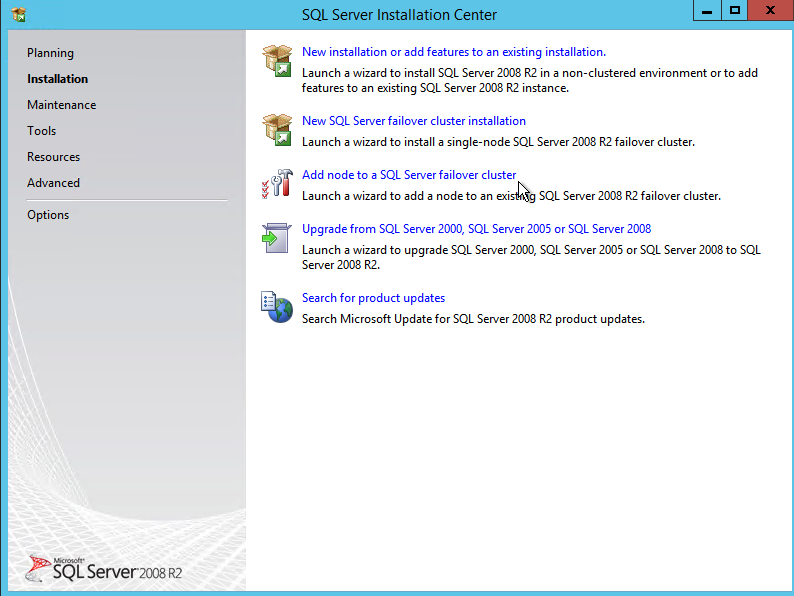
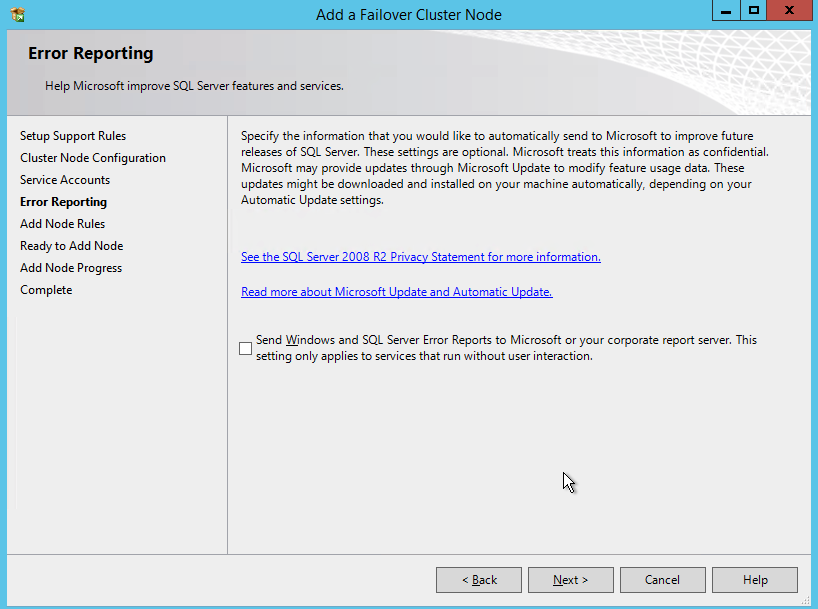
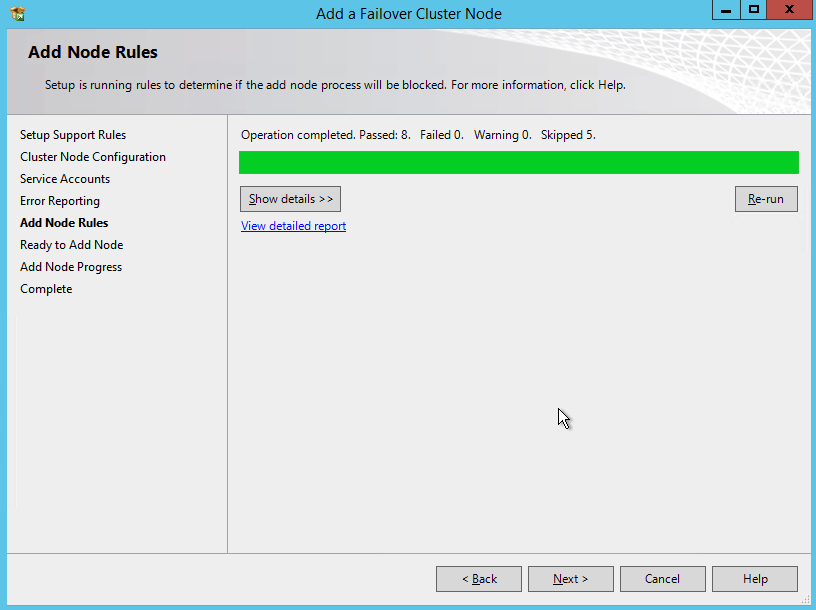
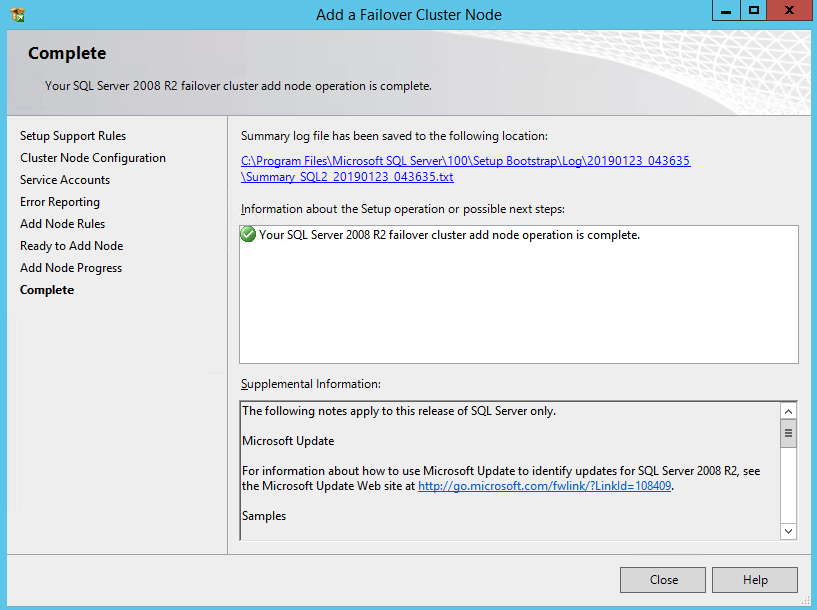
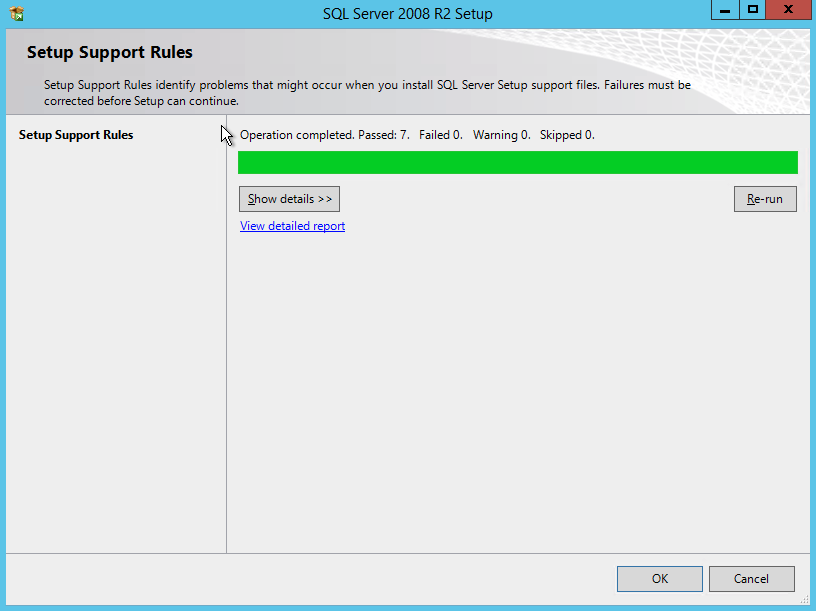
Proceed with the installation as shown in the following screenshots.
Assuming everything went well, you should now have a two node SQL Server 2008 R2 cluster configured that looks something like the following.
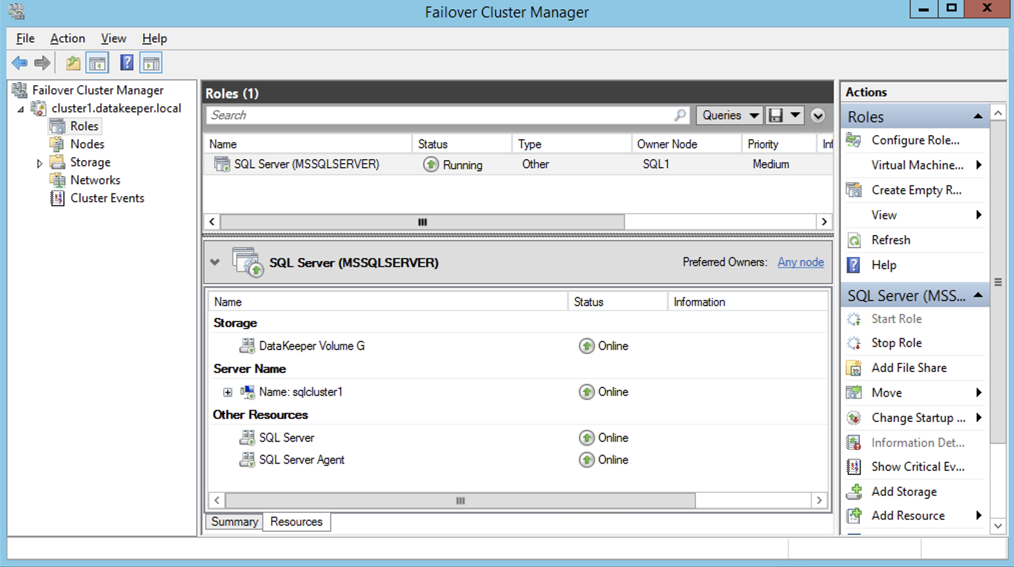
However, you probably will notice that you can only connect to the SQL Server instance from the active cluster node. The problem is that Azure does not support gratuitous ARP, so your clients cannot connect directly to the Cluster IP Address. Instead, the clients must connect to an Azure Load Balancer, which will redirect the connection to the active node. To make this work there are two steps: Create the Load Balancer and Fix the SQL Server Cluster IP to respond to the Load Balancer Probe and use a 255.255.255.255 Subnet mask. Those steps are described below.

Before you continue, run cluster validation one more time. The Cluster Validation report should return just the same network and storage warnings that it did the first time you ran it. Assuming there are no new errors or warnings, your cluster is configured correctly.

Edit sqlserv.exe Config File

include the below lines in the sqlservr.exe.config file. This forces SQL Server to use the right CLR integration.

<configuration>
  <startup>
    <supportedRuntime version="v2.0.50727"/>
  </startup>
</configuration>

The file, by default, will not exist and may be created. If this file already exists for your installation, the <supportedRuntime version=”v2.0.50727″/> line simply needs to be placed with the <startup>…</startup> sub-section of the <configuration>…</configuration> section.

Create the Azure Load Balancer

I’m going to assume your clients can communicate directly to the internal IP address of the SQL cluster so we will create an Internal Load Balancer (ILB) in this guide. If you need to expose your SQL Instance on the public internet you can use a Public Load Balancer instead.

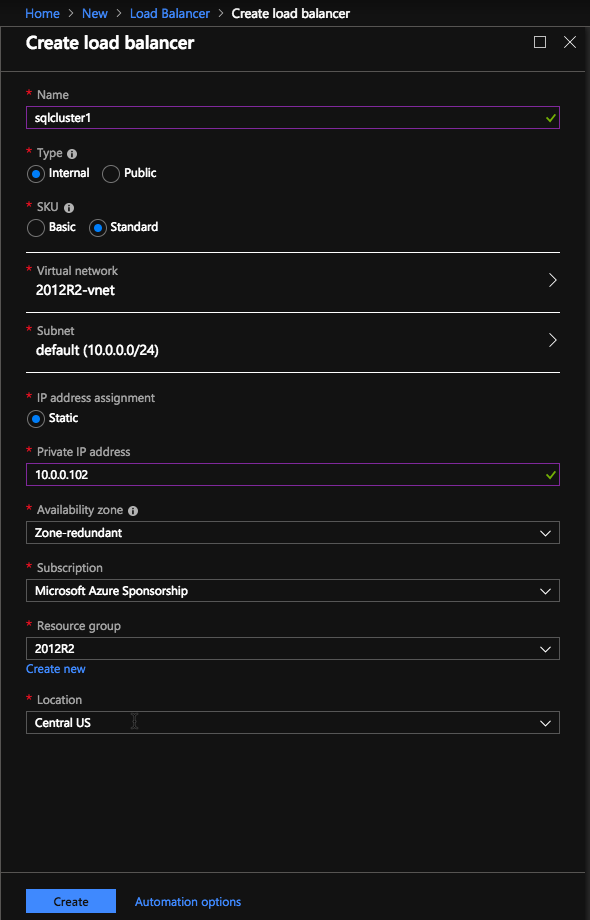
In the Azure portal create a new Load Balancer following the screenshots as shown below. The Azure portal UI changes rapidly, but these screenshots should give you enough information to do what you need to do. I will call out important settings as we go along.

Here we create the ILB. The important thing to note on this screen is you must select “Static IP address assignment” and specify the same IP address that we used during the SQL Cluster installation.

Since I used Availability Zones I see Zone Redundant as an option. If you used Availability Sets your experience will be slightly different.
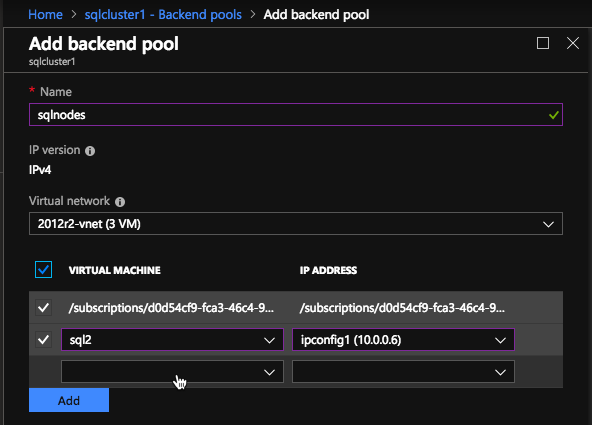
In the Backend pool be sure to select the two SQL Server instances. You DO NOT want to add your File Share Witness in the pool.
Here we configure the Health Probe. Most Azure documentation has us using port 59999, so we will stick with that port for our configuration.
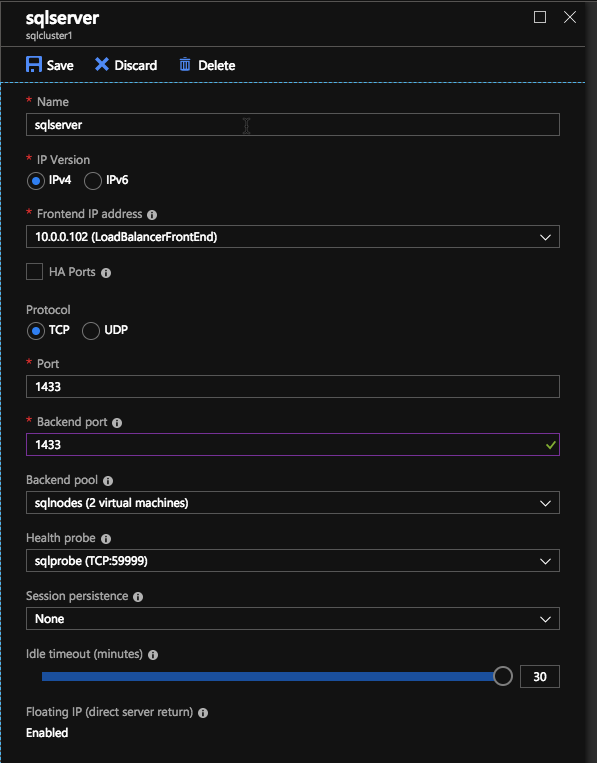
Here we will add a load balancing rule. In our case we want to redirect all SQL Server traffic to TCP port 1433 of the active node. It is also important that you select Floating IP (Direct Server Return) as Enabled.
Run Powershell Script to Update SQL Client Access Point

Now we must run a Powershell script on one of the cluster nodes to allow the Load Balancer Probe to detect which node is active. The script also sets the Subnet Mask of the SQL Cluster IP Address to 255.255.255.255.255 so that it avoids IP address conflicts with the Load Balancer we just created.

# Define variables
$ClusterNetworkName = “” 
# the cluster network name (Use Get-ClusterNetwork on Windows Server 2012 of higher to find the name)
$IPResourceName = “” 
# the IP Address resource name 
$ILBIP = “” 
# the IP Address of the Internal Load Balancer (ILB) and SQL Cluster
Import-Module FailoverClusters
# If you are using Windows Server 2012 or higher:
Get-ClusterResource $IPResourceName | Set-ClusterParameter -Multiple @{Address=$ILBIP;ProbePort=59999;SubnetMask="255.255.255.255";Network=$ClusterNetworkName;EnableDhcp=0}
# If you are using Windows Server 2008 R2 use this: 
#cluster res $IPResourceName /priv enabledhcp=0 address=$ILBIP probeport=59999  subnetmask=255.255.255.255

This is what the output will look like if run correctly.

You probably notice that the end of that script has a commented line of code to use if you are running on Windows Server 2008 R2. If you are running Windows Server 2008 R2 make sure you run the code specific for Windows Server 2008 R2 at a Command prompt, it is not Powershell.

Next Steps

If you get to this point and you still cannot connect to the cluster remotely you wouldn’t be the first person. There are a lot of things that can go wrong in terms of security, load balancer, SQL ports, etc. I wrote this guide to help troubleshoot connection issues.

In fact, in this very installation I ran into some strange issues in terms of my SQL Server TCP/IP Properties in SQL Server Configuration Manager. When I looked at the properties I did not see the SQL Server Cluster IP address as one of the addresses it was listening on, so I had to add it manually. I’m not sure if that was an anomaly, but it certainly was an issue I had to resolve before I could connect to the cluster from a remote client.

As I mentioned earlier, one other improvement you can make to this installation is to use a DataKeeper Non-Mirrored Volume Resource for TempDB. If you set that up please be aware of the following two configuration issues people commonly run into.

The first issue is if you move tempdb to a folder on the 1st node, you must be sure to create the exact same folder structure on the second node. If you don’t do that when you try to failover SQL Server will fail to come online since it can’t create TempDB

The second issue occurs anytime you add another DataKeeper Volume Resource to a SQL Cluster after the cluster is created. You must go into the properties of the SQL Server cluster resource and make it dependent on the new DataKeeper Volume resource you added. This is true for the TempDB volume and any other volumes you may decide to add after the cluster is created.

If you have any questions about this configuration or any other cluster configurations please feel free to reach out to me on Twitter @DaveBerm.

Troubleshooting #Azure ILB connection issues in a SQL Server AlwaysOn FCI Cluster
Step-by-Step: How to configure a SQL Server 2008 R2 Failover Cluster Instance in Azure

TICK TOCK…6 MONTHS UNTIL SQL SERVER 2008/2008 R2 SUPPORT EXPIRES UNLESS YOU TAKE ACTION

If you are still running SQL Server 2008/2008 R2 you probably have heard by now that as of July 9, 2019, you will no longer be supported. However, realizing that there are still a significant number of customers running on this platform that will not be able to upgrade to a newer version of SQL before that deadline, Microsoft has offered two options to provide extended security updates for an additional three years.

The first option you have requires the annual purchase of “Extended Security Updates”. Extended Security Updates will cost 75% of the full license cost annually and also requires that the customer is on active software assurance, which is typically 25% of the license cost annually. So effectively, to receive Extended Security Updates you are paying for new SQL Server licenses annually for three years, or until you migrate off SQL Server 2008/2008 R2.

However, there is another second option. Microsoft has announced that if you move your SQL Server 2008 R2 instances to Azure, you will receive the Extended Security Updates at no additional charge. There is of course the hourly infrastructure charges you will incur in Azure, plus either the cost of pay as you go SQL Server instances or the Software Assurance charges if you want to bring your existing SQL licenses to Azure, but that cost includes the added benefit of running in a state of the art cloud environment which opens up opportunities for enhanced performance and HA/DR scenarios that you may not have had available on premise.

Azure offers many different options in terms of CPU, Memory and Storage configurations. If you are looking for a server or storage upgrade, or your existing on-premise infrastructure was reaching a refresh cycle, now is the perfect time to dip your feet into the Azure cloud and upgrade your performance and availability at the same time as extending the life of your SQL Server 2008/2008 R2 deployment.

In terms of high availability and disaster recovery configurations, Azure offers up to a 99.99% SLA.  To qualify for the SLA you must leveraging their infrastructure appropriately and even then, the SLA only covers “dial tone” to the instance. It is up to you to ensure SQL Server is highly available, which is traditionally done by building a SQL Server Failover Cluster Instance (FCI). Azure has the infrastructure in place which enables you to configure a SQL Server FCI, but due to the lack of cluster aware shared storage in the cloud, you will need to use SIOS DataKeeper to build the FCI. I recently wrote a Step-by-Step guide to help you with the process. Step-by-Step: How to configure a SQL Server 2008 R2 Failover Cluster Instance in Azure

SIOS DataKeeper takes the place of the shared storage normally required by a SQL Server FCI and instead allows you to leverage the any NTFS formatted volumes that are attached to each instance. SIOS keeps the volumes replicated between the instances and presents the storage to the cluster as a resource called a DataKeeper Volume. As far as the cluster is concerned the DataKeeper Volume looks like a share disk, but instead of controlling SCSI reservations (disk locking), it controls the mirror direction ensuring writes occur on the active server and are synchronously or asynchronously replicated to the other cluster nodes. The end user experience is exactly the same as a traditional shared storage cluster, but under the covers the cluster is leveraging the locally attached storage instead of shared storage.

In Azure your cluster nodes can run in different racks (Fault Domains), data centers (Availability Zones), or even in different geographic regions. SIOS DataKeeper supports all three options: Fault Domains, Availability Zones or cross Region replication to cover both HA and DR requirements. Similar configurations are also possible in the AWS and Google Cloud.

azure ha
Typical 2-node SQL Server FCI configuration in Azure with SIOS DataKeeper

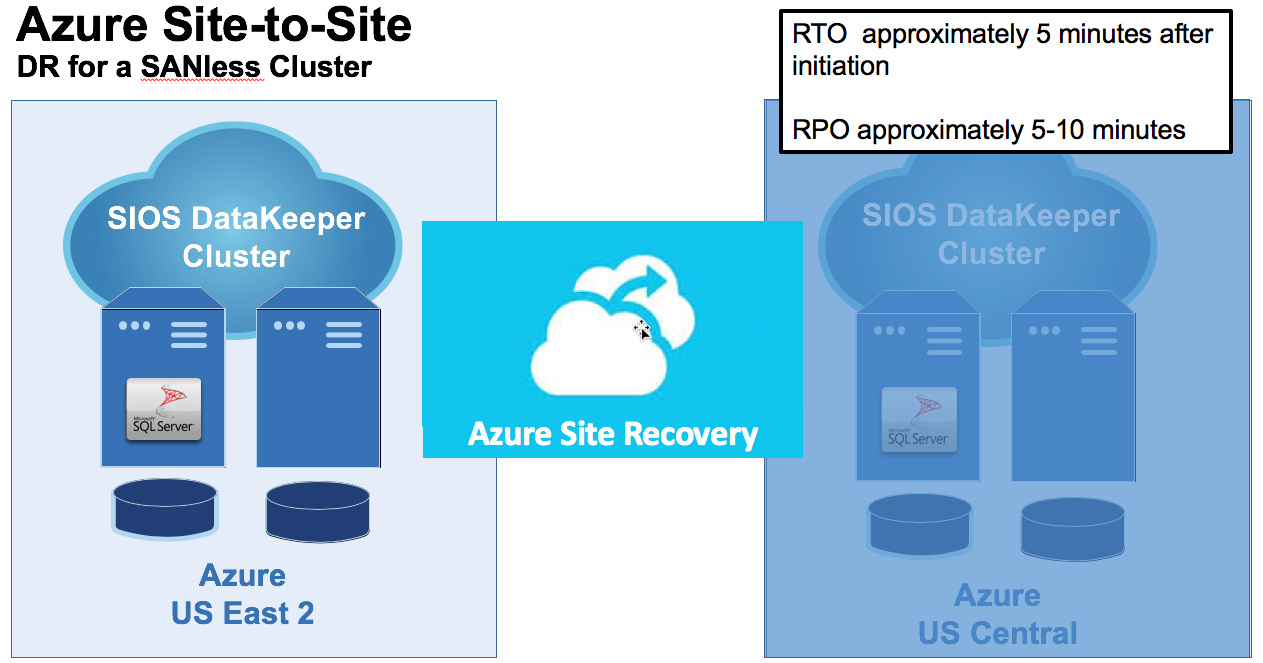
With Azure Site Recovery (ASR) you can replicate standalone or clustered instances of SQL Server between Region Pairs, without the headache and expense of managing your own disaster recovery site. And of course SQL Server seldom lives alone, so at the same time you move your SQL Server instance to Azure you probably want to move your application servers there as well to also take advantage of the performance and availability upgrades available in Azure. Combining SIOS DataKeeper for HA and ASR for DR provides a cost effective HA and DR strategy that would have been impossible, or extremely expensive to implement on premise with SAN replication and your own DR site.

asr - 2
Common configuration leveraging SIOS DataKeeper for HA and Azure Site Recovery for DR

While it only takes a few minutes to spin up a SQL Server instance in Azure, I wouldn’t wait until the last minute to do your migration. Please take the next few months to become familiar with Azure, start doing some testing, and then plan to migrate your workloads well before the July 9, 2019 expiration date. Running SQL Server after that date leaves you susceptible to any new security threats and also puts you out of compliance. Your boss, and more importantly your customers, will be glad to know that their data is still secure, available, and in compliance once you migrate your workload to Azure.

TICK TOCK…6 MONTHS UNTIL SQL SERVER 2008/2008 R2 SUPPORT EXPIRES UNLESS YOU TAKE ACTION

Moving SQL Server 2008 and 2008 R2 clusters to #Azure for Extended Support

Earlier this year Microsoft announced extended support for SQL Server 2008 and 2008 R2 at no additional cost. However, the catch is that you must migrate your SQL Server installation to Azure in order to take advantage of the extended support. For all the details, check out https://www.microsoft.com/en-us/sql-server/sql-server-2008. If you choose not to move, your extended support ends on July 9th, 2019, just about 9 months from now.

2018-10-05_16-45-37

Chances are if you are still running SQL Server 2008 R2 it’s simply because you never upgraded your application, so newer versions of SQL are not supported. Or you simply decided not to fix what isn’t broken. Regardless of these reason, you have just bought yourself another three years of support, if you migrate to Azure.

Now migrating workloads to Azure is a pretty well documented procedure, using Azure Site Recovery, so that process should be pretty seamless for you for your standalone instances of SQL Server.

But what about those clustered instances of SQL Server? You certainly don’t want to give up availability when you move to the Azure. Part of the beauty of Azure is that they have infrastructure that you can only dream of. However, it is incumbent upon the user to configure their applications to take full advantage of the infrastructure to ensure that your deployments are highly available.

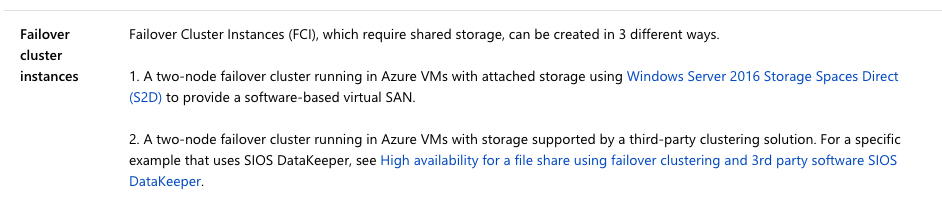
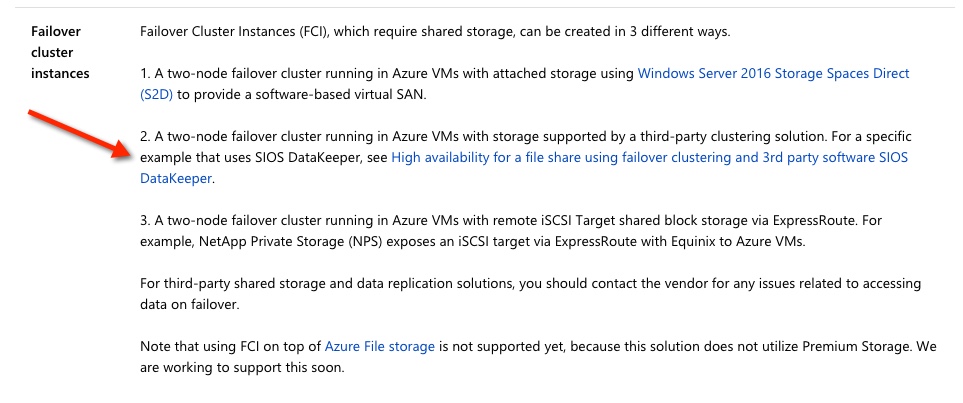
With SQL Server 2008 and 2008 R2, high availability commonly means SQL Server Failover Clustering on either Windows Server 2008 R2 or Windows Server 2012 R2. If you are new to Azure you will quickly discover that there is no native option that supports  shared storage clusters. Instead, you will need to look at a SANLess cluster solution such as SIOS DataKeeper. Microsoft list SIOS DataKeeper as the HA solution for SQL Server Failover CLustering in their documentation.

2018-10-05_16-59-39
https://docs.microsoft.com/en-us/azure/virtual-machines/windows/sql/virtual-machines-windows-sql-high-availability-dr

In order to facilitate a simple migration of your existing SQl Server 2008 or 2008 R2 cluster to Azure here are the high level steps you will need to take.

  • Replace the Physical Disk Resource in your existing on premise SQL Server cluster with a DataKeeper Volume Resource. Do the same for MSDTC resources if you use MSDTC.
  • Remove your Disk Witness and replace it with a File Share Witness
  • Use Azure Site Recovery to replicate your cluster nodes into Azure, making sure each replicated node resides in a different Fault Domain or in different Availability Zones in Azure
  • Recovery your replicate cluster nodes in Azure
  • Replace the File Share Witness with a File Share hosted in Azure
  • Configure the Internal Load Balancer in Azure for client redirection, this includes running the Powershell script on the local nodes to update the SQL Cluster IP resource to listen for the ILB probe
  • Assuming the IP addresses and subnet of the SQL Server cluster instances changed as part of this migration you will also need to do some cleanup of the cluster IP address and the DataKeeper job endpoints to reflect the new IP addresses

I know I left out a lot of the details, but if you find yourself in the position of having to do a lift and shift of SQL Server to Azure, or any cloud for that matter, I’d be glad to get on the phone with you to answer any questions you may have. Keep in mind, the same steps apply for any version of SQL that you plan to migrate to Azure.

2/14/19 UPDATE: I published a detailed Step-by-Step Guide for Cluster SQL Server 2008 R2 on Azure

Moving SQL Server 2008 and 2008 R2 clusters to #Azure for Extended Support

Azure Outage Post-Mortem Part 3

My previous blog posts, Azure Outage Post-Mortem – Part 1 and Azure Outage Post-Mortem Part 2,made some assumptions based upon limited information coming from blog posts and twitter. I just attended a session at Ignite which gave a little more clarity as to what actually happened. Sometime tomorrow you should be able to view the session for yourself.

BRK3075 – Preparing for the unexpected: Anatomy of an Azure outage

The official Root Cause Analysis they said will be published soon, but in the meantime here are some tidbits of information gleaned from the session.

The outage was NOT caused by a lightning strike as previously reported. Instead, due to the nature of the storm there were electrical storm sags and swells, which locked out a chiller plant in the 1st datacenter. During this first outage they were able to recover the chiller quickly with no noticeable impact. Shortly thereafter, there was a second outage at a second datacenter which was not recovered properly, which began an unfortunate series of events.

During this 2nd outage, Microsoft states that “Engineers didn’t triage alerts correctly – chiller plant recovery was not prioritized”. There were numerous alerts being triggered at this time, and unfortunately the chiller being offline did not receive the priority it should have. The RCA as to why that happened is still being investigated.

Microsoft states that of course redundant chiller systems are in place. However, the cooling systems were not set to automatically failover. Recently installed new equipment had not been fully tested, so it was set to manual mode until testing had been completed.

After 45 minutes the ambient cooling failed, hardware shutdown, air handlers shut down because they thought there was a fire, and staff had been evacuated due to the false fire alarm. During this time temperature in the data center was increasing and some hardware was not shut down properly, causing damage to some storage and networking.

After manually resetting the chillers and opening the air handlers the temperature began to return to normal. It took about 3 hours and 29 minutes before they had a complete picture of the status of the datacenter.

The biggest issue was there was damage to storage. Microsoft’s primary concern is data protection, so short of the enter datacenter sinking into a sinkhole or a meteor strike taking out the datacenter, Microsoft will work to recover data to ensure no data loss. This of course took some time, which extend the overall length of the outage. The good news is that no customer data was lost, the bad news is that it seemed like it took 24-48 hours for things to return to normal, based upon what I read on Twitter from customers complaining about the prolonged outage.

Everyone expected that this outage would impact customers hosted in the South Central Region, but what they did not expect was that the outage would have an impact outside of that region. In the session, Microsoft discusses some of the extended reach of the outage.

Azure Service Manager (ASM) – This controls Azure “Classic” resources, AKA, pre-ARM resources. Anyone relying on ASM could have been impacted. It wasn’t clear to me why this happened, but it appears that South Central Region hosts some important components of that service which became unavailable.

Visual Studio Team Service (VSTS) – Again, it appears that many resources that support this service are hosted in the South Central Region. This outage is described in great detail by Buck Hodges (@tfsbuck), Director of Engineering, Azure DevOps this blog post.

Postmortem: VSTS 4 September 2018

Azure Active Directory (AAD) – When the South Central region failed, AAD did what it was designed to due and started directing authentication requests to other regions. As the East Coast started to wake up and online, authentication traffic started picking up. Now normally AAD would handle this increase in traffic through autoscaling, but the autoscaling has a dependency on ASM, which of course was offline. Without the ability to autoscale, AAD was not able to handle the increase in authentication requests. Exasperating the situation was a bug in Office clients which made them have very aggressive retry logic, and no backoff logic. This additional authentication traffic eventually brought AAD to its knees.

They ran out of time to discuss this further during the Ignite session, but one feature that they will be introducing will be giving users the ability to failover Storage Accounts manually in the future. So in the case where recovery time objective (RTO) is more important than (RPO) the user will have the ability to recover their asynchronously replicated geo-redundant storage in an alternate data center should Microsoft experience another extended outage in the future.

Until that time, you will have to rely on other replication solutions such as SIOS DataKeeper Azure Site Recovery, or application specific replication solutions which give you the ability to replicate data across regions and put the ability to enact your disaster recovery plan in your control.


Azure Outage Post-Mortem Part 3

Azure Outage Post-Mortem Part 2

My previous blog post says that Cloud-to-Cloud or Hybrid-Cloud would give you the most isolation from just about any issue a CSP could encounter. However, in this particular failure had Availability Zones been available in the South Central region most of the downtime caused by this natural disaster could have been avoided. Microsoft published a Preliminary RCA of the September 4th South Central Outage.

The most important part of that whole summary is as follows…

“Despite onsite redundancies, there are scenarios in which a datacenter cooling failure can impact customer workloads in the affected datacenter.”

What does that mean to you? If your applications all run in the same datacenter you are susceptible to the same type of outage in the future. In Microsoft’s defense, this really shouldn’t be news to you as this has always been true whether you run in Azure, AWS, Google or even your own datacenter. Failure to plan ahead with data replication to a different datacenter and a plan in place to quickly recover your applications in those datacenters in the event of a disaster is simply a lack of planning on your part.

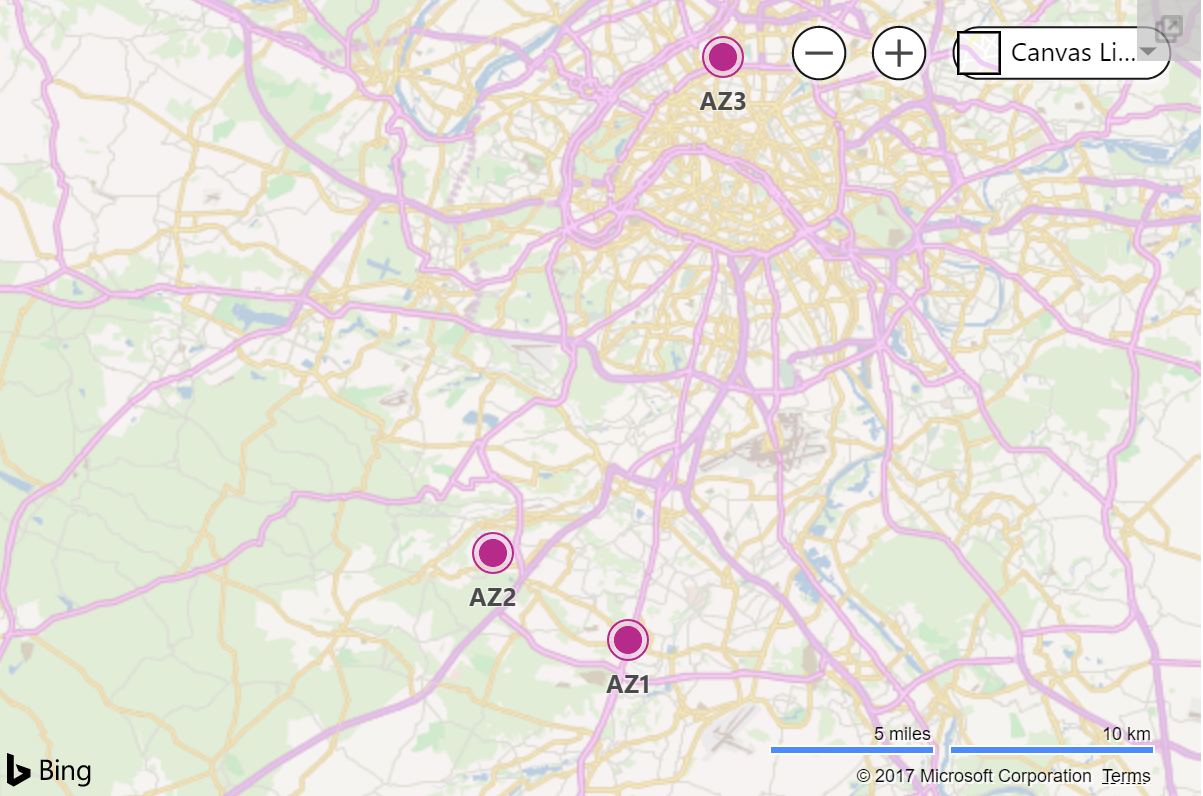
While Microsoft doesn’t publish exact Availability Zone locations, if you believe this map published here you could guess that they are probably anywhere from a 2-10 miles apart from each other.

Azure Datacenters.png

In all but the most extreme cases, replicating data across Availability Zones should be sufficient for data protection. Some applications such as SQL Server have built in replication technology, but for a broad range of applications, operating systems and data types you will want to investigate block level replication SANless cluster solutions. SANless cluster solutions have traditionally been used for multisite clusters, but the same technology can also be used in the cloud across Availability Zones, Regions, or Hybrid-Cloud for high availability and disaster recovery.

Implementing a SANless cluster that spans Availability Zones, whether it is Azure, AWS or Google, is a pretty simple process given the right tools. Here are a few resources to help get you started.

Step-by-Step: Configuring a File Server Cluster in Azure that Spans Availability Zones

How to Build a SANless SQL Server Failover Cluster Instance in Google Cloud Platform

MS SQL Server v.Next on Linux with Replication and High Availability #Azure #Cloud #Linux

Deploying Microsoft SQL Server 2014 Failover Clusters in #Azure Resource Manager (ARM)

SANless SQL Server Clusters in AWS

SANless Linux Cluster in AWS Quick Start

If you are in Azure you may also want to consider Azure Site Recovery (ASR). ASR lets you replicate the entire VM from one Azure region to another region. ASR will replicate your VMs in real-time and allow you to do a non-disruptive DR test whenever you like. It supports most versions of Windows and Linux and is relatively easy to set up.

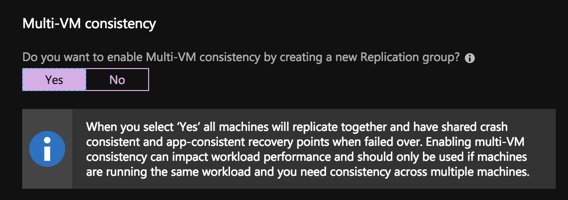
You can also create replication jobs that have “Multi-VM Consistency”, meaning that servers that must be recovered from the exact same point in time can be put together in this consistency group and they will have the exact same recovery point. What this means is if you wanted to build a SANless cluster with DataKeeper in a single region for high availability you have two options for DR. One is you could extend your SANless cluster to a node in a different region, or else you could simply use ASR to replicate both nodes in a consistency group.

asr

The trade off with ASR is that the RPO and RTO is not as good as you will get with a SANless multi-site cluster, but it is easy to configure and works with just about any application. Just be careful, if your application exceeds 10 MBps in disk write activity on a regular basis ASR will not be able to keep up. Also, clusters based on Storage Spaces Direct cannot be replicated with ASR and in general lack a good DR strategy when used in Azure.

For a while after Managed Disks were released ASR did not fully support them until about a year later. Full support for Managed Disks was a big hurdle for many people looking to use ASR. Fortunately since about February of 2018 ASR fully supports Managed Disks. However, there is another problem that was just introduced.

With the introduction of Availability Zones ASR is once again caught behind the times as they currently don’t support VMs that have been deployed in Availability Zones.

2018-09-25_00-10-24
Support matrix for replicating from one Azure region to another

I went ahead and tried it anyway. I seemed to be able to configure replication and was able to do a test failover.

ASR-and-AZ
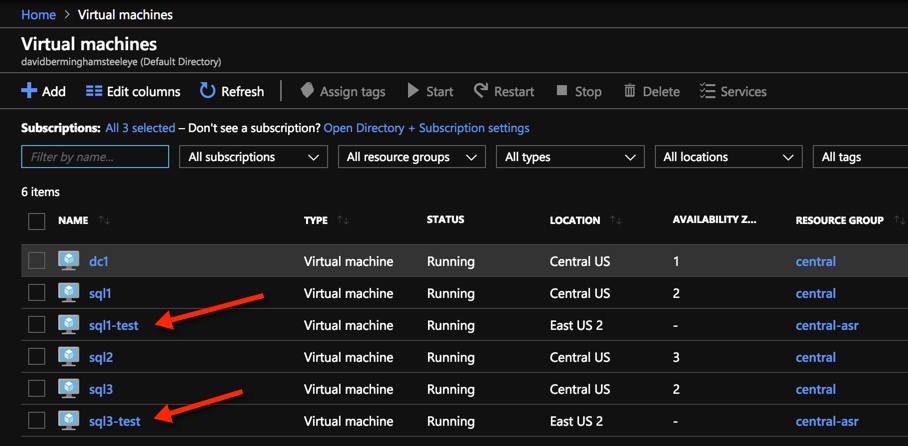
I used ASR to replicate SQL1 and SQL3 from Central to East US 2 and did a test failover. Other than not placing the VMs in AZs in East US 2 it seems to work.

I’m hoping to find out more about this limitation at the Ignite conference. I don’t think this limitation is as critical as the Managed Disk limitation was, just because Availability Zones aren’t widely available yet. So hopefully ASR will pick up support for Availability Zones as other regions light up Availability Zones and they are more widely adopted.


Azure Outage Post-Mortem Part 2

Quick Start Guide: SQL Server Clusters on Windows Server 2008 R2 in Azure

Apparently Windows Server 2008 R2 lives on in the cloud as I get a calls for this sporadically.  Yes, Azure does support Windows Server 2008 R2 and older versions of SQL Server including 2008 R2 and 2012. Of course Always On Availability Groups wasn’t introduced until SQL 2012 and even then you probably want to avoid Availability Groups due to some of the performance issues associated with that version.

If you find yourself needing to support older versions of SQL Server or Windows you will want to build SANless clusters based on SIOS DataKeeper as mentioned in the Azure documentation.

2018-09-14_12-40-55
https://docs.microsoft.com/en-us/azure/virtual-machines/windows/sql/virtual-machines-windows-sql-high-availability-dr

I have written many Quick Start Guides over the years, but sometimes I just want to give someone the 10,000 foot overview of the steps just so they have a general idea before they sit down and roll up their sleeves to do an install. Since it is not everyday I’m dealing with Windows 2008 R2 clusters in Azure, I wanted to publish this 10,000 foot overview just to share with my customers.

In a nutshell here are the steps to cluster SQL Server (any version supported on Windows 2008 R2) in Azure.

  • Provision two cluster servers and a file share witness in the same Availability Set. This places all three quorum votes in different Fault and Update Domains.
  • There is a hotfix for SQL 2008 R2 clusters in Azure to enable the listener used by both AGs and FCIs. https://support.microsoft.com/en-us/help/2854082/update-enables-sql-server-availability-group-listeners-on-windows-serv
  • Install that and all other OS updates.
  • Provision the storage on each server.
  • Format NTFS and give drive letters.
  • Each cluster node needs identical storage.
    Enable Failover CLustering and .Net 3.5 Framework on each server
  • Add the servers to the domain
  • Create the basic cluster, but USE POWERSHELL and specify the cluster IP address. If you use the GUI to create the cluster it will get confused and provision a duplicate IP address. If you do it via the GUI you will only be able to connect to the cluster from one of the nodes. If you connect you can correct the problem by specifying a static IP address to be used by the cluster resource.

    Here is an example of the Powershell usage to create the cluster

    New-Cluster -Name cluster1 -Node sql1,sql2 -StaticAddress 10.0.0.101 -NoStorage-
  • Add a File Share Witness to the cluster
  • Install DataKeeper on both cluster nodes
  • Create the DataKeeper Volume Resources and make sure they are Available Storage
  • Install SQL into the cluster as you normally would in a shared storage cluster.
  • Configure the Azure ILB and run the powershell script to update the SQL Cluster IP resource to listen on the Probe Port.

All of this is fully documented on the SIOS documentation page, Deploying DataKeeper Cluster Edition in Azure

Let me know if this helped you or if you have any questions about high availability for SQL Server or disaster recovery in Azure, AWS or Google Cloud.

Quick Start Guide: SQL Server Clusters on Windows Server 2008 R2 in Azure

Lightning Never Strikes Twice: Surviving the #Azure Cloud Outage

Yesterday morning I opened my Twitter feed to find that many people were impacted by an Azure outage. When I tried to access the resource page that described the outage and the current resources impacted even that page was unavailable. @AzureSupport was providing updates via Twitter.

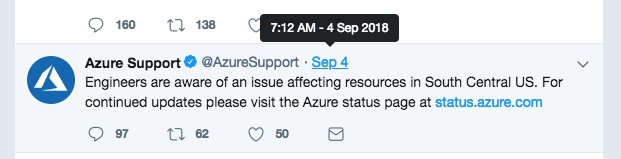
The original update from @AzureSupport came in at 7:12 AM EDT

Azure Outage 2

Looking back on the Twitter feed it seems as if the problem initially began an hour or two before that.

Azure Support 10

It quickly became apparent that the outages had a wider spread impact than just the SOUTH CENTRAL US region as originally reported. It seems as if services that relied on Azure Active Directory could have been impacted as well and customers trying to provision new subscriptions were having issues.

Azure 11

And 24 hours later the problem has not been completely resolved and it according to the last update this morning…

Azure Outage 1

Untitled design (6)

So what could you have done to minimize the impact of this outage? No one can blame Microsoft for a natural disaster such as a lightning strike. But at the end of the day if your only disaster recovery plan is to call, tweet and email Microsoft until the issue is resolved, you just received a rude awakening. IT IS UP TO YOU to ensure you have covered all the bases when it comes to your disaster recovery plan.

While the dust is still settling on exactly what was impacted and what customers could have done to minimize the downtime, here are some of my initial thoughts.

Availability Sets (Fault Domains/Update Domains) – In this scenario, even if you built Failover Clusters, or leveraged Azure Load Balancers and Availability Sets, it seems the entire region went offline so you still would have been out of luck. While it is still recommended to leverage Availability Sets, especially for planned downtime, in this case you still would have been offline.

Availability Zones – While not available in the SOUTH CENTRAL US region yet, it seems that the concept of Availability Zones being rolled out in Azure could have minimized the impact of the outage. Assuming the lightning strike only impacted one datacenter, the other datacenter in the other Availability Zone should have remained operational. However, the outages of the other non-regional services such as Azure Active Directory (AAD) seems to have impacted multiple regions, so I don’t think Availability Zones would have isolated you completely.

Global Load Balancers, Cross Region Failover Clusters, etc. – Whether you are building SANLess clusters that cross regions, or using global load balancers to spread the load across multiple regions, you may have minimized the impact of the outage in SOUTH CENTRAL US, but you may have still been susceptible to the AAD outage.

Hybrid-Cloud, Cross Cloud – About the only way you could guarantee resiliency in a cloud wide failure scenario such as the one Azure just experienced is to have a DR plan that includes having realtime replication of data to a target outside of your primary cloud provider and a plan in place to bring applications online quickly in this other location. These two locations should be entirely independent and should not rely on services from your primary location to be available, such as AAD. The DR location could be another cloud provider, in this case AWS or Google Cloud Platform seem like logical alternatives, or it could be your own datacenter, but that kind of defeats the purpose of running in the cloud in the first place.

Software as a Service – While Software as service such as Azure Active Directory (ADD), Azure SQL Database (Database-as-Service) or one of the many SaaS offerings from any of the cloud providers can seem enticing, you really need to plan for the worst case scenario. Because you are trusting a business critical application to a single vendor you may have very little control in terms of DR options that includes recovery OUTSIDE of the current cloud service provider. I don’t have any words of wisdom here other than investigate your DR options before implementing any SaaS service, and if recovery outside of the cloud is not an option than think long and hard before you sign-up for that service. Minimally make the business stake owners aware that if the cloud service provider has a really bad day and that service is offline there may be nothing you can do about it other than call and complain.

I think in the very near future you will start to hear more and more about cross cloud availability and people leveraging solutions like SIOS DataKeeper to build robust HA and DR strategies that cross cloud providers. Truly cross cloud or hybrid cloud models are the only way to truly insulate yourself from most conceivable cloud outages.

If you were impacted from this latest outage I’d love to hear from you. Tell me what went down, how long you were down, and what you did to recover. What are you planning to do so that in the future your experience is better?

Lightning Never Strikes Twice: Surviving the #Azure Cloud Outage

“Incomplete Communication with Cluster” with local Storage Space for SQL Server cluster

When building a SANless SQL Server cluster with SIOS DataKeeper, or when configuring Always On Availability Groups for SQL Server, you may consider striping together multiple disk in a Simple Storage Space (RAID 0) for performance. This is very commonly done in the cloud where each instance typically his backed by hardware resiliency, so RAID 0 is not really all that risky.

For instance, I had a recent customer in AWS that wanted to max out his IOPS to 80,000, the maximum IOPS currently available to a single instance. Now keep in mind, only the largest EBS optimized instance sizes supports 80,000 IOPS, so you want to make sure you know what maximum IOPS your particular instance size supports.

https://docs.aws.amazon.com/AWSEC2/latest/UserGuide/EBSOptimized.html

In this case we had ac5.18xlarge instance which does support 80,000 IOPS. However, any individual EBS Provisioned IOPS volume only supports up to 32,000 IOPS. The only way to achieve 80,000 IOPS when writing to any single volume is to strip three of these volumes together in a Simple Storage Space.

Herein lies the rub, if you try to do that in an existing cluster things are going to go haywire pretty fast. Fellow MVP Joey D’Antoni recently blogged about the issue and it appears to still be an issue in the Windows Server 2019 preview.

Just as Joey suggests, I always advise my customers to build out the nodes and any Storage Spaces BEFORE they start the clustering process. This makes the process go much smoother. It also allows the customer to have some time to benchmark the server’s performance before they add any replication, to  ensure everything is working as expected.


“Incomplete Communication with Cluster” with local Storage Space for SQL Server cluster

Help! I can’t connect to my SQL Server multi-subnet failover cluster

I get that kind of call or email from customers all the time. I have a generic response as follows…

This has everything you need to know.

They don’t go into great detail about what to do if your connection does not support multisubnetfailover=true. If your connection does NOT support that parameter, then set registerallprovidersip to false and cleanup DNS. That procedure is described best here.
I figure I get this question often enough I probably should just flesh out my response a bit, hence the reason for this post.
In general people just aren’t aware of how multi-subnet failover clusters work. Multi-subnet failover clustering support was added in Windows Server 2012 with the addition of the “OR” technology when defining cluster resource dependencies. This allowed people to allow a Cluster Name resource to be dependent upon IP Address x.x.x.x OR IP Address y.y.y.y.
x.x.x.x would be an a cluster IP resource valid in Subnet A and y.y.y.y would be a cluster IP address valid in Subnet B. Only one address will be online at any given time, whichever address was valid for the subnet the resource was currently running on.
Microsoft SQL Server started supporting this concept starting with SQL Server 2012 with both failover cluster instances (FCI) using 3-party SANless clustering solutions like SIOS DataKeeper and SQL Server Always On Availability Groups.
By default if you create a SQL Server multi-subnet failover cluster the cluster should be automatically configured optimally, including setting up the two IP addresses, adding two A records to DNS and setting the registerallprovidersIP to true. However, on the client end you need to tell it that you are connecting to a multi-subnet failover cluster, otherwise the connection won’t be made.

Configuring the client

Configuring the client is done by adding multisubnetfailover=true to the connection string. This Microsoft documentation is a great resource, but if you just search for multisubnetfailover=true you will find a lot of information about that setting.
However, not every application will support adding that to the connection string. If you find yourself in that situation you should ask your application vendor to add support for that or show you how to do it.
However, all is not lost if you find yourself in that situation. You will want to change the behavior of the cluster so that upon failover DNS is update so that the single A record associated with the cluster client access point is updated with the new IP address. This is in lieu of having two A records in DNS, one with each cluster IP address, which is the default behavior in an multi-subnet cluster.
This article reference SharePoint, you can ignore that, the rest of the article is pretty well written to describe the process you should follow.
The highlights of that article are as follows…
Get-ClusterResource “[Network Name]” | Set-ClusterParameter RegisterAllProvidersIP 0
After restarting the cluster-name-object (basically restarting the role) & cleaning up all “A” records manually (clean-up isn’t done automatically) we can see our old A-records are still in DNS so we’ll need to delete those manually.
In addition to those steps I’d advise you to reduce the TTL on the HostRecordTTL as described in this article.
The highlight of that article is as follows.
PS C:\> Get-ClusterResource -Name cluster1FS | Set-ClusterParameter -Name HostRecordTTL -Value 300
With a Value of 300 you could potentially be waiting up to 5 minutes for your clients to reconnect after a failover, or even longer if if have a large Active Directory infrastructure and AD replication takes some time to update all the DNS servers across your infrastructure.
You are going to want to figure out what the optimal TTL is to facilitate quick client reconnections without over burdening your DNS servers with a bunch of DNS Lookup requests.
This type of configuration is common in disaster recovery configurations where your DR site is in a different subnet. It is also very common in HA deployments in AWS because different Availability Zones are in different subnets.
Let me know if you have any questions. You can always reach me on Twitter @daveberm
Help! I can’t connect to my SQL Server multi-subnet failover cluster

SQL Server 2017 on Linux Availability Group Split Brain Problem

On July 18th, 2018 Microsoft published this support article with some guidance to help avoid Split Brain when using Availability Groups with SQL Server on Linux.

https://support.microsoft.com/en-us/help/4341219/split-brain-occurs-after-failover-when-using-alwayson-ags-with-externa

Running SQL Server on Linux can have some advantages, including cost savings on the OS if running in Azure. Run the numbers yourself, as the number of cores go up your cost savings year over year can be substantial, considering you are licensing at least two servers for every cluster pair.

https://azure.microsoft.com/en-us/pricing/calculator/

However, why bother saving money if the technology is not rock solid? One of the biggest issues I see with running SQL Server on Linux is the lack of a cohesive HA/DR story. On Windows, Microsoft owns the whole HA stack and SQL Server relies heavily on Windows Server Failover Clustering to support both Availability Groups and Failover Cluster Instances. This has been running well for many years and has a long track record of success stories.

When moving to Linux, Microsoft no longer owns the HA stack at the OS level and depending upon your distro of Linux, you are left trying to piece together open source solutions like Pacemaker, trying to get things to cooperate with SQL Server Availability Groups.

While you may eventually get it to work, I would much rather look to a 3rd party high availability solution like the SIOS Protection Suite for Linux (SPS-L), giving you a tried and true HA solution for your business critical applications running on Linux.

Azure-Linux-SQLServer.png
SQL Server on Linux Cluster in Azure

SPS-L has been protecting business critical applications running on Linux since 1999. It is a full HA/DR solution that monitors and recovers the entire application stack as well as the physical servers and network to ensure your business critical applications are highly available while also maintaining a 3rd copy for disaster recover in a remote datacenter or different geographic region of the cloud.

The other benefit of SPS-L is that it doesn’t require the Enterprise Edition of SQL Server, so there can be a significant cost savings advantage on SQL Server licenses as well. If you consider SQL Server Standard Edition costs $1859 per core vs $7128 per core for SQL Server Enterprise Edition, the cost savings advantage can be significant, depending upon how many cores you need to license.

Below is a video demonstration of SPS-L protecting SQL Server running on Linux in the Azure Cloud. The demonstration shows a SQL Server Standard Edition Cluster being manually failed over between nodes in different Azure Fault Domains as well as SPS-L responding to an unexpected failure.


SQL Server 2017 on Linux Availability Group Split Brain Problem