High Availability Options for Microsoft SQL Server in the Google Cloud

I was recently interviewed by VMblog about high availability options for SQL Server. You can check out the interview here http://vmblog.com/

For the step by step guide I previously published, check it out here https://clusteringformeremortals.com/2018/01/10/how-to-build-a-sanless-sql-server-failover-cluster-instance-in-google-cloud-platform/

High Availability Options for Microsoft SQL Server in the Google Cloud

STORAGE SPACES DIRECT (S2D) FOR SQL SERVER FAILOVER CLUSTER INSTANCES (FCI)?

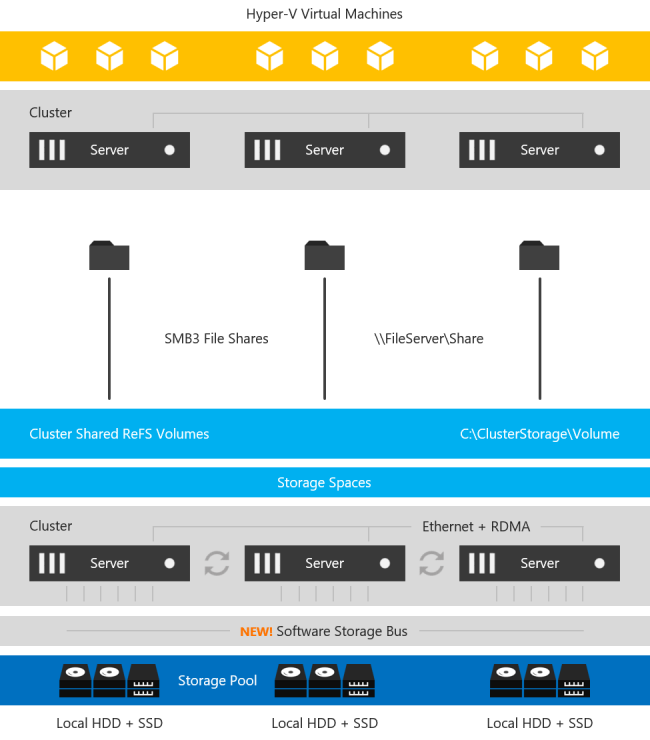
With the introduction of Windows Server 2016 Datacenter Edition a new feature called Storage Spaces Direct (S2D) was introduced. At a very high level, this solution allows you to pool together locally attached storage and present it to the cluster as a CSV for use in a Scale Out File Server, which can then be accessed over SMB 3 and used to hold cluster data such as Hyper-V VMDK files. This can also be configured in a hyper-converged (HCI) fashion such that the application and data can all run on the same set of servers.  This is a grossly over-simplified description, but for details, you will want to look here.

Storage Spaces Direct Stack

Image taken from https://docs.microsoft.com/en-us/windows-server/storage/storage-spaces/storage-spaces-direct-overview

The main use case targeted is hyper-converged infrastructure for Hyper-V deployments. However, there are other use cases, including leveraging this SMB storage to store SQL Server Data to be used in a SQL Server Failover Cluster Instance

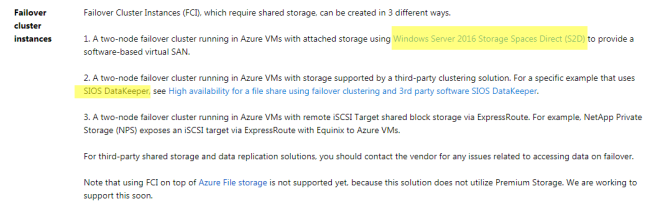
Why would anyone want to do that? Well, for starters you can now build a highly available 2-node SQL Server Failover Cluster Instance (FCI) with SQL Server Standard Edition, without the need for shared storage. Previously, if you wanted HA without a SAN you pretty much were driven to buy SQL Server Enterprise Edition and make use of Always On Availability Groups or purchase SIOS DataKeeper and leverage the 3rd party solution which lets you build SANless clusters with any version of Windows or SQL Server. SQL Server Enterprise Edition can really drive up the cost of your project, especially if you were only buying it for the Availability Groups feature.

In addition to the cost associated with Availability Groups, there are a number of other technical reasons why you might prefer a Failover Cluster over an AG. Application compatibility, instance vs. database level protection, large number of databases, DTC support, trained staff, etc., are just some of the technical reasons why you may want to stick with a Failover Cluster Instance.

Microsoft lists both the SIOS DataKeeper solution and the S2D solution as two of the supported solutions for SQL Server FCI in their documentation here.

s2d

https://docs.microsoft.com/en-us/azure/virtual-machines/windows/sql/virtual-machines-windows-sql-high-availability-dr

When comparing the two solutions, you have to take into account that SIOS has been allowing you to build SANless Clusters since 1999, while the S2D solution is still in its infancy.  Having said that, there are bound to be some areas where S2D has some catching up to do, or simply features that they will never support simply due to the limitations with the technology.

Have a look at the following table for an overview of some of the things you should consider before you choose your SANless cluster solution.

2018-10-05_21-13-59

If we go through this chart, we see that SIOS DataKeeper clearly has some significant advantages. For one, DataKeeper supports a much wider range of platforms, going all the way back to Windows Server 2008 R2 and SQL Server 2008 R2. The S2D solution only supports the latest releases of Windows and SQL Server 2016/2017. S2D also requires the  Datacenter Edition of Windows, which can add significantly to the cost of your deployment. In addition, SIOS delivers the ONLY HA/DR solution for SQL Server on Linux that works both on-prem and in the cloud.

I’ve been talking to a lot of customers recently who are reporting some performance issues with S2D. When I tested S2D vs. DataKeeper about a year ago I didn’t see any significant differences in performance, but I did see S2D used about 2x the amount of CPU resources under the same load. This probably has to do with the high hardware requirements associated with S2D such as RDMA enabled networking and available Flash Storage, typically only available in the most expensive cloud based images.

“We recommend the I3 instance size because it satisfies the S2D hardware requirements and includes the largest and fastest instance store devices available.”

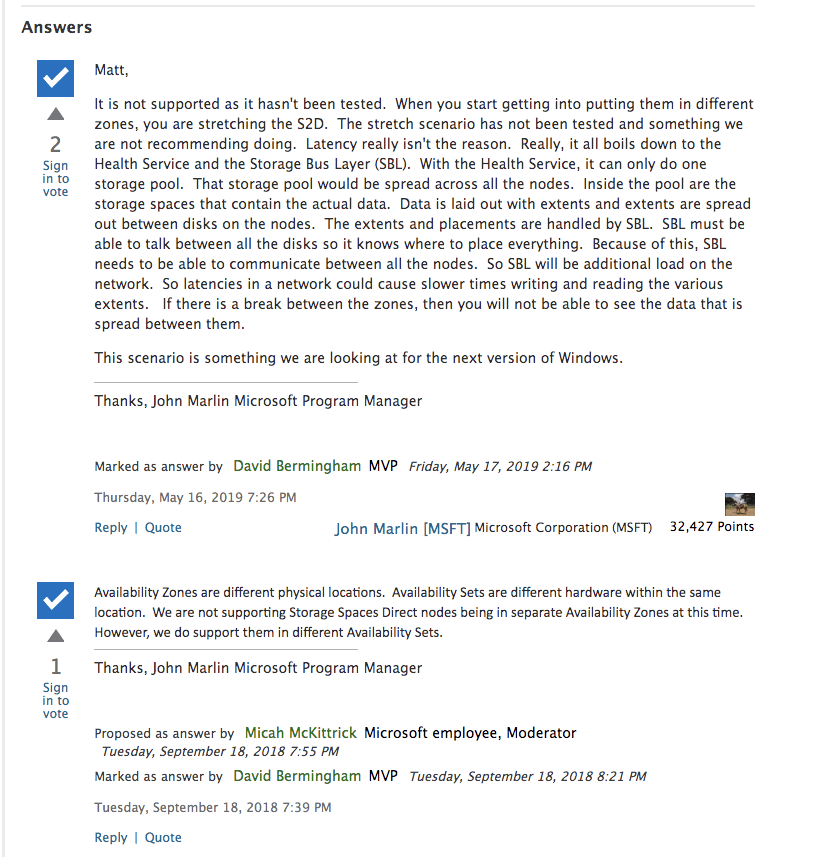
But beyond the cost and platform limitations, I think the most glaring gap comes when we start to consider that S2D does not support Availability Zones or disaster recovery configurations such as multi-site clusters or Azure Site Recovery (ASR). Allan Hirt, SQL Server Cluster guru and fellow Microsoft Cloud and Datacenter Management MVP, recently posted about this S2D limitation. In his article Revisiting Storage Spaces Direct and SQL Server FCIs  Allan points out that due to the lack of support for stretching S2D clusters across sites or including an S2D based cluster as a leg in an Always On Availability Group, the best option for DR in the S2D scenario is log shipping! This even includes replicating across Availability Zones in either Azure or AWS.

Microsoft does not make it clear in their documentation, but Microsoft’s own PM for High Availability and Storage makes it perfectly clear in the Microsoft forums.

AWS also documents S2D’s lack of Availability Zone support…

“Each cluster node must be deployed in a different subnet. This architecture will be deployed into a single availability zone because Microsoft does not currently support stretch cluster with Storage Spaces Direct. ” – AWS Documentation on S2D

Deploying S2D cluster nodes within the same Availability Zone defeats the purpose of failover clustering and the deployment does not qualify for the AWS 99.99% SLA. Even if you wanted to deploy S2D in a single Availability Zone the deployment becomes even more complicated because it is recommended that you deploy at least three cluster nodes and each node must reside in its own subnet due to some AWS networking restrictions that requires each cluster node reside in a different subnet. S2D was never designed to run in different subnets, which further complicates the solution in terms of client redirection.

You can also find this statement in Disaster Recovery Scenarios for Hyper-Converged Infrastructure | Microsoft Docs

“One item to note is that if you are familiar with Failover Clusters in the past, stretch clusters have been a very popular option over the years. There was a bit of a design change with the hyper-converged solution and it is based on resiliency. If you lose two nodes in a hyper-converged cluster, the entire cluster will go down. With this being the case, in a hyper-converged environment, the stretch scenario is not supported.”

https://docs.microsoft.com/en-us/windows-server/storage/storage-spaces/storage-spaces-direct-disaster-recovery

In contrast, the SIOS DataKeeper solution fully supports Always On Availability Groups, and better yet – it can allow you to stretch your FCI across sites to give you the best HA/DR solution you could hope to achieve in terms of RTO/RPO. DataKeeper supports Availability Zones and DR configurations that cross cloud regions. In an Azure environment, DataKeeper also support Azure Site Recovery (ASR), giving you even more options for disaster recovery.

Further complicating any S2D deployment in AWS is the reliance on “local instance store” storage, AKA, non-persistent ephemeral disks.

“The best performance for storage can be achieved using I3 instances because they provide local instance store with NVMe and high network performance”

Reliance on ephemeral storage puts your data at risk any time a disk rebuilds, which can happen at any time, but always happens when an instance is stopped. If a disk is lost and a second disk is lost before the first disk rebuilds you are looking at complete data loss and a restore from backup. If someone accidentally stops all the nodes in your cluster your data will be lost! Even if you take care to only stop one node at a time if you are not paying attention and waiting for a disk to complete a rebuild after you stop the second node you will also experience complete data loss!

The rest of this chart is pretty self explanatory. It basically consist of a list hardware, storage and networking requirements that must be met before you can deploy an S2D cluster. An exhaustive list of S2D requirements is maintained here.  https://docs.microsoft.com/en-us/windows-server/storage/storage-spaces/storage-spaces-direct-hardware-requirements

The SIOS DataKeeper solution is much more lenient. It supports any locally attached storage and as long as the hardware passes cluster validation, it is a supported cluster configuration. The block level replication solution has been working great ever since 1 Gbps was considered a fast LAN and a T1 WAN connection was considered a luxury.

SANless clustering is particularly interesting for cloud deployments. The cloud does not offer traditional shared storage options for clusters. So for users in the middle of a “lift and shift” to the cloud that want to take their clusters with them they must look at alternate storage solutions. For cloud deployments, SIOS is certified for AzureAWS and Google and available in the relevant cloud marketplace. While there doesn’t appear to be anything blocking deployment of S2D based clusters in AWS or Google, there is a conspicuous lack of documentation or supportability statements from Microsoft for those platforms.

SIOS DataKeeper has been doing this since 1999. SIOS has heard all the feature requests, uncovered all the bugs, and has a rock solid solution for SANless clusters that is time tested and proven. While Microsoft S2D is a promising technology, as a 1st generation product I would wait until the dust settles and some of the feature gap closes before I would consider it for my business critical applications.

STORAGE SPACES DIRECT (S2D) FOR SQL SERVER FAILOVER CLUSTER INSTANCES (FCI)?

How to Build a SANless SQL Server Failover Cluster Instance in Google Cloud Platform

If you are going to host SQL Server on the Google Cloud Platform (GCP) you will want to make sure it is highly available. One of the best and most economical ways to do that is to build a SQL Server Failover Cluster Instance (FCI). Since SQL Server Standard Edition supports Failover Clustering, we can avoid the cost associated with SQL Server Enterprise Edition which is required for Always On Availability Groups. In addition, SQL Server Failover Clustering is a much more robust solution as it protects the entire instance of SQL Server, has no limitations in terms of DTC (Distributed Transaction Coordinator) support and is easier to manage. Plus, it supports earlier versions of SQL Server that you may still have, such as SQL 2012 through the latest SQL 2017. Unfortunately, SQL 2008 R2 is not supported due to the lack of support for cross-subnet failover.

Traditionally, SQL Server FCI requires that you have a SAN or some type of shared storage device. In the cloud, there is no cluster-aware shared storage. In place of a SAN, we will build a SANless cluster using SIOS DataKeeper Cluster Edition (DKCE). DKCE uses block-level replication to ensure that the locally attached storage on each instance remains in sync with one other. It also integrates with Windows Server Failover Clustering through its own storage class resource called a DataKeeper Volume which takes the place of the physical disk resource. As far as the cluster is concerned the SIOS DataKeeper volume looks like a physical disk, but instead of controlling SCSI reservations, it controls the mirror direction, ensuring that only the active server writes to the disk and that the passive server(s) receive all the changes either synchronously or asynchronously.

In this guide, we will walk through the steps to build a two-node failover cluster between two instances in the same region, but in different Zones, within the GCP as shown in Figure 1.

Google Cloud Diagram

Download the entire white paper at https://us.sios.com/san-sanless-clusters-resources/white-paper-build-sql-server-failover-cluster-gcp/

How to Build a SANless SQL Server Failover Cluster Instance in Google Cloud Platform

MS SQL Server v.Next on Linux with Replication and High Availability #Azure #Cloud #Linux

With Microsoft’s recent release of the first public preview of MS SQL Server running on Linux, I wondered what they would do for high availability. Knowing how tightly coupled AlwaysOn Availability Groups and Failover Clustering is to the Windows operating system I was pretty certain they would not be options and I was correct.

Well, the people over at LinuxClustering.Net answered my question on how to provide high availability failover clusters for MS SQL Server v.Next on Linux with this great Step by Step article.

http://www.linuxclustering.net/2016/11/18/step-by-step-sql-server-v-next-for-linux-public-preview-high-availability-azure/

Not only that, they did it all in Azure which we know can be tricky given some of the network limitations.

sql-dependencies-created

I’d be curious to know if you are excited about SQL Server on Linux or if you think it is just a little science experiment. If you are excited, what does SQL Server on Linux bring to the table that open source databases don’t? If you like SQL Server that much why not just run it on Windows?

I’m not being facetious here, I honestly want to know what excites you about SQL Server on Linux. I’m looking forward to your comments.

MS SQL Server v.Next on Linux with Replication and High Availability #Azure #Cloud #Linux

SQL Server 2016 Support for Distributed Transactions with Always On Availability Groups

One of the most promising new features of SQL Server 2016 is the the support of distributed transaction with Always On Availability Groups. They did make some improvements in that regard, but it is not yet fully supported.

DTC

Example of a Distribute Transaction
Source – SQL Server 2016 DTC Support In Availability Groups

In SQL Server 2016, Distributed Transactions are only supported if the transaction is distributed across multiple instances of SQL Server. It is NOT supported if the transaction is distributed between different databases within the same instance of SQL Server. So in the picture above, if the databases are on separate SQL instances it will work, but not if the databases reside on the same instance which is more likely.

If you require distributed transaction support between different databases within the same SQL Server instance and you want high availability you still must use a traditional SQL Server Always On Failover Cluster or a SANLess Cluster using DataKeeper.

SQL Server 2016 Support for Distributed Transactions with Always On Availability Groups

Replicating a 2-node SQL Server 2012/2014 Standard Edition Cluster to a 3rd Server for Disaster Recovery

Many people have found themselves settling for SQL Server Standard Edition due to the cost of SQL Server Enterprise Edition. SQL Server Standard Edition has many of the same features, but has a few limitations. One limitation is that it does not support AlwaysOn Availability Groups. Also, it only supports two nodes in a cluster. With Database Mirroring being deprecated and only supporting synchronous replication in Standard Edition, you really have limited disaster recovery options.

One of those options is SIOS DataKeeper Cluster Edition. DataKeeper will work with your existing shared storage cluster and allow you to extend it to a 3rd node using either synchronous or asynchronous replication. If you are using SQL Server Enterprise you can simply add that 3rd node as another cluster member and you have a true multisite cluster. However, since we are talking about SQL Server Standard Edition you can’t add a 3rd node directly to the cluster. The good news is that DataKeeper will allow you to replicate data to a 3rd node so your data is protected.

Recovery in the event of a disaster simply means you are going to use DataKeeper to bring that 3rd node online as the source of the mirror and then use SQL Server Management Studio to mount the databases that are on the replicated volumes. You clients will also need to be redirected to this 3rd node, but it is a very cost effective solution with an excellent RPO and reasonable RTO.

The SIOS documentation talks about how to do this, but I have summarized the steps recently for one of my clients.

Configuration

  • Stop the SQL Resource
  • Remove the Physical Disk Resource From The SQL Cluster Resource
  • Remove the Physical Disk from Available Storage
  • Online Physical Disk on SECONDARY server, add the drive letter (if not there)
  • Run emcmd . setconfiguration <drive letter> 256
    and Reboot Secondary Server. This will cause the SECONDARY server to block access to the E drive which is important because you don’t want two servers having access to the E drive at the same time if you can avoid it.
  • Online the disk on PRIMARY server
  • Add the Drive letter if needed
  • Create a DataKeeper Mirror from Primary to DR
    You may have to wait a minute for the E drive to appear available in the DataKeeper Server Overview Report on all the servers before you can create the mirror properly. If done properly you will create a mirror from PRIMARY to DR and as part of that process DataKeeper will ask you about the SECONDARY server which shares the volume you are replicating.

In the event of a disaster….

On DR Node

  • Run EMCMD . switchovervolume <drive letter>
  • The first time make sure the SQL Service account has read/write access to all data and log files. You WILL have to explicitly grant this access the very first time you try to mount the databases.
  • Use SQL Management Studio to mount the databases
  • Redirect all clients to the server in the DR site, or better yet have the applications that reside in the DR site pre-configured to point to the SQL Server instance in the DR site.

After disaster is over

  • Power the servers (PRIMAY, SECONDARY) in the main site back on
  • Wait for mirror to reach mirroring state
  • Determine which node was previous source (run PowerShell as an administrator)
    get-clusterresource -Name “<DataKeeper Volume Resource name>” | get-clusterparameter
  • Make sure no DataKeeper Volume Resources are online in the cluster
  • Start the DataKeeper GUI on one cluster node. Resolve any split brain conditions (most likely there are none) ensuring the DR node is selected as the source during any split-brain recovery procedures
  • On the node that was reported as the previous source run EMCMD . switchovervolume <drive letter>
  • Bring SQL Server online in Failover Cluster Manager

The above steps assume you have SIOS DataKeeper Cluster Edition installed on all three servers (PRIMARY, SECONDARY, DR) and that PRIMARY and SECONDARY are a two node shared storage cluster and you are replicating data to DR which is just a standalone SQL Server instance (not part of the cluster) with just local attached storage. The DR Server will have a volume(s) that is the same size and drive letter as the shared cluster volume(s). This works rather well and will even let you replicate to a target that is in the cloud if you don’t have your own DR site configured.

You can also build the same configuration using all replicated storage if you want to eliminate the SAN completely.

Here is a nice short video that illustrates the some of the possible configurations. http://videos.us.sios.com/medias/aula05u2fl

Replicating a 2-node SQL Server 2012/2014 Standard Edition Cluster to a 3rd Server for Disaster Recovery

Configuring the #Azure ILB in ARM for SQL Server FCI or AG using Azure PowerShell 1.0

In an earlier post I went into some great detail about how to configure the Azure ILB in ARM for SQL Server AlwaysOn FCI or AG resources. The directions in that article were written prior to the GA of Azure PowerShell 1.0. With the availability of Azure PowerShell 1.0 the main script that creates the ILB needs to be slightly different. The rest of the article is still accurate, however if you are using Azure PowerShell 1.0 or later the script to create the ILB described in that article should be as follows.

#Replace the values for the below listed variables
$ResourceGroupName ='SIOS-EAST' # Resource Group Name in which the SQL nodes are deployed
$FrontEndConfigurationName = 'FEEAST' #You can provide any name to this parameter.
$BackendConfiguratioName = 'BEEAST' #You can provide any name to this parameter.
$LoadBalancerName = 'ILBEAST' #Provide a Name for the Internal Local balance object
$Location ='eastus2' # Input the data center location of the SQL Deployements
$subname = 'public' # Provide the Subnet name in which the SQL Nodes are placed
$ILBIP = '10.0.0.201' # Provide the IP address for the Listener or Load Balancer
$subnet = Get-AzureRMVirtualNetwork -ResourceGroupName $ResourceGroupName | Get-AzureRMVirtualNetworkSubnetConfig –name $subname
$FEConfig=New-AzureRMLoadBalancerFrontendIpConfig -Name $FrontEndConfigurationName -PrivateIpAddress $ILBIP -SubnetId $subnet.Id
$BackendConfig=New-AzureRMLoadBalancerBackendAddressPoolConfig -Name $BackendConfiguratioName
New-AzureRMLoadBalancer -Name $LoadBalancerName -ResourceGroupName $ResourceGroupName -Location $Location -FrontendIpConfiguration $FEConfig -BackendAddressPool $BackendConfig

The rest of that original article is the same, but I have just copied it here for ease of use…

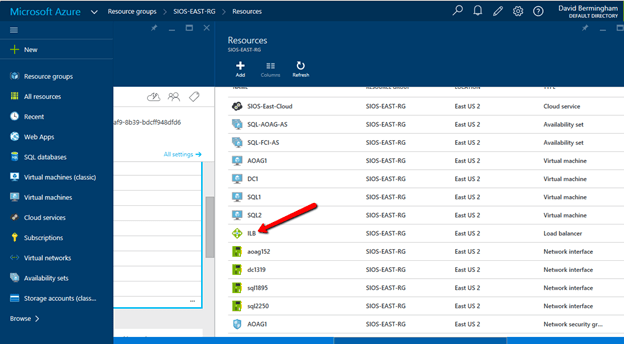
Now that the ILB is created, we should see it in the Azure Portal if we list all the objects in our Resource Group as shown below.

The rest of the configuration I’m sure can also be done through PowerShell, but I’m going to use the GUI in my example. If you want to use PowerShell you could probably piece together the script by looking at the article Get started configuring internal load balancer using Azure Resource Manager but honestly that article gives me a headache. I’ll figure it out some day and try to document it in a user friendly format, but for now I think the GUI is fine for the next steps.

Follow along with the screen shots below. If you get lost, follow the navigation hints at the top of the Azure Portal to figure out where we are.

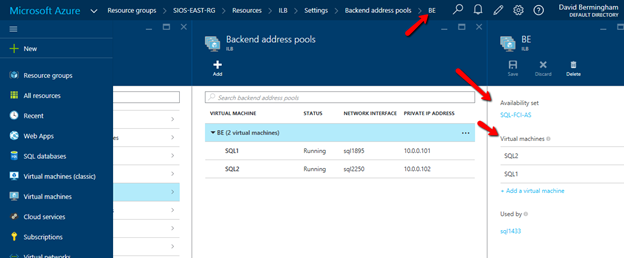
Click Backend Pool setting tab and selects the backend pool to update the Availability Set and Virtual Machines. Save your changes.

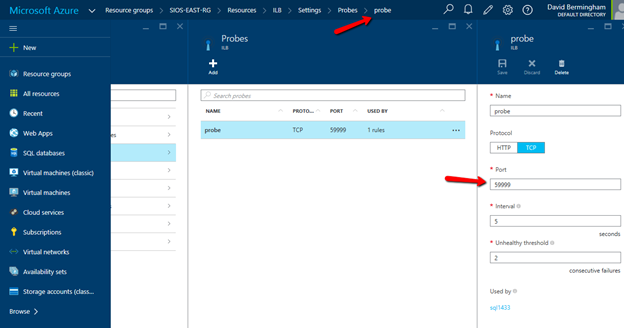
Configure Load Balancer’s Probe by clicking Add on the Probe tab. Give the probe a name and configure it to use TCP Port 59999. I have left the probe interval and the unhealthy threshold set to the default settings, which means it will take 10 seconds before the ILB removes the passive node from the list of active nodes after a failover, meaning your clients may take up to 10 seconds to be redirected to the new active node. Be sure to save your changes.
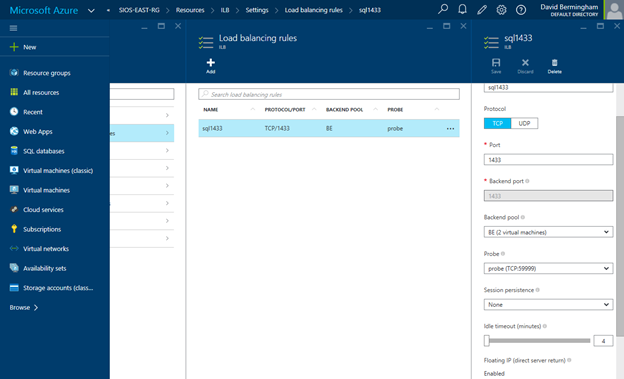
Navigate to the Load Balancing Rule Tab and add a new rule. Give the rule a sensible name (SQL1433 or something) and choose TCP protocol port 1433 (assuming you are using the default instance of SQL Server). Choose 1433 for the Backend port as well. For the Backend Pool we will choose the Backend Pool we created earlier (BE) and for the Probe we will also choose the Probe we created earlier. We do not want to enable Session persistence but we do want to enable Floating IP (Direct Server Return). I have left the idle timeout set to the default setting, but you might want to consider increasing that to the maximum value as I have seen some applications such as SAP log error messages each time the connection is dropped and needs to be re-established.
At this point the ILB is configured and there is only one final step that needs to take place. We need to update the SQL IP Cluster Resource just the exact same way we had to in the Classic deployment model. To do that you will need to run the following PowerShell script on just one of the cluster nodes. And make note,SubnetMask=“255.255.255.255” is not a mistake, use the 32 bit mask regardless of what your actual subnet mask is.

# This script should be run on the primary cluster node after the internal load balancer is created
# Define variables
$ClusterNetworkName = "Cluster Network 1"
# the cluster network name
$IPResourceName = "SQL IP Address 1 (SQLCluster1)"
# the IP Address resource name
$CloudServiceIP = "10.0.0.201"
# IP address of your Internal Load Balancer
Import-Module FailoverClusters
# If you are using Windows 2012 or higher, use the Get-Cluster Resource command. If you are using Windows 2008 R2, use the cluster res command which is commented out.
Get-ClusterResource $IPResourceName
Set-ClusterParameter -Multiple @{"Address"="$CloudServiceIP";"ProbePort"="59999";SubnetMask="255.255.255.255";"Network"="$ClusterNetworkName";"OverrideAddressMatch"=1;"EnableDhcp"=0}
# cluster res $IPResourceName /priv enabledhcp=0 overrideaddressmatch=1 address=$CloudServiceIP probeport=59999 subnetmask=255.255.255.255

I have just one final note. In my initial test I still was not able to connect to the SQL Resource name even after I completed all of the above steps. After banging my head against the wall for a few hours I discovered that for some reason the SQL Cluster Name Resource was not registered in DNS. I’m not sure how that happened or whether it will happen consistently, but if you are having trouble connecting I would definitely check DNS and add the SQL cluster name and IP address as a new A record if it is not already in there.

And of course don’t forget the good ole Windows Firewall. You will have to make exceptions for 1433 and 59999 or just turn it off until you get everything configured properly like I did. You probably want to leverage Azure Network Security Groups anyway instead of the local Windows Firewall for a more unified experience across all your Azure resources.

Good luck and let me know how you make out.
Configuring the #Azure ILB in ARM for SQL Server FCI or AG using Azure PowerShell 1.0

Highly Available SQL Server Storage Options in #Azure: SMB 3.0 File Service or Premium Storage, a look at performance differences

When looking at storage options for deployments of SQL Server deployments in Azure you have a few options as described in the article Windows Server Failover Cluster on Azure IAAS VM – Part 1 (Storage). The article also references the newly released Azure File Service which can be used to host your SQL Server cluster data over SMB 3.0. As of today the Azure File Service does not support Premium Storage, so you are limited to about 1000 IOPS or 60 MB/s per file share. With those limits in place I see Azure File Service really only being an option for databases that have minimal IO demands. We will see why that holds true based on my tests results below.

.

I wanted to test a few configurations, so I provisioned a DS4 VM and attached some premium storage to it. I also attached a SMB 3.0 File share using Azure File Service. The storage was configured as follows:

F:\ – Three 1 TB P30 Premium Storage Disks added to a single 3TB pool

G:\ – One 1 TB P30 Premium Storage Disk (no Storage Pool)

Z:\ – SMB 3.0 File share on Azure File Services

To configure the Storage Pool for use in a cluster you have to be careful how you proceed. You either have to create the Storage Pool before you create the cluster or you have to use the Powershell script described in Sql Alwayson with Windows 2012 R2 Storage Spaces if the cluster is already created. The pool I created was a Simple mirror (RAID 0) for increased performance. I’m not concerned about redundancy since the Azure storage on the backend has triple redundancy.

With three disk in the Storage Pool in a RAID 0 I expect I should get up to three times the performance of a single disk. Adding even more disk to the pool should give me even performance. A single P30 disk gives me 5000 IOPS and 200 MB/S, so for my pool I should expect up to 15000 IOPS and 600 MB/S throughput.

Now that I have the storage configured I configured Dskspd to run the same test on each of the different volumes. The parameters I used with Dskspd are as follows:

Diskspd.exe -b8K -d60 -h -L -o8 -t16 -r -w30 -c50M F:\io.dat

Diskspd.exe -b8K -d60 -h -L -o8 -t16 -r -w30 -c50M G:\io.dat

Diskspd.exe -b8K -d60 -h -L -o8 -t16 -r -w30 -c50M Z:\io.dat

The results were pretty predictable and summarized below

DskspdAs you can see, while this particular job did not push the upper limits of the theoretical maximum of any of these storage solutions, the latency had a significant impact on the overall performance of this particular test. The test used 8k blocks in a mix of 30% writes and 70% reads to simulate a typical SQL Server OLTP workload.

Of course the more money you want to spend the more performance you can expect to achieve. As of November 24, 2015 the price for the best solution shown here (F:\) would cost you $1,216/month and give you full access to 3 TB of storage with unlimited reads/writes. The second best solution (G:\) would give you 1 TB of storage at 1/3 the price, $405/month. The Azure File Share is priced at $0.10/GB plus additional charges for read/write operations. You are only charged for the actual usage so estimating the actual cost will be very dependent on your usage, but before the additional charges for read/write operations you are at about 25% of the cost of Premium Storage.

Prices, like everything else in the Cloud, tend to change rapidly to address the market demands. Have a look at the latest price information at https://azure.microsoft.com/en-us/pricing/details/storage/ for the latest price information.

In summary, while Azure File Services looks enticing from a price perspective, the latency at this point does not make it a viable option for any serious SQL Server workload. Instead, have a look at utilizing premium storage and leveraging either host based replication solutions such as SIOS DataKeeper to build SQL Server Failover Cluster Instances (SQL Standard or Enterprise) or look at SQL Server Enterprise Edition and AlwaysOn AG.

Highly Available SQL Server Storage Options in #Azure: SMB 3.0 File Service or Premium Storage, a look at performance differences

Configuring the SQL Server AlwaysOn ILB for the Client Listener in Azure Resource Manager (ARM) deployment model #SQLPASS

In preparation for my talk at PASS Summit this Friday, I’d figure I document something that I finally got working that I want to talk about during my session on highly available SQL Server in Azure. Now I just need to update my slide deck and my demo environment.

In case you didn’t know, Azure has two deployment models: Resource Manager (ARM) and Classic Deployment. Classic deployment is the “old” way of doing things and ARM is the new way of doing things. There are numerous benefits to using ARM as described in the Azure article Understanding Resource Manager deployment and classic deployment . However, one of my favorite new features of ARM is the ability to have three Fault Domains per Availability Set rather than just the two Fault Domains you get with the Classic deployment model. This is a critical feature for SQL High Availability.

With three fault domains you can ensure that each cluster node in a two node cluster and the file share witness all reside in different fault domains. This eliminates the possibility that the failure of a single Fault Domain would impact more than one quorum vote in your cluster. In the Classic deployment model with two fault domains you could only put two cluster nodes in an availability set. For maximum availability you really needed to put your file share witness in a different geographic location as there was no guarantee that it wouldn’t wind up in the same fault domain as one of your cluster nodes if you kept it in the same geographic location, meaning that the failure of a single fault domain could impact 2 out of your 3 quorum votes, bringing down your entire cluster. ARM’s three Fault Domains eliminates that possibility.

ARM is definitely the way to go as new Azure features are only being introduced in ARM. However, the documentation is light and some features are not quite there yet, including such things as documented support for ExpressRoute. Both of these problems get better almost daily, but early adopters really have to work extra hard until Azure catches up. One other issue is that you can’t mix Classic and ARM deployments, so if you started down the road with Classic deployments you are basically going to have to start from the ground up with Resource Manager when you make the switch. If you can manage it a little pain now will help you avoid a larger headache next year when you find that you want some new feature only available in ARM.

I hope this article helps you in at least one of aspect of your ARM deployment – getting highly available SQL Server deployed. As I have documented in earlier articles, deploying both AlwaysOn Availability Groups and AlwaysOn Failover Cluster Instances in Azure “Classic” requires the use of an Azure Load Balancer (internal or external) for client redirection. Getting that configured in Classic Azure is not exactly straight forward, but it is documented well enough that any administrator reasonably familiar with Azure, Failover Clustering, SQL Server and PowerShell can get it to work.

AlwaysOn Availability Groups and AlwaysOn Failover Cluster Instances using the ARM deployment model still requires the use of an Azure Load Balancer for client redirection, however the steps on creating and configuring that load balancer are completely different and as of today not exactly documented very well. In this article I’m going to highlight the steps required to configure the ILB and update the SQL cluster IP Resource. In the next article I will walk you through the entire process step by step from the ground up from creating the vNet to installing SQL and creating the cluster.

Before we begin, I’m making the following assumptions:

  • You have created a vNet using ARM
  • You have provisioned 3 ARM based VMs (DC, SQL1, SQL2)
  • You put DC, SQL1 and SQL2 in the same Availability Set and Resource Group
  • You have created a cluster with SQL1 and SQL2 and used the DC for the file share witness
  • You have either created an AlwaysOn Availability Group or AlwaysOn Failover Cluster instance with SIOS DataKeeper Cluster Edition. In either case you will wind up with a client listener, consisting of a name resource and IP resource. The AlwaysOn AG and FCI configuration up to the point of creating the load balancer is exactly the same as it is in the Azure Classic deployment model and documented on the web in many places including my own blog post

Now that you have a fully configured AlwaysOn AG or FCI, you probably notice that you can’t connect to the cluster name from any server other than the node that currently hosts the SQL cluster name resource. I’ve been told that this is because Azure networking does not support gratuitous ARPS so clients can’t communicate directly with the cluster IP address. Instead the clients need to communicate with the ILB and the ILB will redirect traffic to the active node. So step 1 is to create the ILB. As of now this can’t be done through the Azure Portal so we will use the following Azure PowerShell command.

[1/6/2016 Update – The directions below assume you are using Azure PowerShell pre-version 1. The script if you are using Azure PowerShell Version 1 or later is detailed in my blog post here.]

Switch-AzureMode -Name AzureResourceManager

Select-AzureSubscription -SubscriptionName "MSDN Azure"
# name whichever subscription you used to create your vNet and VMs

#Declare your variables using values relevant to your deployment

$ResourceGroupName ='SIOS-EAST-RG'
# Resource Group Name in which the SQL nodes are deployed

$FrontEndConfigurationName ='FE'
#Call it whatever you like

$BackendConfiguratioName ='BE'
#Call it whatever you like

$LoadBalancerName ='ILB'
#Provide a Name for the Internal Local balance object

$Location ='eastus2'
# Input the data center location of your SQL VMs

$subname ='PUBLIC'
# Provide the Subnet name in which the SQL Nodes are placed

$ILBIP = '10.0.0.201'
# Provide the IP address for the Listener or Load Balancer

$subnet = Get-AzureVirtualNetwork -ResourceGroupName $ResourceGroupName|Get-AzureVirtualNetworkSubnetConfig –name $subname

$FEConfig = New-AzureLoadBalancerFrontendIpConfig -Name $FrontEndConfigurationName -PrivateIpAddress $ILBIP -SubnetId $subnet.Id

$BackendConfig = New-AzureLoadBalancerBackendAddressPoolConfig -Name $BackendConfiguratioName

#create the ILB
New-AzureLoadBalancer -Name $LoadBalancerName -ResourceGroupName $ResourceGroupName -Location $Location
-FrontendIpConfiguration $FEConfig -BackendAddressPool $BackendConfig


Now that the ILB is created, we should see it in the Azure Portal if we list all the objects in our Resource Group as shown below.

The rest of the configuration I’m sure can also be done through PowerShell, but I’m going to use the GUI in my example. If you want to use PowerShell you could probably piece together the script by looking at the article Get started configuring internal load balancer using Azure Resource Manager but honestly that article gives me a headache. I’ll figure it out some day and try to document it in a user friendly format, but for now I think the GUI is fine for the next steps.

Follow along with the screen shots below. If you get lost, follow the navigation hints at the top of the Azure Portal to figure out where we are.

Click Backend Pool setting tab and selects the backend pool to update the Availability Set and Virtual Machines. Save your changes.


Configure Load Balancer’s Probe by clicking Add on the Probe tab. Give the probe a name and configure it to use TCP Port 59999. I have left the probe interval and the unhealthy threshold set to the default settings, which means it will take 10 seconds before the ILB removes the passive node from the list of active nodes after a failover, meaning your clients may take up to 10 seconds to be redirected to the new active node. Be sure to save your changes.

Navigate to the Load Balancing Rule Tab and add a new rule. Give the rule a sensible name (SQL1433 or something) and choose TCP protocol port 1433 (assuming you are using the default instance of SQL Server). Choose 1433 for the Backend port as well. For the Backend Pool we will choose the Backend Pool we created earlier (BE) and for the Probe we will also choose the Probe we created earlier. We do not want to enable Session persistence but we do want to enable Floating IP (Direct Server Return). I have left the idle timeout set to the default setting, but you might want to consider increasing that to the maximum value as I have seen some applications such as SAP log error messages each time the connection is dropped and needs to be re-established.

At this point the ILB is configured and there is only one final step that needs to take place. We need to update the SQL IP Cluster Resource just the exact same way we had to in the Classic deployment model. To do that you will need to run the following PowerShell script on just one of the cluster nodes. And make note, SubnetMask=“255.255.255.255” is not a mistake, use the 32 bit mask regardless of what your actual subnet mask is.

# This script should be run on the primary cluster node after the internal load balancer is created
# Define variables

$ClusterNetworkName = "Cluster Network 1"
# the cluster network name

$IPResourceName = "SQL IP Address 1 (SQLCluster1)"
# the IP Address resource name

$CloudServiceIP = "10.0.0.201"
# IP address of your Internal Load Balancer

Import-Module FailoverClusters

# If you are using Windows 2012 or higher, use the Get-Cluster Resource command. If you are using Windows 2008 R2, use the cluster res command which is commented out.

Get-ClusterResource $IPResourceName
Set-ClusterParameter -Multiple @{"Address"="$CloudServiceIP";"ProbePort"="59999";SubnetMask="255.255.255.255";"Network"="$ClusterNetworkName";"OverrideAddressMatch"=1;"EnableDhcp"=0}

# cluster res $IPResourceName /priv enabledhcp=0 overrideaddressmatch=1 address=$CloudServiceIP probeport=59999 subnetmask=255.255.255.255

I have just one final note. In my initial test I still was not able to connect to the SQL Resource name even after I completed all of the above steps. After banging my head against the wall for a few hours I discovered that for some reason the SQL Cluster Name Resource was not registered in DNS. I'm not sure how that happened or whether it will happen consistently, but if you are having trouble connecting I would definitely check DNS and add the SQL cluster name and IP address as a new A record if it is not already in there.

And of course don't forget the good ole Windows Firewall. You will have to make exceptions for 1433 and 59999 or just turn it off until you get everything configured properly like I did. You probably want to leverage Azure Network Security Groups anyway instead of the local Windows Firewall for a more unified experience across all your Azure resources.

Good luck and let me know how you make out.
Configuring the SQL Server AlwaysOn ILB for the Client Listener in Azure Resource Manager (ARM) deployment model #SQLPASS