SQL Server Management Studio in a Multi-Site Cluster

If you set up a multisite cluster (nodes in different subnets), you will find that by default the cluster enables RegisterAllProvidersIP cluster resource for its network name. This results in two entries in DNS for the SQL Cluster name resource, one for each cluster IP address. If you use the optional MultiSubnetFailover=True parameter in the connection string, clients will try both IP addresses simultaneously and connect to the first server that responds. For SQL Server Management Studio you add that setting under the additional Connections Parameters.

SQL Server Management Studio in a Multi-Site Cluster

Why would you want to build a #SQLServer failover cluster instance in the #Azure cloud?

There was an interesting discussion happening today in the Twitterverse. Basically, someone asked the question “Has anyone set up a SQL Server AlwaysOn Failover Cluster Instance in Azure?” The ensuing conversation involved some well respect SQL Server experts which led to the following question, “Why would you want to build a SQL Server AlwaysOn Failover Cluster instance in the cloud?”

That question could be interpreted in two ways: “Why do you need High Availability in the Cloud” or “Why wouldn’t you use AlwaysOn Availability Groups instead of Failover Cluster Instances?”

Let’s address each question one at a time.

Question 1 – Why do you need High Availability in the Azure Cloud?

  • You might think that just because you host your SQL Server instance in Azure, that you are covered by their 99.95% uptime SLA. If you think that, you would be wrong. In order to take advantage of the 99.95% SLA you have to have at least two instances of SQL running in an Availability Set. With a single instance of SQL running you can definitely expect that there will minimally be downtime during maintenance periods, but you are also susceptible to unplanned failures.
  • Two instances of SQL Server cannot generally be load balanced, so you have to implement some sort of mechanism to keep the servers in sync and to ensure that if there is a problem with one of the servers, the other server will be able to continue to service the requests. High Availability solutions like AlwaysOn Availability Groups, AlwaysOn Failover Cluster Instances and even the deprecated Database Mirroring can provide high availability for SQL Server in that scenario. Other solutions like log shipping and transactional replication may be able to help keep data synchronized between servers, but they are not typically considered high availability solutions and will not ensure the availability of your SQL Server.
  • Microsoft does occasionally need to perform maintenance on Azure that could bring down an entire Upgrade Domain and all the instances running in that Upgrade Domain. You don’t have any say on when this will happen, so you need to have a mechanism in place to ensure that if they do have to bring down your primary SQL Server instance, you can expect that your secondary SQL Server instance will take over the workload without missing a beat. All of the high availability solutions mentioned above can ensure that you will continue to run in the event that Microsoft is doing maintenance on the Upgrade Domain of your primary server. Microsoft will only do maintenance on a single Upgrade Domain at a time, ensuring that your secondary server will still be online assuming you put the both in the same Availability Set.
  • What do you do if YOU want to performance maintenance on your production SQL Server? Maybe you want to install a Service Pack or other hotfix? Without a secondary server to fail over to, you will have to schedule planned downtime. One of the primary benefits of any high availability solution is the ability to do rolling upgrades, minimizing the impact of planned downtime.

Question 2 – Why wouldn’t you use AlwaysOn Availability Groups instead of Failover Cluster Instances?

  • Save Money! SQL Server AlwaysOn Availability Groups requires Enterprise Edition of SQL Server. Why not save money and deploy SQL Server Standard Edition and build a simple 2-node Failover Cluster Instance? Unless you need Enterprise Edition for some other reason, this is a no brainer.
  • Protect the ENTIRE SQL Server instance. AlwaysOn Availability Groups only protects user defined databases; you cannot protect the System and MSDB databases. If you build a Failover Cluster Instance instead, you are protecting the ENTIRE instance, including the System and MSDB databases.
  • Ease Administration. In Azure, you are limited to just on client listener. This limits you to just one Availability Group. In contrast, with a Failover Cluster Instance one client listener is all you need, so there is no limitation.
  • Worker Thread Exhaustion. With AlwaysOn AG you have to keep an eye on the available worker threads. The available worker threads limit the number of databases you can protect with AlwaysOn AG. In contrast, AlwaysOn Failover Clustering with DataKeeper block level replication does not consume more resources for each database you add, meaning you can scale to protect hundreds of databases without the additional overhead associated with AlwaysOn AG.
  • Distribute Transaction Support. AlwaysOn AG does not support distributed transactions (DTC), so if your application requires DTC support you are going to have to look at an AlwaysOn Failover Cluster Instance instead.
  • Support of Other Replication Technologies. If you plan on setting up Peer to Peer replication between two databases protected by AlwaysOn AG you can forget about it. In fact, there are many restrictions you have to be aware of once you deploy AlwaysOn Availability Groups. AlwaysOn FCI’s do not have any of those restrictions.

Knowing what you know above, shouldn’t the question really be “Why would I want to implement AlwaysOn AG in the Cloud when I can have a much more robust and inexpensive solution building an AlwaysOn Failover Cluster instance?”

If you are interested in building an AlwaysOn Failover Cluster Instance in Azure, check out my blog post Step-by-Step: How to configure a SQL Server Failover Cluster Instance (FCI) in Microsoft Azure IaaS #SQLServer #Azure #SANLess

You can also check out the only Azure Certified HA solution in the Azure Marketplace at http://azure.microsoft.com/en-us/marketplace/partners/sios-datakeeper/sios-datakeeper-8-bring-your-own-license/

Why would you want to build a #SQLServer failover cluster instance in the #Azure cloud?

What every SQL Server DBA needs to know about Windows Server 10 #sqlpass

The guys over at the High Availability & Disaster Recovery Virtual Chapter of @SQLPASS invited me to present on Windows Server 10. I discussed Cloud Witness, Storage Replica and Rolling Cluster OS Upgrades. In case you missed it you can view the recording here.

https://attendee.gotowebinar.com/recording/8228215421492642561

What every SQL Server DBA needs to know about Windows Server 10 #sqlpass

#Azure Storage Service Interruption…Time for “Plan B”

Yesterday evening Pacific Standard Time, Azure storage services experienced a service interruption across the United States, Europe and parts of Asia, which impacted multiple cloud services in these regions.

As part of a performance update to Azure Storage, an issue was discovered that resulted in reduced capacity across services utilizing Azure Storage, including Virtual Machines, Visual Studio Online, Websites, Search and other Microsoft services.

Read the whole report on the Azure blog. http://azure.microsoft.com/blog/2014/11/19/update-on-azure-storage-service-interruption/

So what does this outage mean to those thinking about a cloud deployment? Global “interruptions” of this magnitude certainly cannot occur on any regular basis for any cloud provider that intends to remain in the cloud business, whether they are Microsoft, Amazon, Google or other. However, as a cloud architect or person responsible for a cloud deployment, you have a responsibility to your customer to have a “Plan B” in your back pocket in case the worst case scenario actually happens.

What exactly is a “Plan B”? Plan B involves having a documented procedure for recovering data and services in an alternate location in the event of a wide spread outage that impacts a cloud provider’s ability to deliver their service, despite deploying what you thought was a highly resilient cloud deployment designed to keep running even in the event of localized outages within a region, availability zone or fault domain.

At a high level you should be concerned about three things: Data Recovery, Application Recovery, and Client Access. There are many ways to address these concerns, some more automated than others and some with a better Recovery Time Objective (RTO) and Recovery Point Objective (RPO) than others.

It was just last week that I blogged about how to create a multisite cluster that stretched between the AWS cloud and the Azure cloud. This type of configuration is just what is needed in the event of an outage of the magnitude that we just experienced yesterday in the Azure cloud. https://clusteringformeremortals.com/2014/11/18/cloud-resiliency-for-sqlserver-failover-clusters-aws-to-azure-multisite-cluster/
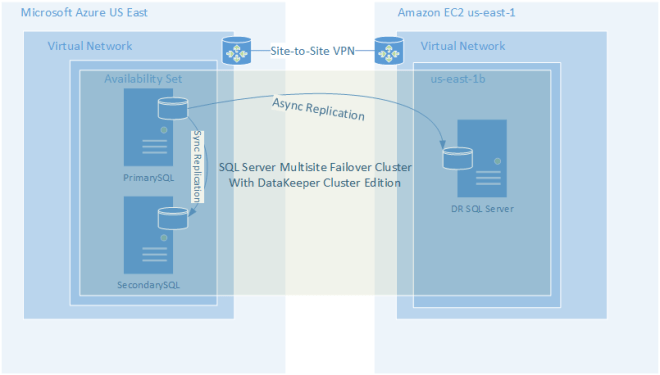
Figure 1 – Example of a Cloud-to-Cloud Multisite Cluster Configuration

Another alternative to the “cloud-to-cloud” replication model is of course utilizing your own datacenter as a disaster recovery site for your cloud deployment. The advantages of this is that you have physical ownership of your data, but of course now you are back in the business of managing a datacenter, which can negate some of the benefit of a pure cloud deployment.
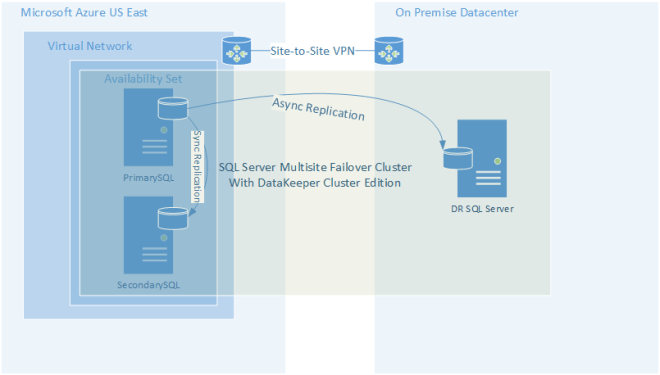
Figure 2 – Hybrid Cloud Deployment Model

If you are not ready to go full on cloud, you can still make use of the cloud as a disaster recovery site. This is probably the easiest and most cost effective way to implement an offsite datacenter for disaster recovery and to start taking advantage of what the cloud has to offer without fully committing to moving all your workloads into the cloud.
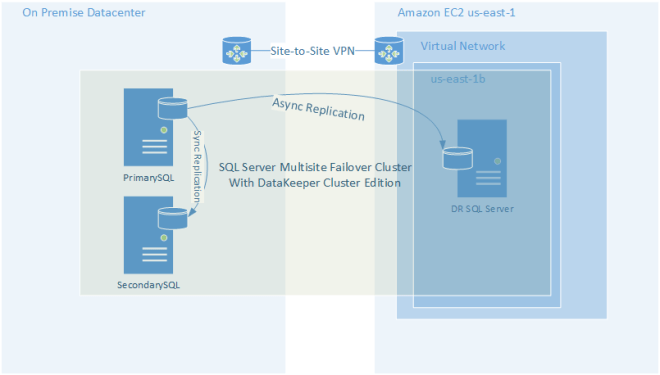
Figure 3 – Using the Cloud as a Disaster Recovery Site

The illustrations shown above make use of the host based replication solution called DataKeeper Cluster Edition to build multisite SQL Server clusters. However, DataKeeper can be used to keep any data in sync, either between different cloud providers or in the hybrid cloud model.

Microsoft is not alone in dealing with cloud outages as outages have impacted Google, Microsoft, Amazon, DropBox and many others just this year alone. Having a “Plan B” in place is a must have anytime you are relying on any cloud service.

#Azure Storage Service Interruption…Time for “Plan B”

High Performance SQL Server in Azure IaaS #SQLServer #Azure

If you want your SQL Server instances to really hum in Azure, you need to read this article.

http://blogs.technet.com/b/dataplatforminsider/archive/2014/09/25/using-ssds-in-azure-vms-to-store-sql-server-tempdb-and-buffer-pool-extensions.aspx

Just remember, if you are going to relocate the tempdb or buffer pool extensions in a SQL Server Failover cluster in Azure IaaS, you will have to either relax the permissions on the root of the D drive and store them there or create a generic script cluster resource that recreates the folder structure upon failover because the SSD is not persistent and any folders you create will be deleted each time you reboot. The article talks about creating a script that runs at startup, but in a clustered environment I’m afraid that the cluster would try to start SQL server before the directory structure was created. It would be better to create a Generic Script cluster resource and make the SQL Server cluster resource dependent on this generic service to ensure the folder is created before SQL tries to start.

High Performance SQL Server in Azure IaaS #SQLServer #Azure

Windows Server 10 New Cloud Witness

My favorite new cluster feature in Windows Server 10 is the Cloud Witness. The Cloud Witness is another option in addition to the traditional disk witness and file share witness which are used when configuring the quorum in a Windows Server Failover Cluster. For a complete history of cluster quorums and their options please read my article on the Microsoft Press blog…….

So what exactly is a Cloud Witness? A Cloud Witness utilizes a Windows Azure IaaS Storage Account to act as a vote in your cluster quorum. It can be used instead of a disk witness or a fail share witness. The cluster nodes simply need public internet access to reach an Azure storage account that you have provisioned as part of your Azure subscription.

So why would I use a disk witness? In most shared storage clusters you will still use a node and disk witness majority quorum. However, when you are doing #SANLess clusters, or multisite clusters, you now have another option to consider instead of a file share witness. Let’s look at some scenarios where a Cloud Witness would make more sense than a File Share Witness.

Scenario 1 – Multisite Cluster

If you have done your research on multisite clusters, you will have discovered that if you want automatic failover in the event of a complete site loss, the only safe way to do this is to have an even number of cluster votes in each site and to configure a File Share Witness in a 3rd site. In addition, the network connection between your primary site and your DR site must be completely independent of the network connection you have between this 3rd site and your primary and DR sites.

The cost associated with maintaining a completely independent network and having access to a 3rd data center for hosting a file share witness is not always possible. This is where having a Cloud Witness in Windows Azure comes in handy. Assuming you have an equal number of cluster votes in each data center and each data center also has access to the internet, you can define a Windows Azure Storage account as a Cloud Witness instead of a File Share Witness. Using a Cloud Share Witness eliminates the cost associated with maintaining a 3rd data center. There will be a slight monthly fee for the Azure Cloud service, but this will be minimal in comparison to the cost associated with maintaining a File Share Witness.

Scenario 2 – #SANLess Hyper-V Cluster at Remote Office/Branch Office (ROBO)

Here is the scenario. You run a fast food chain, department store chain, drug store chain, etc. You have the need to run a handful of servers to support your local operations at each of your store fronts. You decide that running these servers as virtual machines in Hyper-V are the way you want to go. Having these servers highly available is very important, so you decide it would be best to implement a two node cluster at each location. To minimize costs and to make management easy, you decide to purchase an identical pair of servers for each location and use the locally attached storage to build a #SANLess cluster with DataKeeper Cluster Edition. You come to realize that because you went #SANLess you don’t have access to a disk witness. And also, because you didn’t plan on purchasing a 3rd server for each location, a file share witness is also out of the question. You are in a real conundrum…a 2 node cluster NEEDS A WITNESS!

Here is where the Cloud Witness in Windows Azure comes and saves the day. Assuming your servers have access to the internet, a simple Cloud Witness can be configured and now you can support a 2-node #SANLess Hyper-V Cluster in each location. I would configure a non-clustered DC VM on each physical server and then create as many highly available VMs as a need in the cluster just using local attached storage.

Cloud Witness is a great new option in Windows Server 10. The only thing that would make it better is if they back ported it to Windows Server 2012 R2 so I could use it today!


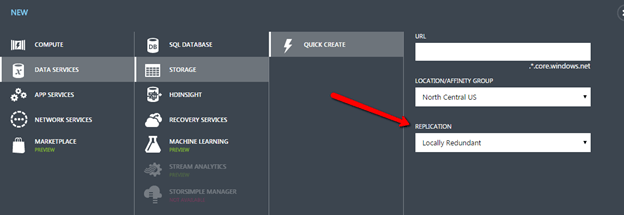
UPDATE 11/5/2014 – When you create your Storage Account in Azure, make sure you choose “Locally Redundant” as Geo-Redundant Storage is not supported for the Cloud Witness.

Windows Server 10 New Cloud Witness

Understanding the Windows Server Failover Cluster Quorum in Windows Server 2012 R2

Understanding the Windows Server Failover Cluster Quorum in Windows Server 2012 R2

Before we get started with all the great new cluster quorum features in Windows Server 2012 R2, we should take a moment and understand what the quorum does and how we got to where we are today. Rob Hindman describes quorum best in his blog post

“The quorum configuration in a failover cluster determines the number of failures that the cluster can sustain while still remaining online.”

Prior to Windows Server 2003, there was only one quorum type, Disk Only. This quorum type is still available today, but is not recommended as the quorum disk is a single point of failure. In Windows Server 2003 Microsoft introduce the Majority Node Set (MNS) quorum. This was an improvement as it eliminated the disk only quorum as a single point of failure in the cluster. However, it did have its limitations. As implied in its name, Majority Node Set must have a majority of nodes to form a quorum and stay online, so this quorum model is not ideal for a two node cluster where the failure of one node would only leave one node remaining. One out of two is not a majority, so the remaining node would go offline.

Microsoft introduced a hotfix that allowed for the creation of a File Share Witness (FSW) on Windows Server 2003 SP1 and 2003 R2 clusters. Essentially the FSW is a simple file share on another server that is given a vote in a MNS cluster. The driving force behind this innovation was Exchange Server 2007 Continuous Cluster Replication (CCR), which allowed for clustering without shared storage. Of course without shared storage a Disk Only Quorum was not an option and effective MNS clusters would require three or more cluster nodes, hence, the introduction of the FSW to support two node Exchange CCR clusters.

Windows Server 2008 saw the introduction of a new witness type, Disk Witness. Unlike the old Disk Only quorum type, the Disk Witness allows the users to configure a small partition on a shared disk that acts as a vote in the cluster, similar to that of the FSW. However, the Disk Witness is preferable to the FSW because it keeps a copy of the cluster database and eliminates the possibility of “partition in time”. If you’d like to read more about partition in time, I suggest you read the File Share Witness vs. Disk Witness for local clusters.

Windows Server 2012 continued to improve upon quorum options. It is my belief that many of these new features were driven by two forces: Hyper-V and SQL Server AlwaysOn Availability Groups. With Hyper-V we began to see clusters that contained many more nodes than we have typically seen in the past. In a majority node set, as soon as you lose a majority of your votes, the remaining nodes go offline. So for example, if you have a Hyper-V cluster with seven nodes, if you were to lose four of those nodes the remaining nodes would go offline, even though there are three nodes remaining. This might not be exactly what you want to happen. So in Windows Server 2012, Microsoft introduced Dynamic Quorum.

Dynamic Quorum does what its name implies, it adjust the quorum dynamically. So in the scenario described about, assuming I didn’t lose all four servers at the same time, as servers in the cluster went offline, the number of votes in the quorum would adjust dynamically. When node one went offline, I would then in theory have a six node cluster. When node two went offline, I would then have a five node cluster, and so on. In reality, if I continued to lose cluster nodes one by one, I could go all the way down to a two node cluster and still remain online. And, if I had configured a witness (Disk or File Share) I could actually go all the way down to a single node and still remain online.

Read more at….

http://blogs.msdn.com/b/microsoft_press/archive/2014/04/28/from-the-mvps-understanding-the-windows-server-failover-cluster-quorum-in-windows-server-2012-r2.aspx

Understanding the Windows Server Failover Cluster Quorum in Windows Server 2012 R2

SQL Server – Massive Speed and High Availability

Check out this great article by SQL Server guru @MrDenny

Title: Massive Speed and HA

Subtitle: Two Things That Usually Don’t Go Together


First Paragraph: Question: William asks “I have a SQL Server which needs both high availability and high-speed storage. Even SAN storage with SSD based hard drives isn’t providing the performance levels that we are looking for, while still getting the failover cluster HA solution that we need for our SQL Server 2008 R2 database?”


Read More…

Article Link: http://sqlmag.com/blog/massive-speed-and-ha


Author: Denny Cheery (@MrDenny)

Source: SQL Server Pro / SQLMag.com

Source Link: http://sqlmag.com/

BIO

Denny Cherry is the owner and principal consultant for Denny Cherry & Associates Consulting and has over a decade of experience working with platforms such as Microsoft SQL Server, Hyper-V, vSphere and Enterprise Storage solutions. Denny’s areas of technical expertise include system architecture, performance tuning, security, replication and troubleshooting. Denny currently holds several of the Microsoft Certifications related to SQL Server for versions 2000 through 2008 including the Microsoft Certified Master as well as being a Microsoft MVP for several years.  Denny has written several books and dozens of technical articles on SQL Server management and how SQL Server integrates with various other technologies.

SQL Server – Massive Speed and High Availability

Installing SQL Server 2008 R2 in a Windows Server 2012 Cluster

If you want to install ANY version of SQL Server in a Windows Server 2012 environment I highly recommend you read the following KB article.

http://support.microsoft.com/kb/2681562

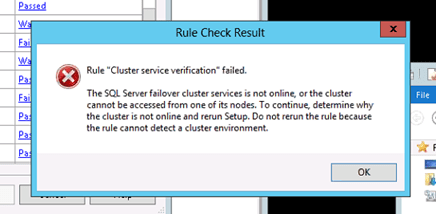
In particular, I ran into this error while trying to install SQL Server 2008 R2 on Windows Server 2012 and was running into the following error (among others).

Figure 1 – Rule “Cluster service verification” failed

The fix is simple, as described in the KB article, simply enable the Failover Cluster Automation Server in the Add Roles and Features wizard or via the following Powershell command:

add-windowsfeature RSAT-Clustering-AutomationServer

That fix will resolve the other Setup Support Rules errors including the cluster validation error and any errors about cluster storage. You should be able to re-run the SQL installation and it will pass all the Setup Support Rules and allow you to continue with the cluster install.

Of course all this assumes you have slipstreamed at least SP1 onto your SQL install media. If you try to install without SP1 or later you will also run into lots of problems.

Installing SQL Server 2008 R2 in a Windows Server 2012 Cluster