MS SQL Server v.Next on Linux with Replication and High Availability #Azure #Cloud #Linux

With Microsoft’s recent release of the first public preview of MS SQL Server running on Linux, I wondered what they would do for high availability. Knowing how tightly coupled AlwaysOn Availability Groups and Failover Clustering is to the Windows operating system I was pretty certain they would not be options and I was correct.

Well, the people over at LinuxClustering.Net answered my question on how to provide high availability failover clusters for MS SQL Server v.Next on Linux with this great Step by Step article.

http://www.linuxclustering.net/2016/11/18/step-by-step-sql-server-v-next-for-linux-public-preview-high-availability-azure/

Not only that, they did it all in Azure which we know can be tricky given some of the network limitations.

sql-dependencies-created

I’d be curious to know if you are excited about SQL Server on Linux or if you think it is just a little science experiment. If you are excited, what does SQL Server on Linux bring to the table that open source databases don’t? If you like SQL Server that much why not just run it on Windows?

I’m not being facetious here, I honestly want to know what excites you about SQL Server on Linux. I’m looking forward to your comments.

MS SQL Server v.Next on Linux with Replication and High Availability #Azure #Cloud #Linux

Deploying a Highly Available File Server in Azure IaaS (ARM) with SIOS DataKeeper

In this post we will detail the specific steps required to deploy a 2-node File Server Failover Cluster in a single region of Azure using Azure Resource Manager. I will assume you are familiar with basic Azure concepts as well as basic Failover Cluster concepts and will focus this article on what is unique about deploying a File Server Failover Cluster in Azure.

With DataKeeper Cluster Edition you are able to take the locally attached storage, whether it is Premium or Standard Disks, and replicate those disks either synchronously, asynchronously or a mix or both, between two or more cluster nodes. In addition, a DataKeeper Volume resource is registered in Windows Server Failover Clustering which takes the place of a Physical Disk resource. Instead of controlling SCSI-3 reservations like a Physical Disk Resource, the DataKeeper Volume controls the mirror direction, ensuring the active node is always the source of the mirror. As far as Failover Clustering is concerned, it looks, feels and smells like a Physical Disk and is used the same way Physical Disk Resource would be used.

Pre-requisites

  • You have used the Azure Portal before and are comfortable deploying virtual machines in Azure IaaS.
  • Have obtained a license or eval license of SIOS DataKeeper

Deploying a File Server Failover Cluster Instance using the Azure Portal

To build a 2-node File Server Failover Cluster Instance in Azure, we are going to assume you have a basic Virtual Network based on Azure Resource Manager and you have at least one virtual machine up and running and configured as a Domain Controller. Once you have a Virtual Network and a Domain configured, you are going to provision two new virtual machines which will act as the two nodes in our cluster.

Our environment will look like this:

DC1 – Our Domain Controller and File Share Witness
SQL1 and SQL2 – The two nodes of our File Server Cluster

Provisioning the two cluster nodes (SQL1 and SQL2)

Using the Azure Portal, we will provision both SQL1 and SQL2 exactly the same way. There are numerous options to choose from including instance size, storage options, etc. This guide is not meant to be an exhaustive guide to deploying Servers in Azure as there are some really good resources out there and more published every day. However, there are a few key things to keep in mind when creating your instances, especially in a clustered environment.

Availability Set – It is important that both SQL1, SQL2 AND DC1 reside in the same availability set. By putting them in the same Availability Set we are ensuring that each cluster node and the file share witness reside in a different Fault Domain and Update Domain. This helps guarantee that during both planned maintenance and unplanned maintenance the cluster will continue to be able to maintain quorum and avoid downtime.

3
Figure 3 – Be sure to add both cluster nodes and the file share witness to the same Availability Set

Static IP Address

Once each VM is provisioned, you will want to go into the setting and change the settings so that the IP address is Static. We do not want the IP address of our cluster nodes to change.

4
Figure 4 – Make sure each cluster node uses a static IP

Storage

As far as Storage is concerned, you will want to consult Performance best practices for SQL Server in Azure Virtual Machines. In any case, you will minimally need to add at least one additional disk to each of your cluster nodes. DataKeeper can use Basic Disk, Premium Storage or even Storage Pools consisting of multiple disks in a storage pool. Just be sure to add the same amount of storage to each cluster node and configure it identically. Also, be sure to use a different storage account for each virtual machine to ensure that a problem with one Storage Account does not impact both virtual machines at the same time.

5
Figure 5 – make sure to add additional storage to each cluster node

Create the Cluster

Assuming both cluster nodes (SQL1 and SQL2) have been provisioned as described above and added to your existing domain, we are ready to create the cluster. Before we create the cluster, there are a few Features that need to be enabled. These features are .Net Framework 3.5 and Failover Clustering. These features need to be enabled on both cluster nodes. You will also need to enable the FIle Server Role.

6
Figure 6 – enable both .Net Framework 3.5 and Failover Clustering features and the File Server on both cluster nodes

Once that role and those features have been enabled, you are ready to build your cluster. Most of the steps I’m about to show you can be performed both via PowerShell and the GUI. However, I’m going to recommend that for this very first step you use PowerShell to create your cluster. If you choose to use the Failover Cluster Manager GUI to create the cluster you will find that you wind up with the cluster being issues a duplicate IP address.

Without going into great detail, what you will find is that Azure VMs have to use DHCP. By specifying a “Static IP” when we create the VM in the Azure portal all we did was create sort of a DHCP reservation. It is not exactly a DHCP reservation because a true DHCP reservation would remove that IP address from the DHCP pool. Instead, this specifying a Static IP in the Azure portal simply means that if that IP address is still available when the VM requests it, Azure will issue that IP to it. However, if your VM is offline and another host comes online in that same subnet it very well could be issued that same IP address.

There is another strange side effect to the way Azure has implemented DHCP. When creating a cluster with the Windows Server Failover Cluster GUI when hosts use DHCP (which they have to), there is not option to specify a cluster IP address. Instead it relies on DHCP to obtain an address. The strange thing is, DHCP will issue a duplicate IP address, usually the same IP address as the host requesting a new IP address. The cluster will usually complete, but you may have some strange errors and you may need to run the Windows Server Failover Cluster GUI from a different node in order to get it to run. Once you get it to run you will want to change the cluster IP address to an address that is not currently in use on the network.

You can avoid that whole mess by simply creating the cluster via Powershell and specifying the cluster IP address as part of the PowerShell command to create the cluster.

You can create the cluster using the New-Cluster command as follows:

New-Cluster -Name cluster1 -Node sql1,sql2 -StaticAddress 10.0.0.101 -NoStorage

After the cluster creation completes, you will also want to run the cluster validation by running the following command:

Test-Cluster

7
Figure 7 – The output of the cluster creation and the cluster validation commands

Create File Share Witness

Because there is no shared storage, you will need to create a file share witness on another server in the same Availability Set as the two cluster nodes. By putting it in the same availability set you can be sure that you only lose one vote from your quorum at any given time. If you are unsure how to create a File Share Witness you can review this article http://www.howtonetworking.com/server/cluster12.htm. In my demo I put the file share witness on domain controller. I have published an exhaustive explanation of cluster quorums at https://blogs.msdn.microsoft.com/microsoft_press/2014/04/28/from-the-mvps-understanding-the-windows-server-failover-cluster-quorum-in-windows-server-2012-r2/

Install DataKeeper

After the cluster is created it is time to install DataKeeper. It is important to install DataKeeper after the initial cluster is created so the custom cluster resource type can be registered with the cluster. If you installed DataKeeper before the cluster is created you will simply need to run the install again and do a repair installation.

8
Figure 8 – Install DataKeeper after the cluster is created

During the installation you can take all of the default options.  The service account you use must be a domain account and be in the local administrators group on each node in the cluster.

9
Figure 9 – the service account must be a domain account that is in the Local Admins group on each node

Once DataKeeper is installed and licensed on each node you will need to reboot the servers.

Create the DataKeeper Volume Resource

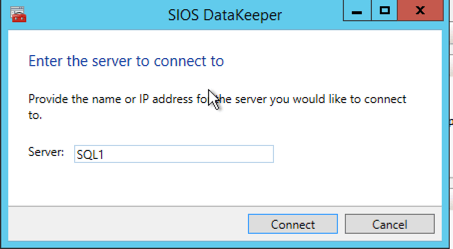
To create the DataKeeper Volume Resource you will need to start the DataKeeper UI and connect to both of the servers.
10Connect to SQL1
11

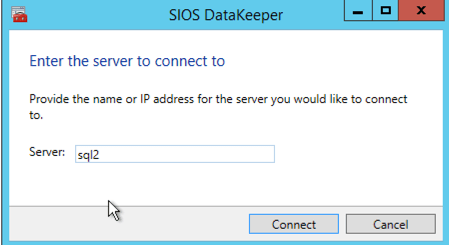
Connect to SQL2
12

Once you are connected to each server, you are ready to create your DataKeeper Volume. Right click on Jobs and choose “Create Job”
13

Give the Job a name and description.
14

Choose your source server, IP and volume. The IP address is whether the replication traffic will travel.
15

Choose your target server.
16

Choose your options. For our purposes where the two VMs are in the same geographic region we will choose synchronous replication. For longer distance replication you will want to use asynchronous and enable some compression.
17

By clicking yes at the last pop-up you will register a new DataKeeper Volume Resource in Available Storage in Failover Clustering.
18

You will see the new DataKeeper Volume Resource in Available Storage.
19

Create the File Server Cluster Resource

To create the File Server Cluster Resource we will use Powershell once again rather than the Failover Cluster interface. The reason being is that once again because the virtual machines are configured to use DHCP, the GUI based wizard will not prompt us to enter a cluster IP address and instead will issue a duplicate IP address. To avoid this we will use a simple powershell command to create the FIle Server Cluster Resource and specify the IP Address

Add-ClusterFileServerRole -Storage "DataKeeper Volume E" -Name FS2 -StaticAddress 10.0.0.201

Make note of the IP address you specify here. It must be a unique IP address on your network. We will use this same IP address later when we create our Internal Load Balancer.

Create the Internal Load Balancer

Here is where failover clustering in Azure is different than traditional infrastructures. The Azure network stack does not support gratuitous ARPS, so clients cannot connect directly to the cluster IP address. Instead, clients connect to an internal load balancer and are redirected to the active cluster node. What we need to do is create an internal load balancer. This can all be done through the Azure Portal as shown below.

First, create a new Load Balancer
30

You can use an Public Load Balancer if your client connects over the public internet, but assuming your clients reside in the same vNet, we will create an Internal Load Balancer. The important thing to take note of here is that the Virtual Network is the same as the network where your cluster nodes reside. Also, the Private IP address that you specify will be EXACTLY the same as the address you used to create the SQL Cluster Resource.
31

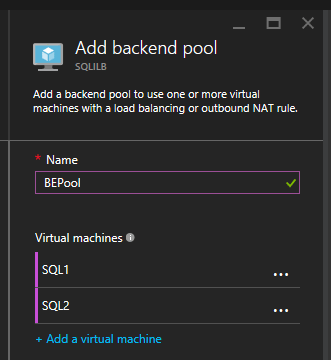
After the Internal Load Balancer (ILB) is created, you will need to edit it. The first thing we will do is to add a backend pool. Through this process you will choose the Availability Set where your SQL Cluster VMs reside. However, when you choose the actual VMs to add to the Backend Pool, be sure you do not choose your file share witness. We do not want to redirect SQL traffic to your file share witness.
32
33

The next thing we will do is add a Probe. The probe we add will probe Port 59999. This probe determines which node is active in our cluster.
34

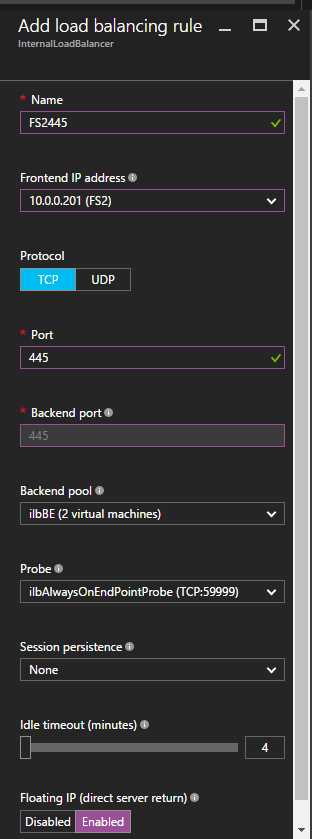
And then finally, we need a load balancing rule to redirect the SMB traffic, TCP port 445 The important thing to notice in the screenshot below is the Direct Server Return is Enabled. Make sure you make that change.

445_ilb

Fix the File Server IP Resource

The final step in the configuration is to run the following PowerShell script on one of your cluster nodes. This will allow the Cluster IP Address to respond to the ILB probes and ensure that there is no IP address conflict between the Cluster IP Address and the ILB. Please take note; you will need to edit this script to fit your environment. The subnet mask is set to 255.255.255.255, this is not a mistake, leave it as is. This creates a host specific route to avoid IP address conflicts with the ILB.

# Define variables
$ClusterNetworkName = “” 
# the cluster network name (Use Get-ClusterNetwork on Windows Server 2012 of higher to find the name)
$IPResourceName = “” 
# the IP Address resource name 
$ILBIP = “” 
# the IP Address of the Internal Load Balancer (ILB)
Import-Module FailoverClusters
# If you are using Windows Server 2012 or higher:
Get-ClusterResource $IPResourceName | Set-ClusterParameter -Multiple @{Address=$ILBIP;ProbePort=59999;SubnetMask="255.255.255.255";Network=$ClusterNetworkName;EnableDhcp=0}
# If you are using Windows Server 2008 R2 use this: 
#cluster res $IPResourceName /priv enabledhcp=0 address=$ILBIP probeport=59999  subnetmask=255.255.255.255

Creating File Shares

You will find that using the File Share Wizard in Failover Cluster Manager does not work. Instead, you will simply create the file shares in Windows Explorer on the active node. Failover clustering automatically picks up those shares and puts them in the cluster.

Note that the”Continuous Availability” option of a file share is not supported in this configuration.

Conclusion

You should now have a functioning File Server Failover Cluster. If you have ANY problems, please reach out to me on Twitter @daveberm and I will be glad to assist. If you need a DataKeeper evaluation key fill out the form at http://us.sios.com/clustersyourway/cta/14-day-trial and SIOS will send an evaluation key sent out to you.

Deploying a Highly Available File Server in Azure IaaS (ARM) with SIOS DataKeeper

Deploying Microsoft SQL Server 2014 Failover Clusters in #Azure Resource Manager (ARM)

In this post we will detail the specific steps required to deploy a 2-node SQL Server Failover Cluster in a single region of Azure using Azure Resource Manager. I will assume you are familiar with basic Azure concepts as well as basic SQL Server Failover Cluster concepts and will focus this article on what is unique about deploying a SQL Server Failover Cluster in Azure Resource Manager. If you are still using Azure Classic and need to deploy a SQL Server Failover Cluster in Classic you should read my article “STEP-BY-STEP: HOW TO CONFIGURE A SQL SERVER FAILOVER CLUSTER INSTANCE (FCI) IN MICROSOFT AZURE IAAS #SQLSERVER #AZURE #SANLESS

Before we begin, you should familiarize yourself with the Windows Azure Article, High availability and disaster recovery for SQL Server in Azure Virtual Machines. In that article all of the HA options are outlined, including AlwaysOn AG, Database Mirroring, Log Shipping, Backup and Restore and finally Failover Cluster Instances. Assuming you have dismissed those other options due to the costs associated with Enterprise Edition of SQL Server or lack of features, we are focusing on the final option – SQL Server AlwaysOn Failover Cluster Instance (FCI).

As you read that article it becomes clear that the lack of cluster aware shared storage in Azure is an obstacle in deploying SQL Server Failover clusters. However, there are a few alternatives described in that article. We will focus on using SIOS DataKeeper, to provide the storage to be used in the cluster.
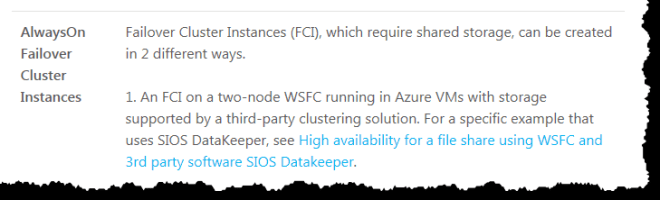
1Figure 1 Microsoft’s support policy for SQL Server Failover Clusters
https://azure.microsoft.com/en-us/documentation/articles/virtual-machines-windows-classic-sql-dr/

With DataKeeper Cluster Edition you are able to take the locally attached storage, whether it is Premium or Standard Disks, and replicate those disks either synchronously, asynchronous or a mix or both, between two or more cluster nodes. In addition, a DataKeeper Volume resource is registered in Windows Server Failover Clustering which takes the place of a Physical Disk resource. Instead of controlling SCSI-3 reservations like a Physical Disk Resource, the DataKeeper Volume controls the mirror direction, ensuring the active node is always the source of the mirror. As far as SQL Server and Failover Clustering is concerned, it looks, feels and smells like a Physical Disk and is used the same way Physical Disk Resource would be used.

Pre-requisites

The Easy Way to do a Proof-of-Concept

If you are familiar with Azure Resource Manager you know one of the great new features is the ability to use Deployment Templates to rapidly deploy applications consisting of interrelated Azure resources. Many of these templates are developed by Microsoft and are readily available in their community on Github as “Quickstart Templates”. Community members are also free to extend templates or to publish their own templates on GitHub. One such template entitled “SQL Server 2014 AlwaysOn Failover Cluster Instance with SIOS DataKeeper Azure Deployment Template” published by SIOS Technology completely automates the process of deploying a 2-node SQL Server FCI into a new Active Directory Domain.

To deploy this template it is as easy as clicking on the “Deploy to Azure” button in the template.

2
Figure 2- Visit https://github.com/SIOSDataKeeper/SIOSDataKeeper-SQL-Cluster to rapidly provision a 2-node SQL cluster

Deploying a SQL Server Failover Cluster Instance using the Azure Portal

While the automated Azure deployment template is a quick and easy way to get a 2-node SQL Server FCI upon and running quickly, there are some limitations. For one, it uses a 180 Day evaluation version of SQL Server, so you can’t use it in production unless you upgrade the SQL eval licenses. Also, it builds an entirely new AD domain so if you want to integrate with your existing domain you are going to have to build it manually.

To build a 2-node SQL Server Failover Cluster Instance in Azure, we are going to assume you have a basic Virtual Network based on Azure Resource Manager (not Azure Classic) and you have at least one virtual machine up and running and configured as a Domain Controller. Once you have a Virtual Network and a Domain configured, you are going to provision two new virtual machines which will act as the two nodes in our cluster.

Our environment will look like this:

DC1 – Our Domain Controller and File Share Witness
SQL1 and SQL2 – The two nodes of our SQL Server Cluster

Provisioning the two cluster nodes (SQL1 and SQL2)

Using the Azure Portal, we will provision both SQL1 and SQL2 exactly the same way. There are numerous options to choose from including instance size, storage options, etc. This guide is not meant to be an exhaustive guide to deploying SQL Server in Azure as there are some really good resources out there and more published every day. However, there are a few key things to keep in mind when creating your instances, especially in a clustered environment.

Availability Set – It is important that both SQL1, SQL2 AND DC1 reside in the same availability set. By putting them in the same Availability Set we are ensuring that each cluster node and the file share witness reside in a different Fault Domain and Update Domain. This helps guarantee that during both planned maintenance and unplanned maintenance the cluster will continue to be able to maintain quorum and avoid downtime.
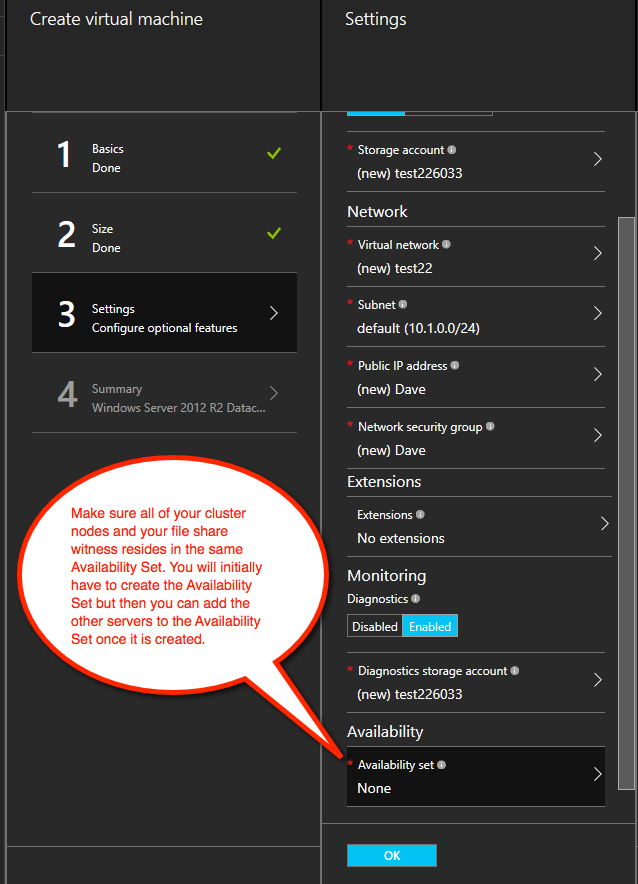
3
Figure 3 – Be sure to add both cluster nodes and the file share witness to the same Availability Set

Static IP Address

Once each VM is provisioned, you will want to go into the setting and change the settings so that the IP address is Static. We do not want the IP address of our cluster nodes to change.
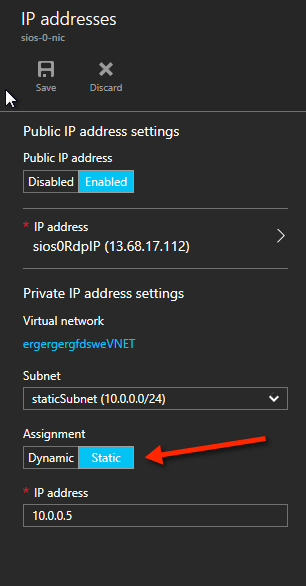
4
Figure 4 – Make sure each cluster node uses a static IP

Storage

As far as Storage is concerned, you will want to consult Performance best practices for SQL Server in Azure Virtual Machines. In any case, you will minimally need to add at least one additional disk to each of your cluster nodes. DataKeeper can use Basic Disk, Premium Storage or even Storage Pools consisting of multiple disks in a storage pool. Just be sure to add the same amount of storage to each cluster node and configure it identically.
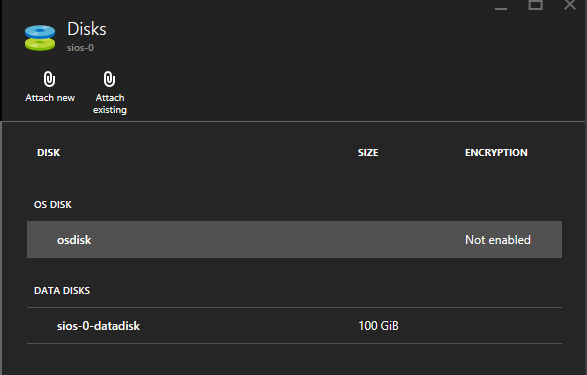
5
Figure 5 – make sure to add additional storage to each cluster node

Create the Cluster

Assuming both cluster nodes (SQL1 and SQL2) have been provisioned as described above and added to your existing domain, we are ready to create the cluster. Before we create the cluster, there are a few Features that need to be enabled. These features are .Net Framework 3.5 and Failover Clustering. These features need to be enabled on both cluster nodes.

6
Figure 6 – enable both .Net Framework 3.5 and Failover Clustering features on both cluster nodes

Once those features have been enabled, you are ready to build your cluster. Most of the steps I’m about to show you can be performed both via PowerShell and the GUI. However, I’m going to recommend that for this very first step you use PowerShell to create your cluster. If you choose to use the Failover Cluster Manager GUI to create the cluster you will find that you wind up with the cluster being issues a duplicate IP address.

Without going into great detail, what you will find is that Azure VMs have to use DHCP. By specifying a “Static IP” when we create the VM in the Azure portal all we did was create sort of a DHCP reservation. It is not exactly a DHCP reservation because a true DHCP reservation would remove that IP address from the DHCP pool. Instead, this specifying a Static IP in the Azure portal simply means that if that IP address is still available when the VM requests it, Azure will issue that IP to it. However, if your VM is offline and another host comes online in that same subnet it very well could be issued that same IP address.

There is another strange side effect to the way Azure has implemented DHCP. When creating a cluster with the Windows Server Failover Cluster GUI when hosts use DHCP (which they have to), there is not option to specify a cluster IP address. Instead it relies on DHCP to obtain an address. The strange thing is, DHCP will issue a duplicate IP address, usually the same IP address as the host requesting a new IP address. The cluster will usually complete, but you may have some strange errors and you may need to run the Windows Server Failover Cluster GUI from a different node in order to get it to run. Once you get it to run you will want to change the cluster IP address to an address that is not currently in use on the network.

You can avoid that whole mess by simply creating the cluster via Powershell and specifying the cluster IP address as part of the PowerShell command to create the cluster.

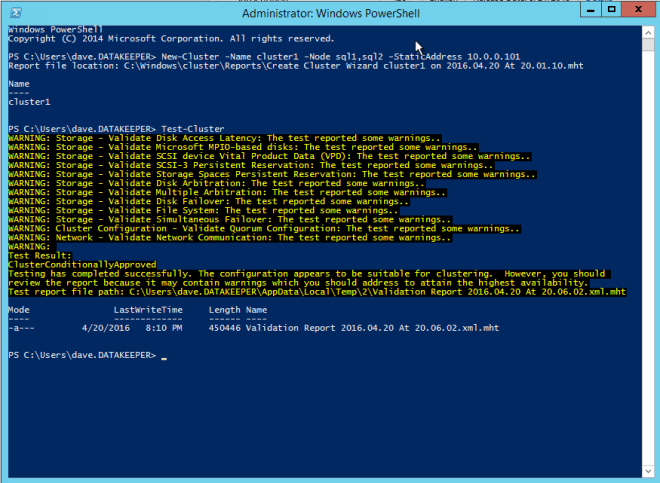
You can create the cluster using the New-Cluster command as follows:

New-Cluster -Name cluster1 -Node sql1,sql2 -StaticAddress 10.0.0.101 -NoStorage

After the cluster creation completes, you will also want to run the cluster validation by running the following command:

Test-Cluster
7
Figure 7 – The output of the cluster creation and the cluster validation commands

Create File Share Witness

Because there is no shared storage, you will need to create a file share witness on another server in the same Availability Set as the two cluster nodes. By putting it in the same availability set you can be sure that you only lose one vote from your quorum at any given time. If you are unsure how to create a File Share Witness you can review this article http://www.howtonetworking.com/server/cluster12.htm. In my demo I put the file share witness on domain controller. I have published an exhaustive explanation of cluster quorums at https://blogs.msdn.microsoft.com/microsoft_press/2014/04/28/from-the-mvps-understanding-the-windows-server-failover-cluster-quorum-in-windows-server-2012-r2/

Install DataKeeper

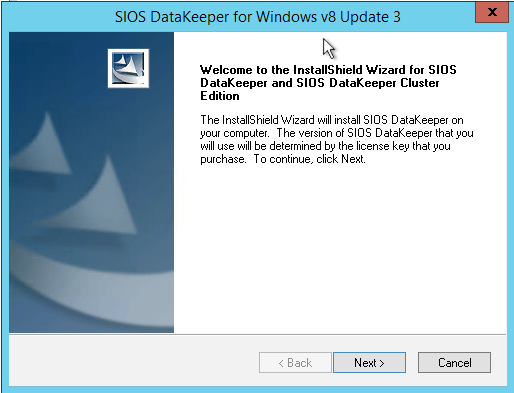
After the cluster is created it is time to install DataKeeper. It is important to install DataKeeper after the initial cluster is created so the custom cluster resource type can be registered with the cluster. If you installed DataKeeper before the cluster is created you will simply need to run the install again and do a repair installation.
8
Figure 8 – Install DataKeeper after the cluster is created

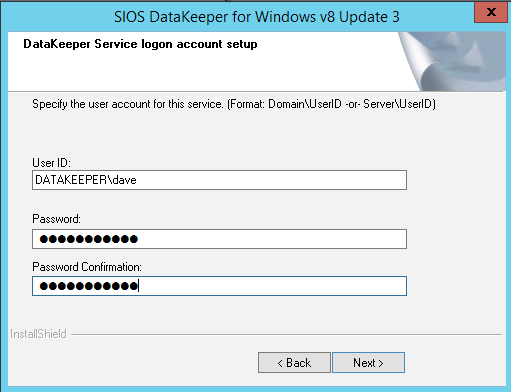
During the installation you can take all of the default options.  The service account you use must be a domain account and be in the local administrators group on each node in the cluster.
9
Figure 9 – the service account must be a domain account that is in the Local Admins group on each node

Once DataKeeper is installed and licensed on each node you will need to reboot the servers.

Create the DataKeeper Volume Resource

To create the DataKeeper Volume Resource you will need to start the DataKeeper UI and connect to both of the servers.
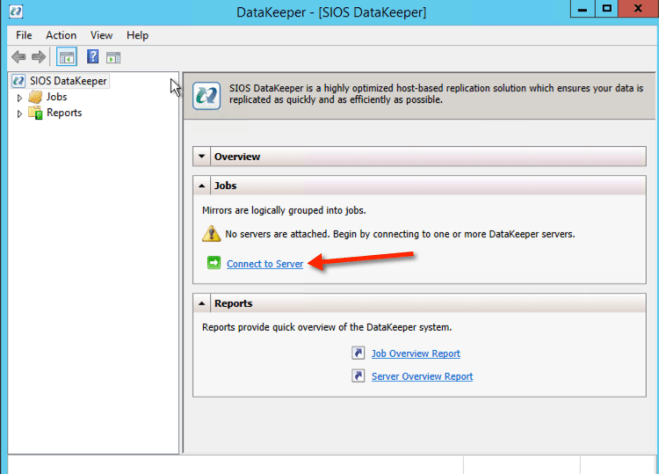
10Connect to SQL1
11

Connect to SQL2
12

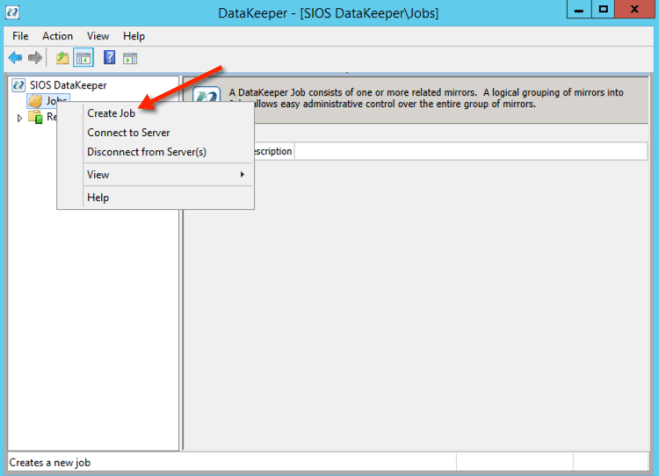
Once you are connected to each server, you are ready to create your DataKeeper Volume. Right click on Jobs and choose “Create Job”
13

Give the Job a name and description.
14

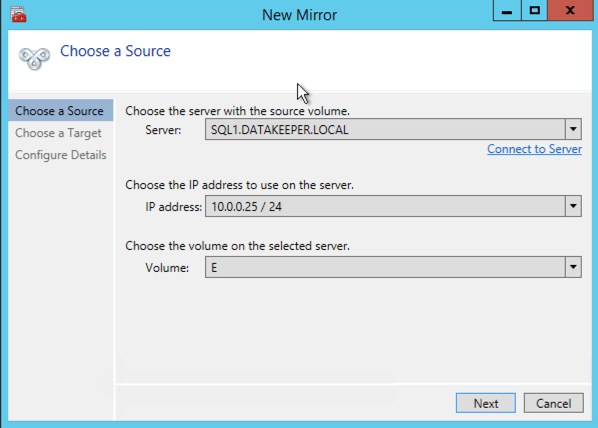
Choose your source server, IP and volume. The IP address is whether the replication traffic will travel.
15

Choose your target server.
16

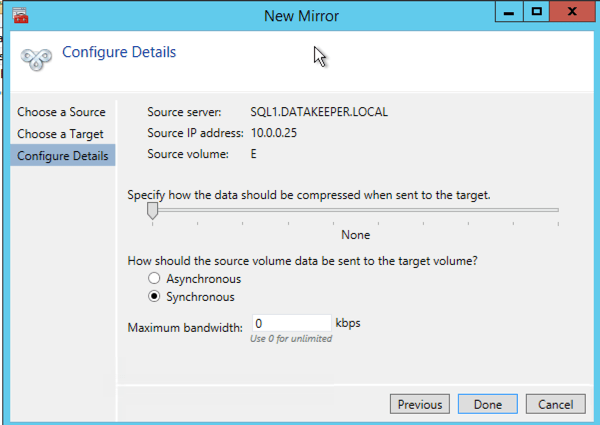
Choose your options. For our purposes where the two VMs are in the same geographic region we will choose synchronous replication. For longer distance replication you will want to use asynchronous and enable some compression.
17

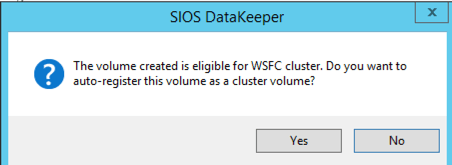
By clicking yes at the last pop-up you will register a new DataKeeper Volume Resource in Available Storage in Failover Clustering.
18

You will see the new DataKeeper Volume Resource in Available Storage.
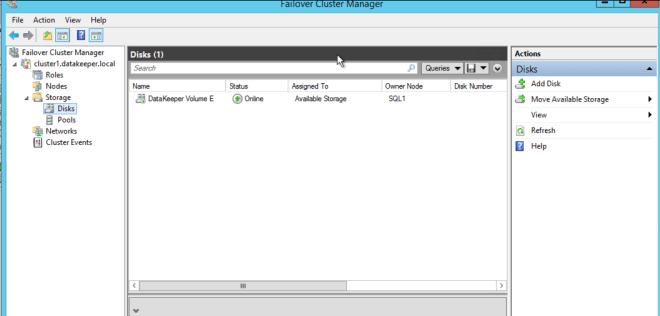
19


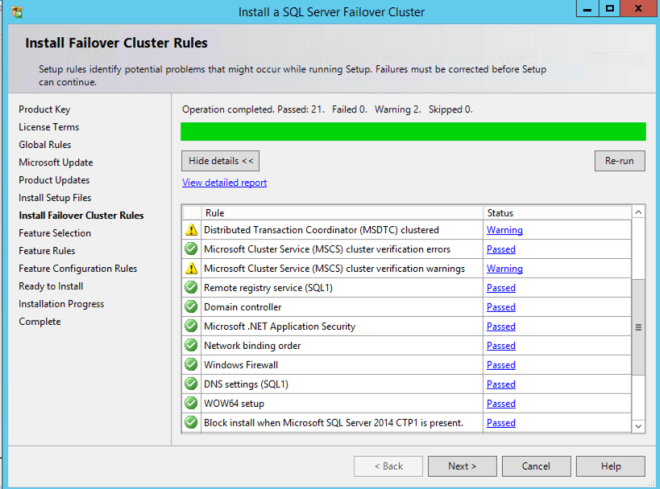
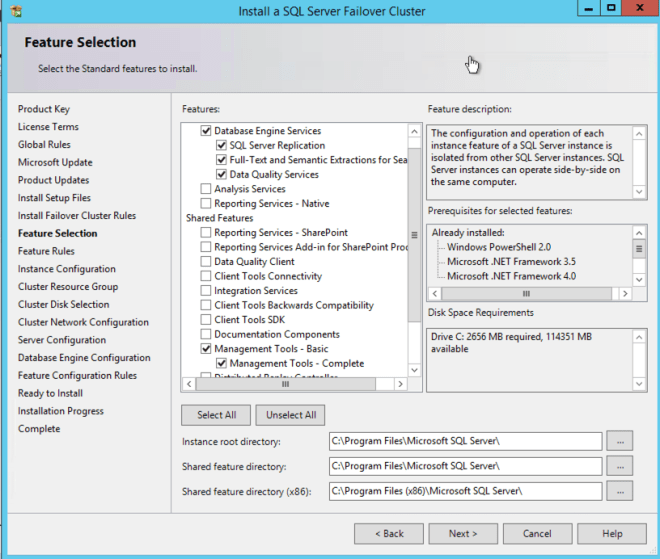
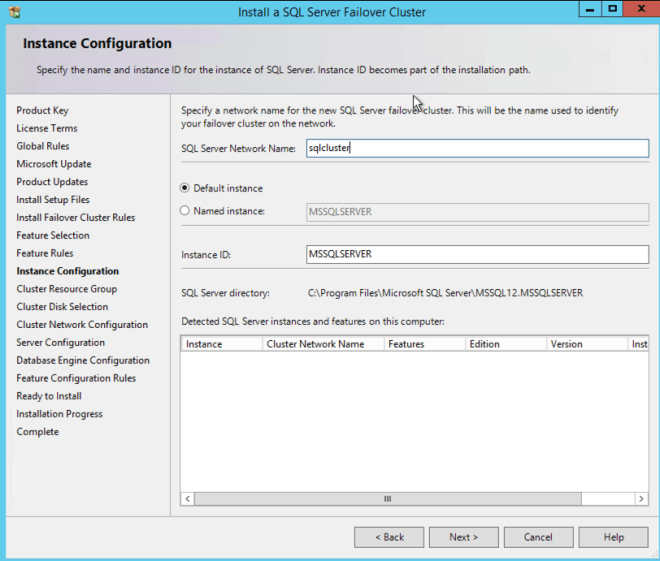
Install the first cluster node

You are now ready to install your first node. The cluster installation will proceed just like any other SQL cluster that you have ever built. I have not copied ever screen shot, just a few to guide you along the way.
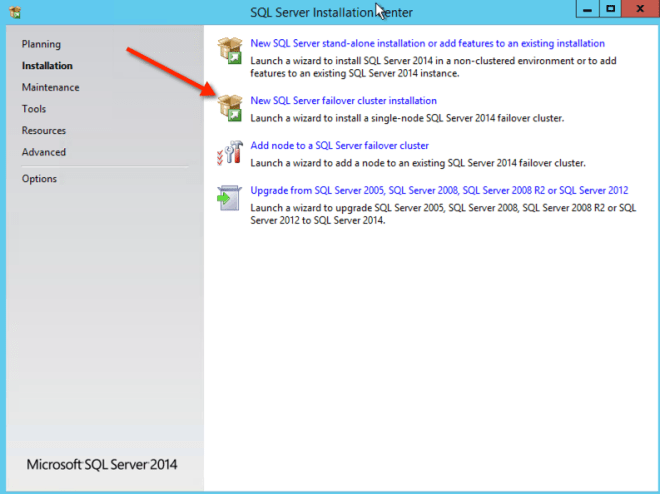
20212223

You see that the DataKeeper Volume Resource is recognized as an available disk resource, just as if it were a shared disk.
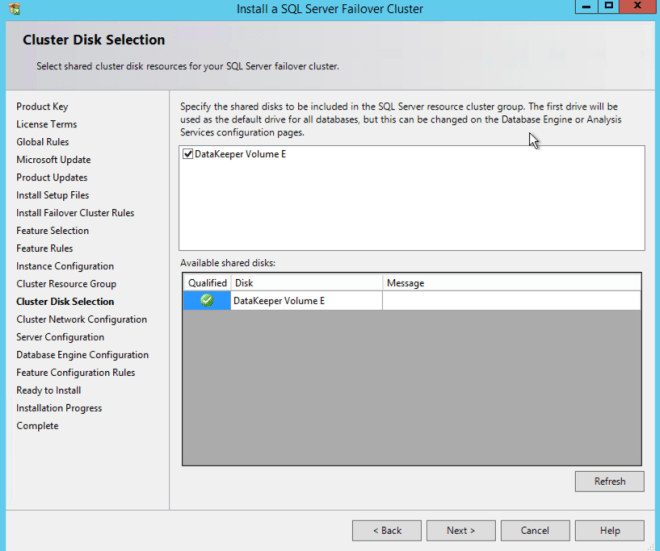
24

Make note of the IP address you select here. It must be a unique IP address on your network. We will use this same IP address later when we create our Internal Load Balancer.
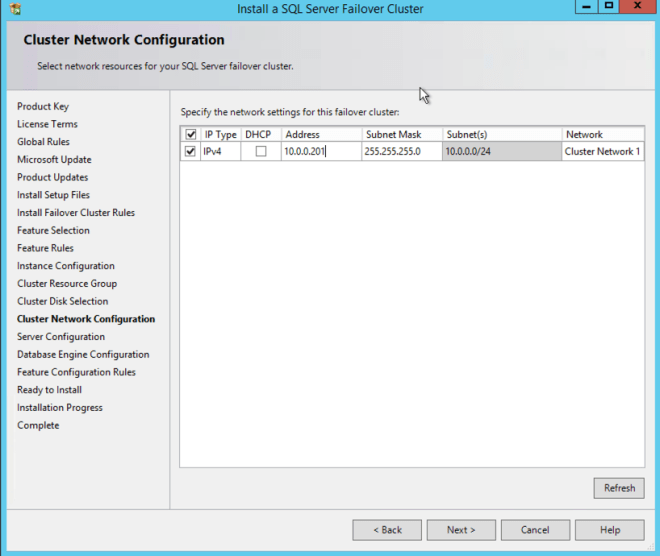
25

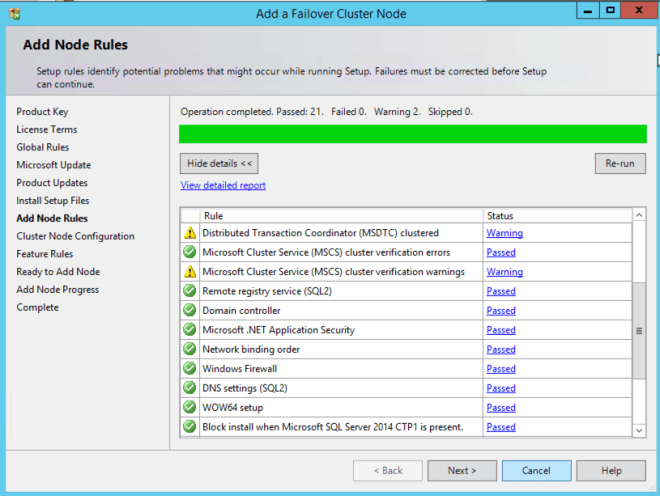
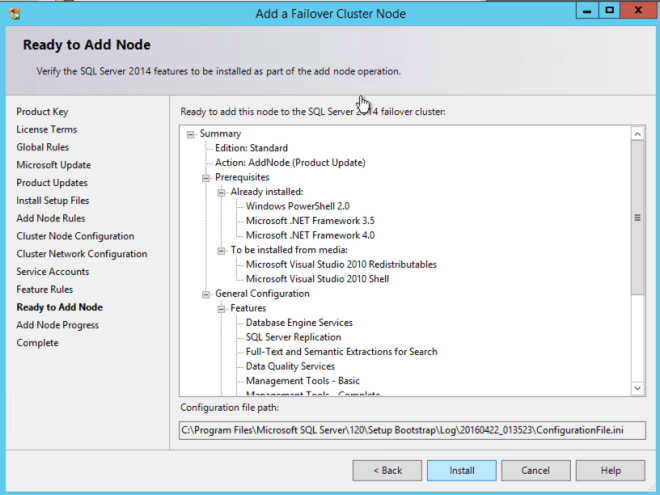
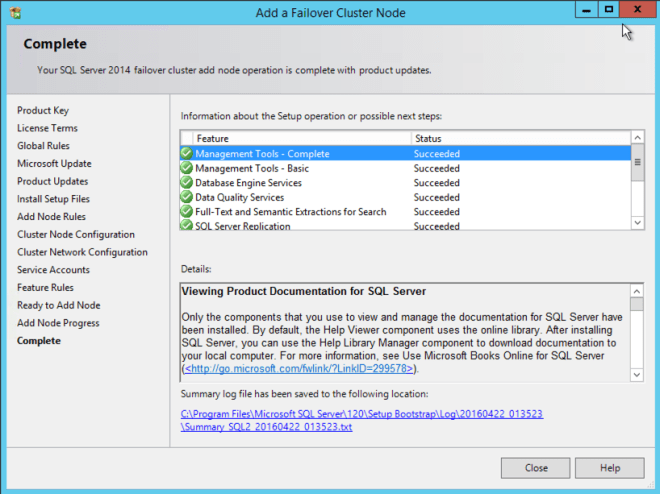
Add the second node

After the first node installs successfully, you will start the installation on the second node using the “Add node to a SQL Server failover cluster” option. Once again, the install is pretty straight forward, just use standard best practices as you would any other SQL cluster installation.
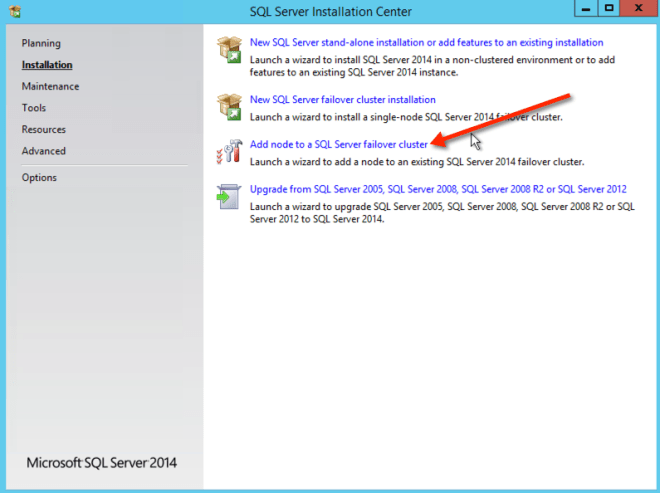
26272829

Create the Internal Load Balancer

Here is where failover clustering in Azure is different than traditional infrastructures. The Azure network stack does not support gratuitous ARPS, so clients cannot connect directly to the cluster IP address. Instead, clients connect to an internal load balancer and are redirected to the active cluster node. What we need to do is create an internal load balancer. This can all be done through the Azure Portal as shown below.

First, create a new Load Balancer
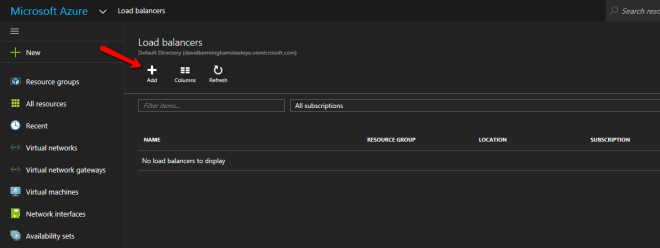
30

You can use an Public Load Balancer if your client connects over the public internet, but assuming your clients reside in the same vNet, we will create an Internal Load Balancer. The important thing to take note of here is that the Virtual Network is the same as the network where your cluster nodes reside. Also, the Private IP address that you specify will be EXACTLY the same as the address you used to create the SQL Cluster Resource.
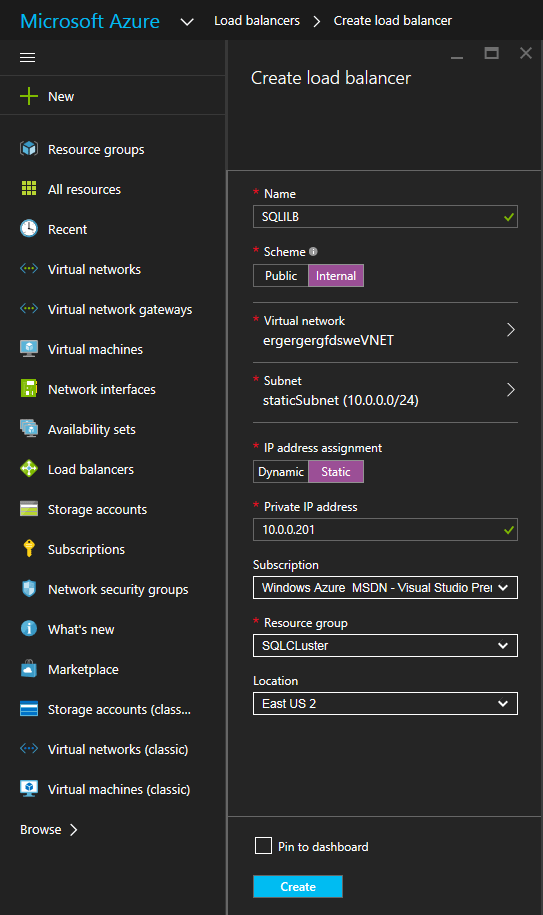
31

After the Internal Load Balancer (ILB) is created, you will need to edit it. The first thing we will do is to add a backend pool. Through this process you will choose the Availability Set where your SQL Cluster VMs reside. However, when you choose the actual VMs to add to the Backend Pool, be sure you do not choose your file share witness. We do not want to redirect SQL traffic to your file share witness.
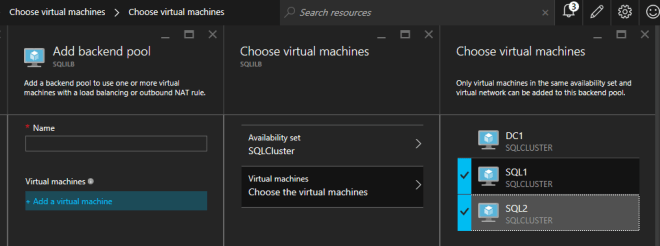
32
33

The next thing we will do is add a Probe. The probe we add will probe Port 59999. This probe determines which node is active in our cluster.
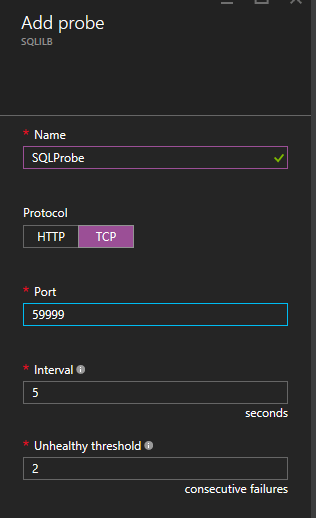
34

And then finally, we need a load balancing rule to redirect the SQL Server traffic. In our example we used a Default Instance of SQL which uses port 1433. You may also want to add rules for 1434 or others depending upon your applications requirements. The important thing to notice in the screen shot below is the Direct Server Return is Enabled. Make sure you make that change.
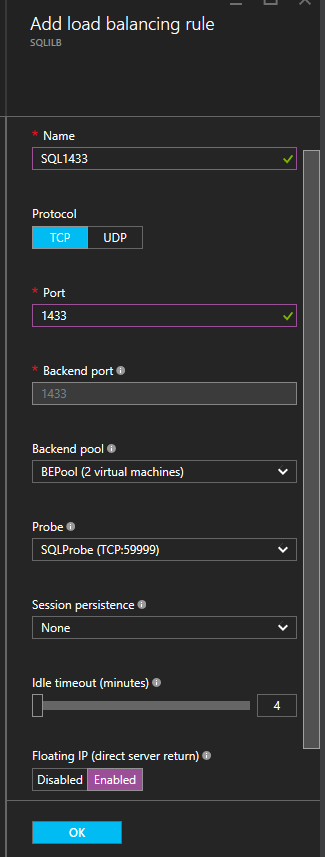
35

Fix the SQL Server IP Resource

The final step in the configuration is to run the following PowerShell script on one of your cluster nodes. This will allow the Cluster IP Address to respond to the ILB probes and ensure that there is no IP address conflict between the Cluster IP Address and the ILB. Please take note; you will need to edit this script to fit your environment. The subnet mask is set to 255.255.255.255, this is not a mistake, leave it as is. This creates a host specific route to avoid IP address conflicts with the ILB.

# Define variables
$ClusterNetworkName = “” 
# the cluster network name (Use Get-ClusterNetwork on Windows Server 2012 of higher to find the name)
$IPResourceName = “” 
# the IP Address resource name 
$ILBIP = “” 
# the IP Address of the Internal Load Balancer (ILB)
Import-Module FailoverClusters
# If you are using Windows Server 2012 or higher:
Get-ClusterResource $IPResourceName | Set-ClusterParameter -Multiple @{Address=$ILBIP;ProbePort=59999;SubnetMask="255.255.255.255";Network=$ClusterNetworkName;EnableDhcp=0}
# If you are using Windows Server 2008 R2 use this: 
#cluster res $IPResourceName /priv enabledhcp=0 address=$ILBIP probeport=59999  subnetmask=255.255.255.255

Conclusion

You should now have a functioning SQL Server Failover Cluster Instance. If you have ANY problems, please reach out to me on Twitter @daveberm and I will be glad to assist. If you need a DataKeeper evaluation key fill out the form at http://us.sios.com/clustersyourway/cta/14-day-trial and SIOS will send an evaluation key sent out to you.

Deploying Microsoft SQL Server 2014 Failover Clusters in #Azure Resource Manager (ARM)

Changing the Availability Set of an Existing #Azure VM

6/21/2016 – Update, since I posted this article I have been told by a reliable source that there is a newer PowerShell script that does the job even more reliably. I haven’t tried it yet, but I trust the source and Microsoft Premiere Support directed him to this article. https://gallery.technet.microsoft.com/Azure-RM-Availability-Set-39e19d01

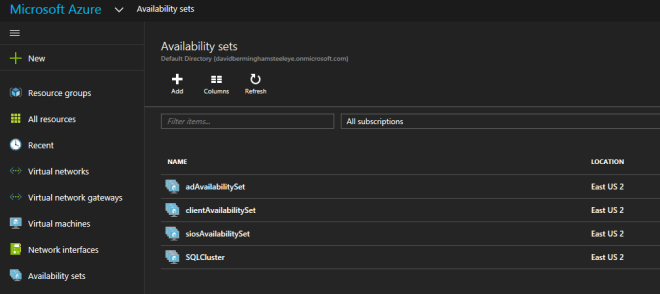
I was a little surprised to find out today that it is not easy to change what Availability Set a VM resides in once it is already created. The Azure portal has no mechanism of adding an existing VM to an Availability Set once the VM has already been created. Fortunately for me I stumbled upon this great resource.

Set Azure Resource Manager VM AvailabilitySet

By leveraging the PowerShell script available for download in that article I was able to add two existing VMs to an Availability Set that I had already created. What a life saver!

Availability_Sets

Changing the Availability Set of an Existing #Azure VM

#Oracle and #MySQL Failover Clusters on #Linux in #Azure

I’m usually writing about Windows clusters, but I know there are quite a few people running Linux to support things like Oracle and MySQL. When moving those workloads to Azure and you want to make sure you plan for high availability. Fortunately my colleague Tony Tomarchio over at www.LinuxClustering.net is an expert in Linux High Availability and has published a great step-by-step guide to Linux failover clusters in Azure.

http://www.linuxclustering.net/2016/03/09/step-by-step-how-to-configure-a-linux-failover-cluster-in-microsoft-azure-iaas-without-shared-storage-azure-sanless/

#Oracle and #MySQL Failover Clusters on #Linux in #Azure

“BadRequest: The virtual network Public-Azure-East does not exist” the virtual network name displayed in the portal can be wrong #azure #azureclassic

Today I had to help a customer trying to deploy some VMs in Azure Classic that have two NIC cards. No problem I say, it’s been a while since I worked with Azure Classic but from what I recall it was pretty straight forward, but had to be done via PowerShell as there is not GUI option in the portal for deploying two NICs.

The basic directions can be found here.

https://azure.microsoft.com/en-us/documentation/articles/virtual-networks-multiple-nics/

However, after banging my head against the wall for a few hours I stumble across this nugget of information.

https://thelonedba.wordpress.com/2015/07/17/new-azurevm-badrequest-the-virtual-network-foo-does-not-exist

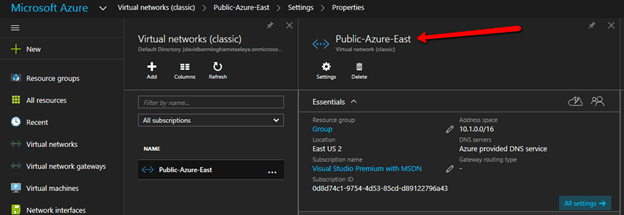
It seems like what the Azure Portal GUI says the name of your virtual network is can sometime be completely different than the actual name which is returned when you run Get-AzureVMNetSite | Select Name. As you can see in the screen shots below the Virtual Network that I created called “Public-Azure-East” is actually called “Group Group Azure Public East”. How that happened and why the GUI displays the wrong name is beyond my comprehension.

As you can see, my feeble attempts at creating the virtual machine failed, saying “BadRequest: The virtual network Public-Azure-East does not exist.” I was sure it had something to do with the multiple subscriptions I use, but it turned out to be this bug where the Azure Portal Displays the name I used in creating the Virtual Network, however the actual name is something completely different.

Why something so simple as creating a VM with two NICs can’t be accomplished via the GUI is another story completely.

“BadRequest: The virtual network Public-Azure-East does not exist” the virtual network name displayed in the portal can be wrong #azure #azureclassic

Supported Services with #Azure Resource Manager (ARM)

I deal with users every week that are moving business critical workloads to Azure. The first question I usually ask is whether they are using Azure Service Management (Classic) or Azure Resource Manager (ARM). I usually recommend ARM as it is the new way of doing things and all the new features are being developed for ARM. However, there are a few things that are not compatible with ARM yet. As time goes by this list of unsupported features gets smaller and smaller, but it is good to know there is an existing document which seems to be updated on a regular basis which lists all of the features and whether they are supported with ARM. https://azure.microsoft.com/en-us/documentation/articles/resource-manager-supported-services/

Although this is a good list, I would say it is not complete. I could not find any indication on that App Service Environment was not supported on this page. I only found that out on the App Service Environment page.

If you have any other roadblocks with using ARM for your Azure deployment comment on this article so we all know what to expect in our deployments.

Supported Services with #Azure Resource Manager (ARM)

Troubleshooting #Azure ILB connection issues in a SQL Server AlwaysOn FCI Cluster

Many times in troubleshooting SQL Server connectivity issues, especially in Azure with all the ILB requirements I use the following tools to help troubleshoot. I’ll keep this article up to date as I find and use other tools. In addition to this article, I have found another resource which is pretty decent.

https://blogs.msdn.microsoft.com/sql_pfe_blog/2017/02/21/trouble-shooting-availability-group-listener-in-azure-sql-vm/

Netstat

The first tool is a simple test to verify whether the SQL Cluster IP is listening on the port I think it should be listening on. In this case, the SQL Cluster IP address is 10.0.0.201 and it is using the default instance which is port 1433.

Here is the command which will help you quickly identify whether the active node is listening on that port. In our case below everything looks normal.

C:\Users\dave.SIOS>netstat -na | find "1433"
TCP    10.0.0.4:49584         10.0.0.201:1433        ESTABLISHED
TCP    10.0.0.4:49592         10.0.0.201:1433        ESTABLISHED
TCP    10.0.0.4:49593         10.0.0.201:1433        ESTABLISHED
TCP    10.0.0.4:49595         10.0.0.201:1433        ESTABLISHED
TCP    10.0.0.201:1433        0.0.0.0:0              LISTENING
ESTABLISHED
TCP    10.0.0.201:1433        10.0.0.4:49592         ESTABLISHED
TCP    10.0.0.201:1433        10.0.0.4:49593         ESTABLISHED
TCP    10.0.0.201:1433        10.0.0.4:49595         ESTABLISHED

Once I can be sure SQL is listening to the proper port I use PSPING to try to connect to the port remotely.

PSPing

[EDIT 7/5/18]
I just discovered Test-NetConnection, this should eliminate the need to use PSPing. [/Edit]

PSPing is part of the PSTools package available from Microsoft. I usually download the tool and put PSPing directly in my System32 folder so I can use it whenever I want without having to change directories.

Assuming everything is configured properly from the ILB, Cluster and Firewall perspective you should be able to ping the SQL Cluster IP address and port 1433 from the passive server and get the results shown below…

C:\Users\dave.SIOS>psping 10.0.0.201:1433
PsPing v2.01 - PsPing - ping, latency, bandwidth measurement utility
Copyright (C) 2012-2014 Mark Russinovich
Sysinternals - www.sysinternals.com
TCP connect to 10.0.0.201:1433:
5 iterations (warmup 1) connecting test:
Connecting to 10.0.0.201:1433 (warmup): 6.99ms
Connecting to 10.0.0.201:1433: 0.78ms
Connecting to 10.0.0.201:1433: 0.96ms
Connecting to 10.0.0.201:1433: 0.68ms
Connecting to 10.0.0.201:1433: 0.89ms
If things are not configured properly you may see results similar to the following…
C:\Users\dave.SIOS>psping 10.0.0.201:1433
TCP connect to 10.0.0.102:1433:
5 iterations (warmup 1) connecting test:
Connecting to 10.0.0.102:1433 (warmup): This operation returned because the time out period expired.

If PSPing connects yet your application is having a problem connecting you may need to dig a bit deeper. I have seen some application like Great Plains also want to make a connection to port 445. If your application can’t connect but PSPing connects fine to 1433 then you may need to do a network trace and see what other ports your application is trying to connect to and then add load balancing rules for those ports as well.

Named Instances

If you are using a named instances, not only do you need to make sure you lock down your TCP service to use a static port, but you also need to make sure you add a rule to your load balancer to redirect UDP 1434 for the SQL Browser Service, otherwise you won’t be able to connect to your named instance.

Firewall

Opening up TCP ports 1433 and 59999 should cover all the manual steps required, but when troubleshooting connection issues I generally turn the Windows Firewall off to eliminate the firewall as a possible cause of the problem. Don’t forget, Azure also has a firewall called Network Security Groups. If anyone changed that from the default that could be blocking traffic as well.

Name Resolution

Try pinging the SQL cluster name. It should resolve to the SQL Server cluster iP address, but I have seen on more than a few occasions the DNS A-record associated with the SQL Cluster network name mysteriously disappear from DNS. If that is the case go ahead and read-ad the SQL Custer name and IP address as an A record in DNS.

SQL Configuration Manager

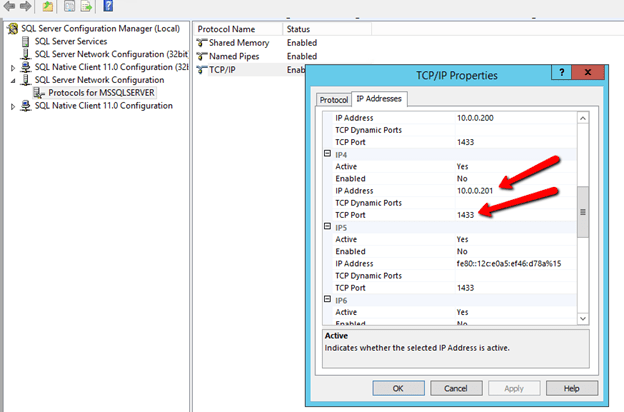
In SQL Configuration Manager you should see the SQL Cluster IP Address listed and port 1433. If by chance you installed a Named Instace you of course will need to go in here and lock the port to a specific port and make your load balancing rules reflect that port. Because of the Azure ILB limitation of only on ILB per AG, I really don’t see an valid reason to use a named instance. Make it easier on yourself and just use the default instance of SQL. (Update: as of Oct 2016 you CAN have multiple IP addresses per ILB, so you CAN have multiple instances of SQL installed in the cluster.

Conclusion

I’ll be updating this article as I continue to learn about new tips, tricks, tools and common problems I encounter in the field as I support customers trying to get started with clusters in Azure.

Troubleshooting #Azure ILB connection issues in a SQL Server AlwaysOn FCI Cluster

Configuring the #Azure ILB in ARM for SQL Server FCI or AG using Azure PowerShell 1.0

In an earlier post I went into some great detail about how to configure the Azure ILB in ARM for SQL Server AlwaysOn FCI or AG resources. The directions in that article were written prior to the GA of Azure PowerShell 1.0. With the availability of Azure PowerShell 1.0 the main script that creates the ILB needs to be slightly different. The rest of the article is still accurate, however if you are using Azure PowerShell 1.0 or later the script to create the ILB described in that article should be as follows.

#Replace the values for the below listed variables
$ResourceGroupName ='SIOS-EAST' # Resource Group Name in which the SQL nodes are deployed
$FrontEndConfigurationName = 'FEEAST' #You can provide any name to this parameter.
$BackendConfiguratioName = 'BEEAST' #You can provide any name to this parameter.
$LoadBalancerName = 'ILBEAST' #Provide a Name for the Internal Local balance object
$Location ='eastus2' # Input the data center location of the SQL Deployements
$subname = 'public' # Provide the Subnet name in which the SQL Nodes are placed
$ILBIP = '10.0.0.201' # Provide the IP address for the Listener or Load Balancer
$subnet = Get-AzureRMVirtualNetwork -ResourceGroupName $ResourceGroupName | Get-AzureRMVirtualNetworkSubnetConfig –name $subname
$FEConfig=New-AzureRMLoadBalancerFrontendIpConfig -Name $FrontEndConfigurationName -PrivateIpAddress $ILBIP -SubnetId $subnet.Id
$BackendConfig=New-AzureRMLoadBalancerBackendAddressPoolConfig -Name $BackendConfiguratioName
New-AzureRMLoadBalancer -Name $LoadBalancerName -ResourceGroupName $ResourceGroupName -Location $Location -FrontendIpConfiguration $FEConfig -BackendAddressPool $BackendConfig

The rest of that original article is the same, but I have just copied it here for ease of use…

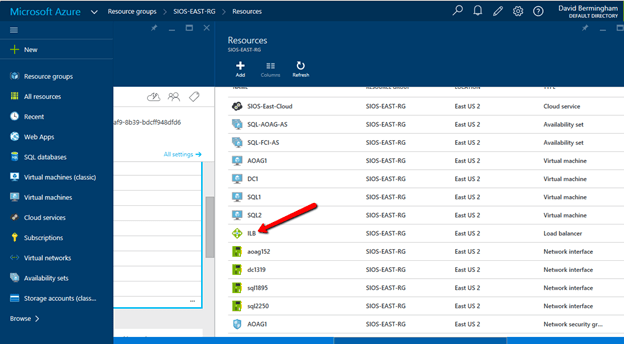
Now that the ILB is created, we should see it in the Azure Portal if we list all the objects in our Resource Group as shown below.

The rest of the configuration I’m sure can also be done through PowerShell, but I’m going to use the GUI in my example. If you want to use PowerShell you could probably piece together the script by looking at the article Get started configuring internal load balancer using Azure Resource Manager but honestly that article gives me a headache. I’ll figure it out some day and try to document it in a user friendly format, but for now I think the GUI is fine for the next steps.

Follow along with the screen shots below. If you get lost, follow the navigation hints at the top of the Azure Portal to figure out where we are.

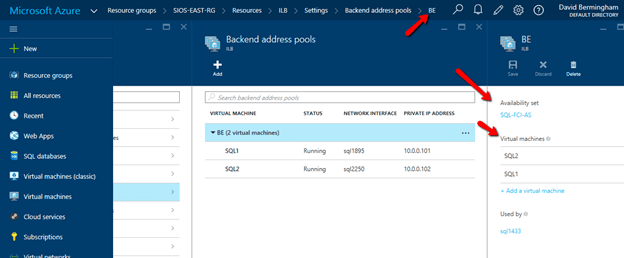
Click Backend Pool setting tab and selects the backend pool to update the Availability Set and Virtual Machines. Save your changes.


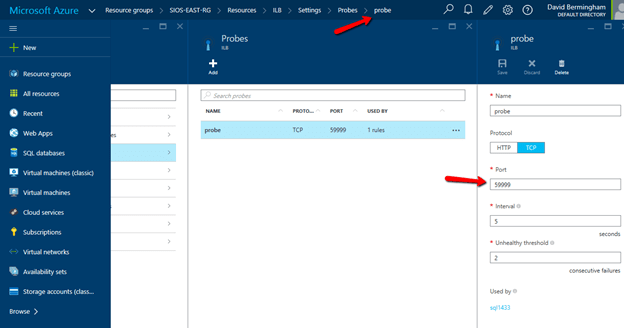
Configure Load Balancer’s Probe by clicking Add on the Probe tab. Give the probe a name and configure it to use TCP Port 59999. I have left the probe interval and the unhealthy threshold set to the default settings, which means it will take 10 seconds before the ILB removes the passive node from the list of active nodes after a failover, meaning your clients may take up to 10 seconds to be redirected to the new active node. Be sure to save your changes.

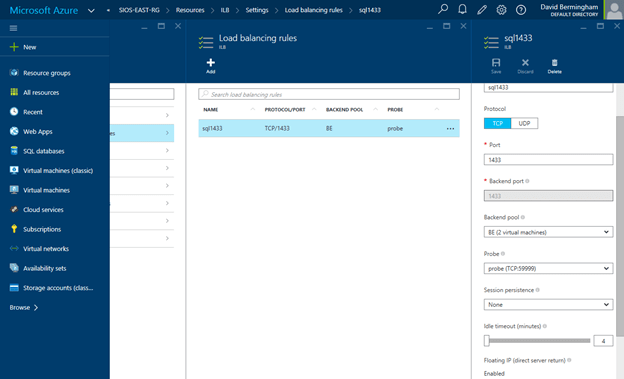
Navigate to the Load Balancing Rule Tab and add a new rule. Give the rule a sensible name (SQL1433 or something) and choose TCP protocol port 1433 (assuming you are using the default instance of SQL Server). Choose 1433 for the Backend port as well. For the Backend Pool we will choose the Backend Pool we created earlier (BE) and for the Probe we will also choose the Probe we created earlier. We do not want to enable Session persistence but we do want to enable Floating IP (Direct Server Return). I have left the idle timeout set to the default setting, but you might want to consider increasing that to the maximum value as I have seen some applications such as SAP log error messages each time the connection is dropped and needs to be re-established.

At this point the ILB is configured and there is only one final step that needs to take place. We need to update the SQL IP Cluster Resource just the exact same way we had to in the Classic deployment model. To do that you will need to run the following PowerShell script on just one of the cluster nodes. And make note,SubnetMask=“255.255.255.255” is not a mistake, use the 32 bit mask regardless of what your actual subnet mask is.

# This script should be run on the primary cluster node after the internal load balancer is created
# Define variables
$ClusterNetworkName = "Cluster Network 1"
# the cluster network name
$IPResourceName = "SQL IP Address 1 (SQLCluster1)"
# the IP Address resource name
$CloudServiceIP = "10.0.0.201"
# IP address of your Internal Load Balancer
Import-Module FailoverClusters
# If you are using Windows 2012 or higher, use the Get-Cluster Resource command. If you are using Windows 2008 R2, use the cluster res command which is commented out.
Get-ClusterResource $IPResourceName
Set-ClusterParameter -Multiple @{"Address"="$CloudServiceIP";"ProbePort"="59999";SubnetMask="255.255.255.255";"Network"="$ClusterNetworkName";"OverrideAddressMatch"=1;"EnableDhcp"=0}
# cluster res $IPResourceName /priv enabledhcp=0 overrideaddressmatch=1 address=$CloudServiceIP probeport=59999 subnetmask=255.255.255.255

I have just one final note. In my initial test I still was not able to connect to the SQL Resource name even after I completed all of the above steps. After banging my head against the wall for a few hours I discovered that for some reason the SQL Cluster Name Resource was not registered in DNS. I’m not sure how that happened or whether it will happen consistently, but if you are having trouble connecting I would definitely check DNS and add the SQL cluster name and IP address as a new A record if it is not already in there.

And of course don’t forget the good ole Windows Firewall. You will have to make exceptions for 1433 and 59999 or just turn it off until you get everything configured properly like I did. You probably want to leverage Azure Network Security Groups anyway instead of the local Windows Firewall for a more unified experience across all your Azure resources.

Good luck and let me know how you make out.

Configuring the #Azure ILB in ARM for SQL Server FCI or AG using Azure PowerShell 1.0