Achieving High Performance and High Availability for SQL Server

Register here to learn how high performance and high availability for Microsoft SQL Server can be achieved with solutions from Fusion-io and SIOS. This powerful combination delivers high-speed storage and high availability for SQL Server without the limitations of single copy clusters or AlwaysOn Availability Groups.

Make the switch and enjoy:

– Cost savings

– Higher database performance

– Smaller floor space requirements

– Lower cooling and power demands

… all without sacrificing availability.

The end result: faster performance at a fraction of the cost of a typical SAN with 100% data availability.

Featured Speakers:

Dave Bermingham is recognized within the technology community as a high availability expert and has been a Microsoft MVP in Clustering for the past three years. David’s work as Sr. Technical Evangelist at SIOS has him focused on delivering high availability and disaster recovery solutions. David holds numerous technical certifications and has over twenty years of technology experience focused on application availability.

Jamila Gunawardena is a Senior OEM Sales Engineer for Fusion-io. Jamila has over 15 years experience in Software Engineering and System Design with expertise in Internet, Bioinformatics, and Semiconductor DFM solutions. Currently, Jamila is focused on ISV and appliance partnerships at Fusion-io.

Geoff Hiten is a Microsoft SQL MVP and is currently an Infrastructure Architect for Intellinet. Geoff began working with SQL Server in 1992 with version 4.2 and has used every version since. He specializes in high-availability and high-performance SQL systems. Geoff is heavily involved in the Microsoft SQL Server Community and was initially awarded MVP status in 2004. Geoff was appointed in 2011 to fill an interim Director position at the National PASS organization.

Achieving High Performance and High Availability for SQL Server

SQL Server 2012 “Standard Edition” Availability Options

Microsoft has announced that some of the most widely anticipated availability options being introduced with SQL Server 2012, including AlwaysOn Availability Groups, will only be available with the Enterprise Edition of SQL. The cost of SQL Server Enterprise is $27,496 for any server that has up to 4 physical processors vs. $7,172 for Standard Edition. If you plan on taking advantage of the “Read-Only” replica, you can double the cost of the solution ($54,992) since you have to license both the source and the target server. When you start talking about that kind of money, you begin to wonder if there is an alternative to AlwaysOn Availability Groups.

The good news is that Microsoft still allows you to build 2-node clusters using SQL Server Standard Edition, and since this is generally deployed in an active-passive configuration you do not have to license the standby server. So for $7,172 you can build a pretty robust 2-node SQL cluster, assuming you have an enterprise class SAN that you can use to store your cluster data.

What’s that you say, you don’t have a SAN? Or you’d rather build a solution that eliminates the SAN as a single point of failure and instead allows you to use data replication to keep the data in sync between cluster nodes the way that AlwaysOn Availability Groups allows you to? Or perhaps you want to use take advantage of the speed offered by local attached SSD drives such as those offered by Fusion-IO, but yet don’t want to give up on availability?

You’ll be glad to know that for the cost of a single copy of SQL Server 2012 Standard Edition and the very affordable addition of SteelEye DataKeeper Cluster Edition, you’ll be able to deploy 2-node SQL Server 2012 Standard Edition clusters with data replication for about half the cost of a 2-node SQL Server Enterprise Edition AlwaysOn Availability Group and about ¼ of the price of a AlwaysOn Availability Group with read-only targets.

Not only will you be able to save money, but if you answer yes to any of the following questions, AlwaysOn Availability Groups probably wasn’t the best solution for you to begin with and you would be better served by Windows Server Failover Clustering and DataKeeper Cluster Edition.

  • Am I concerned about the cost of SQL Server Enterprise Edition?
  • Do I use replication or log shipping?
  • Do I need to support Lync Server or other applications that use distributed transactions?
  • Do I need to ensure that SQL Agent jobs such as database backups, optimizations, DTS and others continue to run regardless of the node in service?
  • Do I need to ensure that SQL login accounts are kept in sync between cluster nodes?
  • Do I want to minimize my administrative burden?

The following chart summarizes your SQL Server 2012 availability options, including the 3rd option which is to build a traditional SQL cluster using Windows Server Failover Clustering with DataKeeper Cluster Edition.
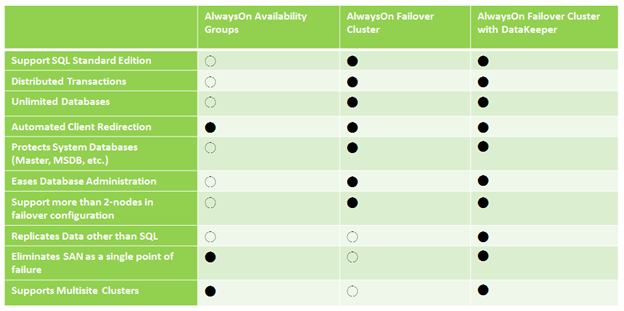
As you can see, Failover Clustering with DataKeeper Cluster Edition is not only going to save you money, it also is going to help you overcome some of the inherent limitations of AlwaysOn Availability Groups.

About the only thing you can’t do with the DataKeeper solution is to have read-only targets. As I mentioned earlier, read-only targets requires a second SQL license, so to have that feature will cost you minimally $54,938. If you really must have read-only targets you’ll be glad to know that you can mix AlwaysOn Failover Clusters with DataKeeper and AlwaysOn Availability Groups if you like. Basically you would wind up with a 2-node SQL failover cluster with DataKeeper and a single standalone SQL Server acting as a read-only target for an AlwaysOn Availability Group. In that case, you would still need two copies of SQL Server Enterprise Edition, one for the cluster and one for the read-only target.

I demonstrated this solution at Tech-Ed 2011 in Atlanta last year and got a lot of really positive feedback. This particular demonstration shows a 2-node multisite cluster, but the same concept can be applied to single site clusters.

https://clusteringformeremortals.com/2011/05/15/sql-server-denali-hadron-multisite-cross-subnet-failover-video-demonstration/

If you have any questions about this article please leave me a comment, I’d be glad to discuss it with you further.
SQL Server 2012 “Standard Edition” Availability Options

Windows Server 8 Failover Clustering – New Features and Relevant Blog Articles

Elden Christensen recently blogged about some of the new features of Windows Server Failover Clustering in Windows Server 8. You can read the entire post here: http://blogs.msdn.com/b/clustering/archive/2012/03/19/10285168.aspx

All of these features are welcome additions, but my personal favorite is the “Dynamic Clusters” or what I think is probably better described as “Dynamic Quorum”. It basically allows the quorum to reconfigure itself dynamically so that if configured properly you could actually withstand the failure of all but one remain node (last man standing) and still have a functional cluster. Previously this was only possible if you used the “Disk Only” quorum model which is not recommended as the disk quorum represented a single point of failure.
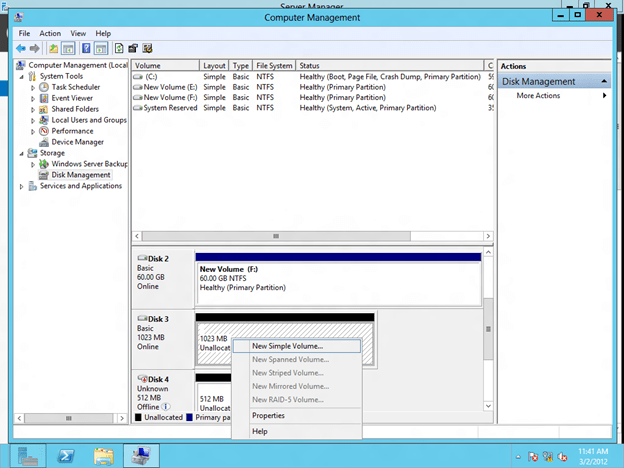
With the new dynamic quorum model as nodes are removed from the cluster the remaining nodes reconfigure themselves in the most resilient manner. For example, previously if you had a 5 node cluster using the “Node Majority” quorum model if you happen to lose three nodes the remaining two nodes would shut down as they no longer had a majority vote (2 out of 5 is not a majority). With the new model, as nodes leave the cluster the quorum reconfigures itself so that the remaining two nodes would remain online.
The description above is really an over simplification of what actually happens under the covers and I plan to write more about it in the future, but it is definitely a welcome feature that you should check out!

There are a few other blog articles relevant to clustering in Windows Server 8 that you will definitely want to check out as well….

How to Enable Failover Clustering and Network Load Balancing PowerShell Help on Windows Server “8”:
http://blogs.msdn.com/b/clustering/archive/2012/03/21/10286213.aspx

How to Enable CSV Cache:
http://blogs.msdn.com/b/clustering/archive/2012/03/22/10286676.aspx

How to Create a Cluster in a Restrictive Active Directory Environment: http://blogs.msdn.com/b/clustering/archive/2012/03/30/10289577.aspx

Windows Server 8 Failover Clustering – New Features and Relevant Blog Articles

Step-by-Step: Configuring Windows Server 8 Beta iSCSI Target Software for Use in a Cluster

So you just download the bits for Windows Server 8 Beta and you are anxious to try out all the great new features including Windows Storage Spaces, Continuously Available Fail Servers and Hyper-V Availability. Many of those new features are going to require you become familiar with Windows Server Failover Clustering. In addition, things like Storage Spaces are going require that you have access to additional storage to simulate JBODS. Windows iSCSI Target Software is a great way for you to provide storage for Failover Clustering and Spaces in a lab environment so you can play around with these new features.

This Step-by-Step Article assumes you have three Windows Server 8 servers running in a domain environment. My lab environment consists of the following:

Hardware
My three servers are all virtual machines running on VMware Workstation 8 on top of my Windows 7 laptop with 16 GB of RAM. See my article on how to install Windows Server 8 on VMware Workstation 8.

Server Names and Roles
PRIMARY.win8.local – my cluster node 1
SECONDARY.win8.local – my cluster node 2
WIN-EHVIK0RFBIU.win8.local – my domain controller (guess who forgot to rename his DC before I promoted it to be a Domain ControllerJ)

Network
192.168.37.X/24 – my public network also used to carry iSCSI traffic
10.X.X.X /8– a private network defined just between PRIMARY and SECONDARY for cluster communication

This article is going to walk you through step-by-step on how to do the following:

The article consist mostly of screen shots, but I also add notes where needed.

Install the iSCSI Target Role on your Domain Controller

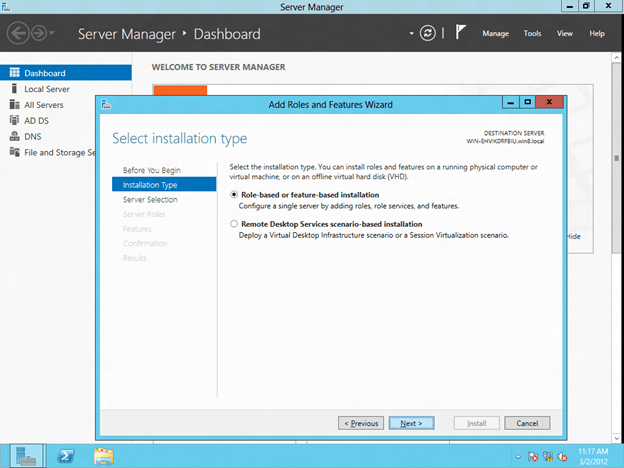
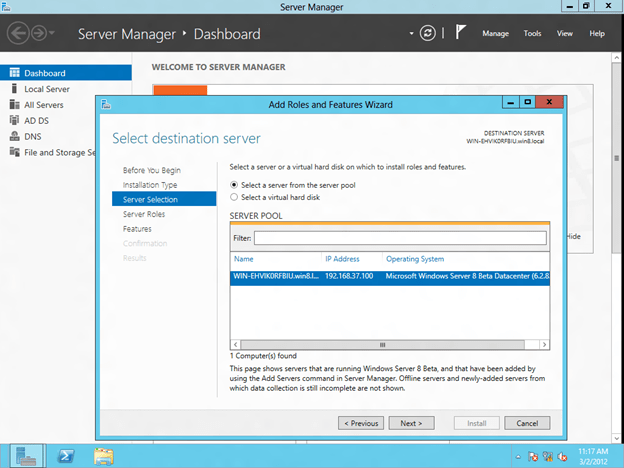
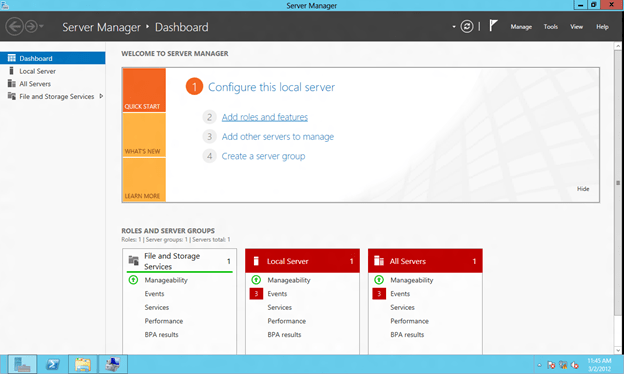
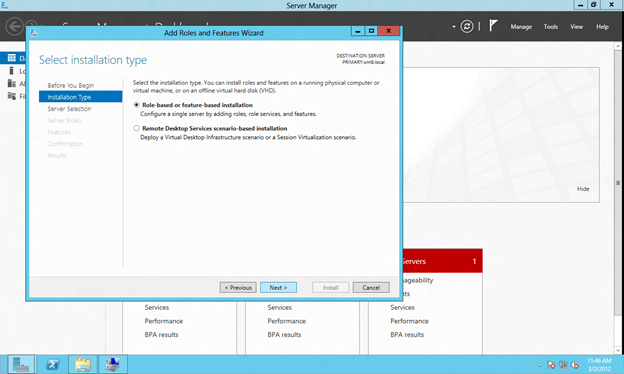
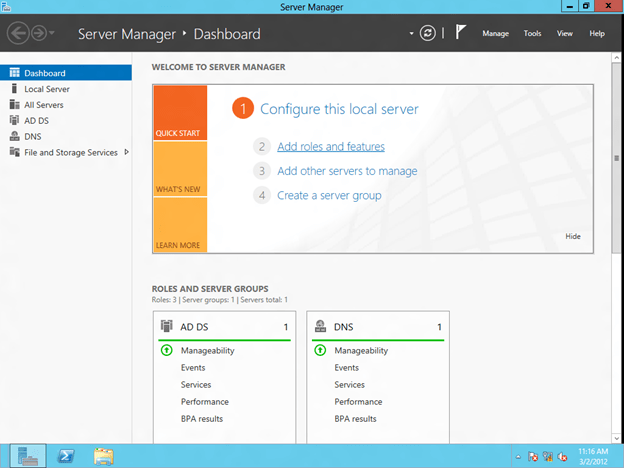
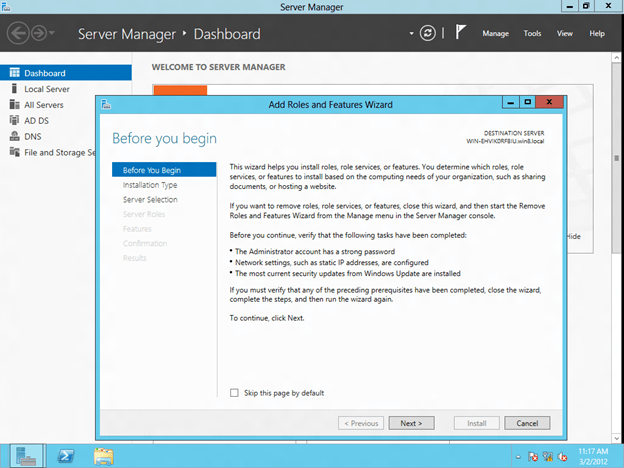
Click on Add roles and features to install the iSCSI target role.

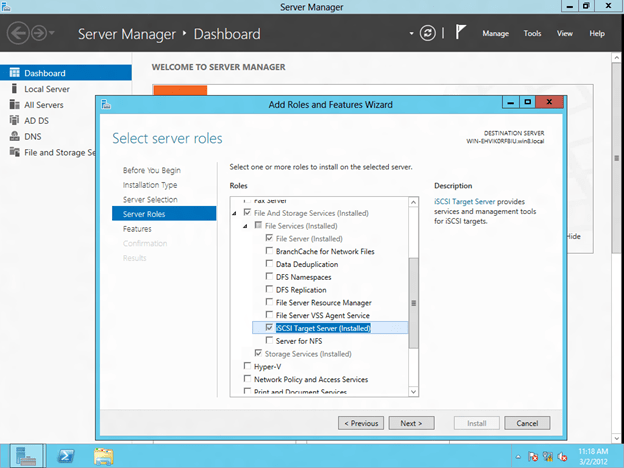
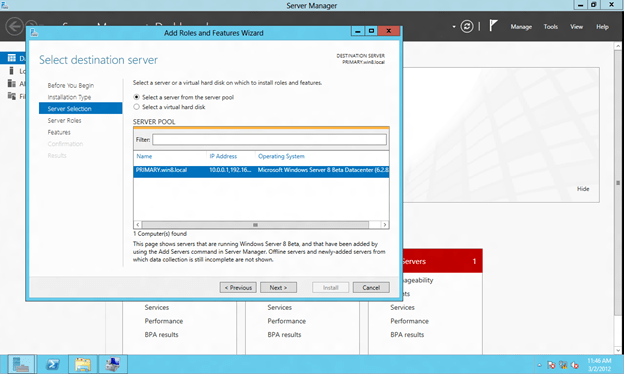
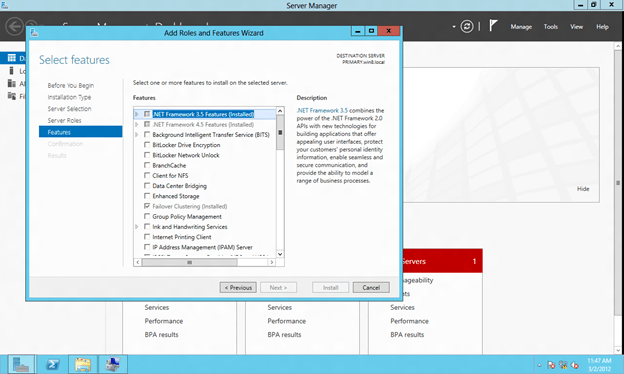
You will find that the iSCSI target role is a feature that is found under File And Storage Servers/File Services. Just select iSCSI Target Server and click Next to begin the installation of the iSCSI Target Server role.

Configure the iSCSI Target

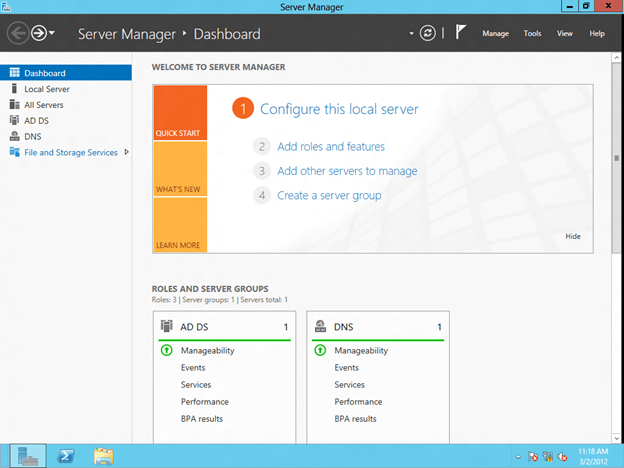
The iSCSI target software is managed under File and Storage Services on the Server Manager Dashboard, click on that to continue

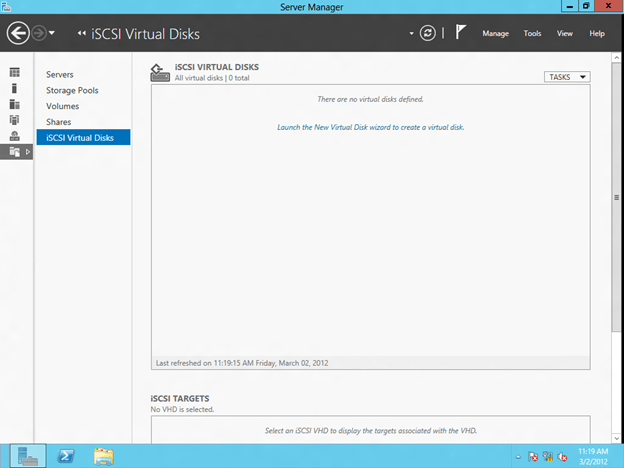
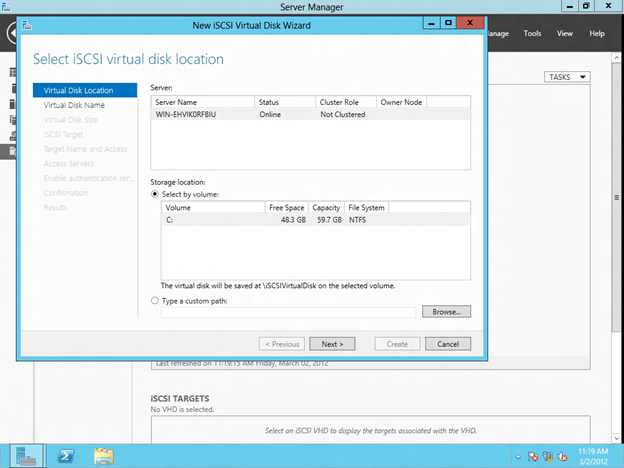
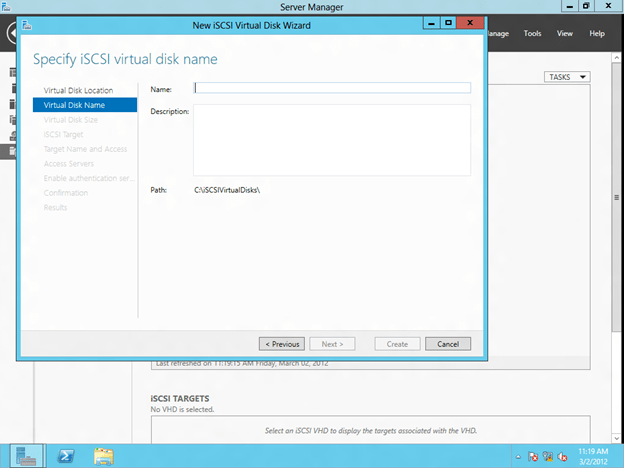
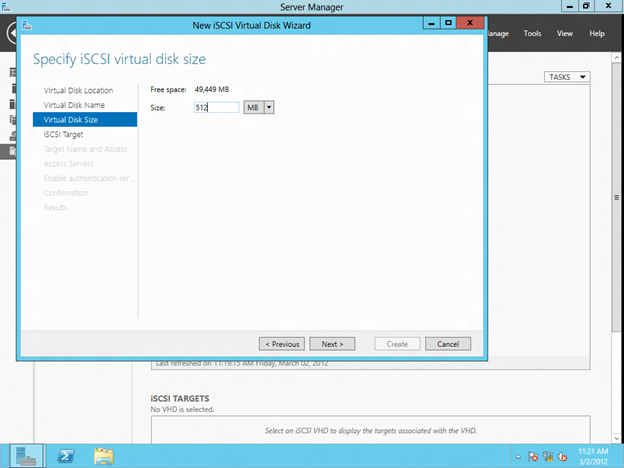
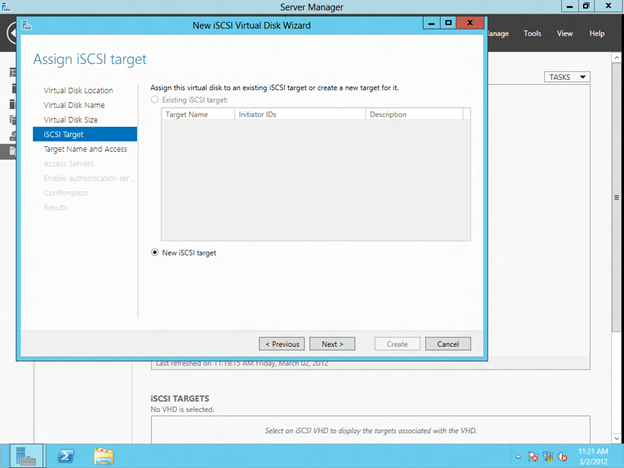
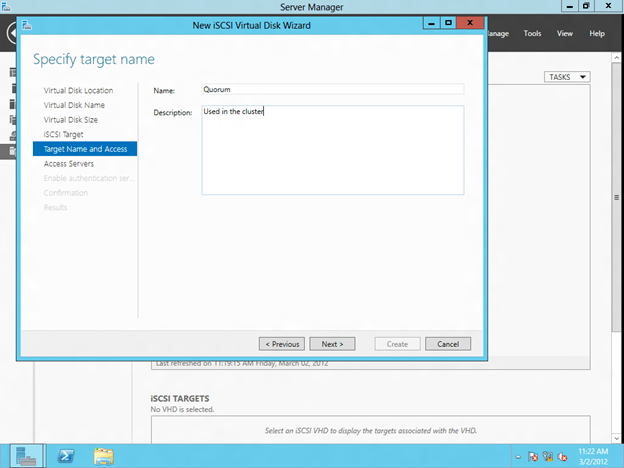
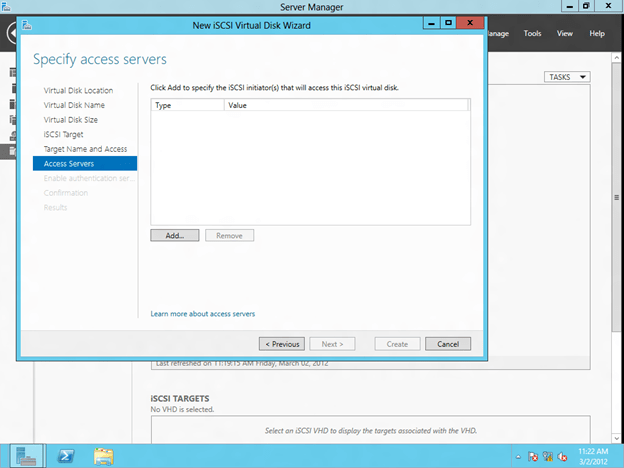
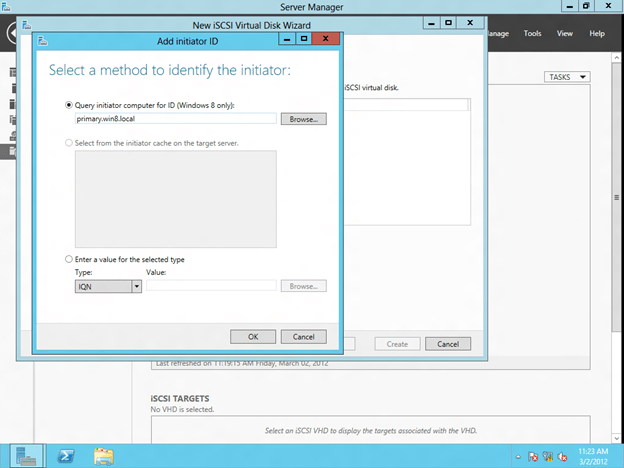
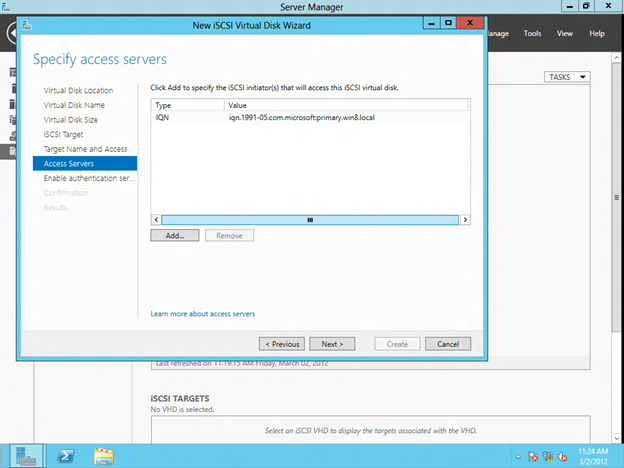
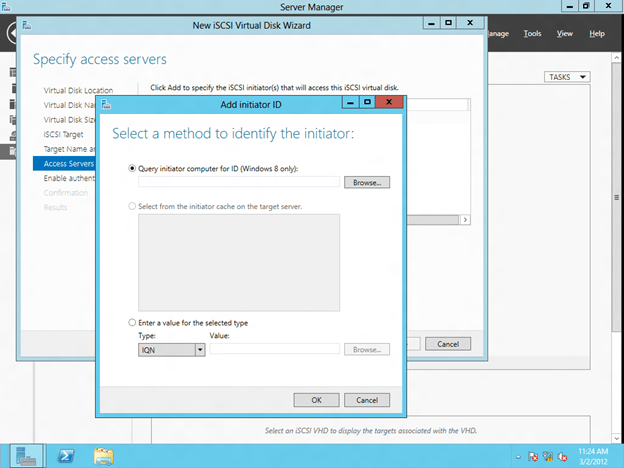
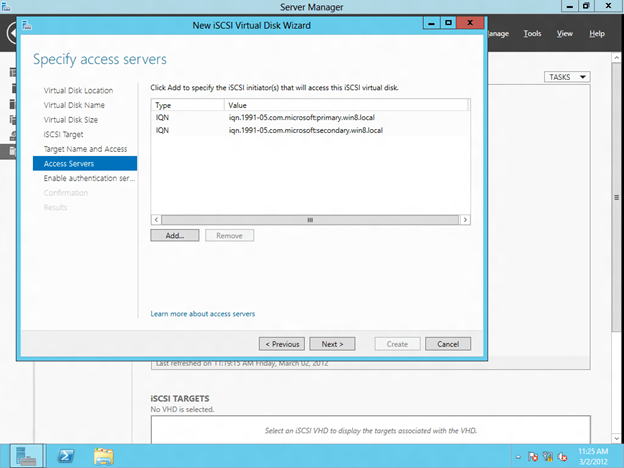
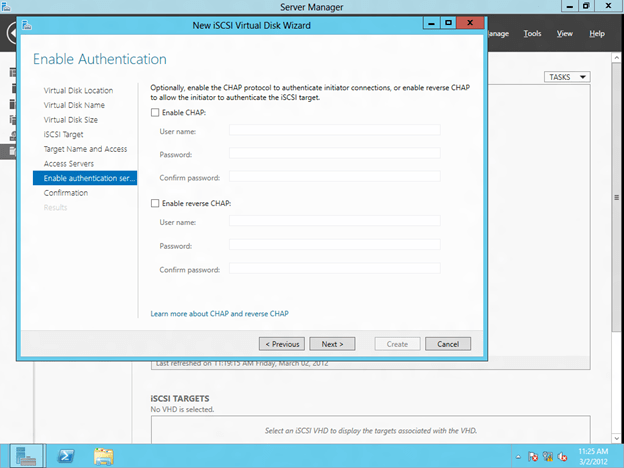
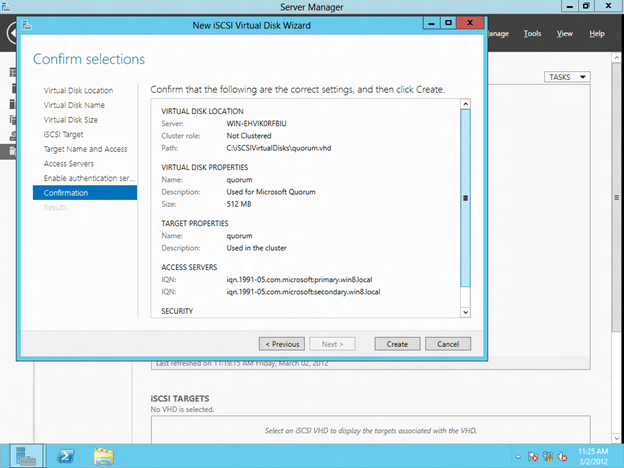
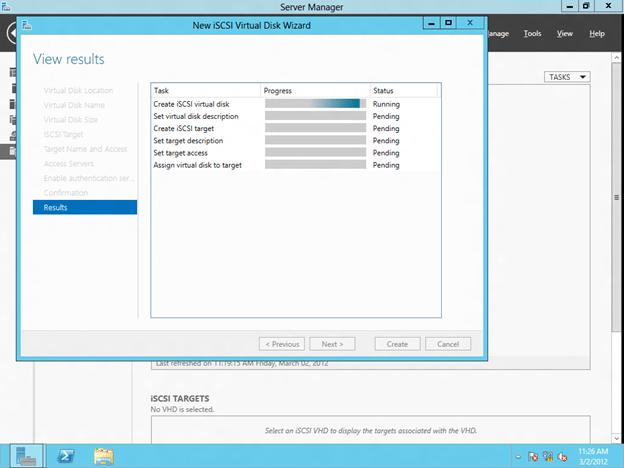
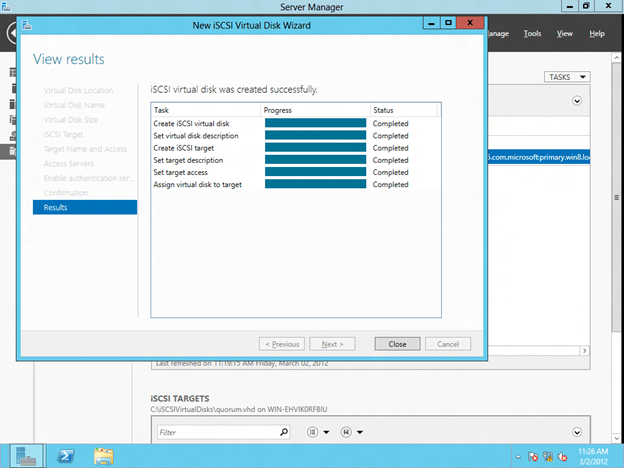
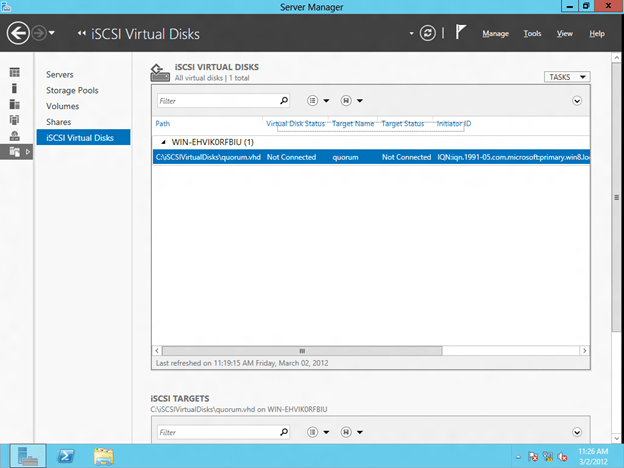
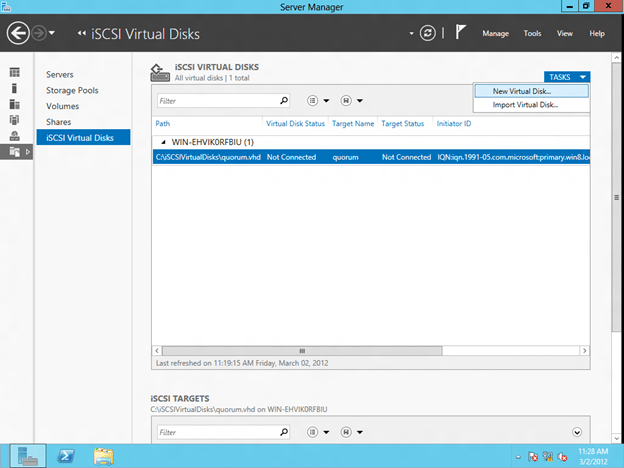
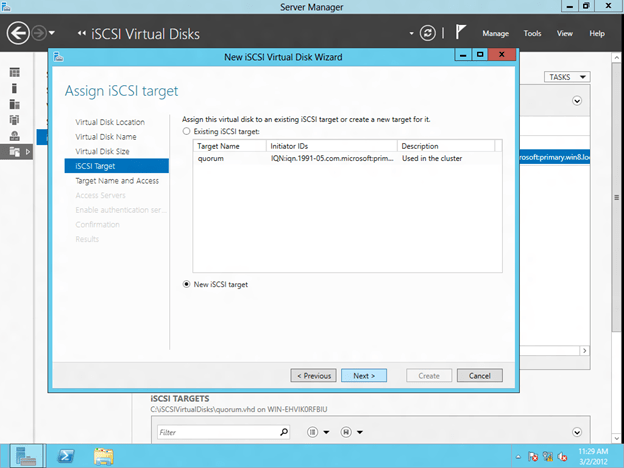
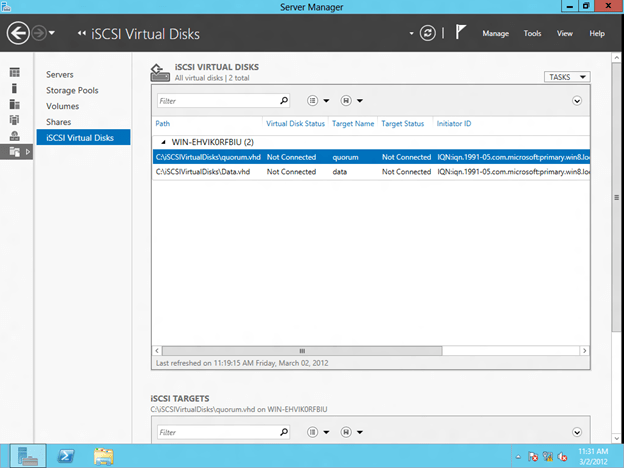
The first step in creating an iSCSI target is to create an iSCSI Virtual Disk. Click on Launch the New Virtual Disk wizard to create a virtual disk.

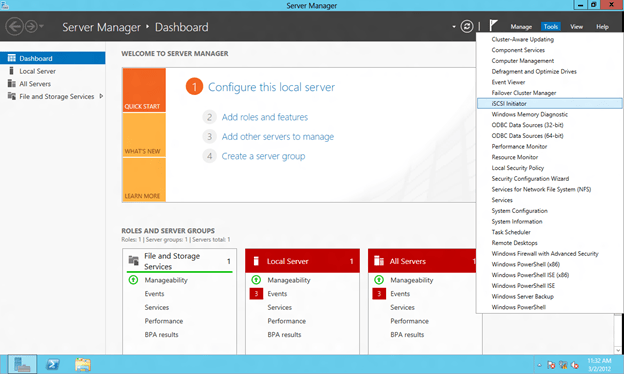
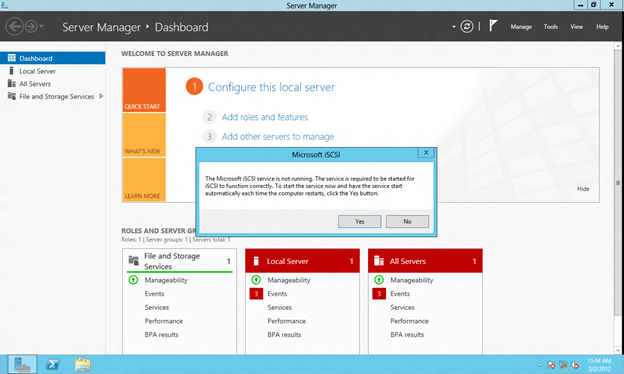
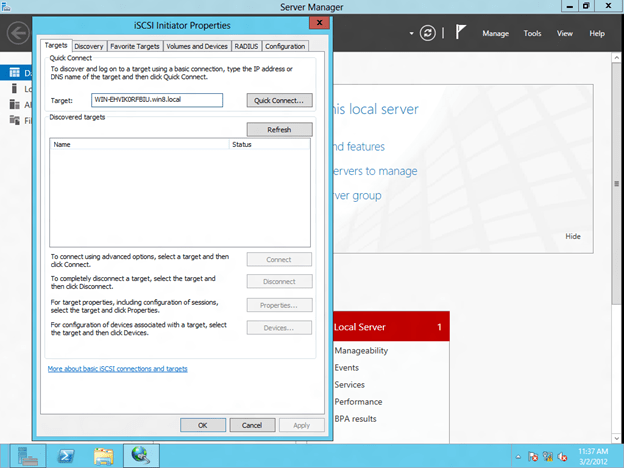
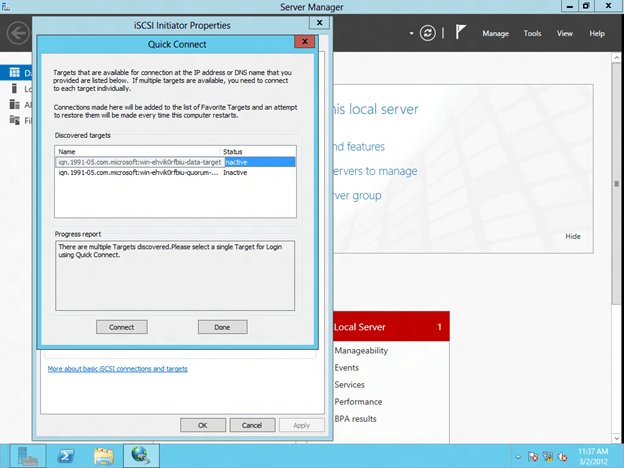
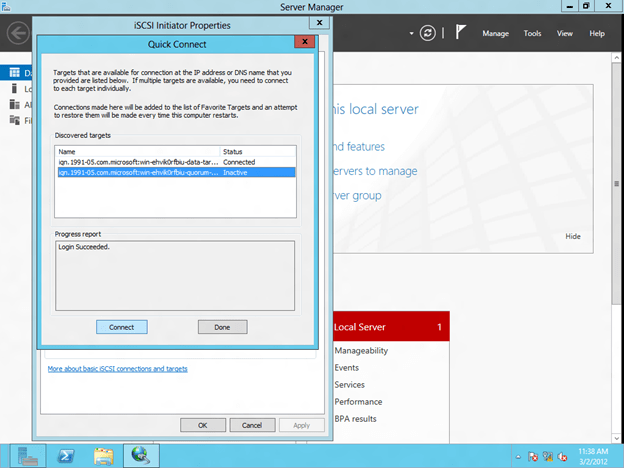
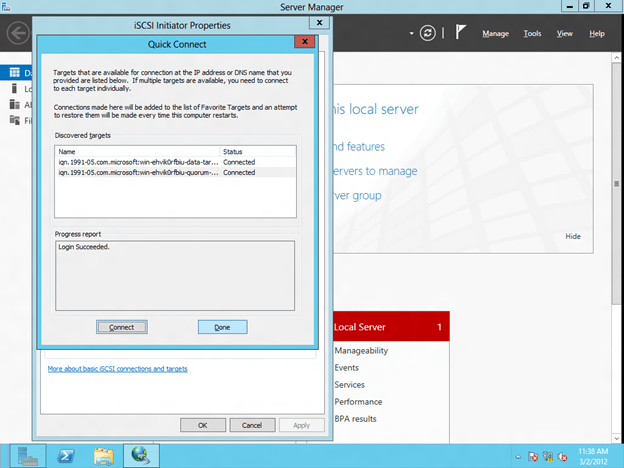
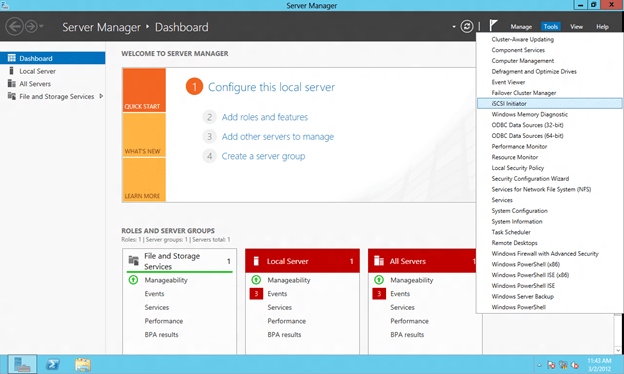
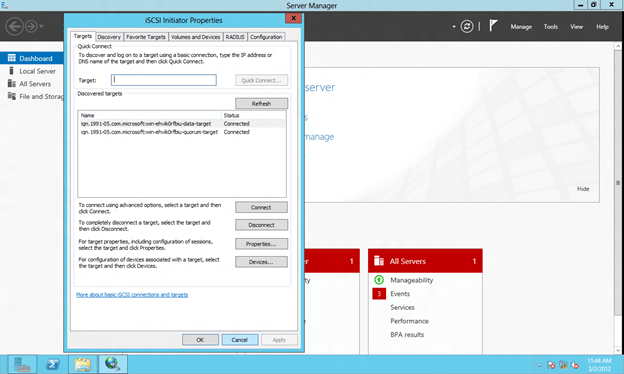
Connect to the iSCSI Target using the iSCSI Initiator

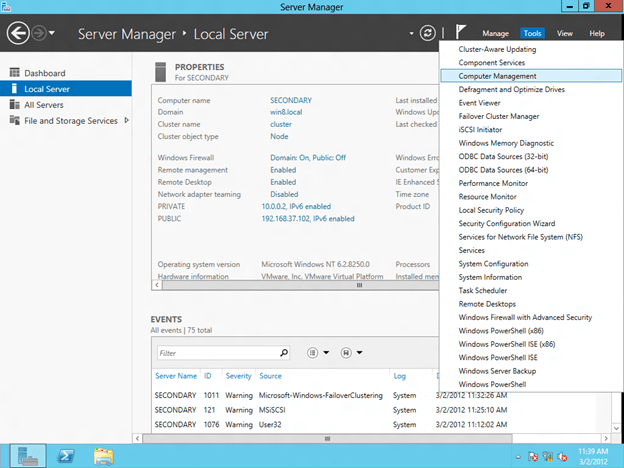
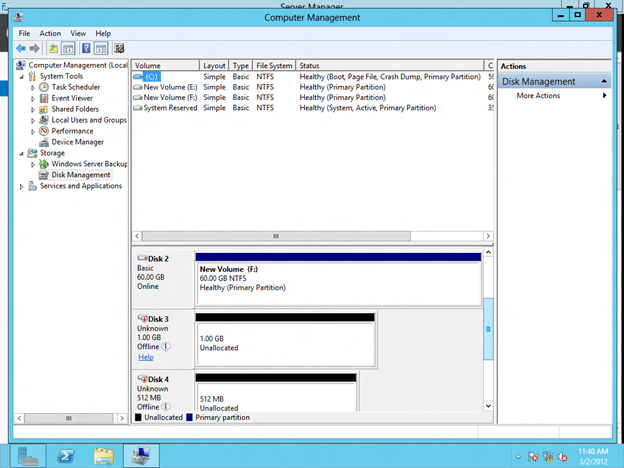
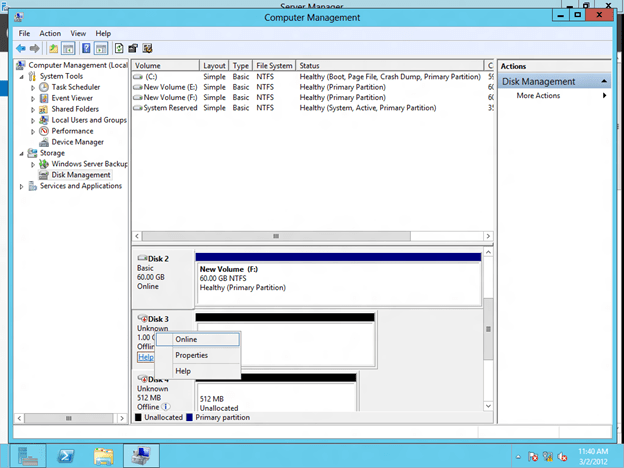
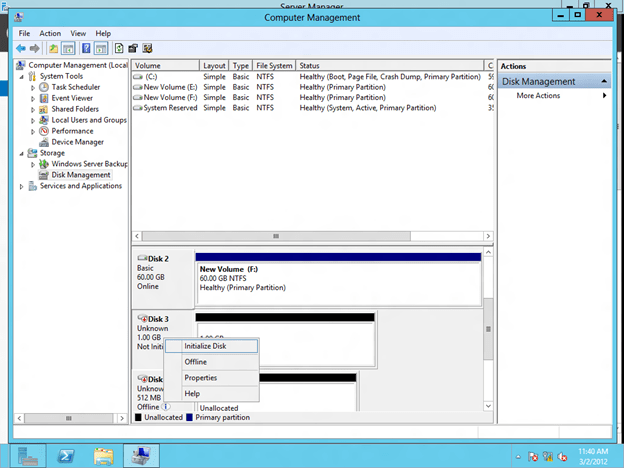
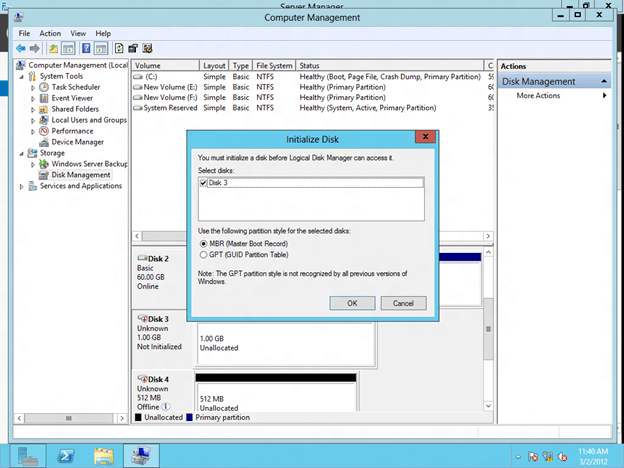
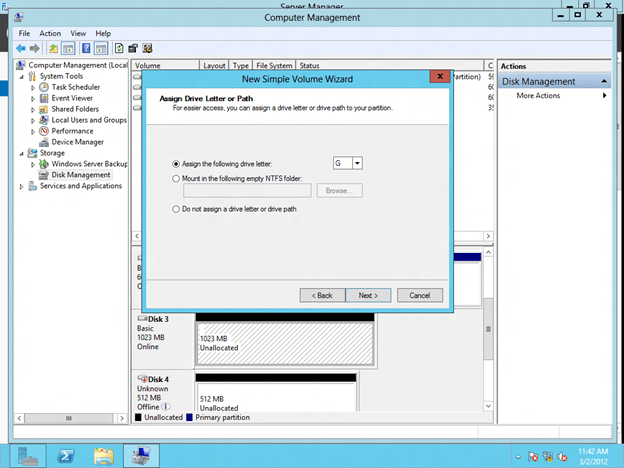
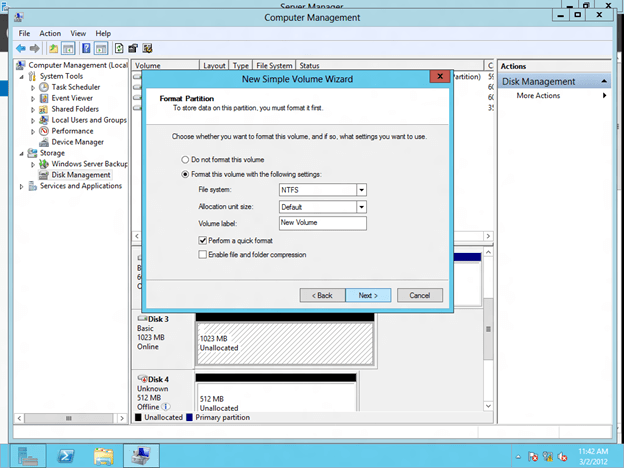
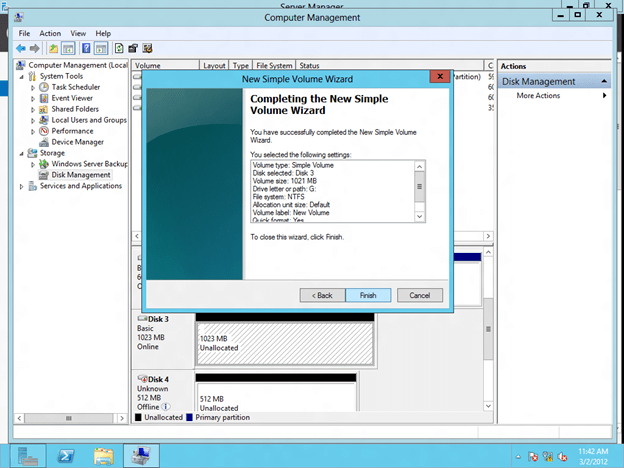
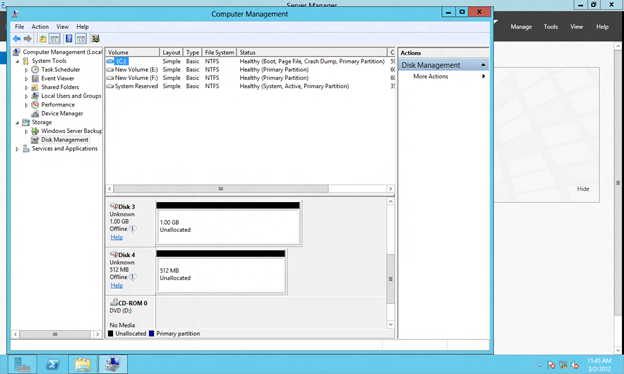
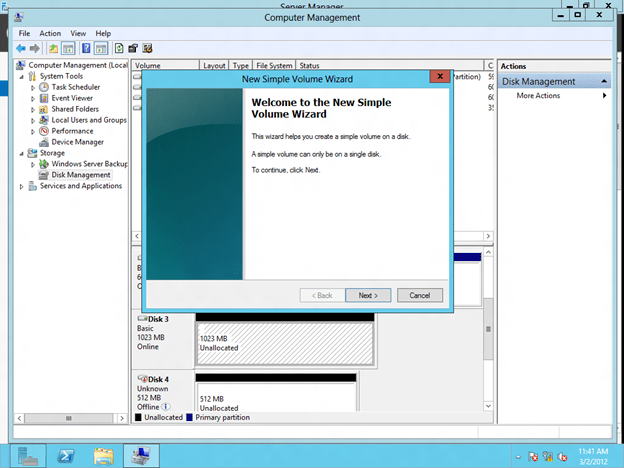
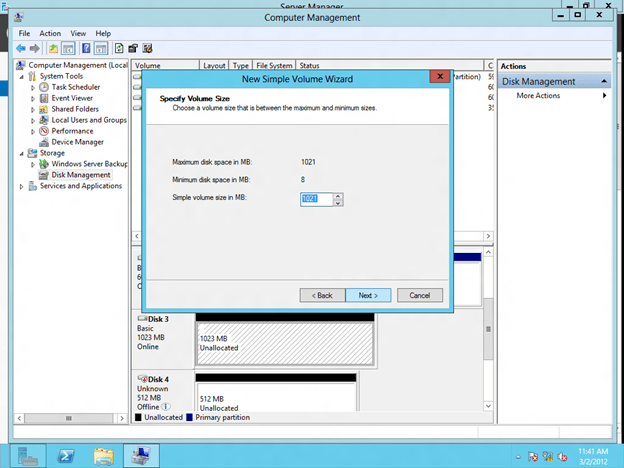
Format the iSCSI Target

Connect to the shared iSCSI Target from the SECONDARY Server

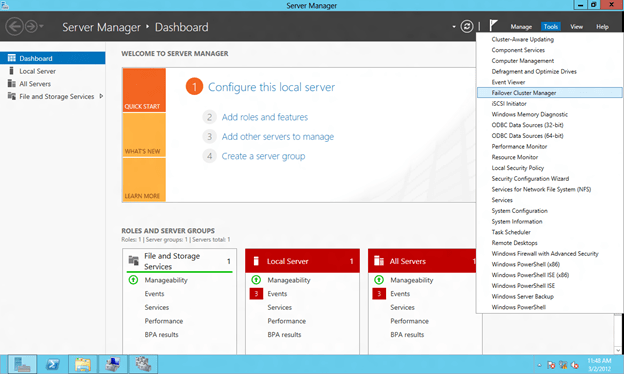
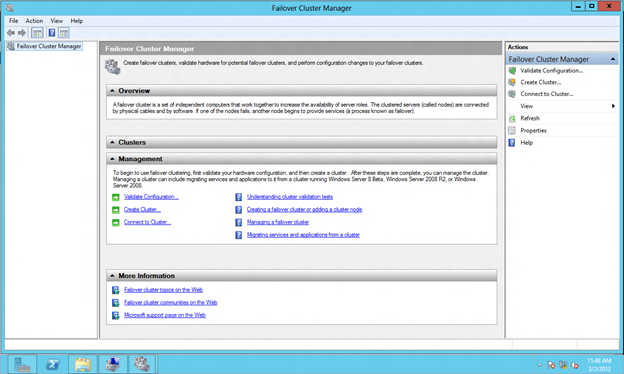
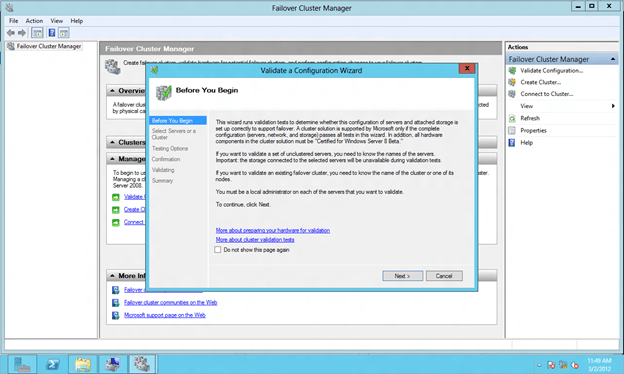
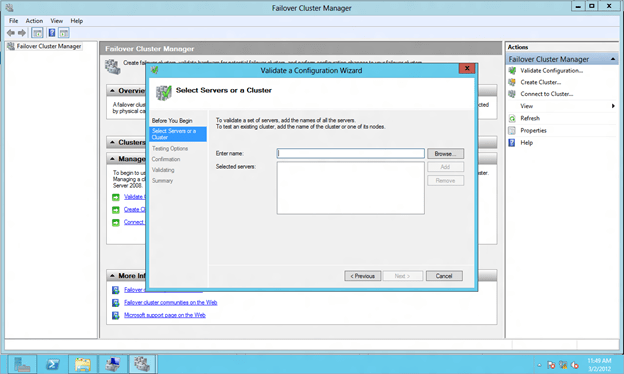
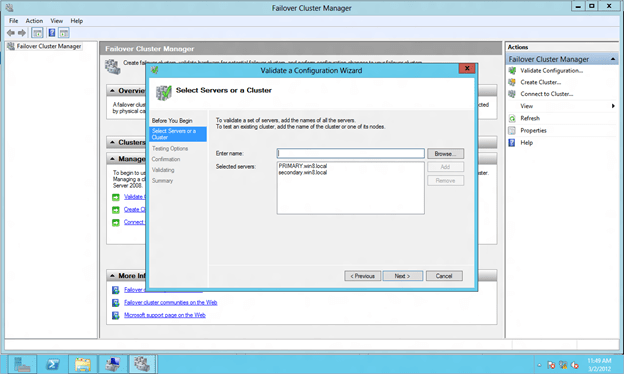
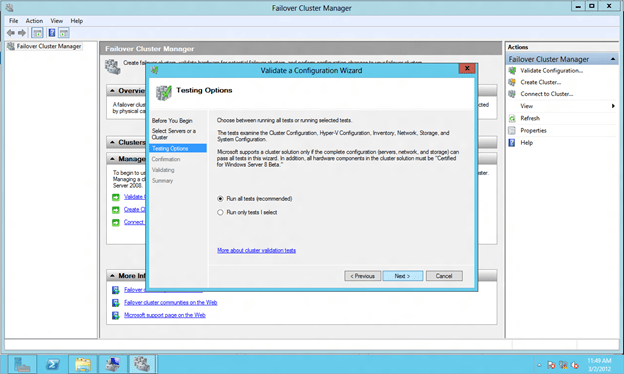
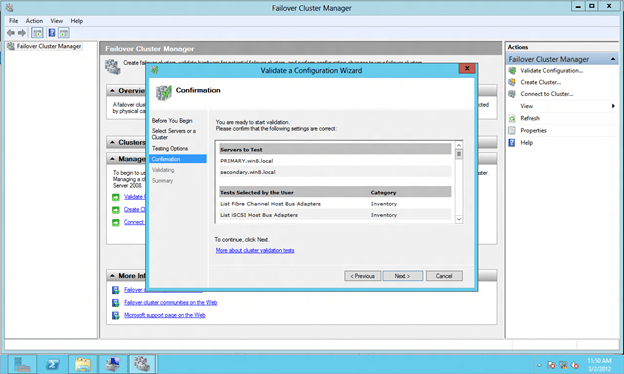
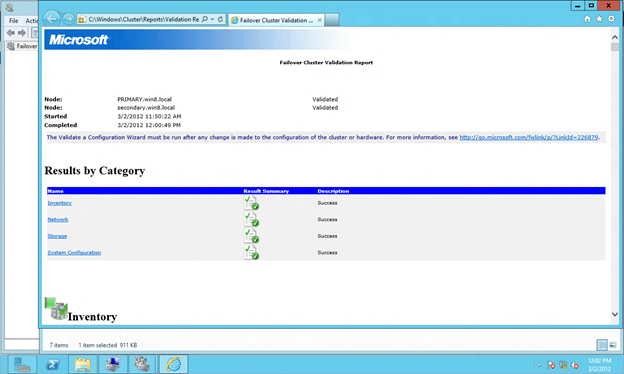
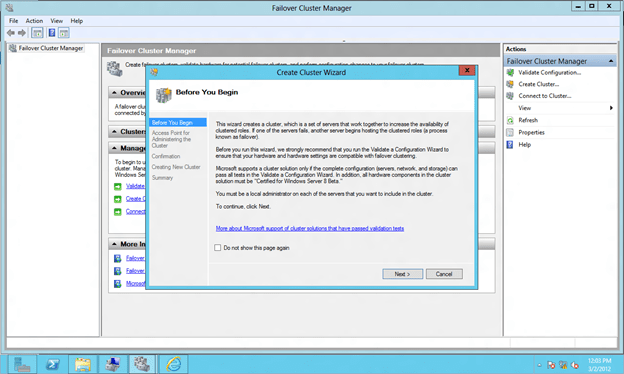
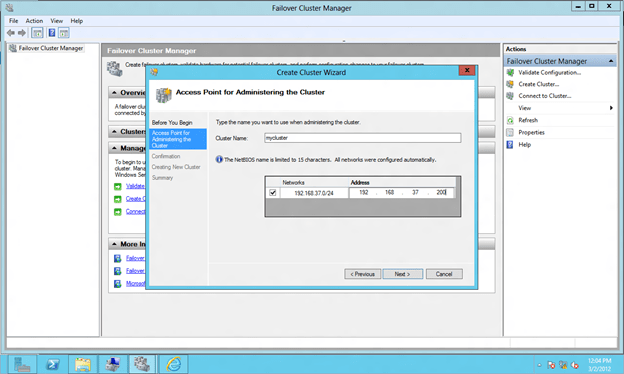
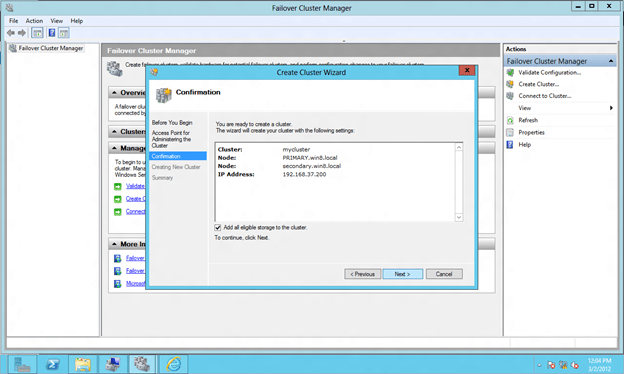
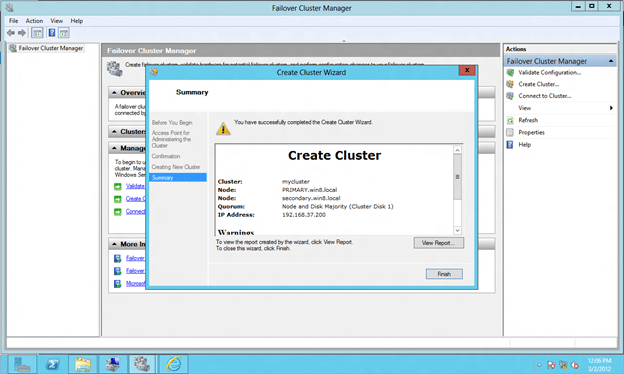
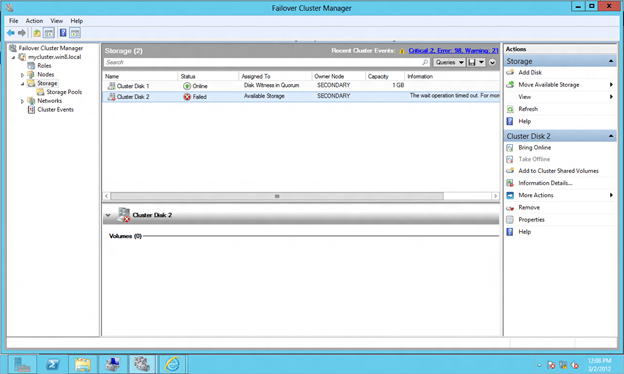
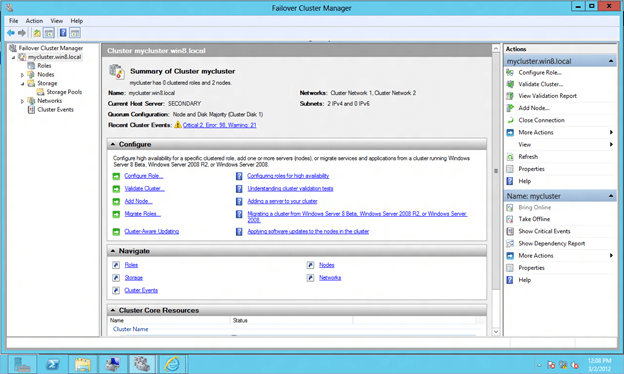
Configure Windows Server 8 Failover Clustering

Step-by-Step: Configuring Windows Server 8 Beta iSCSI Target Software for Use in a Cluster

SQL Server 2012 Disaster Recovery – Multisite Clusters

Microsoft just released a great white paper on new support for multisite clusters in SQL Server 2012 for Disaster Recovery. Don’t forget that I blogged about this feature back in May of 2011 and even included a video demonstration which shows a SQL Server 2012 multisite failover cluster for disaster recovery using SteelEye DataKeeper Cluster Edition.

https://clusteringformeremortals.com/2011/05/15/sql-server-denali-hadron-multisite-cross-subnet-failover-video-demonstration/

SQL Server 2012 and cross subnet failover capabilities will open up a whole new world of possibilities for people looking for disaster recovery options for SQL 2012.

SQL Server 2012 Disaster Recovery – Multisite Clusters

Virtualization Career Training with Microsoft Learning

Guest announcement from my friend and Microsoft Technical Evangelist, Symon Perriman….

Please check out these two exciting virtualization career training opportunities: http://mctreadiness.com/MicrosoftCareerConferenceRegistration.aspx?pid=270.

Virtualization Career Training

On Tuesday, October 4th Technical Evangelists Symon Perriman and Rick Claus are hosting an online conference on Virtualization Career Training with Microsoft Learning.  This half day virtual event (8am – 11am PST) will offer a Level
100
to 200 introduction for anyone who wants to learn more about Microsoft Virtualization and how it can help their career.  It is free and public so sign up for this warm-up for the Jump Start event on October 6th.

        Module 1 – Technology: Learn about Microsoft’s virtualization technologies, how they work, and the future roadmap to the Cloud!

        Module 2 – Career: Understand the importance of virtualization and Private Cloud, and how it can make or break an IT Professional’s career!

        Module 3 – Certification: Get prepared for your next steps towards a virtualization career by understanding and preparing for the Microsoft 70-659 Technical Specialist exam, Windows Server 2008 R2, Server Virtualization.

Learn More: http://mctreadiness.com/MicrosoftCareerConferenceRegistration.aspx?pid=270

Register: http://mctreadiness.com/MicrosoftCareerConferenceRegistration.aspx?pid=288

Instructor Bios:  http://mctreadiness.com/MicrosoftCareerConferenceRegistration.aspx?pid=287


Virtualization Exam 70-659 Training

On Thursday October 6th Technical Evangelist Symon Perriman and Technical Instructor Philip Helsel will host an online 8-hour deep dive training event for the Microsoft 70-659 Technical Specialist exam, Windows Server 2008 R2, Server Virtualization.  This virtual event runs from 8am to 5pm PST and will include presentations, demos and live Q&A with the attendees.   It costs $99 to attend, but includes a free exam voucher worth $150!  It is public so sign up for some great training to help improve your career here: http://mctreadiness.com/MicrosoftCareerConferenceRegistration.aspx?pid=272.  Register early to make the most of a weekly virtualization coaching newsletter!

        Module 1 Installing and Configuring Host and Parent Settings

        Module 2 Configuring Child Settings

        Module 3 Managing and Monitoring Virtual Environments

        Module 4 Ensuring High Availability and Recoverability

        Module 5 Performing Migration

        Module 6 Configuring Remote Desktop (RD) Role Services Infrastructure

Technologies that we will cover include: Windows Server 2008 R2, Hyper-V, System Center Virtual Machine Manager (VMM), System Center Operations Manager (OpsMgr), System Center Data Protection Manager (DPM), Windows Server Backup, Failover Clustering, Remote Desktop Services, Active Directory, Microsoft Assessment & Planning Toolkit (MAP), Virtual Machine Servicing Tool (VMST), Windows Server Update Services (WSUS) & more!
Learn More: http://mctreadiness.com/MicrosoftCareerConferenceRegistration.aspx?pid=274

Register: http://mctreadiness.com/MicrosoftCareerConferenceRegistration.aspx?pid=272

Exam Information: http://www.microsoft.com/learning/en/us/Exam.aspx?ID=70-659

Thanks!
Symon Perriman
Technical Evangelist
Private Cloud Technologies
Microsoft

See videos on TechNet

Follow announcements @SymonPerriman

Virtualization Career Training with Microsoft Learning

Windows Server 8 Developer Preview will not support the Hyper-V Role while running on VMware Workstation…at least on my laptop

Unless someone knows a trick that I don’t, it doesn’t appear as if I will be able to test out some of the Hyper-V clustering features unless I identify some actual hardware for Windows 8. I had hoped that just maybe VMware Workstation 8 would be able to fool Windows 8 into thinking it was actually a physical server, but so far no dice. This article appears to indicate it will work if you have an Intel Nehalem or Intel Core i7 processor, but my two year old Intel Core 2 Duo T9500 doesn’t seem to be able to do the trick.

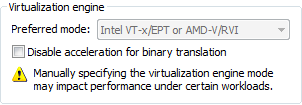
I added the hypervisor.cpuid.v0 = “FALSE” to the config file and I changed the CPU settings to use Intel VT –x/EPT as shown below.

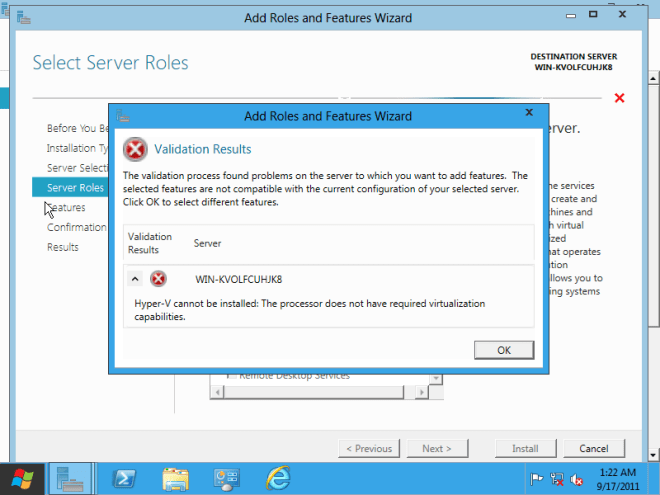
But this is what I get when I try to enable the Hyper-V role.

Maybe it is time to invest in a new laptop?

Windows Server 8 Developer Preview will not support the Hyper-V Role while running on VMware Workstation…at least on my laptop

Do You Have to Sacrifice High Availability for High Performance?

Mosey on over to the Fusion-io website and read my guest post in their blog, Do You Have to Sacrifice High Availability for High Performance? After you are done there, view the joint SIOS and Fusion-io webinar “SQL Server 2008 – High Performance and High Availability Through Fusion-io and SIOS”

Part of this webinar includes some VERY interesting benchmark information…you won’t want to miss it!

Do You Have to Sacrifice High Availability for High Performance?

Hyper-V Replica Coming in Windows Server “Next”

Here is an interesting video that demonstrates “Hyper-V Replica”, a new feature coming in the next version of Windows. Skip to the 39 minute mark to see the demonstration.

http://digitalwpc.com/Videos/AllVideos/Permalink/3cb3788c-5c47-4b9e-987c-0dec4194058b/#fbid=slfi0dmNMqP

It looks like a very welcome feature that certainly will make Hyper-V even more competitive when comparing the feature set vs. price between vSphere and Hyper-V, especially with the new pricing announced by VMware.

I’ll be very curious to see if this integrates with Windows Server Failover Clustering to allow you create shared nothing clusters as you can today with 3rd party replication software like SteelEye DataKeeper Cluster Edition as I demonstrated in an earlier blog post.

https://clusteringformeremortals.com/2009/09/17/hyper-v-live-migration-across-data-centers/

Hyper-V Replica Coming in Windows Server “Next”

SQL Server Denali HADRON Multisite Cross Subnet Failover Video Demonstration

The crowd has spoken and the SQL Server Team has answered! Denali is the first version of SQL Server to support the cross subnet failover feature first introduced in Windows Server 2008 Failover Clustering. It seems like we have been waiting forever for the SQL team to support this feature but the wait is finally drawing to an end.

The following is a link to a 5 minute video that demonstrates a 3-node cluster Denali cluster with two nodes in the primary datacenter and one node in the DR site in a separate subnet.

http://screencast.com/t/ni1zqMOIv

I will be demonstrating this solution at Tech-Ed 2011 in Atlanta this week. Stop by the SIOS Technology booth and have a look for yourself at the SQL Server Denali multisite cluster demonstration using SteelEye DataKeeper.

SQL Server Denali HADRON Multisite Cross Subnet Failover Video Demonstration