Understanding the Windows Server Failover Cluster Quorum in Windows Server 2012 R2

Understanding the Windows Server Failover Cluster Quorum in Windows Server 2012 R2

Before we get started with all the great new cluster quorum features in Windows Server 2012 R2, we should take a moment and understand what the quorum does and how we got to where we are today. Rob Hindman describes quorum best in his blog post

“The quorum configuration in a failover cluster determines the number of failures that the cluster can sustain while still remaining online.”

Prior to Windows Server 2003, there was only one quorum type, Disk Only. This quorum type is still available today, but is not recommended as the quorum disk is a single point of failure. In Windows Server 2003 Microsoft introduce the Majority Node Set (MNS) quorum. This was an improvement as it eliminated the disk only quorum as a single point of failure in the cluster. However, it did have its limitations. As implied in its name, Majority Node Set must have a majority of nodes to form a quorum and stay online, so this quorum model is not ideal for a two node cluster where the failure of one node would only leave one node remaining. One out of two is not a majority, so the remaining node would go offline.

Microsoft introduced a hotfix that allowed for the creation of a File Share Witness (FSW) on Windows Server 2003 SP1 and 2003 R2 clusters. Essentially the FSW is a simple file share on another server that is given a vote in a MNS cluster. The driving force behind this innovation was Exchange Server 2007 Continuous Cluster Replication (CCR), which allowed for clustering without shared storage. Of course without shared storage a Disk Only Quorum was not an option and effective MNS clusters would require three or more cluster nodes, hence, the introduction of the FSW to support two node Exchange CCR clusters.

Windows Server 2008 saw the introduction of a new witness type, Disk Witness. Unlike the old Disk Only quorum type, the Disk Witness allows the users to configure a small partition on a shared disk that acts as a vote in the cluster, similar to that of the FSW. However, the Disk Witness is preferable to the FSW because it keeps a copy of the cluster database and eliminates the possibility of “partition in time”. If you’d like to read more about partition in time, I suggest you read the File Share Witness vs. Disk Witness for local clusters.

Windows Server 2012 continued to improve upon quorum options. It is my belief that many of these new features were driven by two forces: Hyper-V and SQL Server AlwaysOn Availability Groups. With Hyper-V we began to see clusters that contained many more nodes than we have typically seen in the past. In a majority node set, as soon as you lose a majority of your votes, the remaining nodes go offline. So for example, if you have a Hyper-V cluster with seven nodes, if you were to lose four of those nodes the remaining nodes would go offline, even though there are three nodes remaining. This might not be exactly what you want to happen. So in Windows Server 2012, Microsoft introduced Dynamic Quorum.

Dynamic Quorum does what its name implies, it adjust the quorum dynamically. So in the scenario described about, assuming I didn’t lose all four servers at the same time, as servers in the cluster went offline, the number of votes in the quorum would adjust dynamically. When node one went offline, I would then in theory have a six node cluster. When node two went offline, I would then have a five node cluster, and so on. In reality, if I continued to lose cluster nodes one by one, I could go all the way down to a two node cluster and still remain online. And, if I had configured a witness (Disk or File Share) I could actually go all the way down to a single node and still remain online.

Read more at….
http://blogs.msdn.com/b/microsoft_press/archive/2014/04/28/from-the-mvps-understanding-the-windows-server-failover-cluster-quorum-in-windows-server-2012-r2.aspx

Understanding the Windows Server Failover Cluster Quorum in Windows Server 2012 R2

Configuring a #SANLess Hyper-V Failover Cluster with DataKeeper Cluster Edition

Q. What is a SANLess cluster?
A. It is a cluster that uses local storage instead of a SAN.

Q. Why would I want a SANLess cluster?
A. There are a few reasons:

  • Eliminate the cost of a SAN
  • Eliminate the SAN as a single point of failure
  • Take advantage of high speed storage options such a Fusion-io ioDrives and other high speed storage devices that plug in locally
  • Stretch the cluster across geographic locations for disaster recovery
  • Simplify management
  • Eliminate the need for a SAN administrator

Building a SANLess cluster with DataKeeper Cluster Edition is easy. If you know anything about Windows Server Failover Clustering than you already know 99% of the solution. Even if you have never built a Windows Server Failover Cluster before, don’t worry; Microsoft has made it easy and painless. For the beginners, I have written a step-by-step article that tells you how to build a Windows Server 2012 #SANLess cluster in my blog post here: https://clusteringformeremortals.com/2012/12/31/windows-server-2012-clustering-step-by-step/

If you have followed the steps in my post, you will be at the point where you are ready to create your first highly available virtual machine. There are two options for making a highly available virtual machine. The first option assumes that you have an existing virtual machine that you want to make highly available, and the second option assumes you are building a highly available virtual machine from scratch.

Configuring the DataKeeper Volume Cluster Resource

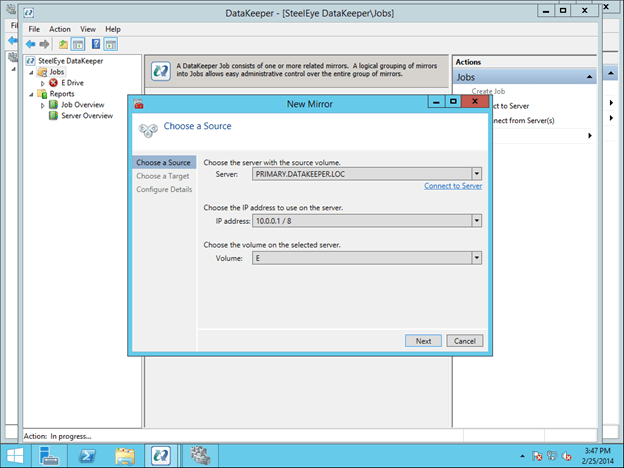
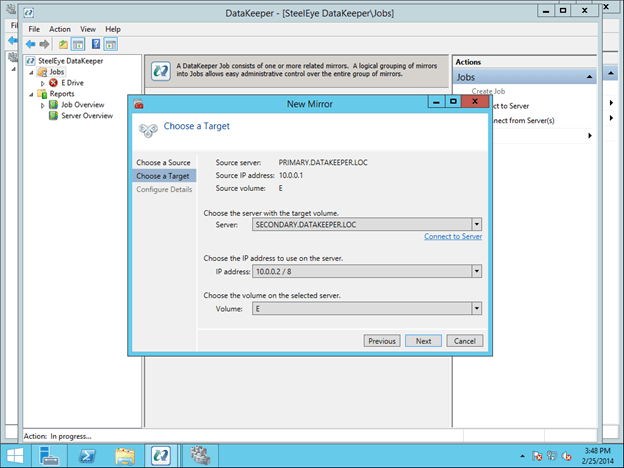
Because a SANLess Hyper-V cluster requires one VM per volume, you will want to make sure you have your storage partitioned so that you have enough volumes for each VM. The storage on each cluster node should be configured identically in terms of drive letters and partition sizes. Once you have the partitions configured properly and your VM resides on the partition you want to replicate, open the DataKeeper interface and walk through the three step wizard to create the DataKeeper Volume Resources as shown in below.

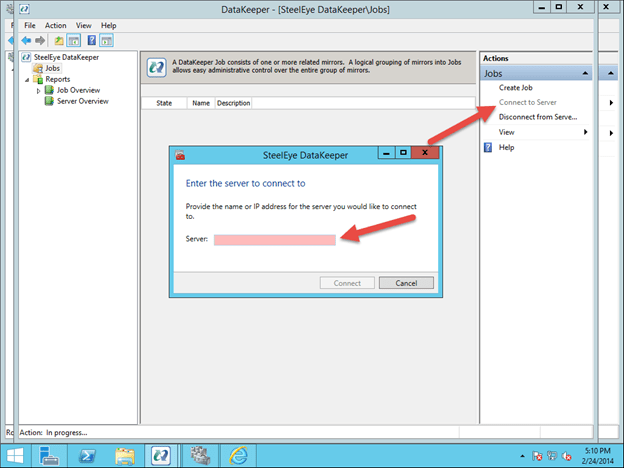
First, open the DataKeeper interface and click on Connect to Server. Do this twice to connect to both servers.

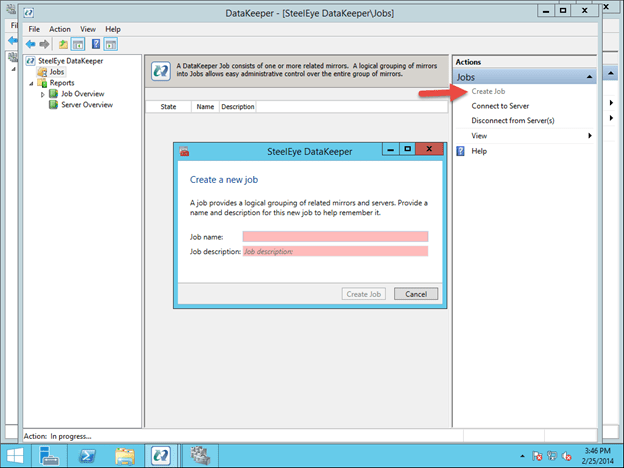
Once you are connected, click on Create Job to create a mirror of the volume that contains the virtual machine you want to make highly available as shown below. In this example we will mirror the E drive.

Whenever possible, keep replication traffic on a private network. In this case, we are using the 10.0.0.0/8 network for replication traffic. This can be a simple patch cable that connects the two servers across two unused NICs.

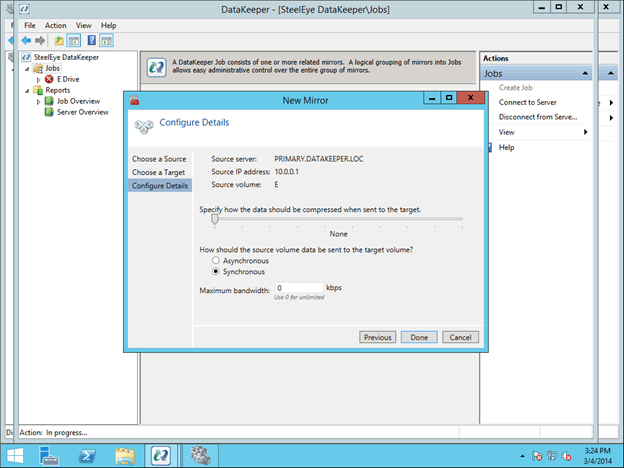
The final screen shows the options available for mirroring. For local area networks, Synchronous mirroring is preferred. When replicating across wide area networks, you will want to use Asynchronous replication and possibly enable compression. I would not limit the Maximum bandwidth as that could potentially cause your mirror to go out of sync if your rate of change (Disk Right Bytes/sec) exceeds the Maximum bandwidth specified. However, you may want to temporarily enable Maximum bandwidth during the initial mirror creation process, otherwise DataKeeper may flood the network with the initial replication traffic as it tries to get in sync as quickly as possible. Both Maximum bandwidth and Compression settings can be adjusted after the mirror is created. However, you cannot change between Synchronous and Asynchronous mirroring once the mirror has been created without deleting the mirror and recreating it.

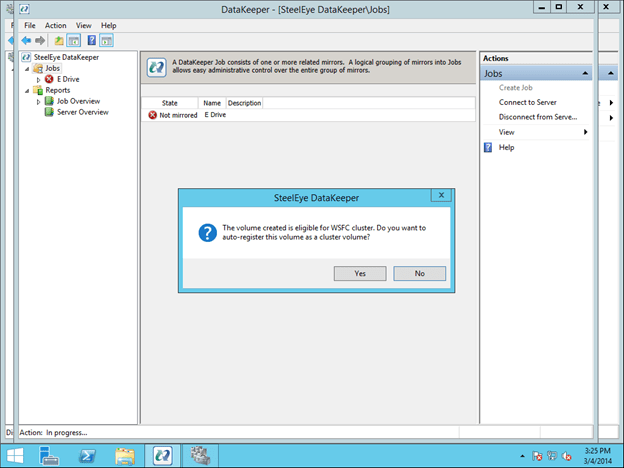
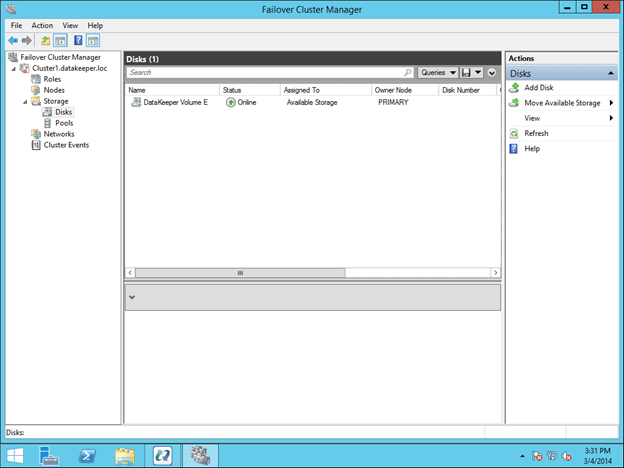
At the end of the mirror creation process you will see a popup asking if you want to auto-register this volume as a cluster volume. Select Yes, this will create a DataKeeper volume resource in Failover Clustering Available Storage.

You are now ready to create your highly available VMs.

Option 1 – Clustering an Existing VM

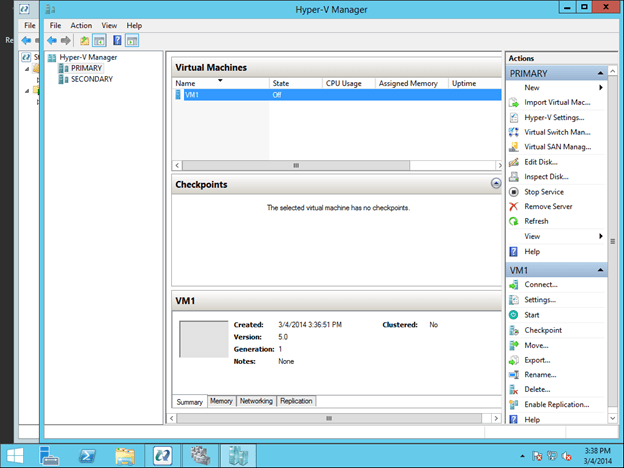
Once again, this procedure assumes you have an existing VM that you want to make highly available. If you do not have an existing VM, you will want to follow the procedure in Option 2 – Creating a Highly Available VM. Otherwise, you should have a VM when looking at Hyper-V Manager as shown below.

All the VM files should already be located on the replicated volume, as shown below. If not, you will have to relocate the files before attempting to cluster the VM.

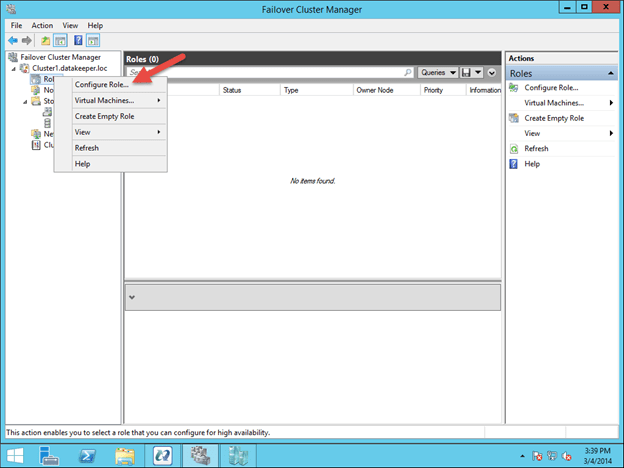
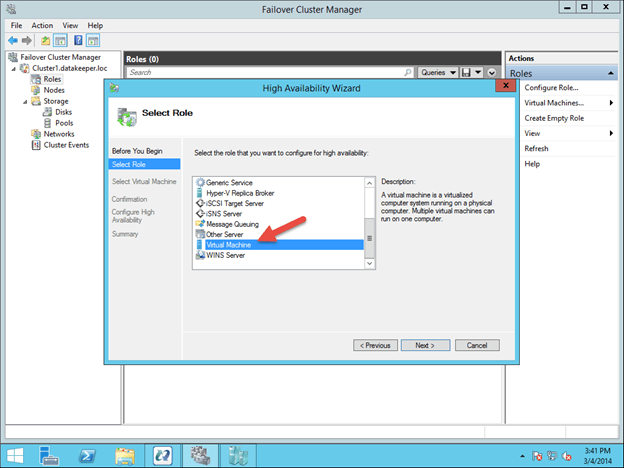
To begin the clustering process, open up Failover Cluster Manager. Right click on Configure Roles and choose Virtual Machine as the role you want to create.

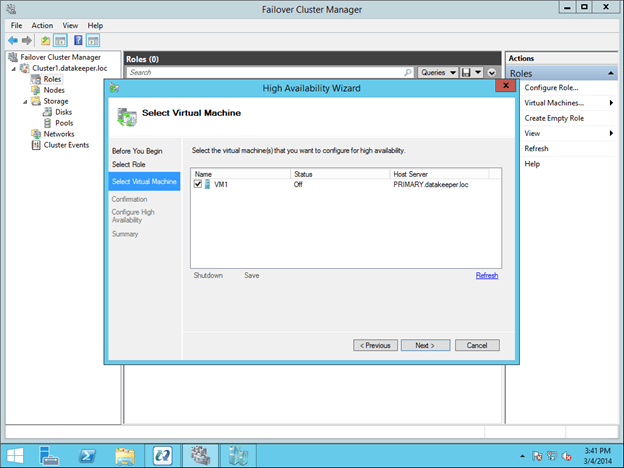
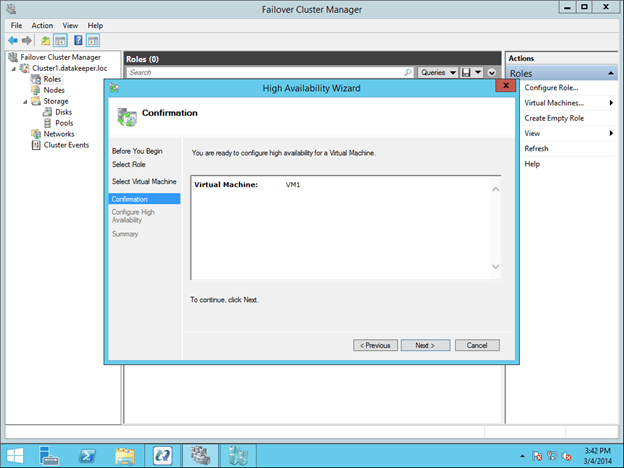
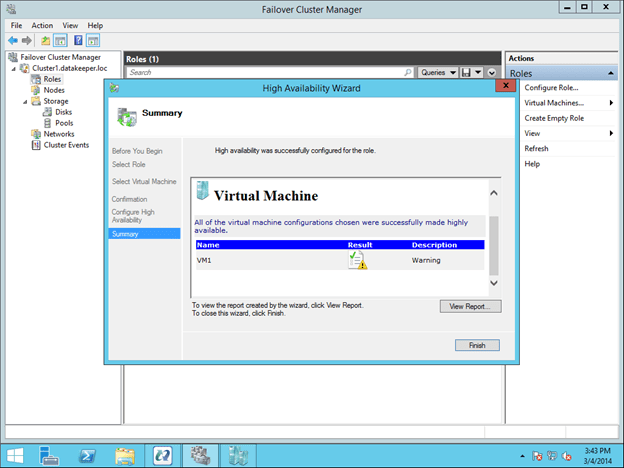
This will launch the High Availability Wizard. At this point you should select the VM that you want to cluster and step through the wizard as shown below.

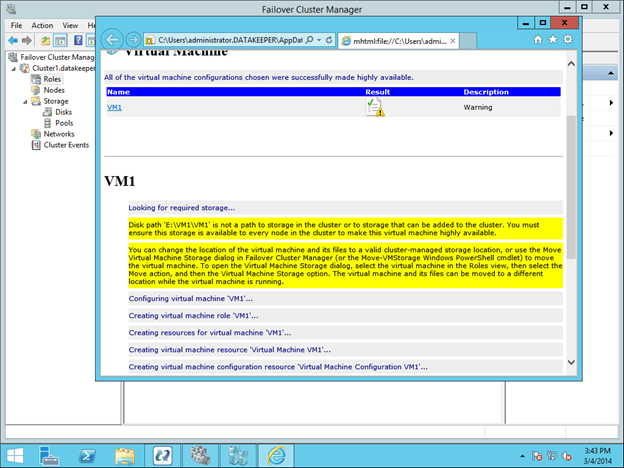
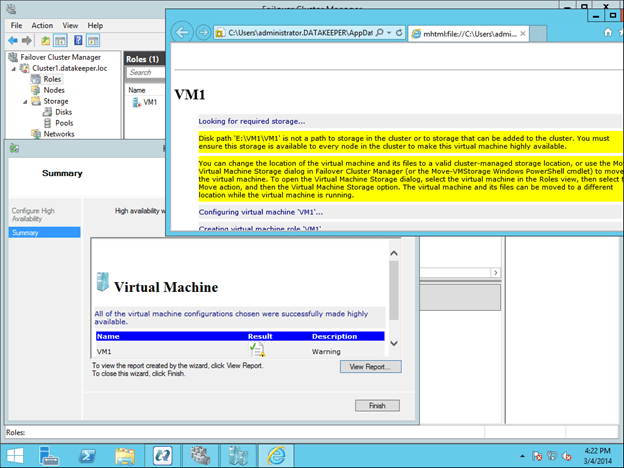
You will see that the VM resource will be created, but there will be some warnings. The warnings indicate that the E drive is not currently part of the VM Cluster Resource Group.

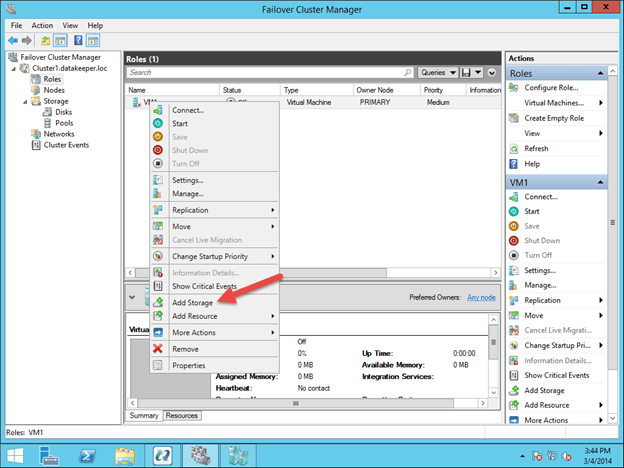
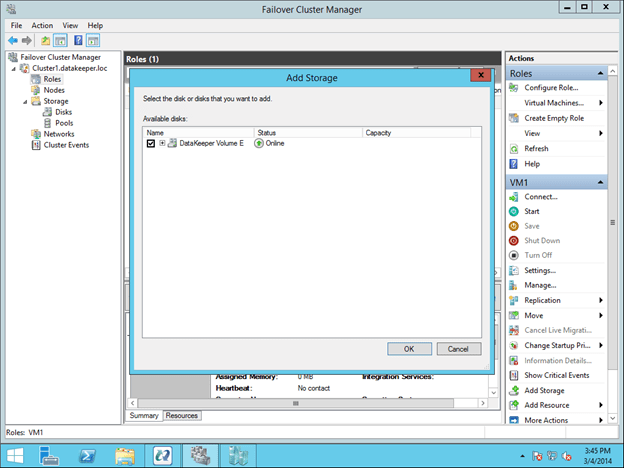
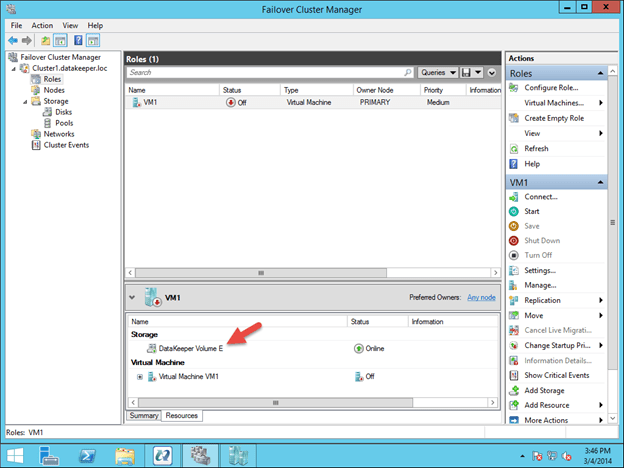
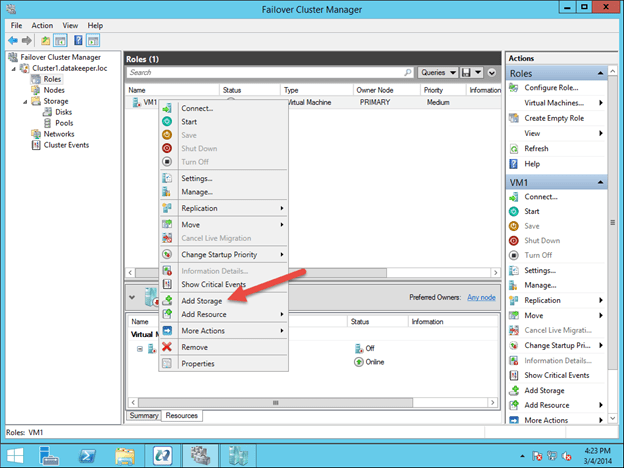
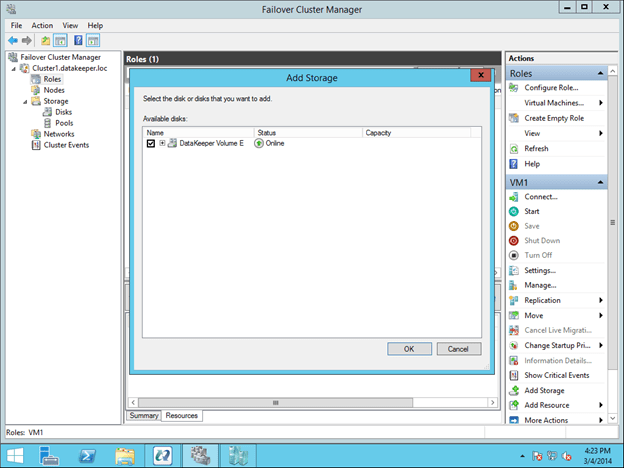
To make the DataKeeper Volume E part of the VM Cluster Resource Group, right click on the role and choose Add Storage. Add the DataKeeper Volume that you will see listed in Available Disks.

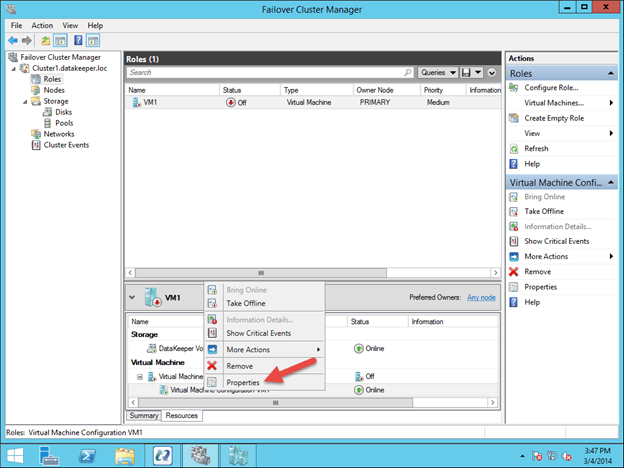
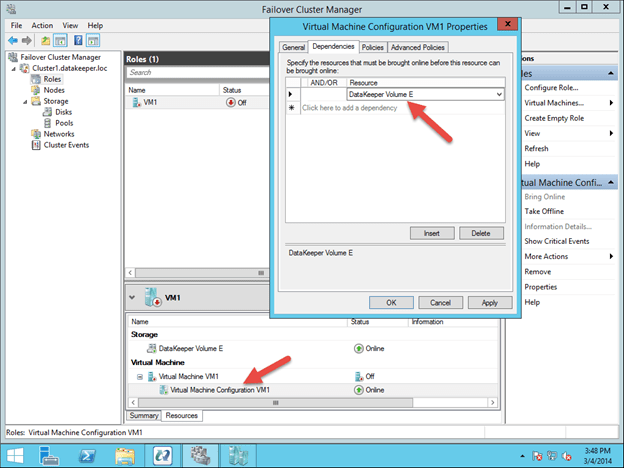
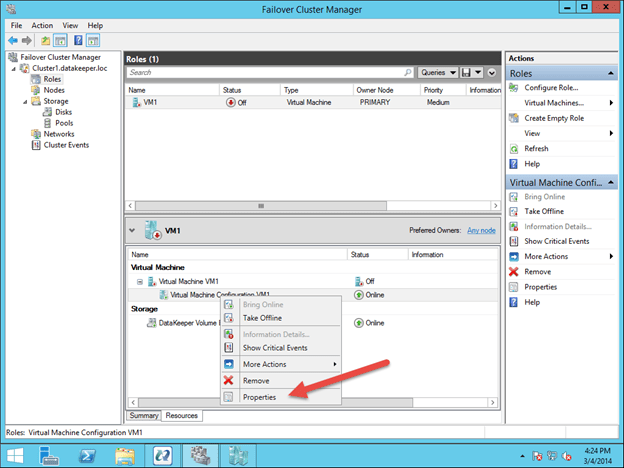
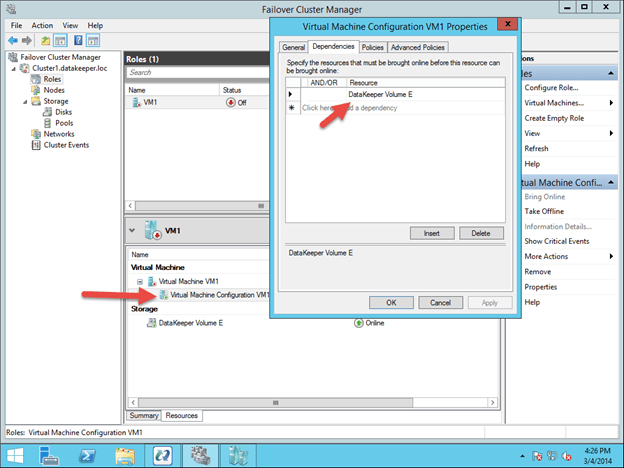
The last part is to choose the Properties of the Virtual Machine Configuration (not the Virtual Machine) resource and make it dependent upon the storage you just added to the resource group.

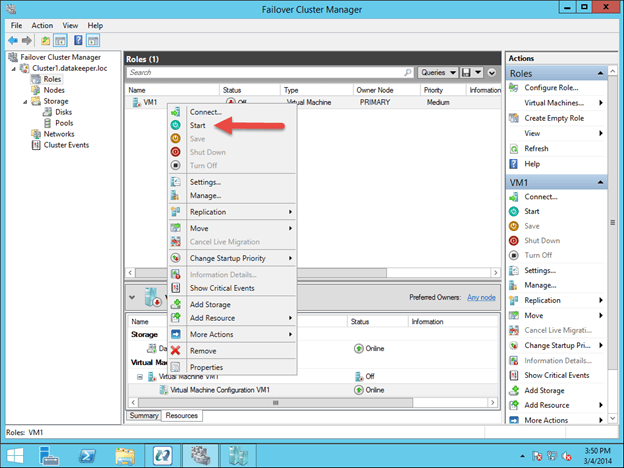
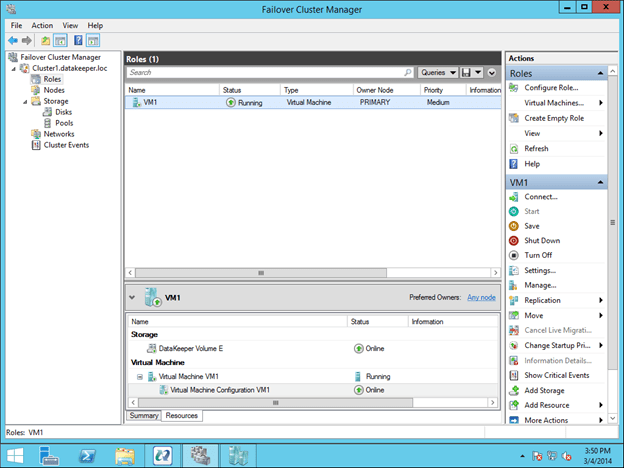
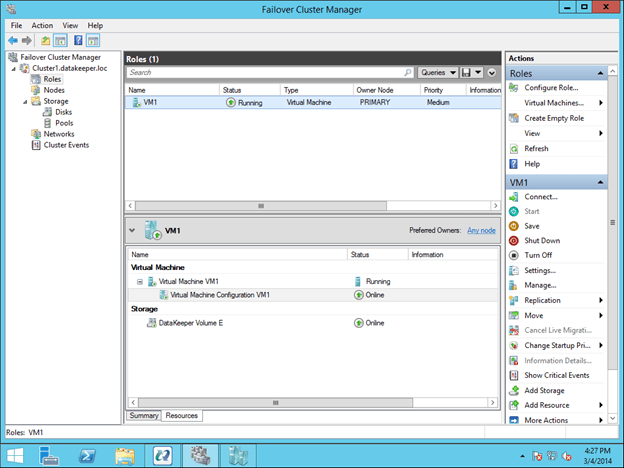
You should now be able to start the VM.

Option 2 – Creating a Highly Available VM from Scratch

Assuming you want to create a highly available VM from scratch, you can complete this entire process from the Hyper-V Virtual Machine Manager as shown below. This step assumes that you have already created a mirror of the E drive using DataKeeper as described in Configuring the DataKeeper Volume Resource section.

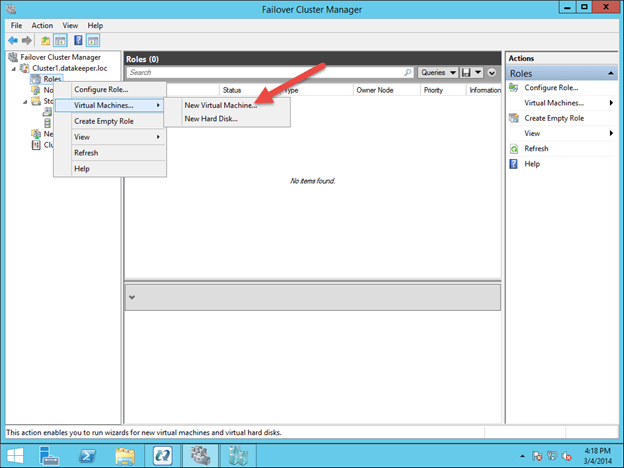
To get started, open the Failover Cluster Manager and right click on Roles and choose Virtual Machine – New Virtual Machine.

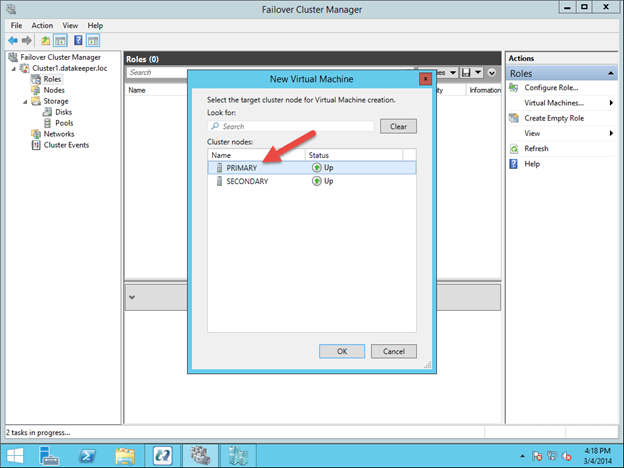
Follow through with the steps of the wizard and select the options that you want to use for the VM. When choosing where to place the VM, select the cluster node that currently is the owner of Available Storage, which will also be the source of the mirror.

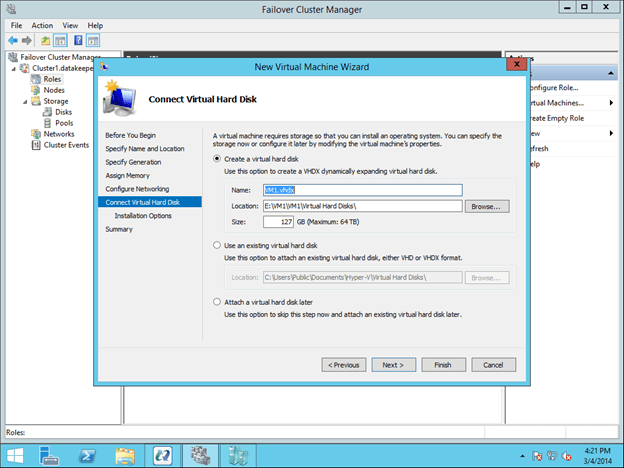
Make sure when specifying the Name and Location of the VM, you select the location of the replicated volume.

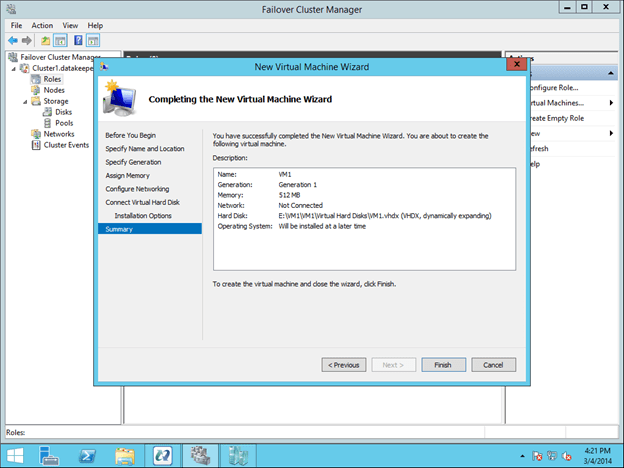
The rest of the options are up to you. Just make sure the VHD file is located on the replicated volume.

You will see the highly available VM is created, but there is a warning about the storage. You will need to add the DataKeeper Volume Resource to the VM Cluster Resource Group as shown below.

After the DataKeeper Volume is added to the VM Cluster Resource Group, you will need to add the DataKeeper Volume as a dependency of the Virtual Machine Configuration resource.

You now have a highly available virtual machine.

Summary

In this blog post we discussed what constitutes a #SANLess cluster. We discussed how DataKeeper Cluster Edition can be used to build a highly available Hyper-V cluster without the use of a SAN. Once built, the cluster behaves exactly like a SAN based cluster, including having the ability to do Live Migration, Quick Migration and automated failover in the event of unexpected failures.

A #SANLess cluster eliminates the expense of a SAN as well as the single point of failure of a SAN. DataKeeper Cluster Edition supports multiple nodes in a SAN, so configurations that stretch both LAN and WAN are all possible solutions for Hyper-V high availability and disaster recovery. DataKeeper supports any local storage, opening up the possibility of using high speed local attached SSD or NAND Flash storage for high performance without giving up high availability.


Configuring a #SANLess Hyper-V Failover Cluster with DataKeeper Cluster Edition

SQL Server – Massive Speed and High Availability

Check out this great article by SQL Server guru @MrDenny

Title: Massive Speed and HA

Subtitle: Two Things That Usually Don’t Go Together


First Paragraph: Question: William asks “I have a SQL Server which needs both high availability and high-speed storage. Even SAN storage with SSD based hard drives isn’t providing the performance levels that we are looking for, while still getting the failover cluster HA solution that we need for our SQL Server 2008 R2 database?”


Read More…

Article Link: http://sqlmag.com/blog/massive-speed-and-ha


Author: Denny Cheery (@MrDenny)

Source: SQL Server Pro / SQLMag.com

Source Link: http://sqlmag.com/

BIO

Denny Cherry is the owner and principal consultant for Denny Cherry & Associates Consulting and has over a decade of experience working with platforms such as Microsoft SQL Server, Hyper-V, vSphere and Enterprise Storage solutions. Denny’s areas of technical expertise include system architecture, performance tuning, security, replication and troubleshooting. Denny currently holds several of the Microsoft Certifications related to SQL Server for versions 2000 through 2008 including the Microsoft Certified Master as well as being a Microsoft MVP for several years.  Denny has written several books and dozens of technical articles on SQL Server management and how SQL Server integrates with various other technologies.

SQL Server – Massive Speed and High Availability

Webinar Invite: How to Deploy SQL Server AlwaysOn Failover Clusters in Amazon EC2 with @awscloud #amazonaws

Deploying Your Business Critical SQL Server Apps on Amazon EC2


Amazon Web Services (AWS) and SIOS Technology Corp, an AWS Partner Network (APN) Technology Partner, invite you to attend this live webinar to learn how to optimize mission critical SQL Server deployments on Amazon EC2.

Learn how to take advantage of the cost benefits and flexibility of Amazon EC2 while maintaining protection with native Microsoft Windows Server Failover Clustering – all without shared storage.

Who should attend:

Solution Architects, Developer, Development Leads and other SQL Professionals

Presenters:

Miles Ward, Solutions Architect, Amazon Web Services

Tony Tomarchio, Director of Field Engineering, SIOS Technology Corp

Date / Time:

Wednesday, June 5, 2013 – 10AM PT / 1PM ET

Click here to register

http://bit.ly/10VLtDu

Webinar Invite: How to Deploy SQL Server AlwaysOn Failover Clusters in Amazon EC2 with @awscloud #amazonaws

Installing SQL Server 2008 R2 in a Windows Server 2012 Cluster

If you want to install ANY version of SQL Server in a Windows Server 2012 environment I highly recommend you read the following KB article.

http://support.microsoft.com/kb/2681562

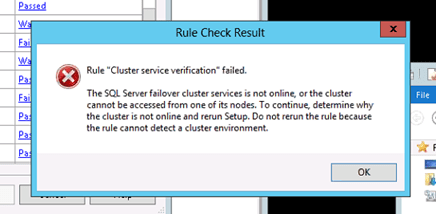
In particular, I ran into this error while trying to install SQL Server 2008 R2 on Windows Server 2012 and was running into the following error (among others).

Figure 1 – Rule “Cluster service verification” failed

The fix is simple, as described in the KB article, simply enable the Failover Cluster Automation Server in the Add Roles and Features wizard or via the following Powershell command:

add-windowsfeature RSAT-Clustering-AutomationServer

That fix will resolve the other Setup Support Rules errors including the cluster validation error and any errors about cluster storage. You should be able to re-run the SQL installation and it will pass all the Setup Support Rules and allow you to continue with the cluster install.

Of course all this assumes you have slipstreamed at least SP1 onto your SQL install media. If you try to install without SP1 or later you will also run into lots of problems.

Installing SQL Server 2008 R2 in a Windows Server 2012 Cluster

Why replicated clusters with DataKeeper are better than single copy SAN based clusters

If you have followed the history of clustering as closely as I have for the past 10 years as a Microsoft Cluster MVP, you will notice that Microsoft has been steadily been moving away from single copy clusters. It started with Windows Server 2003 with the elimination of a shared disk quorum and the introduction of majority node set quorums and the file share witness. The complaint with clusters based on shared disk quorums was that if the quorum became unavailable or corrupt, the entire cluster would fail. This was a major complaint and it primarily what gave clustering a bad name in the early days of clustering.

Once the shared disk quorum was eliminated, people were still left with their application data residing on the cluster which was also a problem as the SAN was still a single point of failure in a cluster, a performance impediment and a management headache. Microsoft has begun to address those concerns with the introduction of Exchange 2007 CCR and Exchange 2010 DAGs as well as SQL Server 2008 R2 Database Mirroring. Microsoft has eliminated Exchange 2010 single copy clusters entirely and SQL Server single copy clusters are only still around because they haven’t perfected SQL Server replication yet.

Hyper-V being the most recent cluster resource supported by Microsoft clustering does not yet have a native cluster integrated replication solution. This is where SIOS DataKeeper fits in. We first demonstrated our DataKeeper Hyper-V replication solution at the Microsoft Virtualization launch in September of 2008 and have been providing HA and DR solutions for Hyper-V since Hyper-V was first introduced. Our solution is logo certified for Windows Server 2008 R2 as well as Hyper-V.

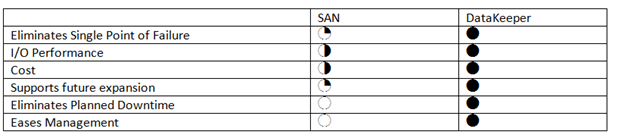
DataKeeper fills the gap left by single copy clusters as show in the table below and subsequent paragraphs. The following customer story also highlights some of the reasons why people are adopting DataKeeper in lieu of SAN based solutions.

http://www.computerweekly.com/news/2240177361/University-shuns-HP-array-features-for-SIOS-host-based-replication

Eliminates single point of failure

A SAN is a single entity made up of redundant pieces. To have a truly redundant SAN you need redundant controllers, power supplies, CPU’s, switches, UPS, RAM and the clients connecting to it need to have redundant NICs or HBAs and multi-path solutions configured. Even once you have eliminated hardware as a single point of failure, the SAN is still controlled by firmware which itself is a single point of failure. And then because the SAN resides in a single location, any physical disasters (think water, fire, etc.) also represents a risk.

I/O Performance

Given same disk specs, disk installed locally will perform better than disks stored on a SAN accessed via iSCSI. Also, using local storage opens up the possibility of using even higher speed storage solutions such as flash based PCIe storage which outperforms SANs that costs hundreds of thousands of dollars at a fraction of the costs.

Cost

Not only do you have to facture in the initial investment, which the DataKeeper solution wins by a significant percentage, you have to factor in the ongoing expense involved with maintenance, power and cooling required for any enterprise class SAN.

Supports future expansion for Disaster Recovery

Should disaster recovery solutions become a requirement in the future the DataKeeper solution can easily accommodate adding an addition Hyper-V node in a remote location in a multisite cluster configuration for a robust disaster recovery solution that includes the best RTO and RPO available. The SAN solution would require the purchase of an additional SAN, replication software and might not even include cluster integration as there are only a few solutions that actually integrate with failover clustering as well as DataKeeper does.

Eliminates Planned Downtime

With SAN based cluster solutions, any maintenance on the SAN requires planned downtime. The DataKeeper solution allows for rolling upgrades, meaning planned downtime for hardware maintenance is eliminated.

Eases management

SAN administration usually involves a SAN administrator who is familiar with the features and functionality of a SAN. The DataKeeper solution on the other hand is a simple software solution that is managed by the Windows Server administrator and features complete integration with Windows Server Failover Clustering, meaning the management is controlled through failover cluster, a tool which should be familiar with most Windows Administrators.

Summary

In summary, DataKeeper is able to provide a much more resilient cluster solution at a fraction of the cost of SAN based solutions.

Why replicated clusters with DataKeeper are better than single copy SAN based clusters

SQL Server 2012 AlwaysOn Multisite Failover Cluster Instance White Paper

Here is an excellent white paper on SQL Server Multisite Clusters, however they forget to mention that you can also do this with host based replication. Instead, they assume you have “two EMC Symmetrix VMAX enterprise storage arrays, one at each site. The arrays were both configured with two VMAX storage engines and 240 disk drives”. If you have a million plus dollars in your budget for storage, go ahead and knock yourself out. If not, you may want to look into some Fusion-io PCIe Flash storage and host based replication with DataKeeper cluster edition, faster than a SAN at a fraction of the cost with all the availability. Check out how Polaris Industries did just this http://www.fusionio.com/blog/polaris-sios/


SQL Server 2012 AlwaysOn Multisite Failover Cluster Instance White Paper

Windows Server 2012 Clustering Step-by-Step

This article is the first in a series of articles on Clustering Windows Server 2012. This first article covers the basics first steps of any cluster, regardless of whether you are clustering Hyper-V, SQL Server Failover Clusters, File Servers, iSCSI Target Server or others. Future articles will cover more detailed instructions for each cluster resource type, but the following information is applicable to ALL clusters.

I’m assuming you know a little bit about clusters and why you would want to build one, so I won’t go into those details in this particular post. I also assume you are familiar with Windows Server 2012 and basic things like DNS, AD, etc. It is also worth noting that in Windows Server 2012 failover clustering comes with every edition, unlike Windows Server 2008 R2 and earlier where failover clustering was only included in Enterprise Edition and above.

This particular series will focus on a basic 2-node cluster, where we have two servers (named PRIMARY and SECONDARY) running Windows Server 2012 in a Windows Server 2012 Domain (domain controller named DC). It also assumes that PRIMARY and SECONDARY can communicate with each other over two network connections I have labeled PUBLIC and PRIVATE. In production scenarios these network connections should run through entirely different network gear (switches, routers, etc) to eliminate any single point of failure.

This series will be written in a very basic, step-by-step style that walks you through the process in an ordered list with basic instructions and plenty of screen shots to help illustrate the procedure where needed. So let’s begin at the beginning…

  1. Add the Failover Clustering Feature on all of the servers you want to add to the cluster
    1. Open the Server Manager Dashboard (this 1st step will need to be completed on both PRIMARY and SECONDARY)
    2. Click on Add roles and features
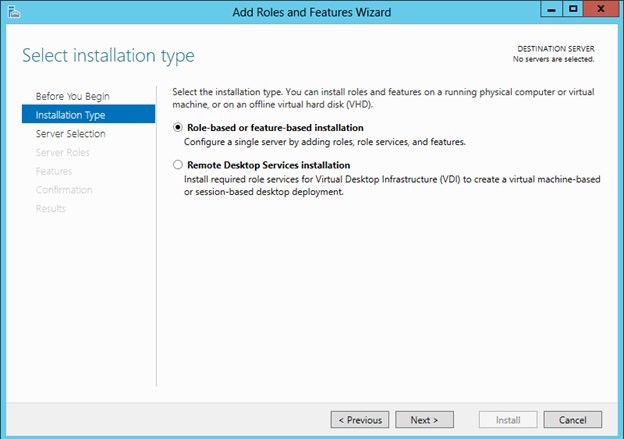
    3. Choose Role-based or feature-based installation

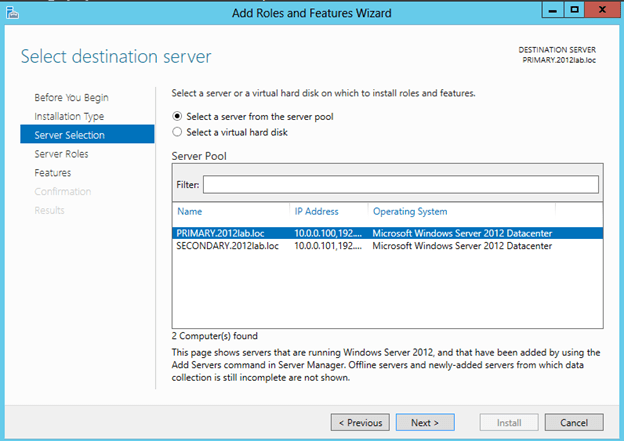
    4. Choose the server on which you wish to enable the failover cluster feature

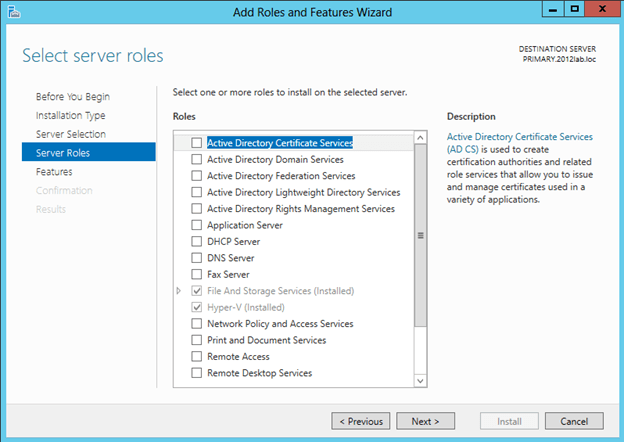
    5. Skip over the Server Roles page
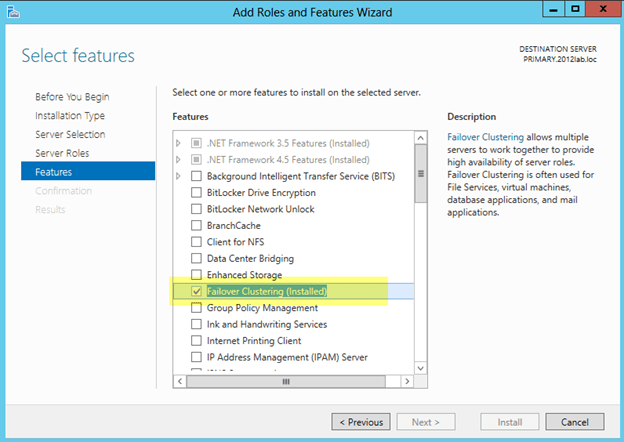
    6. On the Features page select Failover Clustering and click Next and then confirm the installation

  2. Before we start configuring the cluster, we need to consider what kind of storage the cluster will use. Traditionally clusters will use some sort of SAN, but with Windows 2012 not all clusters will use a SAN. For instance, if you are building a cluster to support SQL Server AlwaysOn Availability Groups your storage will be replicated by SQL Server, eliminating the need for a SAN. Also, with SMB 3.0 being support as cluster storage for Hyper-V and SQL Server you may not have a traditional SAN for storage. And let’s not forget clustered Storage Spaces with shared SAS drives is also a possibility in Windows Server 2012. In addition to the options mentioned above, you also can use local disks and 3rd party host based replication solutions like DataKeeper Cluster Edition which is an excellent alternative which I blog about pretty frequently.

    For the purposes of this post, I am going to assume you have no shared storage. However, if you do have shared storage at this point you should configure you storage such that you have LUN(s) carved out and shared with each of the cluster nodes with one LUN being used as a disk witness and the remaining LUNs can be used for the application which you want to cluster. In lieu of a disk witness for our quorum, I am going to use a node and file share witness quorum type which I will explain later.

  3. Now that Failover Clustering is enabled on each server, you can open the Failover Cluster Manager on your PRIMARY server. The first thing we will want to do is to run “Validate Configuration” so we can identify any potential issues before we begin. Click on Validate Cluster

  4. Step through the Validate a Configuration Wizard as shown in the following steps.
    1. Select the servers you want to cluster
    2. Run all tests (depending on what roles you have installed on the servers you may get more or less tests. For instance, if Hyper-V is enabled there are new Hyper-V specific tests for clusters)
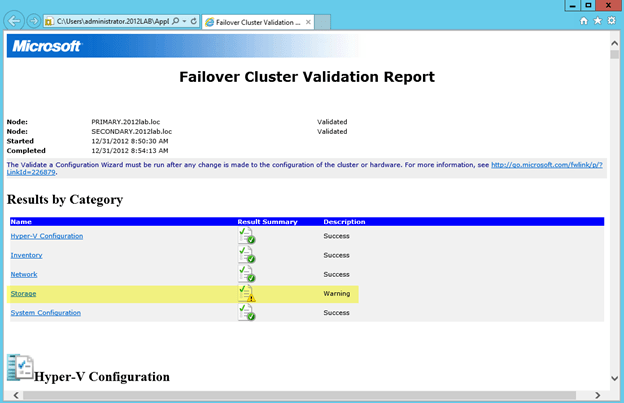
    3. Assuming you cluster “passed” validation you should have a report that looks similar to mine. You will notice that my report contains “warnings” but no errors. It is important for you to view the report and understand what warnings might be present, but you as long as you understand the warnings and they make sense for your particular environment you can move on. If you validation “failed”, you MUST fix the failures before moving on. Click View Report to view the report
    4. You will see all of my warnings are related to storage, so I am not concerned since I have not configured any shared storage, so I would expect some of these thests to produce warnings.


  1. Once Validation completes without any errors, you will automatically be thrown into the Create Cluster Wizard. Walk through this wizard as shown below to create your basic cluster.
    1. In this first screen you will choose a name for your cluster and pick an IP address that will be associated with this name in DNS. This name is just the name used to manage your cluster – this is NOT the name that your clients will use to connect to the clustered resource(s) you will eventually create. Once you create this access point a new computer object will be created in AD with this name and a DNS A record will be created with this name and IP address.
    2. On the confirmation screen you will see the name and IP address you selected. You will also see an option which is new with Windows Server 2012 failover clustering…”Add all eligible storage to the cluster”. Personally I’m not sure why this is selected by default, as this option can really confuse things. By default, this selection will add all shared storage (if you have it configured) to the cluster, but I have also seen it add just local, non-shared disks, to the cluster as well. I suppose they want to make it easy to support symmetric storage, but generally any host based or array based replication solutions are going to have some pretty specific instructions on how to add symmetric storage to the cluster and generally this option to add all disks to the cluster is more of a hindrance than a help when it comes to asymmetric storage. For our case, since I have no shared storage configured and I don’t want the cluster adding any local disks to the cluster for me automatically I have unchecked the Add all eligible storage to the cluster option.

    3. After you click next you will see that the cluster has finished the creation process, but there may be some warnings. In our case the warnings are probably related to the quorum configuration which we will take care of in the next step. Click View Report to check out any warnings.

      You see that the warning is telling use to change the quorum type.
  2. Because we have no shared storage, we will not be using a Node and Disk Majority quorum as suggested. Instead, we will use and Node and File Share Majority quorum. The following steps will help us configure the Node and File Majority Quorum
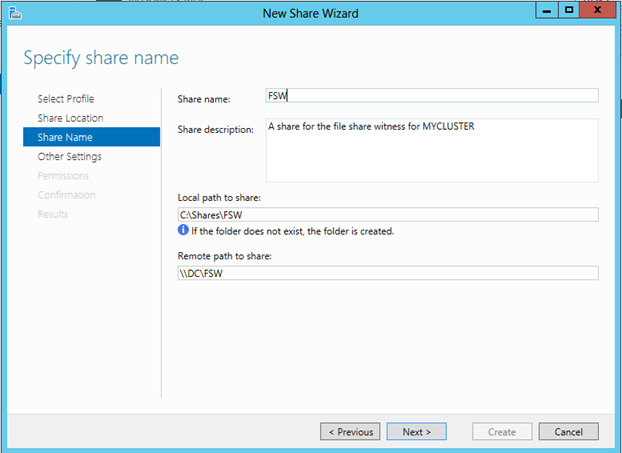
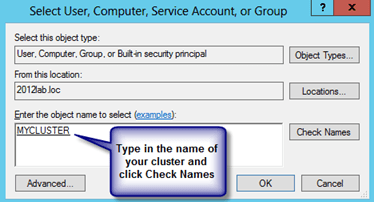
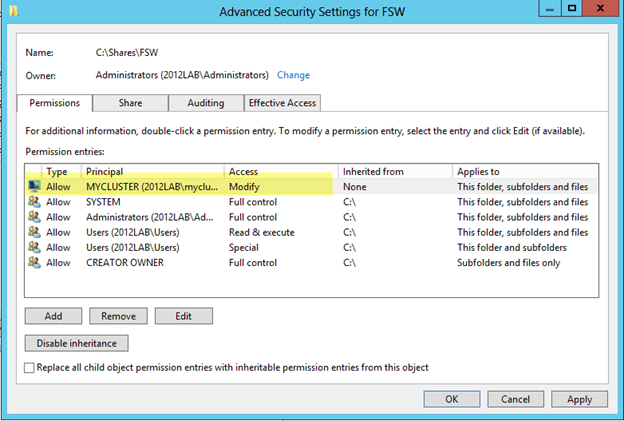
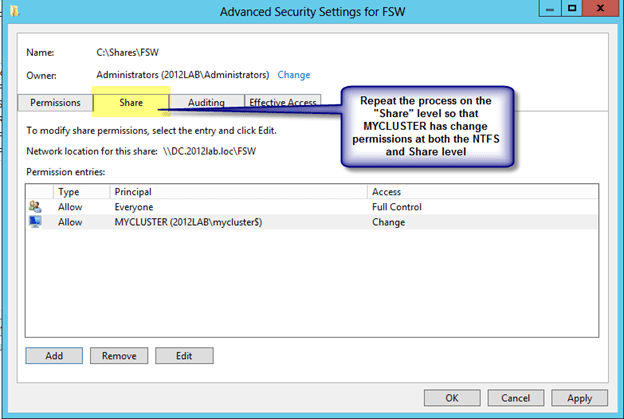
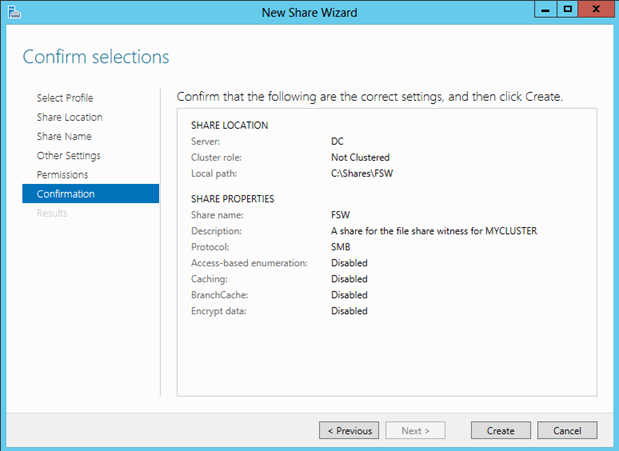
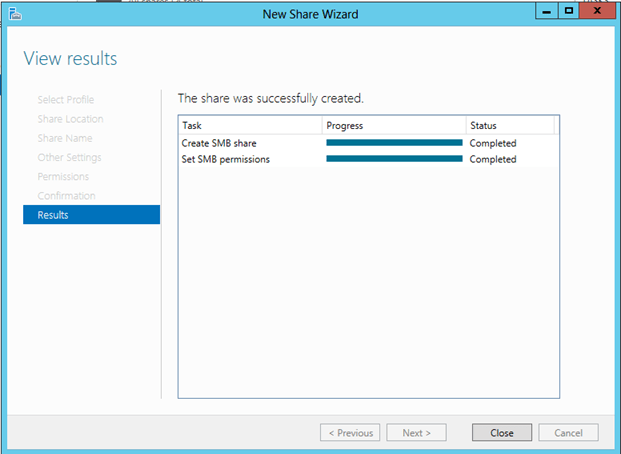
    1. A File Share Witness needs to be configured on a server that is not part of the cluster. A file share witness is a basic file share that the cluster computer name (MYCLUSTER in our case) has read/write access. The first step involves creating this file share. In our example, we are going to create a file share on our DC and give MYCLUSTER read/write access to it.
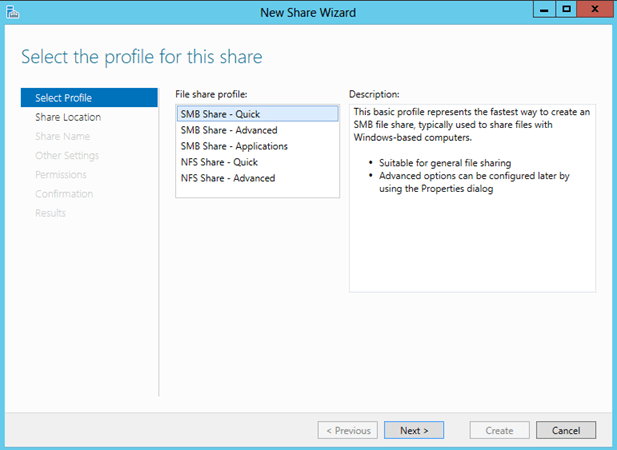
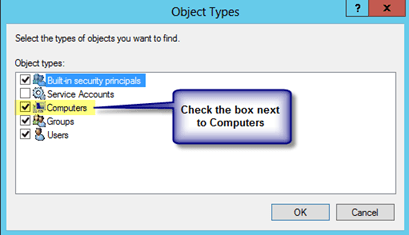
    2. The file share does not need to reside on a Windows 2012 server, but it does need to be on a Windows Server in the same domain as the cluster. The important thing to remember is that the cluster computer name that we created needs read/write access at both the share level and NTFS level. The following are some screen shots that walk you through this process on the DC server which is running Windows Server 2012 in my lab.


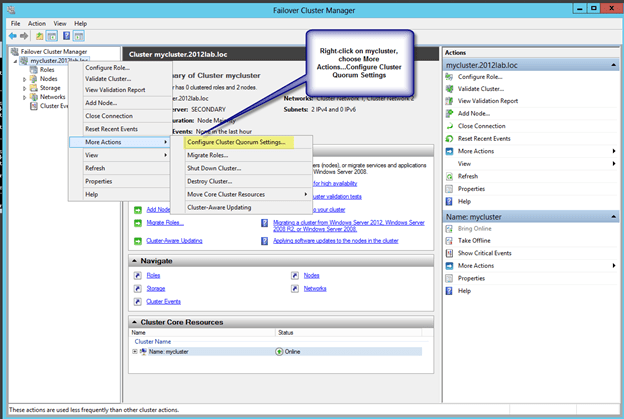
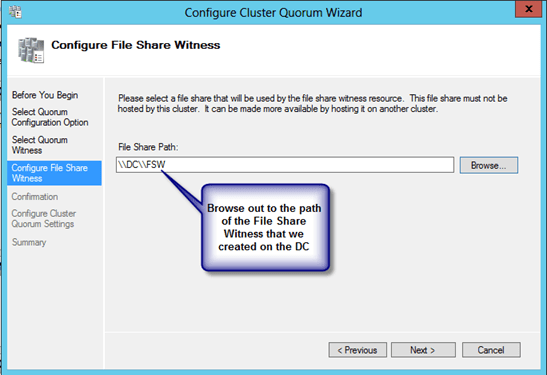
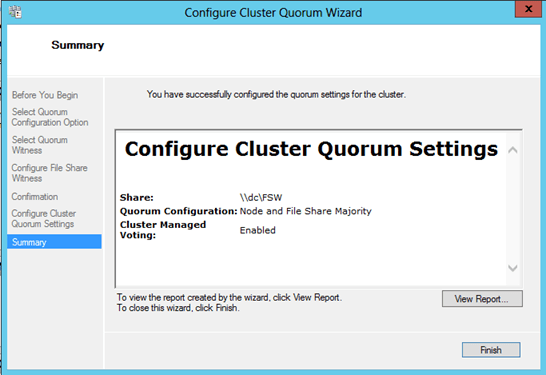
    3. Now that we have the file share created on DC, we will go back to PRIMARY and use the Failover Cluster Manager to change the quorum type as shown in the following steps.


      If by chance this wizard fails, it is most likely related to the permissions on the file share. Make sure you give the cluster computer name read/write permissions at BOTH the file share and security (NTFS) level and try again.
  3. You now have a basic 2-node cluster and are ready to move on to the next step…creating your cluster resources. I will be publishing a series of articles on how to cluster different resources, starting with SQL 2012 in my next post.


Windows Server 2012 Clustering Step-by-Step

Want SQL Server AlwaysOn Features But Can’t Afford SQL 2012 Enterprise Edition? #SQLPASS

No doubt AlwaysOn Availability Groups is a hot topic here at SQL PASS Summit. As I mentioned in my previous posts, you need to consider the overhead associated with AlwaysOn as well as other limitations, If however you can deal with the overhead and the limitations do not apply to you and you still want to deploy AlwaysOn Availability Groups you may want to have a seat when you go open your checkbook.

I priced out (list price) a 2-node solution using SQL Server 2012 AlwaysOn Availability Groups with a read-only target with a typical 2-socket, 16-core server configuration. I also added a comparable configuration running DataKeeper Cluster Edition on SQL 2012 Standard Edition and was as SQL 2008 R2 Enterprise Edition.

As you can see, deploying SQL Server 2012 Enterprise Edition (required for Availability Groups) your expense is much greater than if you deploy a similar replicated cluster solution using DataKeeper Cluster Edition.

Stop by both 351 at PASS Summit to see a demo and get more information.

Want SQL Server AlwaysOn Features But Can’t Afford SQL 2012 Enterprise Edition? #SQLPASS

Hurricane Sandy Disaster Recovery for Business

My thoughts and prayers go out to those affect by this massive storm. Although I live in NJ, my neighborhood remained relatively unscathed other than some downed trees and power lines. The pictures coming in from the coastal communities up and down the eastern seaboard show that many people did not fare as well. I’m hopeful that most of the damage is property that can be rebuilt, but I am sorry to hear that some people lost their lives and I can only imagine the pain of their friends and family – I am truly sorry for their loss.

As an employee of a company that specializes in disaster recovery software, I am also privy to many stories of companies that lost data that cannot be replaced. Many of these companies never recover from such catastrophes, but those that do are usually the ones who immediately look to put into place a plan that includes some sort of real-time data protection that includes replicating their critical data offsite or to some cloud repository so they are never caught in such a predicament again. If that is your story or even if you were lucky enough to avoid disaster this time but want to prepare ahead, please contact me immediately so I can help you assess your risks and recommend some data protection and disaster recovery solutions to help mitigate the risks.

Hurricane Sandy Disaster Recovery for Business