Virtualization Career Training with Microsoft Learning

Guest announcement from my friend and Microsoft Technical Evangelist, Symon Perriman….

Please check out these two exciting virtualization career training opportunities: http://mctreadiness.com/MicrosoftCareerConferenceRegistration.aspx?pid=270.

Virtualization Career Training

On Tuesday, October 4th Technical Evangelists Symon Perriman and Rick Claus are hosting an online conference on Virtualization Career Training with Microsoft Learning.  This half day virtual event (8am – 11am PST) will offer a Level
100
to 200 introduction for anyone who wants to learn more about Microsoft Virtualization and how it can help their career.  It is free and public so sign up for this warm-up for the Jump Start event on October 6th.

        Module 1 – Technology: Learn about Microsoft’s virtualization technologies, how they work, and the future roadmap to the Cloud!

        Module 2 – Career: Understand the importance of virtualization and Private Cloud, and how it can make or break an IT Professional’s career!

        Module 3 – Certification: Get prepared for your next steps towards a virtualization career by understanding and preparing for the Microsoft 70-659 Technical Specialist exam, Windows Server 2008 R2, Server Virtualization.

Learn More: http://mctreadiness.com/MicrosoftCareerConferenceRegistration.aspx?pid=270

Register: http://mctreadiness.com/MicrosoftCareerConferenceRegistration.aspx?pid=288

Instructor Bios:  http://mctreadiness.com/MicrosoftCareerConferenceRegistration.aspx?pid=287


Virtualization Exam 70-659 Training

On Thursday October 6th Technical Evangelist Symon Perriman and Technical Instructor Philip Helsel will host an online 8-hour deep dive training event for the Microsoft 70-659 Technical Specialist exam, Windows Server 2008 R2, Server Virtualization.  This virtual event runs from 8am to 5pm PST and will include presentations, demos and live Q&A with the attendees.   It costs $99 to attend, but includes a free exam voucher worth $150!  It is public so sign up for some great training to help improve your career here: http://mctreadiness.com/MicrosoftCareerConferenceRegistration.aspx?pid=272.  Register early to make the most of a weekly virtualization coaching newsletter!

        Module 1 Installing and Configuring Host and Parent Settings

        Module 2 Configuring Child Settings

        Module 3 Managing and Monitoring Virtual Environments

        Module 4 Ensuring High Availability and Recoverability

        Module 5 Performing Migration

        Module 6 Configuring Remote Desktop (RD) Role Services Infrastructure

Technologies that we will cover include: Windows Server 2008 R2, Hyper-V, System Center Virtual Machine Manager (VMM), System Center Operations Manager (OpsMgr), System Center Data Protection Manager (DPM), Windows Server Backup, Failover Clustering, Remote Desktop Services, Active Directory, Microsoft Assessment & Planning Toolkit (MAP), Virtual Machine Servicing Tool (VMST), Windows Server Update Services (WSUS) & more!
Learn More: http://mctreadiness.com/MicrosoftCareerConferenceRegistration.aspx?pid=274

Register: http://mctreadiness.com/MicrosoftCareerConferenceRegistration.aspx?pid=272

Exam Information: http://www.microsoft.com/learning/en/us/Exam.aspx?ID=70-659

Thanks!
Symon Perriman
Technical Evangelist
Private Cloud Technologies
Microsoft

See videos on TechNet

Follow announcements @SymonPerriman
Virtualization Career Training with Microsoft Learning

Windows Server 8 Developer Preview will not support the Hyper-V Role while running on VMware Workstation…at least on my laptop

Unless someone knows a trick that I don’t, it doesn’t appear as if I will be able to test out some of the Hyper-V clustering features unless I identify some actual hardware for Windows 8. I had hoped that just maybe VMware Workstation 8 would be able to fool Windows 8 into thinking it was actually a physical server, but so far no dice. This article appears to indicate it will work if you have an Intel Nehalem or Intel Core i7 processor, but my two year old Intel Core 2 Duo T9500 doesn’t seem to be able to do the trick.

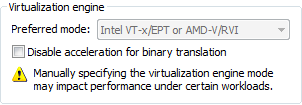
I added the hypervisor.cpuid.v0 = “FALSE” to the config file and I changed the CPU settings to use Intel VT –x/EPT as shown below.

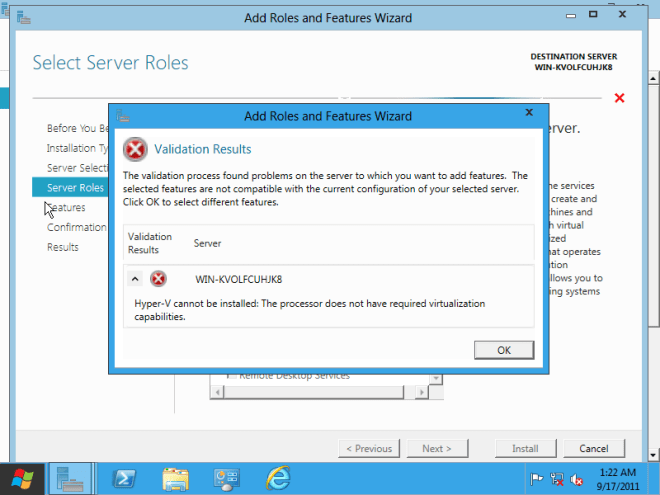
But this is what I get when I try to enable the Hyper-V role.

Maybe it is time to invest in a new laptop?

Windows Server 8 Developer Preview will not support the Hyper-V Role while running on VMware Workstation…at least on my laptop

Windows Server 8 Developer Preview Running on VMware Workstation 8

I’m pretty excited that I was able to get Windows Server 8 up and running on my laptop today. I wasn’t really looking forward to having to boot from VHD just to check out some of the features. I really wanted to run multiple copies of Windows Server 8 at the same time so I could check out some of the cool new clustering features, so once again, booting my laptop from a VHD really wasn’t going to give me the experience I needed. I do have some servers running Hyper-V that would have been fine, but I really like having something quick and easy on my laptop that I can fire up anywhere at any time. VMware Workstation has been my go to virtualization platform for my Windows 7 laptop for quite some time due to the lack of a real client based hypervisor alternative from Microsoft.

When I downloaded the Windows Server 8 Developer Preview Edition from MSDN earlier this week I was assuming I was getting an installation ISO. What I discovered was that I actually downloaded a pre-installed VHD. I haven’t gone back yet to check to see if there is an ISO, but from reading the blogs it appears there is an ISO available somewhere, so I probably just grabbed the wrong file. Without a Hyper-V player available for Windows 7 (well, maybe VirtualBox?), I decided to get really crazy and try out the free Starwind V2V Converter and turn it into a bootable VMDK file so I could launch it in VMware Workstation.

I found the Starwind V2V Converter to be very straight forward and soon enough I had a VMDK file ready to launch in VMware Workstation. What I soon found out was that you cannot run Windows Server 8 Developer Preview in VMware Workstation 7; you need the newly released Workstation 8. In VMware Workstation you get a message that begins as follows…

*** VMware Workstation internal monitor error ***
vcpu-0:NOT_IMPLEMENTED vmcore/vmm/intr/apic.c:1903

So, I went ahead and upgrade to Workstation 8 and tried to turn on the converted VMDK file. At first I got a message about hardware being changed and the VM would not start, but after I adjusted the processor so that it match the processor that I have (1 CPU, 2 Core) the VM launched! One other setting you need to make sure to set right is the operating system version. Since Windows 8 is not an option yet, choose Windows 7. Windows 7 x64 doesn’t work – make sure you choose Windows 7!

I tried to install the VMware tools, but that didn’t work out so well for me as I simply got a black screen with a pointer after the tools were installed. Until they come out with VMware tools specific for Windows 8 I would avoid installing the VMware tools for the time being.

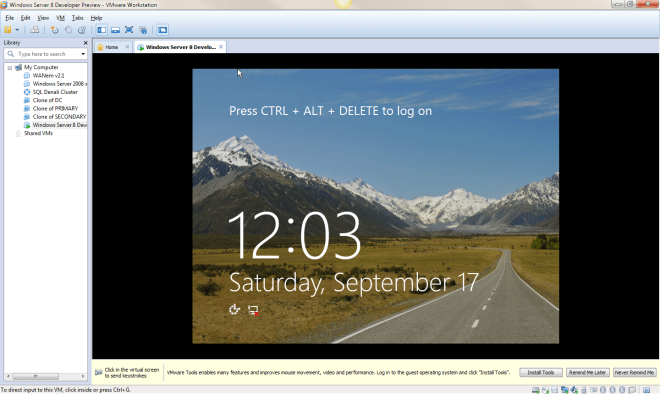
Here is my first view of Windows 8. I’ll be writing more about the HA features and Hyper-V next week once I start poking around J

Windows Server 8 Developer Preview Running on VMware Workstation 8

Do You Have to Sacrifice High Availability for High Performance?

Mosey on over to the Fusion-io website and read my guest post in their blog, Do You Have to Sacrifice High Availability for High Performance? After you are done there, view the joint SIOS and Fusion-io webinar “SQL Server 2008 – High Performance and High Availability Through Fusion-io and SIOS”

Part of this webinar includes some VERY interesting benchmark information…you won’t want to miss it!

Do You Have to Sacrifice High Availability for High Performance?

Hyper-V Replica Coming in Windows Server “Next”

Here is an interesting video that demonstrates “Hyper-V Replica”, a new feature coming in the next version of Windows. Skip to the 39 minute mark to see the demonstration.

http://digitalwpc.com/Videos/AllVideos/Permalink/3cb3788c-5c47-4b9e-987c-0dec4194058b/#fbid=slfi0dmNMqP

It looks like a very welcome feature that certainly will make Hyper-V even more competitive when comparing the feature set vs. price between vSphere and Hyper-V, especially with the new pricing announced by VMware.

I’ll be very curious to see if this integrates with Windows Server Failover Clustering to allow you create shared nothing clusters as you can today with 3rd party replication software like SteelEye DataKeeper Cluster Edition as I demonstrated in an earlier blog post.

https://clusteringformeremortals.com/2009/09/17/hyper-v-live-migration-across-data-centers/

Hyper-V Replica Coming in Windows Server “Next”

SQL Server Denali HADRON Multisite Cross Subnet Failover Video Demonstration

The crowd has spoken and the SQL Server Team has answered! Denali is the first version of SQL Server to support the cross subnet failover feature first introduced in Windows Server 2008 Failover Clustering. It seems like we have been waiting forever for the SQL team to support this feature but the wait is finally drawing to an end.

The following is a link to a 5 minute video that demonstrates a 3-node cluster Denali cluster with two nodes in the primary datacenter and one node in the DR site in a separate subnet.

http://screencast.com/t/ni1zqMOIv

I will be demonstrating this solution at Tech-Ed 2011 in Atlanta this week. Stop by the SIOS Technology booth and have a look for yourself at the SQL Server Denali multisite cluster demonstration using SteelEye DataKeeper.

SQL Server Denali HADRON Multisite Cross Subnet Failover Video Demonstration

Microsoft multisite cluster users rejoice – it is now possible to have automatic failover in a 3 node cluster!

Microsoft recently released a patch that allows you to specify whether or not a cluster node can vote in in a majority quorum model. This is particularly useful in a multisite cluster configuration that consists of an even number of nodes.

http://support.microsoft.com/kb/2494036

Consider the following…

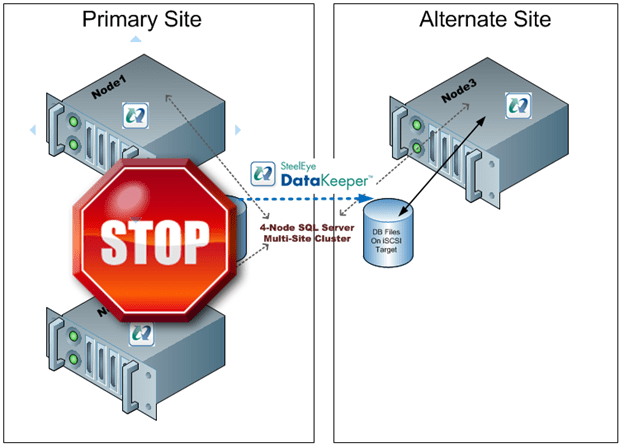
I have a two node cluster in a local site high availability and I wish to extend it to a 3rd location and add a single node for disaster recovery. Sound like a great plan as a multisite cluster is just about the most robust DR plan you can implement. However, you will not be able to take advantage of one of the best features of a multisite cluster – automatic recovery in the event of a site loss. If you were to lose your primary site the DR site only contains one cluster node (see Figure 1). This is just one vote out of three in the cluster so a majority cannot be obtained and Node3 will not come online automatically. The only way to make Node3 come online is to force the quorum online, which kind of defeats the purpose of multisite cluster by requiring human intervention for a failover to happen.

Figure 1 – In a typical 3 node multisite cluster if you lose the primary site the DR site cannot obtain majority so failover never occurs.


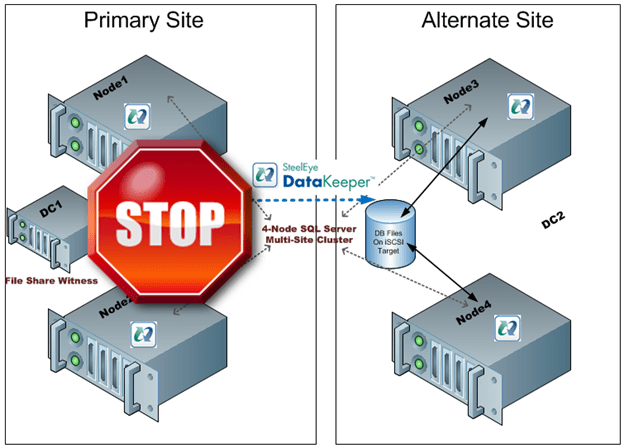
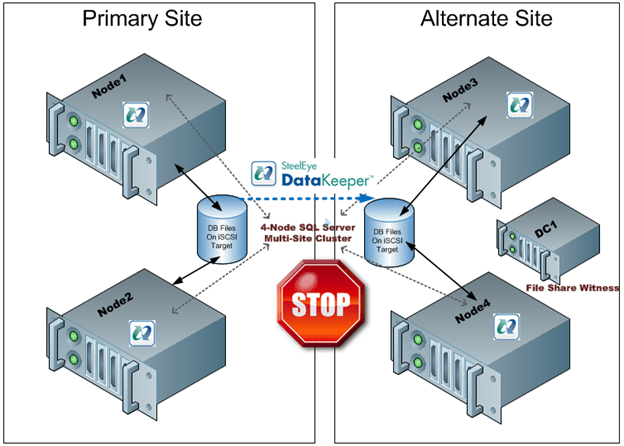
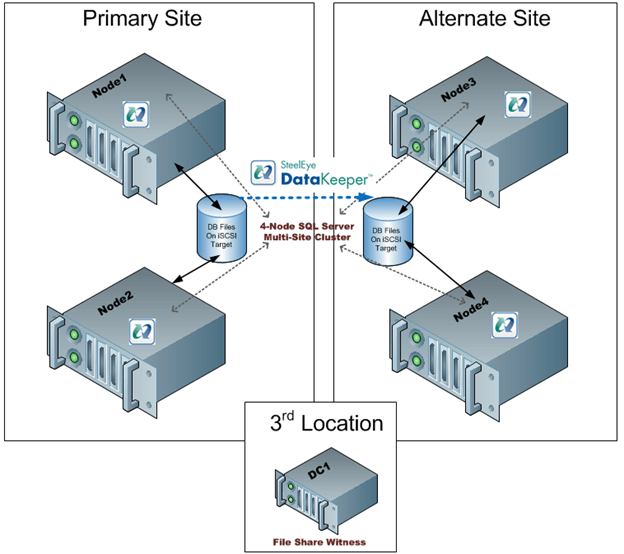
The only “safe” way to have automatic failover in a multisite cluster is to have an equal number of nodes in each site and to have a file share witness in a 3rd location with connectivity back to both the primary site and the DR site. This concept is a little difficult to grasp at first, so let me attempt to explain through illustrations.

Figure 2- With an even number of nodes in both locations and the file share witness in the primary site a loss of the primary site would not result in a failover as the Alternate Site would only have 2 out of 5 votes, not a majority.


Figure 3 – If the file share witness was moved to the Alternate Site a failure of the WAN would cause a false failover as the Alternate Site would form a majority and come online.


Figure 4 – with the file share witness in a 3rd location failover will occur if the Primary Site is lost and false failovers are avoided in the case of connectivity failure between the Primary and Alternate Site.

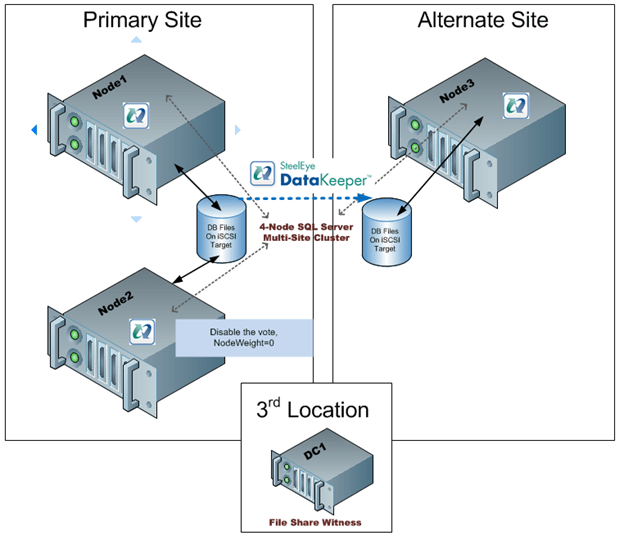
As you can see, figure 4 represents the only reasonable configuration which supports automatic failover. However, this assumes that there are an equal number of nodes in each location. If you are stuck with the original 3-node configuration you are stuck as adding a file share witness does not help as you can never achieve a majority in the alternate site…until today! Microsoft release a patch that basically allows you to specify whether or not a node gets to vote or not. So what this means is you can build a 3-node cluster as illustrated in Figure 1, yet take advantage a file share witness in a 3rd location as illustrated in Figure 4. By simply telling one of the nodes in the Primary Site to note vote in the cluster you will allow the Alternate Site to form a majority with the file share witness and come online. Assuming connectivity to your 3rd location and Alternate Site is relatively reliable there really is no downside to the configuration shown in Figure 5.

Figure 5 – by disabling the vote on Node2 you can deploy a 3-node multisite cluster with a file share witness and safely support automatic failover to the DR site. The same concept can be applied to any cluster with an odd number of nodes.

While this is a great solution, you still need that 3rd location for the file share witness. If you don’t have that 3rd location you will just have to settle for a manual switchover and keep the file share witness in the primary site if you have an even number of nodes.

The PreventQuorum switch is also included as part of this hotfix which will also be of interest to people deploying multisite clusters. Well explore that option in a future article.

Get the hot fix here…

A hotfix is available to let you configure a cluster node that does not have quorum votes in Windows Server 2008 and in Windows Server 2008 R2

http://support.microsoft.com/kb/2494036

Microsoft multisite cluster users rejoice – it is now possible to have automatic failover in a 3 node cluster!

Step-by-Step: How to extend a traditional Microsoft shared storage failover cluster into a multisite cluster with hybrid shared/replicated storage using SteelEye DataKeeper Cluster Edition

Introduction

The following are the high level steps required to turn an existing 2-node File Server cluster into a 3-node multisite cluster using SteelEye DataKeeper Cluster Edition. The same steps can be applied to most cluster resource types including Hyper-V, DHCP, Generic Service, etc. However, if you are working with a SQL Server cluster the steps will be slightly different as adding a node to the cluster is done through the SQL installation process and not the Failover Cluster Manager.

These instructions assume you have at least base level knowledge of Windows Server Failover Clustering and some familiarity with SteelEye DataKeeper Cluster Edition. Also, these instructions do not address any changes which may be required to support cross subnet failover utilizing the new “OR” functionality introduced in Windows Server 2008 R2. For further information on deploying multisite clusters refer to the following resources:

Step 1 – Start with a traditional shared storage cluster

Step 2 – Remove any Physical Disk resources from the clustered service

Step 3 – Delete the Cluster Disk from Available Storage

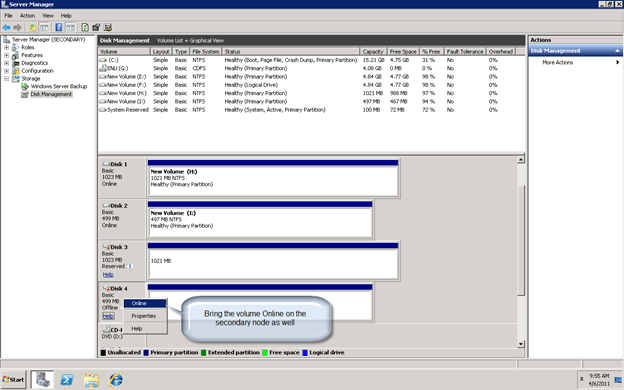
Step 4 – Bring the shared volume Online on all cluster nodes

Step 5 – Verify that the volumes brought online all have the same drive letter across cluster nodes. At this time Disk Management may not display the drive letters but you should be able to verify the drive letters through Windows Explorer.

Step 6 – Change your Quorum type to node majority (if you will have an odd number of nodes) or Node and File Share Majority (if you have an even number of nodes).
[EDIT] – This is no longer necessary as of Windows Server 2016 since the quorum is maintained with Dynamic Quorum and Dynamic Witness

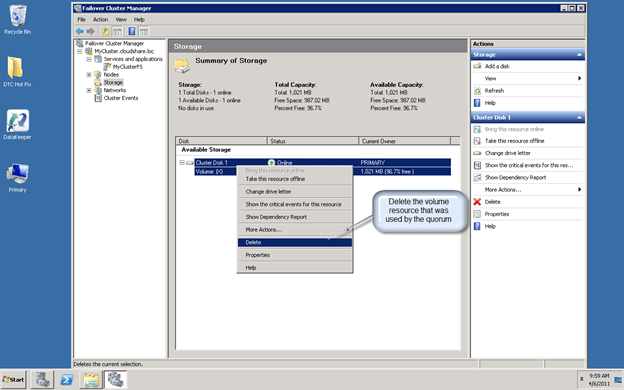
Step 7 – Delete the volume resource that is in Available Storage

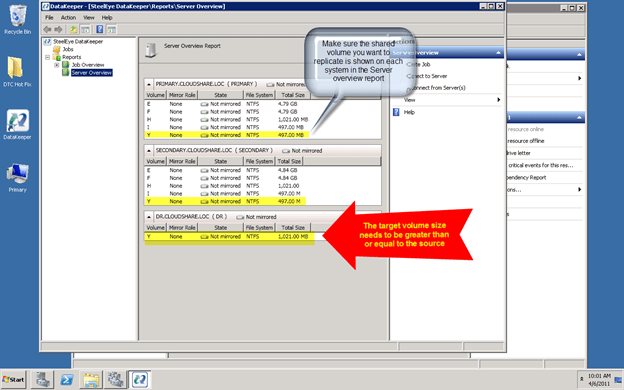
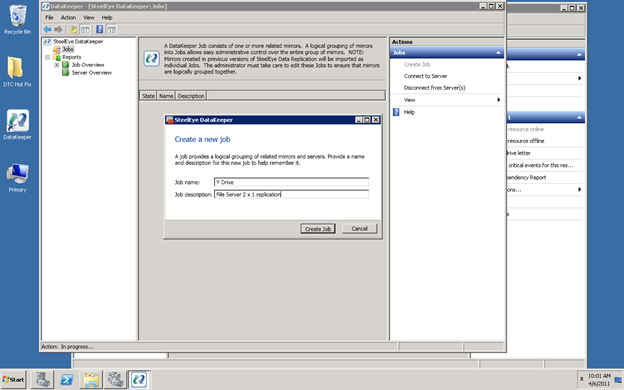
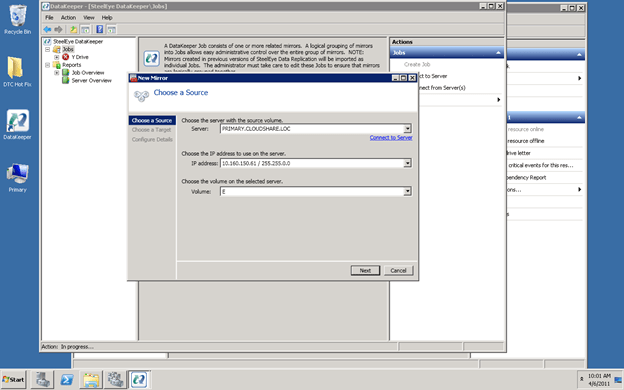
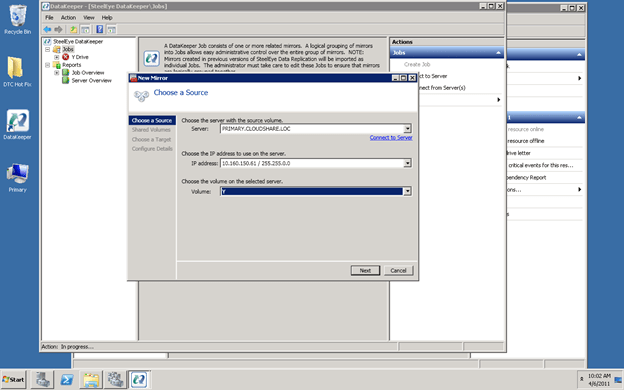
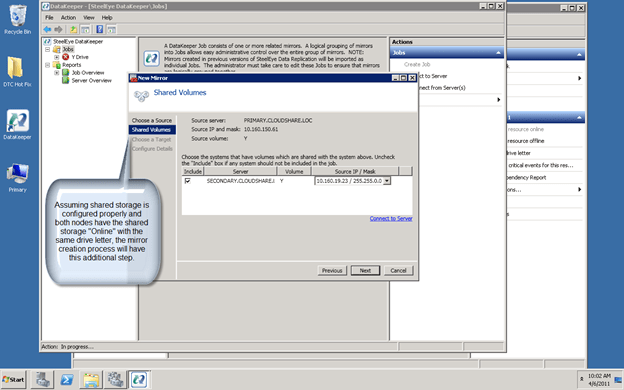
Step 8 – Create your mirror

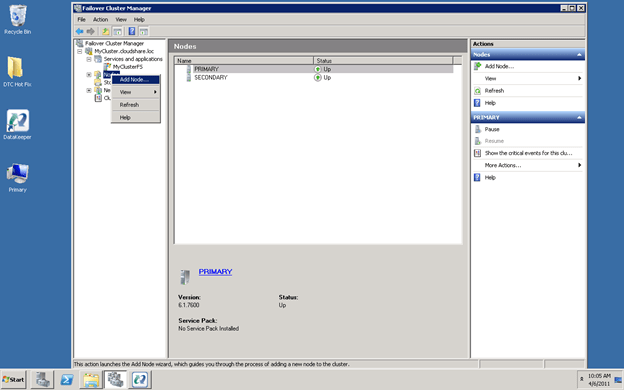
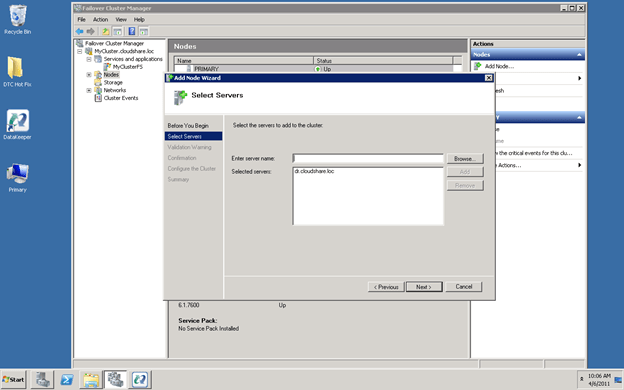
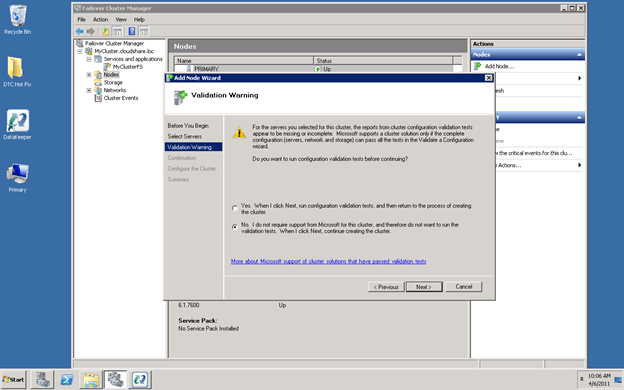
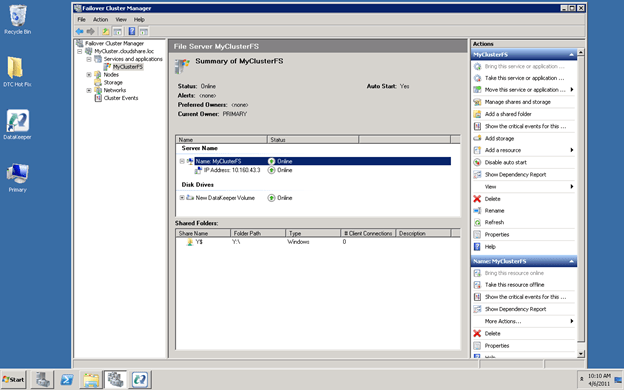
Step 9 – Add the remote Node to the cluster*

* IMPORTANT NOTE
If you are using Windows Server 2008 R2 SP1 , you must not do this step through the Failover Cluster Manager GUI. Changes were made in SP1 to support symmetric storage however these changes actually make deploying multisite clusters more complicated in some circumstances. If you are using SP1 and want to add a node to a multisite cluster that is using a 3rd party storage class resource like DataKeeper, the only way to add a node without causing the cluster disks resources to be added back into the cluster (which really causes a mess to clean up) is to use PowerShell to add the node as described here http://technet.microsoft.com/en-us/library/ee461047.aspx

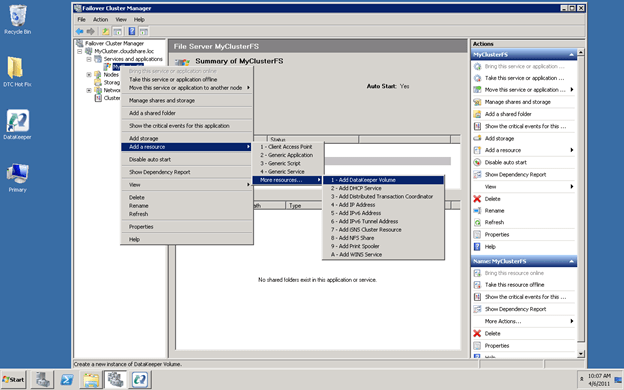
Step 10 – Add the DataKeeper Volume Resource

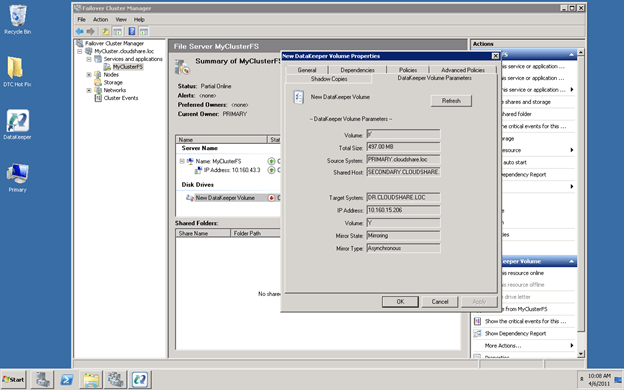
Step 11 – Change the DataKeeper Volume Parameters to associate it with the replicated volume

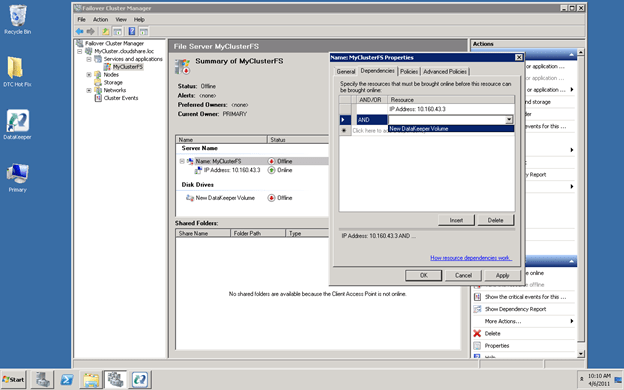
Step 12 – Redefine the cluster dependencies

Step 13 – Reboot the 3rd node to ensure the DataKeeper volume resource type is registered in Failover Clustering

Step 14 – Test your new multisite cluster

Keep in mind that only a shared source or the current target of a mirror can come online; you cannot bring a shared target online if it is not the current target of the mirror. In an unexpected failure Windows will follow the preferred owners list until it finds a node that is available to come online. In a manual Online if you try to bring a node Online that is not a shared source or a current target the Online will fail and the current node will remain online. Check the DataKeeper GUI to verify which node is currently the target of the mirror. [EDIT] – As of Windows Server 2016 it is advisable to create two different cluster sites and group the two local clusters in Site1 and the DR node in Site2. This ensures that failover only happens locally, unless all the local nodes have failed. Cluster Site Awareness is described in this blog post https://techcommunity.microsoft.com/t5/failover-clustering/site-aware-failover-clusters-in-windows-server-2016/ba-p/372060

Step-by-Step: How to extend a traditional Microsoft shared storage failover cluster into a multisite cluster with hybrid shared/replicated storage using SteelEye DataKeeper Cluster Edition

Microsoft now officially supports the iSCSI Software Target 3.3 in production

Just a few weeks ago I wrote an article about how to configure the iSCSI Software Target 3.3 in a cluster environment. While it is great for labs and testing, up until today it was not supported in a production environment. Well…that all changes today! Microsoft just announced that the iSCSI Software Target 3.3 is a freely available download and can be used on a production network.

http://blogs.technet.com/b/josebda/archive/2011/04/04/microsoft-iscsi-software-target-3-3-for-windows-server-2008-r2-available-for-public-download.aspx

This all starts to get interesting once you start considering the possibility of building shared nothing iSCSI Target clusters with DataKeeper Cluster Edition. Build 2-nodes locally for HA and then place a 3rd one in a remote data center for disaster recovery. Now that is a pretty sweet HA/DR solution without having to break the bank!

Microsoft now officially supports the iSCSI Software Target 3.3 in production