Extending a SQL Server Failover Cluster Across Regions in  Google Cloud Platform (GCP)

I was the principal author of this SIOS whitepaper, which describes how to build a 2-node SQL Server cluster in Google Cloud Platform (GCP) spanning multiple zones. Today, I’ll explain how to extend this cluster by adding a third node in a different GCP region.

Assuming you’ve completed all the steps in the referenced documentation, here’s how to proceed:


1. Create Subnet

Create a new subnet in the additional region.

gcloud compute networks subnets create wsfcnetsub1 \
    --network wsfcnet \
    --region us-west1 \
    --range 10.1.0.0/16

2. Configure Firewall for Internal Communication

Open up firewall rules to allow internal communication on the new subnet.

gcloud compute firewall-rules create allow-all-subnet-10-1 \
    --network wsfcnet \
    --allow all \
    --source-ranges 10.1.0.0/16

3. Verify Available Zones

Check which zones exist in the new region (e.g., us-west1).

gcloud compute zones list \
    --filter="region:(us-west1)" \
    --format="value(name)"

4. Check VM Types Supporting Local SSD

Find the VM types that support local SSD in your target zone.

gcloud compute machine-types list \
    --zones us-west1-a \
    --filter="guestCpus>0 AND name:(n2 n2-highmem n2-highcpu c2 e2-custom e2-custom-memory e2-custom-cpu)" \
    --sort-by=guestCpus

5. Create New VM Instance

Create the new VM in the chosen zone with appropriate settings.

gcloud compute instances create wsfc-3 \
 --zone us-west1-a \
 --machine-type n2-standard-2 \
 --image-project windows-cloud \
 --image-family windows-2016 \
 --scopes https://www.googleapis.com/auth/compute \
 --can-ip-forward \
 --private-network-ip 10.1.0.4 \
 --network wsfcnet \
 --subnet wsfcnetsub1 \
 --metadata enable-wsfc=true \
 --local-ssd interface=nvme \
 --create-disk=auto-delete=yes,boot=no,device-name=extradisk1,size=1,type=pd-standard

6. Set Windows Password

Set a Windows password for accessing the new VM.

gcloud compute reset-windows-password wsfc-3 \
    --zone us-west1-a \
    --user david

7. Configure Windows Networking

On wsfc-3, run these PowerShell commands to configure the network.

# Remove existing DHCP configuration
Remove-NetIPAddress -InterfaceAlias "Ethernet 2" -AddressFamily IPv4 -Confirm:$false
# Set static IP
New-NetIPAddress -InterfaceAlias "Ethernet 2" -IPAddress 10.1.0.4 -PrefixLength 16 -DefaultGateway 10.1.0.1
# Set DNS server
Set-DnsClientServerAddress -InterfaceAlias "Ethernet 2" -ServerAddresses 10.0.0.6

8. Bring Extra Storage Online

Run these PowerShell commands to initialize and format the additional storage.

# Identify the new disk
$disks = Get-Disk | Where-Object IsOffline -Eq $false
$newDisk = $disks | Where-Object PartitionStyle -Eq 'RAW'
# Initialize and format new disk
Initialize-Disk -Number $newDisk.Number -PartitionStyle MBR
New-Partition -DiskNumber $newDisk.Number -UseMaximumSize -AssignDriveLetter | Format-Volume -FileSystem NTFS -NewFileSystemLabel "ExtraDisk"

9. Ensure Local SSD Attaches on Startup

Use this script to format and mount the local SSD on startup. Call it AttachSSD.ps1 and save it here. C:\Scripts\AttachSSD.ps1

$diskNumber = 0
$driveLetter = "F"
# Check drive letter availability
if (Get-PSDrive -Name $driveLetter -ErrorAction SilentlyContinue) {
    exit
}
# Initialize and format if RAW
$disk = Get-Disk -Number $diskNumber -ErrorAction SilentlyContinue
while (-not $disk) {

    Start-Sleep -Seconds 5

    $disk = Get-Disk -Number $diskNumber -ErrorAction SilentlyContinue

}
if ($disk.PartitionStyle -eq 'RAW') {

    Initialize-Disk -Number $diskNumber -PartitionStyle GPT

}

$existingPartition = Get-Partition -DiskNumber $diskNumber -ErrorAction SilentlyContinue

if (-not $existingPartition) {

    $partition = New-Partition -DiskNumber $diskNumber -UseMaximumSize -AssignDriveLetter

    Format-Volume -DriveLetter $partition.DriveLetter -FileSystem NTFS -NewFileSystemLabel "LocalSSD"

    Set-Partition -DriveLetter $partition.DriveLetter -NewDriveLetter $driveLetter

}

Schedule Script to Run at Startup:

$taskName = "InitializeLocalSSD"
$scriptPath = "C:\Scripts\AttachSSD.ps1"
$action = New-ScheduledTaskAction -Execute "powershell.exe" -Argument "-NoProfile -ExecutionPolicy Bypass -File `"$scriptPath`""

$trigger = New-ScheduledTaskTrigger -AtStartup

$principal = New-ScheduledTaskPrincipal -UserId "SYSTEM" -LogonType ServiceAccount -RunLevel Highest

Register-ScheduledTask -TaskName $taskName -Action $action -Trigger $trigger -Principal $principal

10. Join the Domain

Join the new server to the domain.

$domain = "datakeeper.local"
$username = "administrator@datakeeper.local"

$password = "YourPassword!"

$securePassword = ConvertTo-SecureString $password -AsPlainText -Force

$credential = New-Object System.Management.Automation.PSCredential ($username, $securePassword)

Add-Computer -DomainName $domain -Credential $credential -Force


11. Add a new mirror to the existing Datakeeper job

Follow the screenshots below to extend the existing DataKeeper job to the new server.


12. Install Windows Failover Clustering and add to the cluster

Install clustering tools and add the node to the cluster.

Install-WindowsFeature -Name Failover-Clustering -IncludeManagementTools
Add-ClusterNode -Cluster fileserver.datakeeper.local -Name wsfc-3

Test-Cluster -Name fileserver.datakeeper.local

Note: Adding the node through the WSFC UI may be necessary if there’s a load balancer issue with the cluster name.

13. Install SQL Server on the new cluster node

Run SQL Server setup and choose add node to existing cluster installation option. https://learn.microsoft.com/en-us/sql/sql-server/failover-clusters/install/add-or-remove-nodes-in-a-sql-server-failover-cluster-setup?view=sql-server-ver16


14. Create New Load Balancer Rules

Configure load balancing to allow access across regions.

gcloud compute instance-groups unmanaged create wsfc-group-3 --zone=us-west1-a

gcloud compute instance-groups unmanaged add-instances wsfc-group-3 --instances wsfc-3 --zone us-west1-a

# Set environment variables
export REGION="us-west1"
export NETWORK="wsfcnet"
export SUBNET="wsfcnetsub1"
export LB_NAME="swfc-lbwest"
export HEALTH_CHECK_NAME="wsfc-hc-west"
export HEALTH_CHECK_PORT="59998"
export BACKEND_PORTS="1433"
export BACKEND_IP="10.1.0.9"
export BACKEND_RESPONSE="1"
export LB_INTERNAL_IP="10.1.0.9"

# Step 1: Create Health Check
gcloud compute health-checks create tcp $HEALTH_CHECK_NAME \
--region=$REGION \
--port=$HEALTH_CHECK_PORT \
--check-interval=2s \
--timeout=1s \
--unhealthy-threshold=2 \
--healthy-threshold=2

# Step 2: Create Backend Service
gcloud compute backend-services create $LB_NAME-backend \
--load-balancing-scheme=INTERNAL \
--protocol=TCP \
--region=$REGION \
--health-checks=$HEALTH_CHECK_NAME \
--health-checks-region=$REGION

# Step 3: Add Backend Instance Group
gcloud compute backend-services add-backend $LB_NAME-backend \
--instance-group=wsfc-group-3 \
--instance-group-zone=us-west1-a \
--region=$REGION

# Step 4: Create Frontend Configuration (Forwarding Rule)
gcloud compute forwarding-rules create $LB_NAME \
--load-balancing-scheme=INTERNAL \
--ports=$BACKEND_PORTS \
--network=$NETWORK \
--subnet=$SUBNET \
--region=$REGION \
--backend-service=$LB_NAME-backend \
--ip-protocol=TCP \
--address=$LB_INTERNAL_IP
--allow-global-access

Update the original load balancing forwarding rule to allow global access

gcloud compute forwarding-rules update wsfc-lb --region=us-east1 --allow-global-access

This completes the steps to extend your SQL Server cluster across multiple GCP regions. In the future I’ll probably write a single comprehensive how-to guide, but for now, let me know if you have any questions!

Extending a SQL Server Failover Cluster Across Regions in  Google Cloud Platform (GCP)

Building a Cost-Effective SQL Server Failover Cluster in Google Cloud Platform

Building a SQL Server Failover Cluster in Google Cloud Platform (GCP) is a powerful way to ensure your databases remain highly available, even in the face of unexpected failures. High Availability (HA) is crucial for any business-critical application. Downtime can mean lost revenue, decreased productivity, and even damage to your company’s reputation. However, creating HA clusters in the cloud, especially in GCP, presents unique challenges—most notably, the lack of shared storage, which has traditionally been a key component of SQL Server Failover Clustering.

Historically, the absence of shared storage in GCP meant that building a traditional failover cluster wasn’t feasible. VPC restrictions also present challenges with client redirection in clustered environments. But Google has been making significant strides to address this gap. One of the recent improvements is the addition of metadata tags to cluster VMs, such as --metadata enable-wsfc=true, which allows seamless client redirection using a load balancer. This feature streamlines the failover process, ensuring that clients are always directed to the active SQL Server instance without manual intervention.

SIOS DataKeeper steps in to solve the storage challenge by providing block-level replication that enables the creation of a SANless cluster. Whether you need synchronous replication that spans Google zones or asynchronous replication that spans across, regions, or even hybrid and multi-cloud environments, SIOS DataKeeper has you covered. By mirroring data between local disks on each cluster node, DataKeeper eliminates the need for traditional shared storage, making it possible to build robust SQL Server clusters in GCP.

Perhaps the most compelling advantage of using SIOS DataKeeper with SQL Server Standard Edition is the potential cost savings. By opting for Failover Clustering with SIOS DataKeeper, you can avoid the hefty price tag associated with SQL Server Enterprise Edition, which is required for Always On Availability Groups. This approach can save you 70% or more on licensing costs, without sacrificing the high availability your applications demand.

For those ready to take the next step, I’ve put together a detailed, step-by-step implementation guide that walks you through the entire process of creating a SQL Server 2019 cluster in GCP using SIOS DataKeeper. Download the guide today and ensure your SQL Server environment is ready to handle whatever comes its way.

Download the Implementation Guide

Building a Cost-Effective SQL Server Failover Cluster in Google Cloud Platform

The Importance of Patch Management to Avoid Downtime

A recent Microsoft outage caused by a bad patch pushed out to Windows instances managed by CrowdStrike has thrown a spotlight on the critical importance of effective patch management. This incident impacted numerous businesses, including airlines, banks, 911 services, and many others. It serves as a stark reminder of why meticulous planning and execution of updates are vital to avoid costly downtime.

The Necessity of Pre-Production Testing

One of the cardinal rules of patch management is to test updates in a pre-production environment before deploying them to production systems. This approach allows IT teams to identify potential issues and conflicts that may arise from the update, ensuring that the actual deployment does not disrupt business operations. By simulating the production environment, organizations can validate the stability and compatibility of the updates, significantly reducing the risk of unforeseen failures.

Fast-Tracking Security Updates with Caution

While regular updates should follow a structured testing process, security updates that address zero-day exploits present a different challenge. These updates often need to be fast-tracked to mitigate the immediate risk posed by the vulnerabilities they address. However, this rapid deployment must be balanced with strategies to minimize associated risks.

One effective strategy is clustering business-critical applications and applying rolling updates. In a clustered environment, updates can be applied to just the active node, allowing it to run and validate the update’s stability. Only after the update has proven stable should the update be applied to the backup node. This staggered approach ensures that there is always a functional node available, significantly reducing the risk of total system downtime.

Collaboration with SaaS Providers

The recent outage also highlights the crucial role that SaaS providers play in patch management. Companies like Palo Alto Networks and CrowdStrike, whose services are integral to their customers’ security postures, must collaborate closely with their clients to ensure updates are managed effectively. This collaboration should include clear communication about the nature and importance of updates, as well as providing tools and guidance to facilitate smooth deployment.

For instance, Palo Alto Networks recently faced an issue with a firewall bug that caused widespread disruptions. Such incidents underscore the need for robust patch management practices and proactive communication between SaaS providers and their customers. By working together, they can develop strategies to deploy updates with minimal impact on operations, such as phased rollouts and extended support for older versions during critical periods.

Conclusion

The recent Microsoft outage serves as a poignant reminder of the importance of effective patch management. By testing updates in pre-production environments, fast-tracking security updates with caution, and fostering collaboration between SaaS providers and their customers, organizations can mitigate the risks associated with software updates. These best practices not only enhance system reliability but also ensure that business operations remain uninterrupted, safeguarding the trust and satisfaction of clients and stakeholders.

Effective patch management is not just a technical necessity; it is a critical component of maintaining business resilience in an increasingly digital world.

The Importance of Patch Management to Avoid Downtime

“Surviving the Digital Heatwave: Lessons Learned from Singapore’s Datacenter Meltdown”

Today, we’re unpacking a real-world tech drama that unfolded in Singapore, offering a stark reminder about the vital role of Disaster Recovery (DR) planning and the often overlooked, yet crucial element of regular testing.

In the heart of Singapore’s digital infrastructure, a datacenter critical to the operations of DBS and Citibank began to overheat. This wasn’t just a minor glitch; it was a serious problem, the kind that High Availability (HA) setups usually manage to shrug off. But here’s where things went sideways.

Both banks had DR sites in place – a tick in the box for preparedness, right? Not so fast. When the time came to switch to these DR sites, DBS faced a network misconfiguration issue, while Citibank ran into connectivity troubles. These aren’t just minor hiccups; they’re the kind of problems that turn a safety net into a tightrope.

The key takeaway here isn’t just about having a DR site; it’s about ensuring it works when you need it most. This brings us to the crux of today’s lesson – the absolute necessity of regular, thorough testing of your DR plans.

Think of it like this: having a DR plan without testing it is like having a fire escape that you’ve never walked down. You don’t know if it’s clear, if there’s a locked gate at the end, or if it even leads to safety.

Regular testing of DR plans is what separates a smooth transition during a crisis from a chaotic scramble. It’s the difference between a well-rehearsed evacuation and a panicked stampede. For DBS and Citibank, the lack of effective testing meant that when disaster struck, their theoretically robust DR plans couldn’t deliver.

This incident in Singapore shines a spotlight on a common oversight: the gap between having a DR plan and having a tested, reliable DR strategy. It’s a wake-up call for all organizations to not just invest in DR but to rigorously and routinely test these systems. After all, the best DR plan in the world is only as good as its last successful drill.

So, as we wrap up this tale of tech woes, let’s take it as a lesson in the importance of not just planning for disaster, but actively preparing for it. Test, retest, and then test some more. Your future self will thank you when the heat is on.

Stay safe, stay prepared, and keep testing!

“Surviving the Digital Heatwave: Lessons Learned from Singapore’s Datacenter Meltdown”

Cross-site scripting (XSS) attacks

Today, we’re diving into the world of cross-site scripting (XSS) attacks, breaking them down into three categories: Reflected XSS, Stored XSS, and DOM XSS. Let’s explore these digital threats and learn how they can impact everyday users like you and me.

Reflected XSS – The Click-Trap:
Imagine you receive a seemingly innocent link through email, chat, or social media. You click on it, unaware that it contains a hidden script. This script bounces from the website to your browser, where it runs and wreaks havoc. It could steal your sensitive information or carry out actions as if it were you. The key to avoiding this trap? Be cautious and think twice before clicking on any unfamiliar links!

Stored XSS – The Web Page Booby Trap:
In a stored XSS attack, a devious attacker plants a script into a website’s database or storage. The script blends in with the site’s regular content and lies in wait. When you visit the affected page, the script springs into action, running in your browser and potentially putting your information at risk. The attacker may even perform actions on your behalf. The scariest part? Stored XSS can target multiple users over time, without anyone needing to click a specific link.

DOM XSS – The Sneaky Browser Attack:
Let’s talk about DOM XSS, a crafty attack that targets the user’s browser itself. When a web application’s client-side code (such as JavaScript) processes user input and updates the page content without proper sanitization, the attacker spies an opportunity. They inject malicious scripts that execute when the page is updated. While DOM XSS may share similarities with reflected and stored XSS attacks, the difference lies in the manipulation of client-side code rather than server-side code.

Stay Safe, Mere Mortals:
To protect yourself and your web applications from these XSS threats, remember the golden rule: use proper input validation and output encoding. By doing so, you’ll ensure that user-generated content can’t be weaponized as a vehicle for executing malicious scripts. Surf safely, fellow mortals!

Cross-site scripting (XSS) attacks

How to cluster SAP ASCS/SCS with SIOS DataKeeper on VMware ESXi Servers

This article describes the steps you take to prepare the VMware infrastructure for installing and configuring a high-availability SAP ASCS/SCS instance on a Windows failover cluster by using SIOS DataKeeper as the replicated cluster storage.

Create the ASCS VMs

For SAP ASCS / SCS cluster, deploy two VMs on different ESXi Servers.

Based on your deployment type, the host names and the IP addresses of the scenario would be like:

SAP deployment

Host name roleHost nameStatic IP address
1st cluster node ASCS/SCS clusterpr1-ascs-1010.0.0.4
2nd cluster node ASCS/SCS clusterpr1-ascs-1110.0.0.5
Cluster Network Namepr1clust10.0.0.42
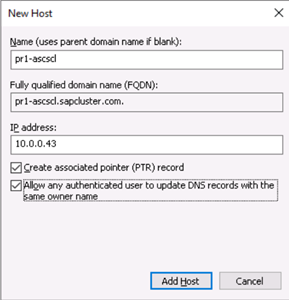
ASCS cluster network namepr1-ascscl10.0.0.43
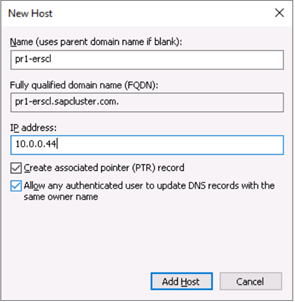
ERS cluster network name (only for ERS2)pr1-erscl10.0.0.44

On each VM add an additional virtual disk. We will later mirror these disks with DataKeeper and use them as part of our cluster.

Add the Windows VMs to the domain

After you assign static IP addresses to the virtual machines, add the virtual machines to the domain.

Install and configure Windows failover cluster

Install the Windows failover cluster feature

Run this command on one of the cluster nodes:

PowerShell

Copy

# Hostnames of the Win cluster for SAP ASCS/SCS

$SAPSID = “PR1”

$ClusterNodes = (“pr1-ascs-10″,”pr1-ascs-11”)

$ClusterName = $SAPSID.ToLower() + “clust”

# Install Windows features.

# After the feature installs, manually reboot both nodes

Invoke-Command $ClusterNodes {Install-WindowsFeature Failover-Clustering, FS-FileServer -IncludeAllSubFeature -IncludeManagementTools }

Once the feature installation has completed, reboot both cluster nodes.

Test and configure Windows failover cluster

Copy

# Hostnames of the Win cluster for SAP ASCS/SCS

$SAPSID = “PR1”

$ClusterNodes = (“pr1-ascs-10″,”pr1-ascs-11”)

$ClusterName = $SAPSID.ToLower() + “clust”

# IP address for cluster network name 

$ClusterStaticIPAddress = “10.0.0.42”

# Test cluster

Test-Cluster –Node $ClusterNodes -Verbose

New-Cluster –Name $ClusterName –Node  $ClusterNodes –StaticAddress $ClusterStaticIPAddress -Verbose

Configure cluster cloud quorum

As you use Windows Server 2016 or 2019, we recommend configuring Azure Cloud Witness, as cluster quorum.

Run this command on one of the cluster nodes:

PowerShell

Copy

$AzureStorageAccountName = “cloudquorumwitness”

Set-ClusterQuorum –CloudWitness –AccountName $AzureStorageAccountName -AccessKey <YourAzureStorageAccessKey> -Verbose

Alternatively you can use a File Share Witness on a 3rd server in your environment. This server should be running on an 3rd ESXi host for redundancy. 

SIOS DataKeeper Cluster Edition for the SAP ASCS/SCS cluster share disk

Now, you have a working Windows Server failover clustering configuration. To install an SAP ASCS/SCS instance, you need a shared disk resource. One of the options is to use SIOS DataKeeper Cluster Edition.

Installing SIOS DataKeeper Cluster Edition for the SAP ASCS/SCS cluster share disk involves these tasks:

  • Install SIOS DataKeeper
  • Configure SIOS DataKeeper

Install SIOS DataKeeper

Install SIOS DataKeeper Cluster Edition on each node in the cluster. To create virtual shared storage with SIOS DataKeeper, create a synced mirror and then simulate cluster shared storage.

Before you install the SIOS software, create the DataKeeperSvc domain user.

Add the DataKeeperSvc domain user to the Local Administrator group on both cluster nodes.

  1. Install the SIOS software on both cluster nodes.
    SIOS installer
    Figure 31: First page of the SIOS DataKeeper installation
    First page of the SIOS DataKeeper installation
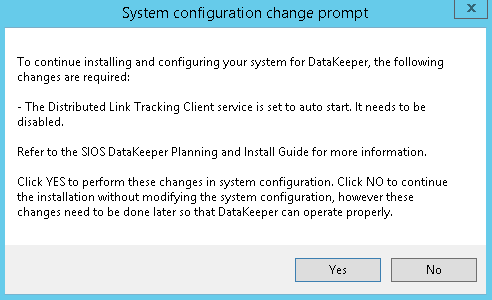
  2. In the dialog box, select Yes.
    Figure 32: DataKeeper informs you that a service will be disabled
    DataKeeper informs you that a service will be disabled
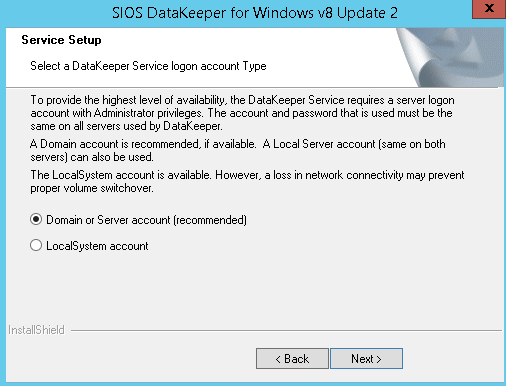
  3. In the dialog box, we recommend that you select Domain or Server account.
    Figure 33: User selection for SIOS DataKeeper
    User selection for SIOS DataKeeper
  4. Enter the domain account username and password that you created for SIOS DataKeeper.
    Figure 34: Enter the domain user name and password for the SIOS DataKeeper installation
    Enter the domain user name and password for the SIOS DataKeeper installation
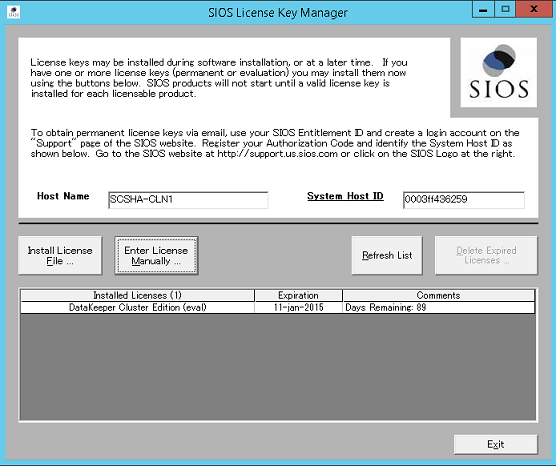
  5. Install the license key for your SIOS DataKeeper instance.Figure 35: Enter your SIOS DataKeeper license key
    Enter your SIOS DataKeeper license key
  6. When prompted, restart the virtual machine.

Configure SIOS DataKeeper

After you install SIOS DataKeeper on both nodes, start the configuration. The goal of the configuration is to have synchronous data replication between the additional disks that are attached to each of the virtual machines.

  1. Start the DataKeeper Management and Configuration tool, and then select Connect Server.
    Figure 36: SIOS DataKeeper Management and Configuration tool
    SIOS DataKeeper Management and Configuration tool
  2. Enter the name or TCP/IP address of the first node the Management and Configuration tool should connect to, and, in a second step, the second node.
    Figure 37: Insert the name or TCP/IP address of the first node the Management and Configuration tool should connect to, and in a second step, the second node
    Insert the name or TCP/IP address of the first node the Management and Configuration tool should connect to, and in a second step, the second node
  3. Create the replication job between the two nodes.
    Figure 38: Create a replication job
    Create a replication job
    A wizard guides you through the process of creating a replication job.
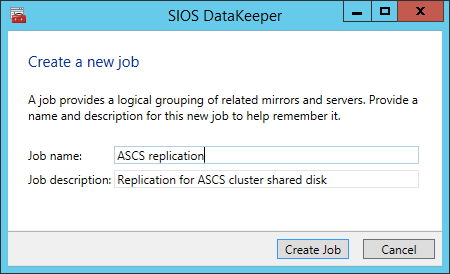
  4. Define the name of the replication job.
    Figure 39: Define the name of the replication job
    Define the name of the replication job

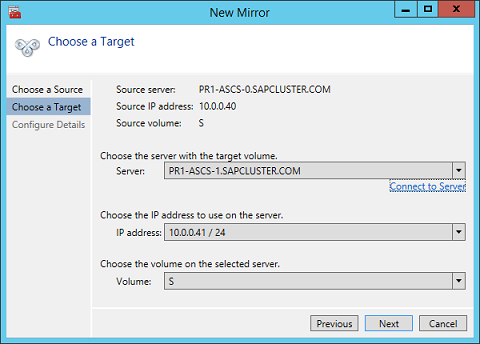
    Define the base data for the node, which should be the current source node
  5. Define the name, TCP/IP address, and disk volume of the target node.
    Figure 41: Define the name, TCP/IP address, and disk volume of the current target node
    Define the name, TCP/IP address, and disk volume of the current target node
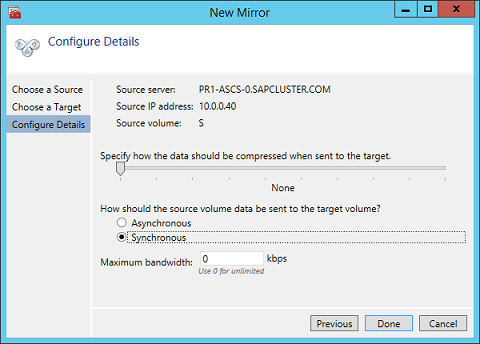
  6. Define the compression algorithms. In our example, we recommend that you compress the replication stream. Especially in resynchronization situations, the compression of the replication stream dramatically reduces resynchronization time. Compression uses the CPU and RAM resources of a virtual machine. As the compression rate increases, so does the volume of CPU resources that are used. You can adjust this setting later.
  7. Another setting you need to check is whether the replication occurs asynchronously or synchronously. When you protect SAP ASCS/SCS configurations, you must use synchronous replication.
    Figure 42: Define replication details
    Define replication details
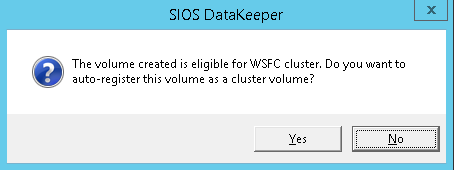
  8. Define whether the volume that is replicated by the replication job should be represented to a Windows Server failover cluster configuration as a shared disk. For the SAP ASCS/SCS configuration, select Yes so that the Windows cluster sees the replicated volume as a shared disk that it can use as a cluster volume.
    Figure 43: Select Yes to set the replicated volume as a cluster volume
    Select Yes to set the replicated volume as a cluster volume
    After the volume is created, the DataKeeper Management and Configuration tool shows that the replication job is active.
    Figure 44: DataKeeper synchronous mirroring for the SAP ASCS/SCS share disk is active
    DataKeeper synchronous mirroring for the SAP ASCS/SCS share disk is active
    Failover Cluster Manager now shows the disk as a DataKeeper disk, as shown in Figure 45:
    Figure 45: Failover Cluster Manager shows the disk that DataKeeper replicated
    Failover Cluster Manager shows the disk that DataKeeper replicated

We don’t describe the DBMS setup in this article because setups vary depending on the DBMS system you use. We assume that high-availability concerns with the DBMS are addressed with the functionalities that different DBMS vendors support 

The installation procedures of SAP NetWeaver ABAP systems, Java systems, and ABAP+Java systems are almost identical. The most significant difference is that an SAP ABAP system has one ASCS instance. The SAP Java system has one SCS instance. The SAP ABAP+Java system has one ASCS instance and one SCS instance running in the same Microsoft failover cluster group. Any installation differences for each SAP NetWeaver installation stack are explicitly mentioned. You can assume that the rest of the steps are the same.

Install SAP with a high-availability ASCS/SCS instance

Important

If you use SIOS to present a shared disk, don’t place your page file on the SIOS DataKeeper mirrored volumes. 

Installing SAP with a high-availability ASCS/SCS instance involves these tasks:

  • Create a virtual host name for the clustered SAP ASCS/SCS instance.
  • Install SAP on the first cluster node.
  • Modify the SAP profile of the ASCS/SCS instance.

Create a virtual host name for the clustered SAP ASCS/SCS instance

  1. In the Windows DNS manager, create a DNS entry for the virtual host name of the ASCS/SCS instance.
    Important

    Figure 1: Define the DNS entry for the SAP ASCS/SCS cluster virtual name and TCP/IP address
    Define the DNS entry for the SAP ASCS/SCS cluster virtual name and TCP/IP address
  2. If you are using the new SAP Enqueue Replication Server 2, which is also a clustered instance, then you need to reserve in DNS a virtual host name for ERS2 as well.

    Figure 1A: Define the DNS entry for the SAP ASCS/SCS cluster virtual name and TCP/IP address
    Define the DNS entry for the SAP ERS2 cluster virtual name and TCP/IP address
  3. To define the IP address that’s assigned to the virtual host name, select DNS Manager > Domain.
    Figure 2: New virtual name and TCP/IP address for SAP ASCS/SCS cluster configuration
    New virtual name and TCP/IP address for SAP ASCS/SCS cluster configuration

Install the SAP first cluster node

  1. Execute the first cluster node option on cluster node A. Select:
    • ABAP system: ASCS instance number 00
    • Java system: SCS instance number 01
    • ABAP+Java system: ASCS instance number 00 and SCS instance number 01
  2. Follow the SAP described installation procedure. Make sure in the start installation option “First Cluster Node”, to choose “Cluster Shared Disk” as configuration option.

The SAP installation documentation describes how to install the first ASCS/SCS cluster node.

Modify the SAP profile of the ASCS/SCS instance

If you have Enqueue Replication Server 1, add SAP profile parameter enque/encni/set_so_keepalive as described below. The profile parameter prevents connections between SAP work processes and the enqueue server from closing when they are idle for too long. The SAP parameter is not required for ERS2.

  1. Add this profile parameter to the SAP ASCS/SCS instance profile, if using ERS1.
  2. Copy

enque/encni/set_so_keepalive = true

  1. For both ERS1 and ERS2, make sure that the keepalive OS parameters are set as described in SAP note 1410736.
  2. To apply the SAP profile parameter changes, restart the SAP ASCS/SCS instance.

Install the database instance

To install the database instance, follow the process that’s described in the SAP installation documentation.

Install the second cluster node

To install the second cluster, follow the steps that are described in the SAP installation guide.

Install the SAP Primary Application Server

Install the Primary Application Server (PAS) instance <SID>-di-0 on the virtual machine that you’ve designated to host the PAS.

Install the SAP Additional Application Server

Install an SAP Additional Application Server (AAS) on all the virtual machines that you’ve designated to host an SAP Application Server instance.

Test the SAP ASCS/SCS instance failover

For the outlined failover tests, we assume that SAP ASCS is active on node A.

  1. Verify that the SAP system can successfully failover from node A to node B Choose one of these options to initiate a failover of the SAP cluster group from cluster node A to cluster node B:
    • Failover Cluster Manager
    • Failover Cluster PowerShell
  2. PowerShell
  3. Copy

$SAPSID = “PR1”     # SAP <SID>

$SAPClusterGroup = “SAP $SAPSID”

Move-ClusterGroup -Name $SAPClusterGroup

  1. Restart cluster node A within the Windows guest operating system. This initiates an automatic failover of the SAP <SID> cluster group from node A to node B.
  2. Restart cluster node A from the vCenter. This initiates an automatic failover of the SAP <SID> cluster group from node A to node B.
  3. Verification

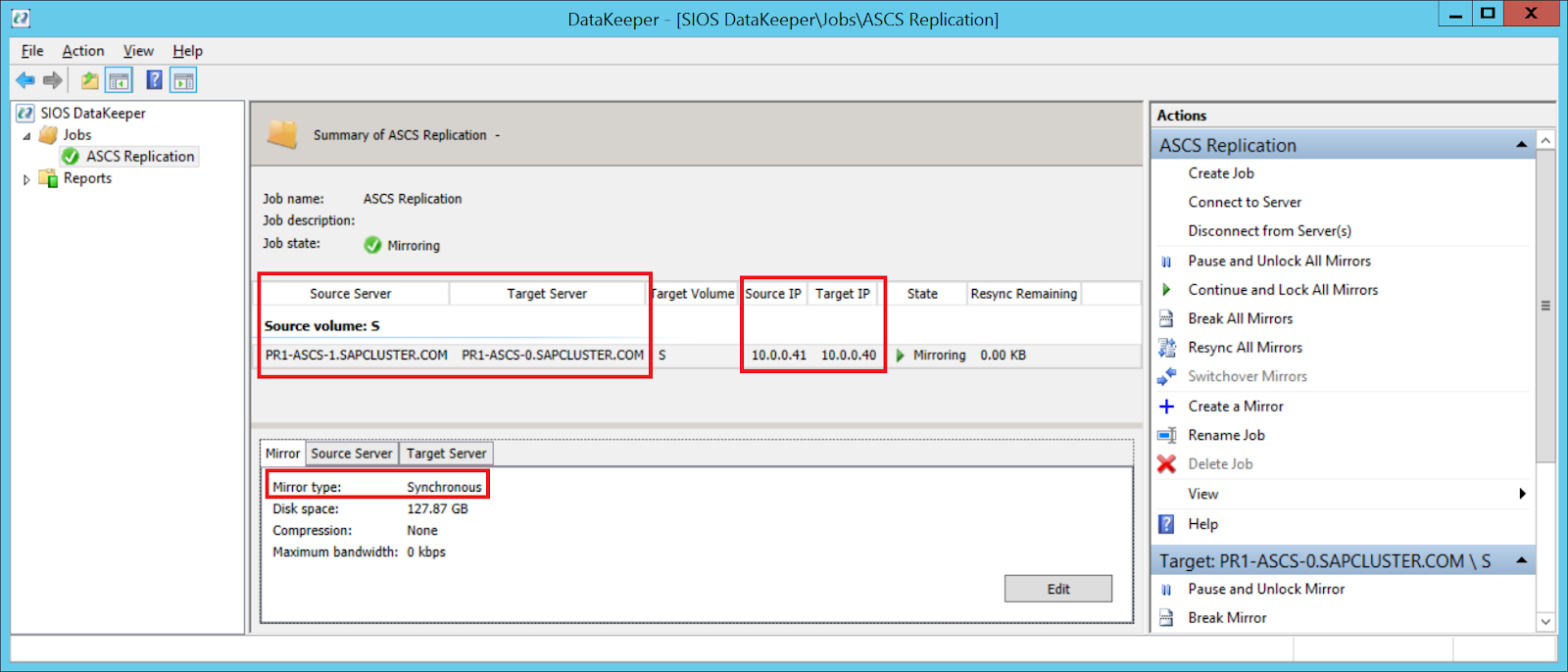
After failover, verify that SIOS DataKeeper is replicating data from source volume drive S on cluster node B to target volume drive S on cluster node A.
Figure 9: SIOS DataKeeper replicates the local volume from cluster node B to cluster node A
SIOS DataKeeper replicates the local volume from cluster node B to cluster node A

How to cluster SAP ASCS/SCS with SIOS DataKeeper on VMware ESXi Servers

How to use Azure Site Recovery (ASR) to replicate a Windows Server Failover Cluster (WSFC) that uses SIOS DataKeeper for cluster storage

Intro

So you have built a SQL Server Failover Cluster Instance (FCI), or maybe an SAP ASCS/ERS cluster in Azure. Each node of the cluster resides in a different Availability Zone (AZ), or maybe you have strict latency requirements and are using Placement Proximity Groups (PPG) and your nodes all reside in the same Availability Set. Regardless of the scenario, you now have a much higher level of availability for your business critical application than if you were just running a single instance.

Now that you have high availability (HA) covered, what are you going to do for disaster recovery? Regional disasters that take out multiple AZs are rare, but as recent history has shown us, Mother Nature can really pack a punch. You want to be prepared should an entire region go offline. 

Azure Site Recovery (ASR) is Microsoft’s disaster recovery-as-a-service (DRaaS) offering that allows you to replicate entire VMs from one region to another. It can also replicate virtual machines and physical servers from on-prem into Azure, but for the purpose of this blog post we will focus on the Azure Region-to-Region DR capabilities.

Setting up ASR

We are going to assume you have already built your cluster using SIOS DataKeeper. If not, here are some pointers to help get you started.

Failover Cluster Instances with SQL Server on Azure VMs

SIOS DataKeeper Cluster Edition for the SAP ASCS/SCS cluster share disk

We are also going to assume you are familiar with Azure Site Recovery. Instead of yet another guide on setting up ASR, I suggest you read the latest documentation from Microsoft. This article will focus instead on some things you may not have considered and the specific steps required to fix your cluster after a failover to a different subnet.

Paired Regions

Before you start down the DR path, you should be aware of the concept of Azure Paired Regions. Every Region in Azure has a preferred DR Region. If you want to learn more about Paired Regions, the documentation provides a great background. There are some really good benefits of using your paired region, but it’s really up to you to decide on what region you want to use to host your DR site.

Cloud Witness Location

When you originally built your cluster you had to choose a witness type for your quorum. You may have selected a File Share Witness or a Cloud Witness. Typically either of those witness types should reside in an AZ that is separate from your cluster nodes. 

However, when you consider that, in the event of a disaster, your entire cluster will be running in your DR region, there is a better option. You should use a cloud witness, and place it in your DR region. By placing your cloud witness in your DR region, you provide resiliency not only for local AZ failures, but it also protects you should the entire region fail and you have to use ASR to recover your cluster in the DR region. Through the magic of Dynamic Quorum and Dynamic Witness, you can be sure that even if your DR region goes offline temporarily, it will not impact your production cluster.

Multi-VM Consistency

When using ASR to replicate a cluster, it is important to enable Multi-VM Consistency to ensure that each cluster node’s recovery point is from the same point in time. That ensures that the DataKeeper block level replication occurring between the VMs will be able to continue after recovery without requiring a complete resync.

Crash Consistent Recovery Points

Application consistent recovery points are not supported in replicated clusters. When configuring the ASR replication options do not enable application consistent recovery points.

Keep IP Address After Failover?

When using ASR to replicate to your DR site there is a way to keep the IP address of the VMs the same. Microsoft described it in the article entitled Retain IP addresses during failover. If you can keep the IP address the same after failover it will simplify the recovery process since you won’t have to fix any cluster IP addresses or DataKeeper mirror endpoints, which are based on IP addresses.

However, in my experience, I have never seen anyone actually follow the guidance above, so recovering a cluster in a different subnet will require a few additional steps after recovery before you can bring the cluster online.

Your First Failover Attempt

Recovery Plan

Because you are using Multi-VM Consistency, you have to failover your VMs using a Recovery Plan. The documentation provides pretty straightforward guidance on how to do that. A Recovery Plan groups the VMs you want to recover together to ensure they all failover together. You can even add multiple groups of VMs to the same Recovery Plan to ensure that your entire infrastructure fails over in an orderly fashion.

A Recovery Plan can also launch post recovery scripts to help the failover complete the recovery successfully. The steps I describe below can all be scripted out as part of your Recovery Plan, thereby fully automating the complete recovery process. We will not be covering that process in this blog post, but Microsoft documents this process.

Static IP Addresses

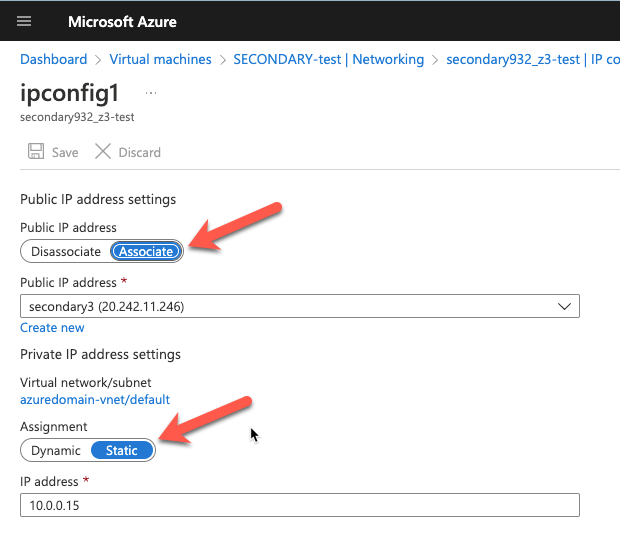
As part of the recovery process you want to make sure the new VMs have static IP addresses. You will have to adjust the interface properties in the Azure Portal so that the VM always uses the same address. If you want to add a public IP address to the interface you should do so at this time as well.

Network Configuration

After the replicated VMs are successfully recovered in the DR site, the first thing you want to do is verify basic connectivity. Is the IP configuration correct? Are the instances using the right DNS server? Is name resolution functioning correctly? Can you ping the remote servers?

If there are any problems with network communications then the rest of the steps described below will be bound to fail. Don’t skip this step!

Load Balancer

As you probably know, clusters in Azure require you to configure a load balancer for client connectivity to work. The load balancer does not fail over as part of the Recovery Plan. You need to build a new load balancer based on the cluster that now resides in this new vNet. You can do this manually or script this as part of your Recovery Plan to happen automatically.

Network Security Groups 

Running in this new subnet also means that you have to specify what Network Security Group you want to apply to these instances. You have to make sure the instances are able to communicate across the required ports. Again, you can do this manually, but it would be better to script this as part of your Recovery Plan.

Fix the IP Cluster Addresses

If you are unable to make the changes described earlier to recover your instances in the same subnet, you will have to complete the following steps to update your cluster IP addresses and the DataKeeper addresses for use in the new subnet.

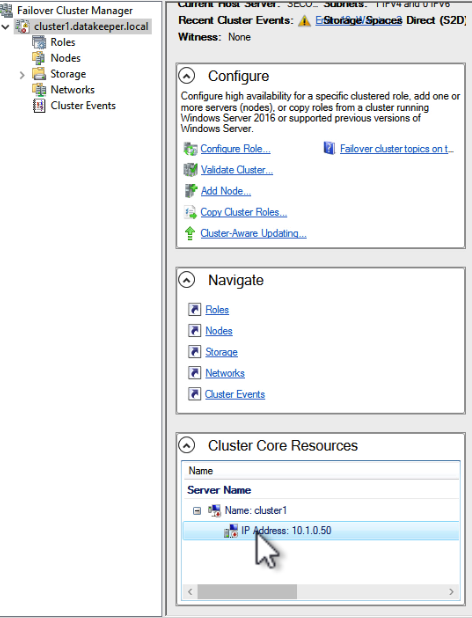
Every cluster has a core cluster IP address. What you will see if you launch the WSFC UI after a failover is that the cluster won’t be able to connect. This is because the IP address used by the cluster is not valid in the new subnet.

If you open the properties of that IP Address resource you can change the IP address to something that works in the new subnet. Make sure to update the Network and Subnet Mask as well.

Once you fix that IP Address you will have to do the same thing for any other cluster address that you use in your cluster resources.

Fix the DataKeeper Mirror Addresses

SIOS DataKeeper mirrors use IP addresses as mirror endpoints. These are stored in the mirror and mirror job. If you recover a DataKeeper based cluster in a different subnet, you will see that the mirror comes up in a Resync Pending state. You will also notice that the Source IP and the Target IP reflect the original subnet, not the subnet of the DR site.

Fixing this issue involves running a command from SIOS called CHANGEMIRRORENDPOINTS. The usage for CHANGEMIRRORENDPOINTS is as follows.

emcmd <NEW source IP> CHANGEMIRRORENDPOINTS <volume letter> <ORIGINAL target IP> <NEW source IP> <NEW target IP>

In our example, the command and output looked like this.

After the command runs, the DataKeeper GUI will be updated to reflect the new IP addresses as shown below. The mirror will also go to a mirroring state.

Conclusions

You have now successfully configured and tested disaster recovery of your business critical applications using a combination of SIOS DataKeeper for high availability and Azure Site Recovery for disaster recovery. If you have questions please leave me a comment or reach out to me on Twitter @daveberm

How to use Azure Site Recovery (ASR) to replicate a Windows Server Failover Cluster (WSFC) that uses SIOS DataKeeper for cluster storage

Performance of Azure Shared Disk with Zone Redundant Storage (ZRS)

On September 9th, 2021, Microsoft announced the general availability of Zone-Redundant Storage (ZRS) for Azure Disk Storage, including Azure Shared Disk.

What makes this interesting is that you can now build shared storage based failover cluster instances that span Availability Zones (AZ).  With cluster nodes residing in different AZs, users can now qualify for the 99.99% availability SLA. Prior to support for ZRS, Azure Shared Disks only supported Locally Redundant Storage (LRS), limiting cluster deployments to a single AZ, leaving users susceptible to outages should an AZ go offline.

There are however a few limitations to be aware of when deploying an Azure Shared Disk with ZRS.

  • Only supported with premium solid-state drives (SSD) and standard SSDs. Azure Ultra Disks are not supported.
  • Azure Shared Disks with ZRS are currently only available in West US 2, West Europe, North Europe, and France Central regions
  • Disk Caching, both read and write, are not supported with Premium SSD Azure Shared Disks
  • Disk bursting is not available for premium SSD
  • Azure Site Recovery support is not yet available.
  • Azure Backup is available through Azure Disk Backup only.
  • Only server-side encryption is supported, Azure Disk Encryption is not currently supported.

I also found an interesting note in the documentation.

“Except for more write latency, disks using ZRS are identical to disks using LRS, they have the same scale targets. Benchmark your disks to simulate the workload of your application and compare the latency between LRS and ZRS disks.”

While the documentation indicates that ZRS will incur some additional write latency, it is up to the user to determine just how much additional latency they can expect. A link to a disk benchmark document is provided to help guide you in your performance testing.

Following the guidance in the document, I used DiskSpd to measure the additional write latency you might experience. Of course results will vary with workload, disk type, instance size, etc.,but here are my results.

Locally Redundant Storage (LRS)Zone Redundant Storage (ZRS)
Write IOPS5099.824994.63
Average Latency7.8307.998

The DiskSpd test that I ran used the following parameters. 


diskspd -c200G -w100 -b8K -F8 -r -o5 -W30 -d10 -Sh -L testfile.dat

I wrote to a P30 disk with ZRS and a P30 with LRS attached to a Standard DS3 v2 (4 vcpus, 14 GiB memory) instance type. The shared ZRS P30 was also attached to an identical instance in a different AZ and added as shared storage to an empty cluster application.

A 2% overhead seems like a reasonable price to pay to have your data distributed synchronously across two AZs. However, I did wonder what would happen if you moved the clustered application to the remote node, effectively putting your disk in one AZ and your instance in a different AZ. 

Here are the results.

Locally Redundant Storage (LRS)Zone Redundant Storage (ZRS)ZRS when writing from the remote AZ
Write IOPS5099.824994.634079.72
Average Latency7.8307.9989.800

In that scenario I measured a 25% write latency increase. If you experience a complete failure of an AZ, both the storage and the instance will failover to the secondary AZ and you shouldn’t experience this increase in latency at all. However, other failure scenarios that aren’t AZ wide could very well have your clustered application running in one AZ with your Azure Shared Disk running in a different AZ. In those scenarios you will want to move your clustered workload back to a node that resides in the same AZ as your storage as soon as possible to avoid the additional overhead.

Microsoft documents how to initiate a storage account failover to a different region when using GRS, but there is no way to manually initiate the failover of a storage account to a different AZ when using ZRS. You should monitor your failover cluster instance to ensure you are alerted any time a cluster workload moves to a different server and plan to move it back just as soon as it is safe to do so.

You can find yourself in this situation unexpectedly, but it will also certainly happen during planned maintenance of the clustered application servers when you do a rolling update. Awareness is the key to help you minimize the amount of time your storage is performing in a degraded state.

I hope in the future Microsoft allows users to initiate a manual failover of a ZRS disk the same as they do with GRS. The reason they added the feature to GRS was to put the power in the hands of the users in case automatic failover did not happen as expected. In the case of ZRS I could see people wanting to try to tie together storage and application, ensuring they are always running in the same AZ, similar to how host based replication solutions like SIOS DataKeeper do it.

Performance of Azure Shared Disk with Zone Redundant Storage (ZRS)

Facebook, Instagram and WhatsApp just had a really bad Monday

It’s the end of the work day here on the east coast and I see that the Facebook is still unavailable. Facebook acknowledged the problem in the following two Tweets.

I can pinpoint the time that Facebook went offline for me. I was trying to post a comment on a post and my comment was not posting. I was a little annoyed, and almost thought the poster had blocked me, or was deleting my comment. This was at 11:45 am EDT. 5+ hours Facebook for me is still down.

While we don’t know the exact cause of the downtime, and whether it was user error, some nefarious assault, or just an unexpected calamity of errors, we can learn a few things about this outage at this point.

Downtime is expensive

While we may never know the exact cost of the downtime experienced today, there are a few costs that can already measured. As of this writing, Facebook stock went down 4.89% today. That’s on top of an already brutal September for Facebook and other tech stocks.

The correction may have been inevitable, but the outage today certainly didn’t help matters.

But what was the real cost to the company? With many brands leveraging social media as an important part of their marketing outreach, how will this outage impact future advertising spends? Minimally I anticipate advertisers to investigate other social media platforms if they have not done so already. Only time will tell, but even before this outage we have seen more competition for marketing spend from other platforms such as TickTock.

Plan for the worst-case scenario

Things happen, we know that and plan for that. Business Continuity Plans (BCP) should be written to address any possible disaster. Again, we don’t know the exact cause of this particular disaster, but I would have to imaging that an RTO of 5+ hours is not written into any BCP that sits on the shelf at Facebook, Instagram or WhatsApp.

What’s in your your BCP? Have you imagined any possible disaster? Have your measured the impact of downtime and defined adequate recovery time objective (RTO) and recovery point objective (RPO) for each component of your business? I would venture to say that it’s impossible to plan for every possible thing that can go wrong. However, I would advise everyone to revisit your BCP on a regular basis and update it to include disasters that maybe weren’t on the radar the last time you reviewed your BCP. Did you have global pandemic in your BCP? If not, you may have been left scrambling to accomodate a “work from home” workforce. The point is, plan for the worst and hope for the best.

Communications in a disaster

Communications in the event of a disaster should be its own chapter in your BCP.

One Facebook employee told Reuters that all internal tools were down. Facebook’s response was made much more difficult because employees lost access to some of their own tools in the shutdown, people tracking the matter said.

Multiple employees said they had not been told what had gone wrong.

https://www.reuters.com/technology/facebook-instagram-down-thousands-users-downdetectorcom-2021-10-04/

A truly robust BCP must include multiple fallback means of communication. This becomes much more important as your business spreads out across multiple building, regions or countries. Just think about how your team communicates today. Phone, text, email, Slack might be your top four. But what if they are all unavailable, how would you reach your team? If you don’t know you may want to start investigating other options. You may not need a shortwave radio and a flock of carrier pigeons, but I’m sure there is a government agency that keeps both of those on hand for a “break glass in case of emergency” situation.

Summary

You have a responsibility to yourself, your customers and your investors to make sure you take every precaution concerning the availability of your business. Make sure you invest adequate resources in creating your BCP and that the teams responsible for business continuity have the tools they need to ensure they can do their part in meeting the RTO and RPO defined in your BCP.

Facebook, Instagram and WhatsApp just had a really bad Monday

AWS BYOC – Bring your own SQL Server cluster with AWS EC2 and SIOS

Nice blog post from SQL Server expert Steve Rezhener.

steverezhener's avatarDataSteve


Introduction

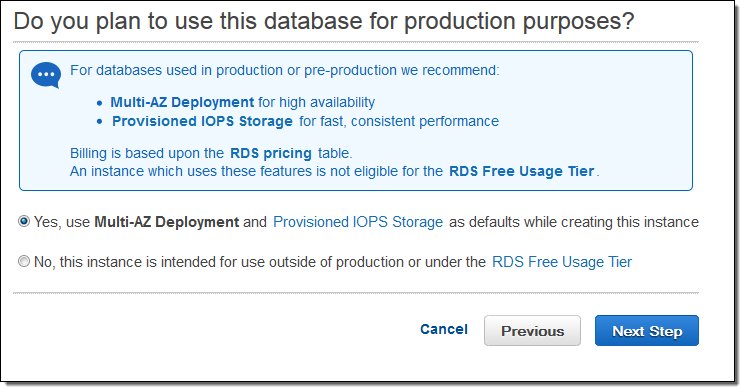
They are multiple options to implement HADR solution for SQL Server in AWS public cloud. The easiest way to do that is to use AWS Database as a Service (DBaaS) product known as AWS RDS and enable Multi-AZ option using your AWS Control Panel (Fig #1).

See the source image
Fig #1

That is all it takes to roll out or add it to an existing instance. AWS will take care of the rest under the hood (depending on your SQL Server version, it might use Mirroring or Always On Availability Groups). It will provision all the necessary things for an automatic failover (witness, network, storage, etc…), so when a primary node will go down, it will be replaced with a secondary node. No ifs and no buts. This blog post is going to discuss how to build your own HADR solution using multiple AWS EC2s (BYOC) instead of a managed AWS…

View original post 1,104 more words

AWS BYOC – Bring your own SQL Server cluster with AWS EC2 and SIOS