Troubleshooting #Azure ILB connection issues in a SQL Server AlwaysOn FCI Cluster

Many times in troubleshooting SQL Server connectivity issues, especially in Azure with all the ILB requirements I use the following tools to help troubleshoot. I’ll keep this article up to date as I find and use other tools. In addition to this article, I have found another resource which is pretty decent.

https://blogs.msdn.microsoft.com/sql_pfe_blog/2017/02/21/trouble-shooting-availability-group-listener-in-azure-sql-vm/

Netstat

The first tool is a simple test to verify whether the SQL Cluster IP is listening on the port I think it should be listening on. In this case, the SQL Cluster IP address is 10.0.0.201 and it is using the default instance which is port 1433.

Here is the command which will help you quickly identify whether the active node is listening on that port. In our case below everything looks normal.

C:\Users\dave.SIOS>netstat -na | find "1433"
TCP    10.0.0.4:49584         10.0.0.201:1433        ESTABLISHED
TCP    10.0.0.4:49592         10.0.0.201:1433        ESTABLISHED
TCP    10.0.0.4:49593         10.0.0.201:1433        ESTABLISHED
TCP    10.0.0.4:49595         10.0.0.201:1433        ESTABLISHED
TCP    10.0.0.201:1433        0.0.0.0:0              LISTENING
ESTABLISHED
TCP    10.0.0.201:1433        10.0.0.4:49592         ESTABLISHED
TCP    10.0.0.201:1433        10.0.0.4:49593         ESTABLISHED
TCP    10.0.0.201:1433        10.0.0.4:49595         ESTABLISHED

Once I can be sure SQL is listening to the proper port I use PSPING to try to connect to the port remotely.

PSPing

[EDIT 7/5/18]
I just discovered Test-NetConnection, this should eliminate the need to use PSPing. [/Edit]

PSPing is part of the PSTools package available from Microsoft. I usually download the tool and put PSPing directly in my System32 folder so I can use it whenever I want without having to change directories.

Assuming everything is configured properly from the ILB, Cluster and Firewall perspective you should be able to ping the SQL Cluster IP address and port 1433 from the passive server and get the results shown below…

C:\Users\dave.SIOS>psping 10.0.0.201:1433
PsPing v2.01 - PsPing - ping, latency, bandwidth measurement utility
Copyright (C) 2012-2014 Mark Russinovich
Sysinternals - www.sysinternals.com
TCP connect to 10.0.0.201:1433:
5 iterations (warmup 1) connecting test:
Connecting to 10.0.0.201:1433 (warmup): 6.99ms
Connecting to 10.0.0.201:1433: 0.78ms
Connecting to 10.0.0.201:1433: 0.96ms
Connecting to 10.0.0.201:1433: 0.68ms
Connecting to 10.0.0.201:1433: 0.89ms
If things are not configured properly you may see results similar to the following…
C:\Users\dave.SIOS>psping 10.0.0.201:1433
TCP connect to 10.0.0.102:1433:
5 iterations (warmup 1) connecting test:
Connecting to 10.0.0.102:1433 (warmup): This operation returned because the time out period expired.

If PSPing connects yet your application is having a problem connecting you may need to dig a bit deeper. I have seen some application like Great Plains also want to make a connection to port 445. If your application can’t connect but PSPing connects fine to 1433 then you may need to do a network trace and see what other ports your application is trying to connect to and then add load balancing rules for those ports as well.

Named Instances

If you are using a named instances, not only do you need to make sure you lock down your TCP service to use a static port, but you also need to make sure you add a rule to your load balancer to redirect UDP 1434 for the SQL Browser Service, otherwise you won’t be able to connect to your named instance.

Firewall

Opening up TCP ports 1433 and 59999 should cover all the manual steps required, but when troubleshooting connection issues I generally turn the Windows Firewall off to eliminate the firewall as a possible cause of the problem. Don’t forget, Azure also has a firewall called Network Security Groups. If anyone changed that from the default that could be blocking traffic as well.

Name Resolution

Try pinging the SQL cluster name. It should resolve to the SQL Server cluster iP address, but I have seen on more than a few occasions the DNS A-record associated with the SQL Cluster network name mysteriously disappear from DNS. If that is the case go ahead and read-ad the SQL Custer name and IP address as an A record in DNS.

SQL Configuration Manager

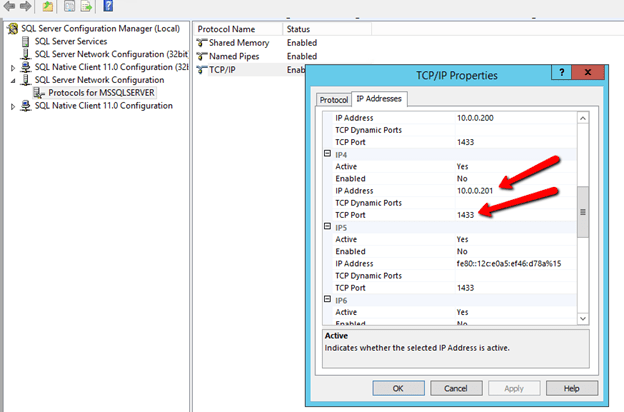
In SQL Configuration Manager you should see the SQL Cluster IP Address listed and port 1433. If by chance you installed a Named Instace you of course will need to go in here and lock the port to a specific port and make your load balancing rules reflect that port. Because of the Azure ILB limitation of only on ILB per AG, I really don’t see an valid reason to use a named instance. Make it easier on yourself and just use the default instance of SQL. (Update: as of Oct 2016 you CAN have multiple IP addresses per ILB, so you CAN have multiple instances of SQL installed in the cluster.

Conclusion

I’ll be updating this article as I continue to learn about new tips, tricks, tools and common problems I encounter in the field as I support customers trying to get started with clusters in Azure.

Troubleshooting #Azure ILB connection issues in a SQL Server AlwaysOn FCI Cluster

Configuring the #Azure ILB in ARM for SQL Server FCI or AG using Azure PowerShell 1.0

In an earlier post I went into some great detail about how to configure the Azure ILB in ARM for SQL Server AlwaysOn FCI or AG resources. The directions in that article were written prior to the GA of Azure PowerShell 1.0. With the availability of Azure PowerShell 1.0 the main script that creates the ILB needs to be slightly different. The rest of the article is still accurate, however if you are using Azure PowerShell 1.0 or later the script to create the ILB described in that article should be as follows.

#Replace the values for the below listed variables
$ResourceGroupName ='SIOS-EAST' # Resource Group Name in which the SQL nodes are deployed
$FrontEndConfigurationName = 'FEEAST' #You can provide any name to this parameter.
$BackendConfiguratioName = 'BEEAST' #You can provide any name to this parameter.
$LoadBalancerName = 'ILBEAST' #Provide a Name for the Internal Local balance object
$Location ='eastus2' # Input the data center location of the SQL Deployements
$subname = 'public' # Provide the Subnet name in which the SQL Nodes are placed
$ILBIP = '10.0.0.201' # Provide the IP address for the Listener or Load Balancer
$subnet = Get-AzureRMVirtualNetwork -ResourceGroupName $ResourceGroupName | Get-AzureRMVirtualNetworkSubnetConfig –name $subname
$FEConfig=New-AzureRMLoadBalancerFrontendIpConfig -Name $FrontEndConfigurationName -PrivateIpAddress $ILBIP -SubnetId $subnet.Id
$BackendConfig=New-AzureRMLoadBalancerBackendAddressPoolConfig -Name $BackendConfiguratioName
New-AzureRMLoadBalancer -Name $LoadBalancerName -ResourceGroupName $ResourceGroupName -Location $Location -FrontendIpConfiguration $FEConfig -BackendAddressPool $BackendConfig

The rest of that original article is the same, but I have just copied it here for ease of use…

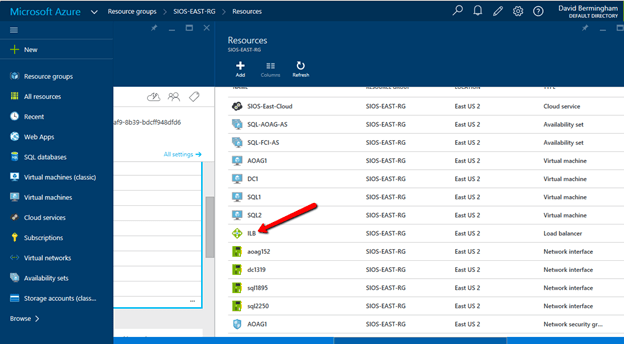
Now that the ILB is created, we should see it in the Azure Portal if we list all the objects in our Resource Group as shown below.
The rest of the configuration I’m sure can also be done through PowerShell, but I’m going to use the GUI in my example. If you want to use PowerShell you could probably piece together the script by looking at the article Get started configuring internal load balancer using Azure Resource Manager but honestly that article gives me a headache. I’ll figure it out some day and try to document it in a user friendly format, but for now I think the GUI is fine for the next steps.

Follow along with the screen shots below. If you get lost, follow the navigation hints at the top of the Azure Portal to figure out where we are.

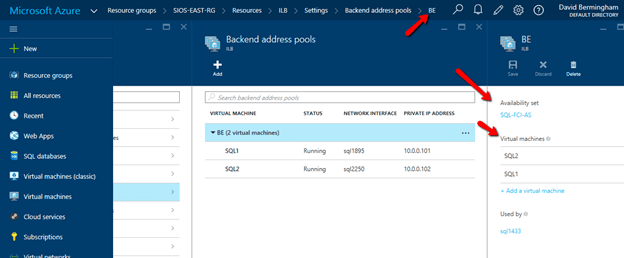
Click Backend Pool setting tab and selects the backend pool to update the Availability Set and Virtual Machines. Save your changes.

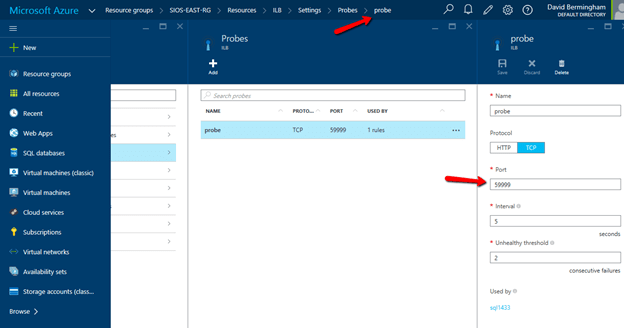
Configure Load Balancer’s Probe by clicking Add on the Probe tab. Give the probe a name and configure it to use TCP Port 59999. I have left the probe interval and the unhealthy threshold set to the default settings, which means it will take 10 seconds before the ILB removes the passive node from the list of active nodes after a failover, meaning your clients may take up to 10 seconds to be redirected to the new active node. Be sure to save your changes.
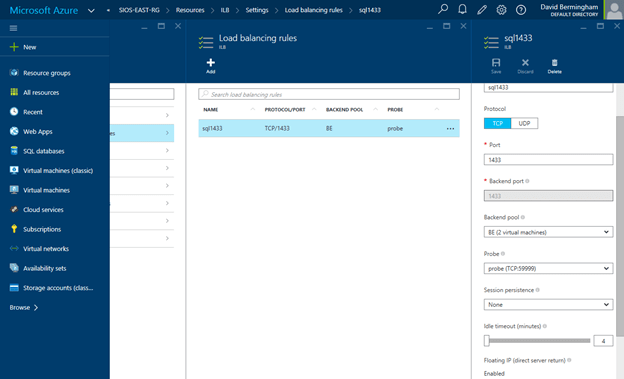
Navigate to the Load Balancing Rule Tab and add a new rule. Give the rule a sensible name (SQL1433 or something) and choose TCP protocol port 1433 (assuming you are using the default instance of SQL Server). Choose 1433 for the Backend port as well. For the Backend Pool we will choose the Backend Pool we created earlier (BE) and for the Probe we will also choose the Probe we created earlier. We do not want to enable Session persistence but we do want to enable Floating IP (Direct Server Return). I have left the idle timeout set to the default setting, but you might want to consider increasing that to the maximum value as I have seen some applications such as SAP log error messages each time the connection is dropped and needs to be re-established.
At this point the ILB is configured and there is only one final step that needs to take place. We need to update the SQL IP Cluster Resource just the exact same way we had to in the Classic deployment model. To do that you will need to run the following PowerShell script on just one of the cluster nodes. And make note,SubnetMask=“255.255.255.255” is not a mistake, use the 32 bit mask regardless of what your actual subnet mask is.

# This script should be run on the primary cluster node after the internal load balancer is created
# Define variables
$ClusterNetworkName = "Cluster Network 1"
# the cluster network name
$IPResourceName = "SQL IP Address 1 (SQLCluster1)"
# the IP Address resource name
$CloudServiceIP = "10.0.0.201"
# IP address of your Internal Load Balancer
Import-Module FailoverClusters
# If you are using Windows 2012 or higher, use the Get-Cluster Resource command. If you are using Windows 2008 R2, use the cluster res command which is commented out.
Get-ClusterResource $IPResourceName
Set-ClusterParameter -Multiple @{"Address"="$CloudServiceIP";"ProbePort"="59999";SubnetMask="255.255.255.255";"Network"="$ClusterNetworkName";"OverrideAddressMatch"=1;"EnableDhcp"=0}
# cluster res $IPResourceName /priv enabledhcp=0 overrideaddressmatch=1 address=$CloudServiceIP probeport=59999 subnetmask=255.255.255.255

I have just one final note. In my initial test I still was not able to connect to the SQL Resource name even after I completed all of the above steps. After banging my head against the wall for a few hours I discovered that for some reason the SQL Cluster Name Resource was not registered in DNS. I’m not sure how that happened or whether it will happen consistently, but if you are having trouble connecting I would definitely check DNS and add the SQL cluster name and IP address as a new A record if it is not already in there.

And of course don’t forget the good ole Windows Firewall. You will have to make exceptions for 1433 and 59999 or just turn it off until you get everything configured properly like I did. You probably want to leverage Azure Network Security Groups anyway instead of the local Windows Firewall for a more unified experience across all your Azure resources.

Good luck and let me know how you make out.
Configuring the #Azure ILB in ARM for SQL Server FCI or AG using Azure PowerShell 1.0

Highly Available SQL Server Storage Options in #Azure: SMB 3.0 File Service or Premium Storage, a look at performance differences

When looking at storage options for deployments of SQL Server deployments in Azure you have a few options as described in the article Windows Server Failover Cluster on Azure IAAS VM – Part 1 (Storage). The article also references the newly released Azure File Service which can be used to host your SQL Server cluster data over SMB 3.0. As of today the Azure File Service does not support Premium Storage, so you are limited to about 1000 IOPS or 60 MB/s per file share. With those limits in place I see Azure File Service really only being an option for databases that have minimal IO demands. We will see why that holds true based on my tests results below.

.

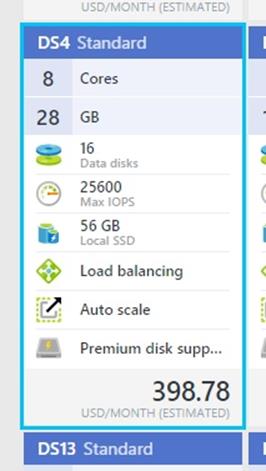
I wanted to test a few configurations, so I provisioned a DS4 VM and attached some premium storage to it. I also attached a SMB 3.0 File share using Azure File Service. The storage was configured as follows:

F:\ – Three 1 TB P30 Premium Storage Disks added to a single 3TB pool

G:\ – One 1 TB P30 Premium Storage Disk (no Storage Pool)

Z:\ – SMB 3.0 File share on Azure File Services

To configure the Storage Pool for use in a cluster you have to be careful how you proceed. You either have to create the Storage Pool before you create the cluster or you have to use the Powershell script described in Sql Alwayson with Windows 2012 R2 Storage Spaces if the cluster is already created. The pool I created was a Simple mirror (RAID 0) for increased performance. I’m not concerned about redundancy since the Azure storage on the backend has triple redundancy.

With three disk in the Storage Pool in a RAID 0 I expect I should get up to three times the performance of a single disk. Adding even more disk to the pool should give me even performance. A single P30 disk gives me 5000 IOPS and 200 MB/S, so for my pool I should expect up to 15000 IOPS and 600 MB/S throughput.

Now that I have the storage configured I configured Dskspd to run the same test on each of the different volumes. The parameters I used with Dskspd are as follows:

Diskspd.exe -b8K -d60 -h -L -o8 -t16 -r -w30 -c50M F:\io.dat

Diskspd.exe -b8K -d60 -h -L -o8 -t16 -r -w30 -c50M G:\io.dat

Diskspd.exe -b8K -d60 -h -L -o8 -t16 -r -w30 -c50M Z:\io.dat

The results were pretty predictable and summarized below

DskspdAs you can see, while this particular job did not push the upper limits of the theoretical maximum of any of these storage solutions, the latency had a significant impact on the overall performance of this particular test. The test used 8k blocks in a mix of 30% writes and 70% reads to simulate a typical SQL Server OLTP workload.

Of course the more money you want to spend the more performance you can expect to achieve. As of November 24, 2015 the price for the best solution shown here (F:\) would cost you $1,216/month and give you full access to 3 TB of storage with unlimited reads/writes. The second best solution (G:\) would give you 1 TB of storage at 1/3 the price, $405/month. The Azure File Share is priced at $0.10/GB plus additional charges for read/write operations. You are only charged for the actual usage so estimating the actual cost will be very dependent on your usage, but before the additional charges for read/write operations you are at about 25% of the cost of Premium Storage.

Prices, like everything else in the Cloud, tend to change rapidly to address the market demands. Have a look at the latest price information at https://azure.microsoft.com/en-us/pricing/details/storage/ for the latest price information.

In summary, while Azure File Services looks enticing from a price perspective, the latency at this point does not make it a viable option for any serious SQL Server workload. Instead, have a look at utilizing premium storage and leveraging either host based replication solutions such as SIOS DataKeeper to build SQL Server Failover Cluster Instances (SQL Standard or Enterprise) or look at SQL Server Enterprise Edition and AlwaysOn AG.

Highly Available SQL Server Storage Options in #Azure: SMB 3.0 File Service or Premium Storage, a look at performance differences

Configuring the SQL Server AlwaysOn ILB for the Client Listener in Azure Resource Manager (ARM) deployment model #SQLPASS

In preparation for my talk at PASS Summit this Friday, I’d figure I document something that I finally got working that I want to talk about during my session on highly available SQL Server in Azure. Now I just need to update my slide deck and my demo environment.

In case you didn’t know, Azure has two deployment models: Resource Manager (ARM) and Classic Deployment. Classic deployment is the “old” way of doing things and ARM is the new way of doing things. There are numerous benefits to using ARM as described in the Azure article Understanding Resource Manager deployment and classic deployment . However, one of my favorite new features of ARM is the ability to have three Fault Domains per Availability Set rather than just the two Fault Domains you get with the Classic deployment model. This is a critical feature for SQL High Availability.

With three fault domains you can ensure that each cluster node in a two node cluster and the file share witness all reside in different fault domains. This eliminates the possibility that the failure of a single Fault Domain would impact more than one quorum vote in your cluster. In the Classic deployment model with two fault domains you could only put two cluster nodes in an availability set. For maximum availability you really needed to put your file share witness in a different geographic location as there was no guarantee that it wouldn’t wind up in the same fault domain as one of your cluster nodes if you kept it in the same geographic location, meaning that the failure of a single fault domain could impact 2 out of your 3 quorum votes, bringing down your entire cluster. ARM’s three Fault Domains eliminates that possibility.

ARM is definitely the way to go as new Azure features are only being introduced in ARM. However, the documentation is light and some features are not quite there yet, including such things as documented support for ExpressRoute. Both of these problems get better almost daily, but early adopters really have to work extra hard until Azure catches up. One other issue is that you can’t mix Classic and ARM deployments, so if you started down the road with Classic deployments you are basically going to have to start from the ground up with Resource Manager when you make the switch. If you can manage it a little pain now will help you avoid a larger headache next year when you find that you want some new feature only available in ARM.

I hope this article helps you in at least one of aspect of your ARM deployment – getting highly available SQL Server deployed. As I have documented in earlier articles, deploying both AlwaysOn Availability Groups and AlwaysOn Failover Cluster Instances in Azure “Classic” requires the use of an Azure Load Balancer (internal or external) for client redirection. Getting that configured in Classic Azure is not exactly straight forward, but it is documented well enough that any administrator reasonably familiar with Azure, Failover Clustering, SQL Server and PowerShell can get it to work.

AlwaysOn Availability Groups and AlwaysOn Failover Cluster Instances using the ARM deployment model still requires the use of an Azure Load Balancer for client redirection, however the steps on creating and configuring that load balancer are completely different and as of today not exactly documented very well. In this article I’m going to highlight the steps required to configure the ILB and update the SQL cluster IP Resource. In the next article I will walk you through the entire process step by step from the ground up from creating the vNet to installing SQL and creating the cluster.

Before we begin, I’m making the following assumptions:

  • You have created a vNet using ARM
  • You have provisioned 3 ARM based VMs (DC, SQL1, SQL2)
  • You put DC, SQL1 and SQL2 in the same Availability Set and Resource Group
  • You have created a cluster with SQL1 and SQL2 and used the DC for the file share witness
  • You have either created an AlwaysOn Availability Group or AlwaysOn Failover Cluster instance with SIOS DataKeeper Cluster Edition. In either case you will wind up with a client listener, consisting of a name resource and IP resource. The AlwaysOn AG and FCI configuration up to the point of creating the load balancer is exactly the same as it is in the Azure Classic deployment model and documented on the web in many places including my own blog post

Now that you have a fully configured AlwaysOn AG or FCI, you probably notice that you can’t connect to the cluster name from any server other than the node that currently hosts the SQL cluster name resource. I’ve been told that this is because Azure networking does not support gratuitous ARPS so clients can’t communicate directly with the cluster IP address. Instead the clients need to communicate with the ILB and the ILB will redirect traffic to the active node. So step 1 is to create the ILB. As of now this can’t be done through the Azure Portal so we will use the following Azure PowerShell command.

[1/6/2016 Update – The directions below assume you are using Azure PowerShell pre-version 1. The script if you are using Azure PowerShell Version 1 or later is detailed in my blog post here.]

Switch-AzureMode -Name AzureResourceManager

Select-AzureSubscription -SubscriptionName "MSDN Azure"
# name whichever subscription you used to create your vNet and VMs

#Declare your variables using values relevant to your deployment

$ResourceGroupName ='SIOS-EAST-RG'
# Resource Group Name in which the SQL nodes are deployed

$FrontEndConfigurationName ='FE'
#Call it whatever you like

$BackendConfiguratioName ='BE'
#Call it whatever you like

$LoadBalancerName ='ILB'
#Provide a Name for the Internal Local balance object

$Location ='eastus2'
# Input the data center location of your SQL VMs

$subname ='PUBLIC'
# Provide the Subnet name in which the SQL Nodes are placed

$ILBIP = '10.0.0.201'
# Provide the IP address for the Listener or Load Balancer

$subnet = Get-AzureVirtualNetwork -ResourceGroupName $ResourceGroupName|Get-AzureVirtualNetworkSubnetConfig –name $subname

$FEConfig = New-AzureLoadBalancerFrontendIpConfig -Name $FrontEndConfigurationName -PrivateIpAddress $ILBIP -SubnetId $subnet.Id

$BackendConfig = New-AzureLoadBalancerBackendAddressPoolConfig -Name $BackendConfiguratioName

#create the ILB
New-AzureLoadBalancer -Name $LoadBalancerName -ResourceGroupName $ResourceGroupName -Location $Location
-FrontendIpConfiguration $FEConfig -BackendAddressPool $BackendConfig


Now that the ILB is created, we should see it in the Azure Portal if we list all the objects in our Resource Group as shown below.

The rest of the configuration I’m sure can also be done through PowerShell, but I’m going to use the GUI in my example. If you want to use PowerShell you could probably piece together the script by looking at the article Get started configuring internal load balancer using Azure Resource Manager but honestly that article gives me a headache. I’ll figure it out some day and try to document it in a user friendly format, but for now I think the GUI is fine for the next steps.

Follow along with the screen shots below. If you get lost, follow the navigation hints at the top of the Azure Portal to figure out where we are.

Click Backend Pool setting tab and selects the backend pool to update the Availability Set and Virtual Machines. Save your changes.


Configure Load Balancer’s Probe by clicking Add on the Probe tab. Give the probe a name and configure it to use TCP Port 59999. I have left the probe interval and the unhealthy threshold set to the default settings, which means it will take 10 seconds before the ILB removes the passive node from the list of active nodes after a failover, meaning your clients may take up to 10 seconds to be redirected to the new active node. Be sure to save your changes.

Navigate to the Load Balancing Rule Tab and add a new rule. Give the rule a sensible name (SQL1433 or something) and choose TCP protocol port 1433 (assuming you are using the default instance of SQL Server). Choose 1433 for the Backend port as well. For the Backend Pool we will choose the Backend Pool we created earlier (BE) and for the Probe we will also choose the Probe we created earlier. We do not want to enable Session persistence but we do want to enable Floating IP (Direct Server Return). I have left the idle timeout set to the default setting, but you might want to consider increasing that to the maximum value as I have seen some applications such as SAP log error messages each time the connection is dropped and needs to be re-established.

At this point the ILB is configured and there is only one final step that needs to take place. We need to update the SQL IP Cluster Resource just the exact same way we had to in the Classic deployment model. To do that you will need to run the following PowerShell script on just one of the cluster nodes. And make note, SubnetMask=“255.255.255.255” is not a mistake, use the 32 bit mask regardless of what your actual subnet mask is.

# This script should be run on the primary cluster node after the internal load balancer is created
# Define variables

$ClusterNetworkName = "Cluster Network 1"
# the cluster network name

$IPResourceName = "SQL IP Address 1 (SQLCluster1)"
# the IP Address resource name

$CloudServiceIP = "10.0.0.201"
# IP address of your Internal Load Balancer

Import-Module FailoverClusters

# If you are using Windows 2012 or higher, use the Get-Cluster Resource command. If you are using Windows 2008 R2, use the cluster res command which is commented out.

Get-ClusterResource $IPResourceName
Set-ClusterParameter -Multiple @{"Address"="$CloudServiceIP";"ProbePort"="59999";SubnetMask="255.255.255.255";"Network"="$ClusterNetworkName";"OverrideAddressMatch"=1;"EnableDhcp"=0}

# cluster res $IPResourceName /priv enabledhcp=0 overrideaddressmatch=1 address=$CloudServiceIP probeport=59999 subnetmask=255.255.255.255

I have just one final note. In my initial test I still was not able to connect to the SQL Resource name even after I completed all of the above steps. After banging my head against the wall for a few hours I discovered that for some reason the SQL Cluster Name Resource was not registered in DNS. I'm not sure how that happened or whether it will happen consistently, but if you are having trouble connecting I would definitely check DNS and add the SQL cluster name and IP address as a new A record if it is not already in there.

And of course don't forget the good ole Windows Firewall. You will have to make exceptions for 1433 and 59999 or just turn it off until you get everything configured properly like I did. You probably want to leverage Azure Network Security Groups anyway instead of the local Windows Firewall for a more unified experience across all your Azure resources.

Good luck and let me know how you make out.
Configuring the SQL Server AlwaysOn ILB for the Client Listener in Azure Resource Manager (ARM) deployment model #SQLPASS

Three Fault Domains in #Azure now default when using Resource Manager deployment model

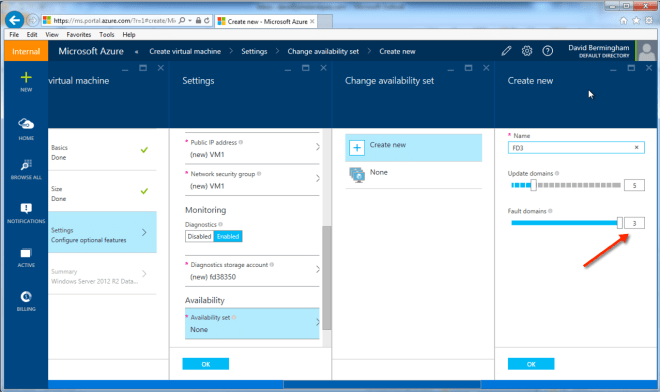
After being away from Azure for a month or two this summer I decided fire up the Azure Portal to see what changes have been implemented recently as I prepare for my PASS presentation on Azure SQL Server high availability. I was extremely happy to see that they have finally started offering Three Fault Domains per Availability Set as the default setting if you choose “Resource Manager” as your deployment model instead of “Classic”.

If you have been following along, up until now when you created an Availability Set the default option was to create two Fault Domains per Availability Set. When deploying a cluster, it is important to have a minimum of three Fault Domains, one for each cluster node and one for your File Share Witness. This ensures that a failure of a single fault domain never impacts more than one of your quorum votes at any given time. Before this feature was implemented in the GUI there was a way to do it through an ARM Template, but putting it in the GUI makes it easy for those administrators not quite up to speed on ARM templates.

This feature now completes the steps I documented earlier on how to create a SQL Server FCI in Azure.

Three Fault Domains in #Azure now default when using Resource Manager deployment model

Clustering SAP ASCS instance on Azure

Microsoft published a blog post and white paper on clustering SAP ASCS instance using Windows Server Failover Cluster on Microsoft Azure public cloud.  It describes how to install and configure a high-availability (HA) SAP central services instance ASCS in a Windows Failover Cluster (WSFC) using the platform Microsoft Azure.

Download the white paper here http://go.microsoft.com/fwlink/?LinkId=613056


Clustering SAP ASCS instance on Azure

Protecting Business Critical Apps By @DaveBerm | @CloudExpo [#Cloud]

Protecting Business Critical Apps By @DaveBerm | @CloudExpo [#Cloud] — Gartner predicts that the bulk of new IT spending by 2016 will be for cloud platforms and applications and that nearly half of large enterprises will have cloud deployments by the end of 2017. The benefits of the cloud may be clear for applications that can tolerate brief periods of downtime, but for critical applications like SQL Server, Oracle and SAP, companies need a strategy for HA and DR protection. While traditional SAN-based clusters are not possible in these environments, SANless clusters can provide an easy, cost-efficient alternative.

Read more at http://www.sys-con.com/node/3334102/blog#

Attend my session at Cloud-Expo on June 11th at the Javits Center in NYC – http://www.cloudcomputingexpo.com/event/session/2854


Protecting Business Critical Apps By @DaveBerm | @CloudExpo [#Cloud]

Clustering 101: Windows 10 Technical Preview, Storage Replica, Cloud Witness, Rolling Upgrade Introduction

In case you missed my webinar yesterday, you can view the recording here. In 30 minutes I give an overview to some of the most exciting availability features being worked on for the next version of Windows Server due to ship sometime in 2016. Cloud Witness, Storage Replica and Rolling Cluster OS Updates are just three of the new features being release with v.Next.

Clustering 101: Windows 10 Technical Preview, Storage Replica, Cloud Witness, Rolling Upgrade Introduction

Why would you want to build a #SQLServer failover cluster instance in the #Azure cloud?

There was an interesting discussion happening today in the Twitterverse. Basically, someone asked the question “Has anyone set up a SQL Server AlwaysOn Failover Cluster Instance in Azure?” The ensuing conversation involved some well respect SQL Server experts which led to the following question, “Why would you want to build a SQL Server AlwaysOn Failover Cluster instance in the cloud?”

That question could be interpreted in two ways: “Why do you need High Availability in the Cloud” or “Why wouldn’t you use AlwaysOn Availability Groups instead of Failover Cluster Instances?”

Let’s address each question one at a time.

Question 1 – Why do you need High Availability in the Azure Cloud?

  • You might think that just because you host your SQL Server instance in Azure, that you are covered by their 99.95% uptime SLA. If you think that, you would be wrong. In order to take advantage of the 99.95% SLA you have to have at least two instances of SQL running in an Availability Set. With a single instance of SQL running you can definitely expect that there will minimally be downtime during maintenance periods, but you are also susceptible to unplanned failures.
  • Two instances of SQL Server cannot generally be load balanced, so you have to implement some sort of mechanism to keep the servers in sync and to ensure that if there is a problem with one of the servers, the other server will be able to continue to service the requests. High Availability solutions like AlwaysOn Availability Groups, AlwaysOn Failover Cluster Instances and even the deprecated Database Mirroring can provide high availability for SQL Server in that scenario. Other solutions like log shipping and transactional replication may be able to help keep data synchronized between servers, but they are not typically considered high availability solutions and will not ensure the availability of your SQL Server.
  • Microsoft does occasionally need to perform maintenance on Azure that could bring down an entire Upgrade Domain and all the instances running in that Upgrade Domain. You don’t have any say on when this will happen, so you need to have a mechanism in place to ensure that if they do have to bring down your primary SQL Server instance, you can expect that your secondary SQL Server instance will take over the workload without missing a beat. All of the high availability solutions mentioned above can ensure that you will continue to run in the event that Microsoft is doing maintenance on the Upgrade Domain of your primary server. Microsoft will only do maintenance on a single Upgrade Domain at a time, ensuring that your secondary server will still be online assuming you put the both in the same Availability Set.
  • What do you do if YOU want to performance maintenance on your production SQL Server? Maybe you want to install a Service Pack or other hotfix? Without a secondary server to fail over to, you will have to schedule planned downtime. One of the primary benefits of any high availability solution is the ability to do rolling upgrades, minimizing the impact of planned downtime.

Question 2 – Why wouldn’t you use AlwaysOn Availability Groups instead of Failover Cluster Instances?

  • Save Money! SQL Server AlwaysOn Availability Groups requires Enterprise Edition of SQL Server. Why not save money and deploy SQL Server Standard Edition and build a simple 2-node Failover Cluster Instance? Unless you need Enterprise Edition for some other reason, this is a no brainer.
  • Protect the ENTIRE SQL Server instance. AlwaysOn Availability Groups only protects user defined databases; you cannot protect the System and MSDB databases. If you build a Failover Cluster Instance instead, you are protecting the ENTIRE instance, including the System and MSDB databases.
  • Ease Administration. In Azure, you are limited to just on client listener. This limits you to just one Availability Group. In contrast, with a Failover Cluster Instance one client listener is all you need, so there is no limitation.
  • Worker Thread Exhaustion. With AlwaysOn AG you have to keep an eye on the available worker threads. The available worker threads limit the number of databases you can protect with AlwaysOn AG. In contrast, AlwaysOn Failover Clustering with DataKeeper block level replication does not consume more resources for each database you add, meaning you can scale to protect hundreds of databases without the additional overhead associated with AlwaysOn AG.
  • Distribute Transaction Support. AlwaysOn AG does not support distributed transactions (DTC), so if your application requires DTC support you are going to have to look at an AlwaysOn Failover Cluster Instance instead.
  • Support of Other Replication Technologies. If you plan on setting up Peer to Peer replication between two databases protected by AlwaysOn AG you can forget about it. In fact, there are many restrictions you have to be aware of once you deploy AlwaysOn Availability Groups. AlwaysOn FCI’s do not have any of those restrictions.

Knowing what you know above, shouldn’t the question really be “Why would I want to implement AlwaysOn AG in the Cloud when I can have a much more robust and inexpensive solution building an AlwaysOn Failover Cluster instance?”

If you are interested in building an AlwaysOn Failover Cluster Instance in Azure, check out my blog post Step-by-Step: How to configure a SQL Server Failover Cluster Instance (FCI) in Microsoft Azure IaaS #SQLServer #Azure #SANLess

You can also check out the only Azure Certified HA solution in the Azure Marketplace at http://azure.microsoft.com/en-us/marketplace/partners/sios-datakeeper/sios-datakeeper-8-bring-your-own-license/

Why would you want to build a #SQLServer failover cluster instance in the #Azure cloud?